
Instructions
Read Aloud vs Dictate in Word: What’s the Difference?
Aug
Microsoft Word includes several voice-related features, and two of the most useful are Read Aloud and Dictate.
They may sound similar, but they do almost opposite things. When comparing Read Aloud vs Dictate in Word, the difference is simple:
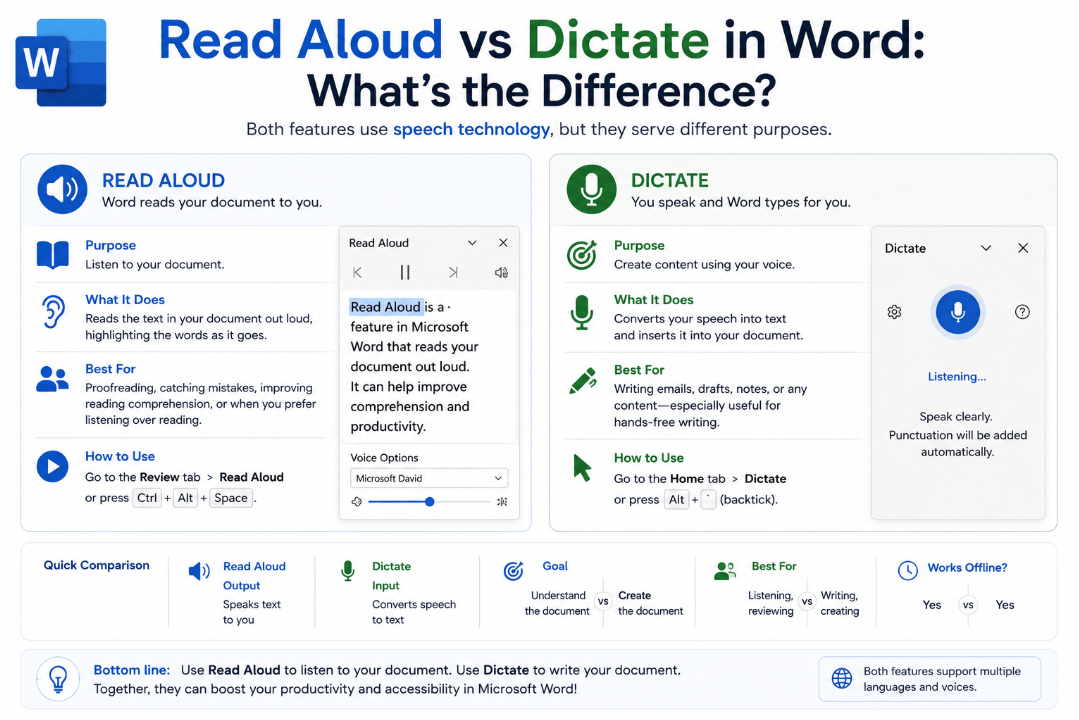
Read Aloud turns written text into speech.
Dictate turns your speech into written text.
Here’s how each feature works and when you might want to use it.
What Is Read Aloud in Word?
Read Aloud uses text-to-speech technology to read your Word document through your speakers or headphones.
Instead of reading the document yourself, you can listen while Word speaks the text.
Microsoft suggests Read Aloud for tasks such as proofreading, multitasking, and improving comprehension.
It can be particularly useful when:
- Proofreading a document
- Checking whether sentences sound natural
- Listening while doing something else
- Reviewing a long document
- Spotting missing or repeated words
- Making text easier to follow
Hearing your writing spoken aloud can reveal mistakes that are easy to overlook when reading silently.
How to Use Read Aloud
In Word:
- Open your document.
- Select the Review tab.
- Choose Read Aloud.
- Use the controls to play or pause the reading.
You can also change the reading speed and select a different available voice.
On Windows, you can start Read Aloud with:
Ctrl + Alt + Space
What Is Dictate in Word?
Dictate works in the opposite direction.
Instead of Word speaking your existing text, you speak and Word converts your voice into text.
Microsoft describes Dictate as a speech-to-text feature designed for quickly creating documents, notes, drafts, and outlines.
It can be useful when:
- Writing a first draft quickly
- Taking notes
- Brainstorming ideas
- Creating an outline
- Typing isn’t convenient
- You simply prefer speaking to typing
You need a microphone, and Microsoft’s Dictate service generally requires an internet connection.
How to Use Dictate in Word
Open a new or existing Word document and then:
- Select the Home tab.
- Click Dictate.
- Wait until Word begins listening.
- Start speaking.
Your words should begin appearing in the document as text.
Dictate also supports spoken commands for punctuation and other editing actions in supported languages.
For example, instead of manually typing punctuation while speaking, Dictate can interpret supported voice commands.
Read Aloud vs Dictate: Quick Comparison
| Feature | Read Aloud | Dictate |
|---|---|---|
| Converts text to speech | Yes | No |
| Converts speech to text | No | Yes |
| Microphone required | No | Yes |
| Useful for proofreading | Yes | Less directly |
| Useful for writing drafts | No | Yes |
| Lets you listen to documents | Yes | No |
| Can save typing time | No | Yes |
The easiest way to remember it is:
Read Aloud = Word talks to you
Dictate = You talk to Word
Can Read Aloud Help With Proofreading?
Yes, and this is one of its best uses.
When you’ve written a document yourself, your brain can sometimes automatically correct small mistakes while you’re reading.
Listening to Word read the text aloud can make awkward sentences, missing words, repeated words, and unusual punctuation easier to notice.
It doesn’t replace Word’s spelling and grammar tools, but it provides another way to review your writing.
Can Dictate Replace Typing?
For some tasks, yes.
If you can explain an idea faster than you can type it, Dictate can be useful for creating a rough first draft.
You can speak your ideas first and then edit the text afterward using the keyboard.
However, speech recognition isn’t perfect. Names, technical terms, accents, background noise, and unclear speech can sometimes produce incorrect words.
Always review dictated text before using it in an important document.
Can You Use Both Together?
Yes.
In fact, using both features together can create a useful writing workflow.
You could:
- Use Dictate to quickly create your first draft.
- Edit and format the document.
- Use Read Aloud to listen to the finished text.
- Correct anything that sounds wrong.
This combines the speed of speech-to-text with the proofreading benefits of text-to-speech.
What About the Speak Feature?
Word also includes a feature called Speak, which can read selected text aloud.
The difference is that Speak focuses on the text you select, while Read Aloud can continue reading through a document from your current position.
For most users who want to listen to an entire document, Read Aloud is the more convenient option.
Summary
The Read Aloud vs Dictate in Word difference is easy to remember once you know what each feature does.
Used together, they can make writing and reviewing Word documents faster and more convenient.
Need Microsoft Office with Word for your PC? Explore our Microsoft Office keys and choose the version that fits your work today.