
Instructions
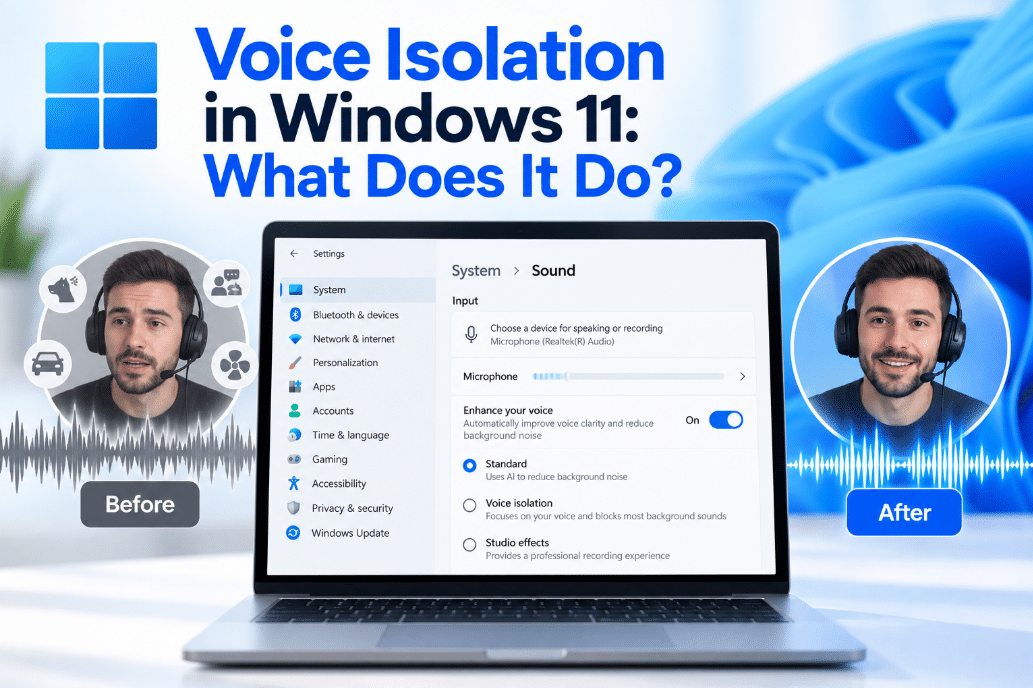
Voice Isolation in Windows 11: What Does It Do?
Sep
Trying to use voice commands while other people are talking nearby can make speech recognition much less reliable.
Voice Isolation in Windows 11 is designed to solve that problem. It helps Voice Access focus specifically on your voice while filtering out background noise and other people speaking around you.
What Is Voice Isolation in Windows 11?
Voice Isolation is an option for Voice Access, the Windows 11 feature that lets you control your computer and enter text using your voice.
When Voice Isolation is enabled, Windows learns characteristics of your voice and uses that information to separate you from surrounding sounds.
It can help filter:
- Other people talking
- Keyboard typing
- Doors closing
- Tapping and knocking
- General background noise
This can make Voice Access more reliable in busy environments such as shared offices or homes where several people are talking.
How Is It Different From Normal Noise Reduction?
Voice Access provides three speech-recognition options:
Voice Isolation
Filters both other speakers and background noise while focusing on your voice.
Remove background noise only
Filters non-speech sounds such as typing, knocks, and doors closing.
No filtering
Uses the microphone input without additional filtering.
The important difference is that Voice Isolation tries to recognize who is speaking, not simply whether a sound is background noise.
Does Voice Isolation Need to Learn Your Voice?
Yes.
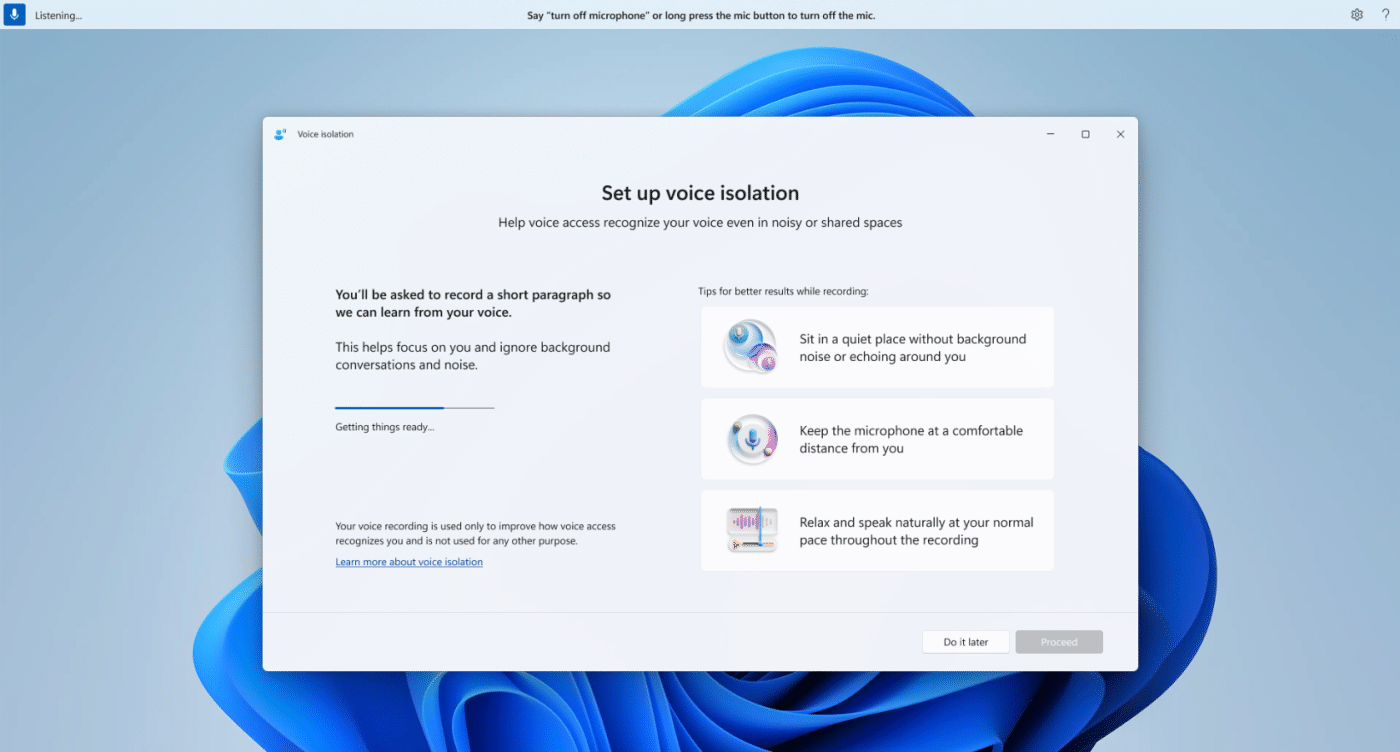
Before using the feature, Windows asks you to complete a short one-time voice setup.
You read a brief passage aloud so Windows can create a voice signature that helps distinguish your speech from other people nearby.
A small model must first be downloaded, so an internet connection is required during this initial setup. After that, the voice processing itself happens locally on your PC.
How to Turn On Voice Isolation
If Voice Isolation is available on your Windows 11 device:
- Start Voice Access.
- Open the Voice Access settings menu.
- Select Improve speech recognition.
- Choose Voice Isolation.
- Follow the setup instructions.
- Read the requested text aloud.
Once setup is complete, Voice Access will try to prioritize your voice while filtering surrounding speech and noise.
Is Your Voice Sent to Microsoft?
Microsoft says no.
The voice signature used for Voice Isolation is created and stored locally on your device.
The initial internet connection is needed to download the model, but Microsoft says your voice recording and voice signature are not uploaded or shared.
Does Voice Isolation Work Without Internet?
After the required model has been downloaded and setup is complete, processing happens locally.
Voice Access itself uses on-device speech recognition and can operate without an internet connection after its initial setup.
This makes Voice Isolation useful even when you are working somewhere without a reliable connection.
Does It Completely Block Other People Talking?
Not always.
Voice Isolation can significantly reduce unwanted speech, but Microsoft notes several limitations.
It may have more difficulty when:
- Someone speaks at exactly the same time as you
- Another person speaks very loudly
- Someone has a voice similar to yours
- The environment is extremely noisy
In quieter environments, you may also notice very little difference because there is less unwanted sound to remove.
Can You Re-Record Your Voice?
Yes.
If Voice Isolation isn’t recognizing you as accurately as expected, open:
Voice Access settings → Improve speech recognition → Manage Voice Isolation
You can then re-record your voice sample.
You can also delete the saved voice signature. If you delete it and later want to use Voice Isolation again, you will need to complete the setup process again.
Voice Isolation vs Voice Focus
Windows also has a feature called Voice Focus on supported PCs with Windows Studio Effects.
Voice Focus is mainly designed to improve microphone audio by reducing background noise during calls and recordings.
Voice Isolation in Voice Access goes further by trying to distinguish your specific voice from other speakers so Windows can better understand your voice commands.
The two features therefore serve related but different purposes.
Who Is Voice Isolation Useful For?
It can be particularly helpful if you use Voice Access in:
- Shared offices
- Open-plan workplaces
- Busy homes
- Classrooms
- Public or noisy environments
If you normally use Voice Access alone in a quiet room, the standard microphone input or background-noise removal may already work well enough.
Final Thoughts
Voice Isolation in Windows 11 helps Voice Access focus on the person actually controlling the PC.
It creates a local voice signature and uses it to reduce both background noise and speech from other people, which can make voice commands more reliable in busy environments.
It won’t perfectly separate every voice in every situation, but for users who rely on Voice Access around other people, it can be a useful improvement.
Need Windows 11 for your PC? Explore our Windows 11 keys and choose the right edition for your computer today.