
Instructions
Windows 11 Efficiency Mode: What Does It Do?
Sep
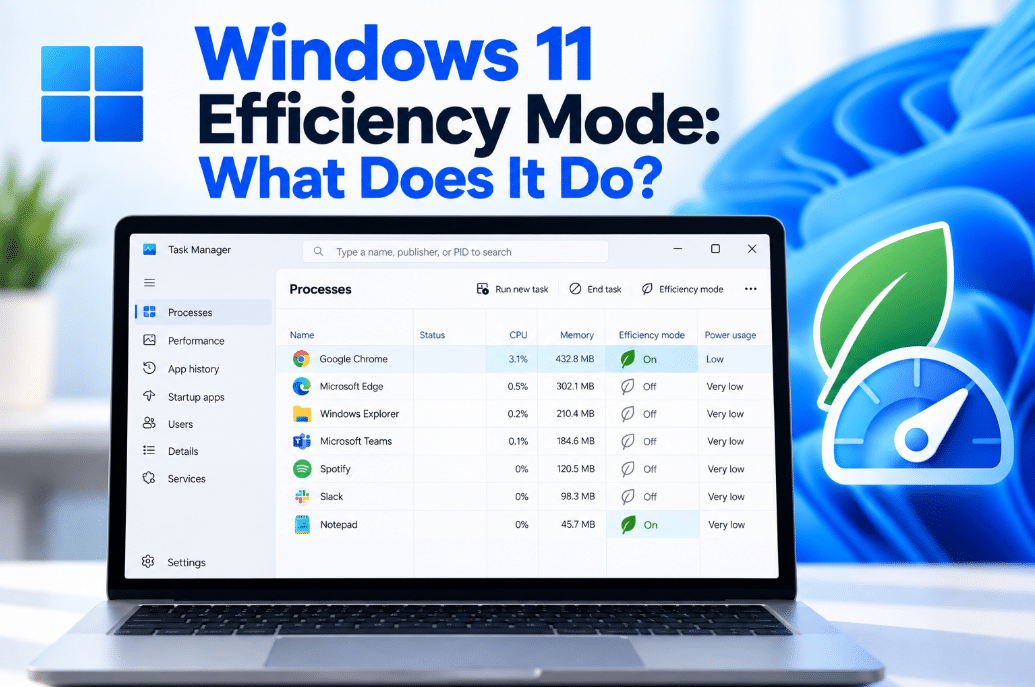
If you open Task Manager in Windows 11, you may notice a small green leaf icon next to certain processes.
This indicates Windows 11 Efficiency Mode, a feature designed to reduce the resources used by background processes so your PC can focus more power on the apps you are actively using.
It can also help reduce power consumption and heat, especially on laptops.
What Is Windows 11 Efficiency Mode?
Efficiency Mode is a Task Manager feature that limits how aggressively a process can use your computer’s resources.
Microsoft says Windows can use it when high CPU activity is detected to help improve responsiveness for more important foreground processes.
Instead of completely stopping the background process, Windows gives it lower priority.
This means the program can continue running while using fewer resources.
What Does Efficiency Mode Actually Change?
When Efficiency Mode is applied, Windows reduces the priority of the affected process.
The goal is to prevent less important background activity from competing too heavily with the program you are actively using.
This can help:
- Reduce CPU usage
- Improve system responsiveness
- Lower power consumption
- Extend laptop battery life
- Reduce CPU heat
- Reduce fan noise
Microsoft specifically says the feature can prolong battery life and reduce thermal noise and CPU stress.
How Do You Know Efficiency Mode Is Active?
Open Task Manager by pressing:
Ctrl + Shift + Esc
Then select Processes.
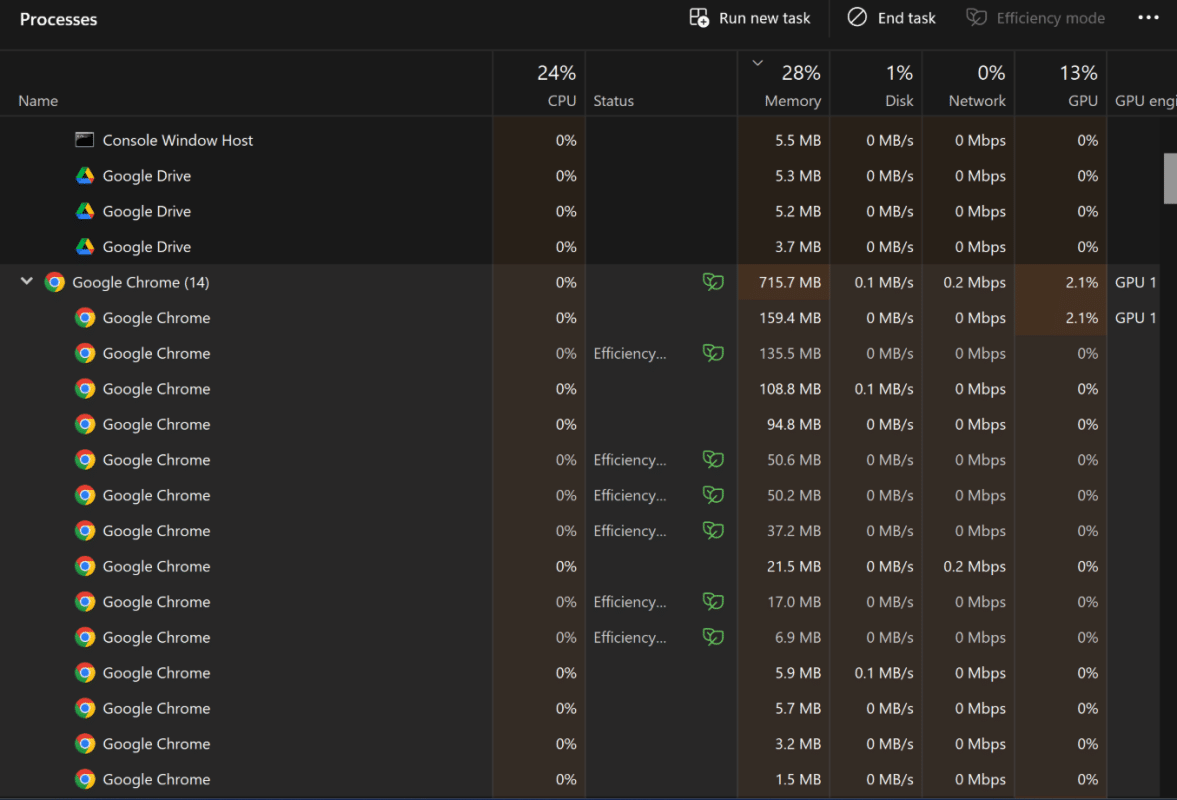
Look at the Status column.
Processes using Efficiency Mode display a green double-leaf icon.
You may notice that some applications automatically use Efficiency Mode for certain background processes.
How to Turn Efficiency Mode On
You can manually enable it for supported processes.
- Open Task Manager.
- Select Processes.
- Find the process you want to limit.
- Right-click it.
- Select Efficiency mode.
- Confirm the change.
A green leaf icon should appear beside the process.
You can also select a process and use the Efficiency mode button at the top of Task Manager.
Why Is Efficiency Mode Sometimes Greyed Out?
Windows does not allow Efficiency Mode to be manually changed for every process.
Some important Windows processes are protected, while certain application groups must be expanded before you can change an individual process.
Microsoft notes that Efficiency Mode cannot be turned on or off for many complete process groups. You may instead need to expand the group and select one of its individual processes.
If the option is greyed out, Windows is usually preventing you from changing that particular process.
Should You Use Efficiency Mode?
It can be useful for applications that are running in the background but do not need maximum performance.
Examples might include:
- Background utilities
- Updaters
- Apps you have open but are not actively using
- Processes using unusually high CPU resources
The biggest benefit may be on laptops, where reducing unnecessary CPU activity can also help conserve battery power.
However, you do not need to manually put every background process into Efficiency Mode.
Windows already manages many processes automatically.
When Should You Avoid It?
Avoid manually applying Efficiency Mode to an application when you need that program to perform at full speed.
For example, it may not be a good idea while:
- Rendering video
- Exporting large files
- Playing games
- Running complex calculations
- Compressing large archives
- Performing other demanding tasks
Because Efficiency Mode deliberately reduces the resources available to a process, that task may take longer.
Microsoft also notes that the feature may cause instability with certain processes.
If an app starts behaving strangely after enabling it, simply turn Efficiency Mode off again.
How to Turn Efficiency Mode Off
Open:
Task Manager → Processes
Find the process showing the green leaf icon, right-click it, and select Efficiency mode again to disable it.
The green icon should disappear.
This does not close or uninstall the application.
Efficiency Mode vs Energy Saver
These two Windows features sound similar but work differently.
Efficiency Mode controls the resources used by individual processes.
Energy Saver changes broader Windows power behavior by limiting background activity and adjusting settings such as display brightness.
Energy Saver is found under:
Settings → System → Power & battery
and is designed to reduce overall energy consumption.
Efficiency Mode, by comparison, is mainly managed through Task Manager.
Efficiency Mode vs Power Mode
Windows also has a Power Mode setting.
You can choose between options such as:
- Best power efficiency
- Balanced
- Best performance
Power Mode changes the overall balance between performance and energy consumption across the PC.
Efficiency Mode is more targeted because it can reduce resources for a specific process rather than changing the behavior of the entire computer.
Final Thoughts
Windows 11 Efficiency Mode is a useful way to reduce the resources consumed by less important background processes.
It can help keep the PC responsive, reduce CPU activity, lower heat and fan noise, and potentially improve laptop battery life.
For most users, there is no need to manually enable it everywhere. Use it when a background process is consuming too many resources and you do not need that application running at full performance.
Need Windows 11 for your PC? Explore our Windows 11 keys and choose the right edition for your computer today.