
Instructions
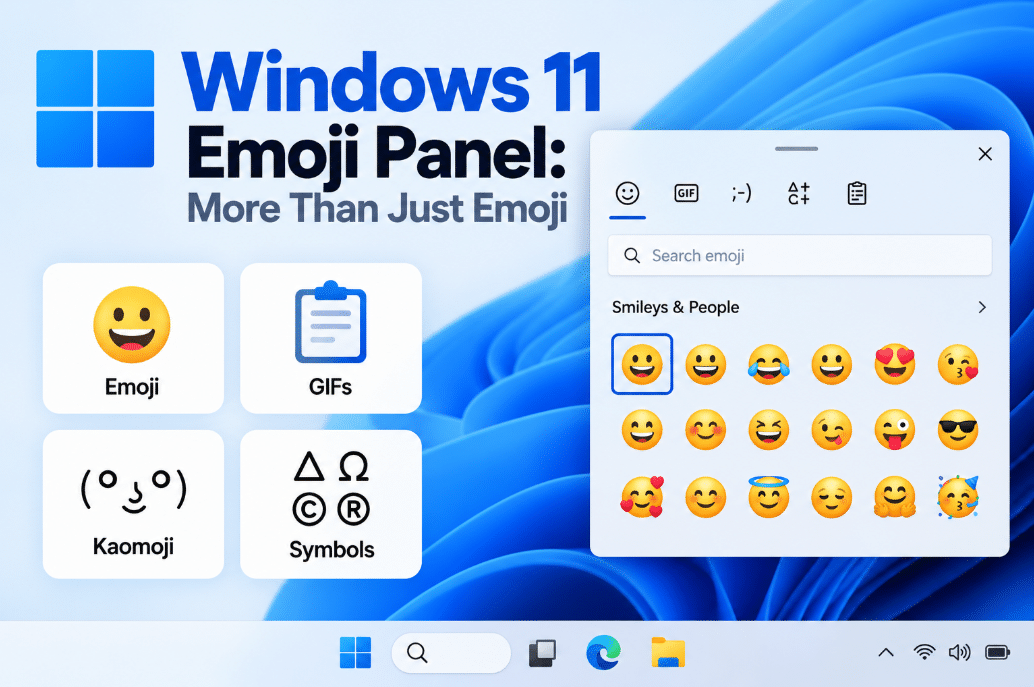
Windows 11 Emoji Panel: More Than Just Emoji
Sep
Most people know Windows 11 has a built-in emoji picker.
But the Windows 11 Emoji Panel can do much more than insert smiley faces.
It also gives you quick access to GIFs, kaomoji, special symbols, and even Clipboard history from one compact panel.
How to Open the Windows 11 Emoji Panel
The fastest shortcut is:
Windows key + .
You can also use:
Windows key + ;
Both shortcuts open the emoji panel while you are typing in a supported app.
You can use it in places such as:
- Word
- Outlook
- Web browsers
- Messaging apps
- Text fields
- Notes
- Social media posts
Simply place the cursor where you want to insert something and open the panel.
Insert Emoji
The most obvious feature is the emoji picker.
Open the panel and select the emoji you want.
You can browse different categories or start typing in the search box to look for a particular emoji.
For example, searching:
laugh
can help you quickly find related emoji instead of scrolling through the entire list.
Microsoft specifically supports searching the emoji panel by typing the name or description of what you want.
Search for GIFs
Windows 11 also includes GIF search inside the same panel.
Instead of opening a browser, finding a GIF, copying it, and returning to your message, you can open:
Windows + .
and switch to the GIF section.
You can then search for something such as:
happy
thank you
wow
or another reaction.
Microsoft includes GIF support as part of the Windows 11 emoji panel.
Availability can depend on the app and current Windows configuration.
What Are Kaomoji?
The panel also includes kaomoji.
These are text-based expressions made from normal characters.
Examples include expressions similar to:
¯\_(ツ)_/¯
or other faces built from punctuation and symbols.
Kaomoji can be useful when you want something more expressive than normal text but do not want to use a graphical emoji.
Microsoft lists Kaomoji as one of the selectable categories in the Windows 11 panel.
Insert Special Symbols
This may be one of the most useful parts of the panel.
Open:
Windows + . → Symbols
and you can browse characters that may not have dedicated keys on your keyboard.
Examples include:
- ©
- ®
- ™
- €
- £
- —
- ±
- Mathematical symbols
- Currency symbols
- Punctuation
- Accented characters
Microsoft specifically recommends the Symbols area of the emoji panel when you need characters that are not available directly on your keyboard.
This can be much faster than searching Google for a symbol and copying it.
Emoji Panel vs Alt Codes
Windows has also supported Alt codes for many years.
For example:
Alt + 0169
can insert:
©
But Alt codes usually require a numeric keypad and remembering the correct number.
The Emoji Panel is easier for most users because you can simply browse and select the symbol visually.
Alt codes can still be useful if you frequently type the same special character and already know its code.
Clipboard History Is Available Too
The panel can also provide access to Clipboard history.
This lets you revisit previously copied text and other supported clipboard items.
Clipboard history normally uses its own shortcut:
Windows + V
But Microsoft’s accessibility documentation also lists Clipboard history as one of the sections available through the broader emoji/text tools panel experience.
Clipboard history must first be enabled under:
Settings → System → Clipboard → Clipboard history
Microsoft confirms that Windows + V requires Clipboard history to be enabled.
You Can Navigate It With the Keyboard
You do not have to use the mouse.
After opening the panel, you can use:
- Tab
- Arrow keys
- Enter
to move between categories and select items.
Microsoft’s accessibility guidance explains that you can switch between Emoji, GIF, Kaomoji, Symbols, and Clipboard history using keyboard navigation.
This is useful if you prefer keyboard shortcuts or want to keep your hands off the mouse.
Why Can’t I Find a Certain Emoji?
An emoji can sometimes appear correctly in websites or apps but still be missing from the Windows picker.
That is because support for displaying an emoji and availability inside the Windows emoji panel are not always introduced at exactly the same time.
So if a newer emoji is missing from the picker, it does not necessarily mean your PC cannot display it.
Keeping Windows updated can help ensure you receive newer emoji and input improvements.
Useful Places to Use the Emoji Panel
The panel is not only for casual messaging.
It can also save time when writing:
- Emails
- Documents
- Social posts
- Product descriptions
- Notes
- Presentations
- Customer replies
The Symbols section alone can make the shortcut useful even if you rarely use emoji.
Final Thoughts
The Windows 11 Emoji Panel is really a small built-in text toolbox.
Press Windows + . and you can access emoji, GIFs, kaomoji, special symbols, and related clipboard tools without leaving the app you are using.
Even if you never send emoji, the quick access to symbols such as ©, €, ™, and em dashes makes this shortcut worth remembering.
Need Windows 11 for your PC? Explore our Windows 11 keys and choose the right edition for your computer today.