
Instructions
Windows 11 Recent Section: What Does It Show?
Sep
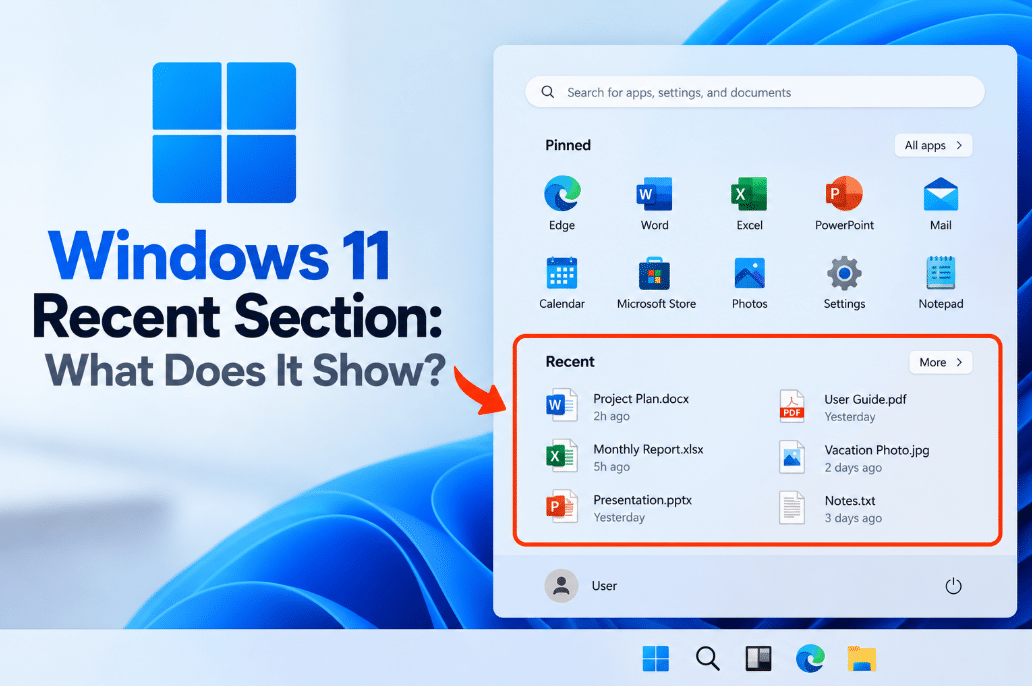
Open the Windows 11 Start menu and you may now see a section called Recent.
So what exactly appears there?
The Windows 11 Recent Section is the newer name for the area previously called Recommended. It is designed to give you quick access to recently opened files, recently added apps, and other frequently used items.
Recommended Is Becoming Recent
For years, Windows 11 called this part of Start Recommended.
Microsoft is changing that name to Recent in newer Windows 11 updates.
The change makes the purpose of the section a little clearer because much of its content is based on things you recently opened or used.
Depending on your Windows 11 version and update rollout, you may still see Recommended instead of Recent.
What Does the Recent Section Show?
The Recent area can include several types of content.
Microsoft describes the older Recommended section as showing:
- Recently opened files
- Recently added apps
- Frequently used apps
The newer Recent section continues that general purpose of helping you quickly return to things you have recently used.
Exactly what appears can depend on your Start settings and usage.
Recently Opened Files
One of the most useful parts of Recent is quick access to files you opened recently.
For example, you might see:
- Word documents
- Excel spreadsheets
- PowerPoint presentations
- PDFs
- Images
- Other recently accessed files
Selecting one can reopen it without first navigating through File Explorer.
Windows also uses recent-item information in places such as File Explorer and Jump Lists.
Recently Added Apps
Windows can also surface applications you recently installed.
For example, if you just installed a new browser or utility, Windows may make it easier to find from Start.
You can control this behavior from:
Settings → Personalization → Start
Look for:
Show recently added apps
Turn it off if you do not want newly installed apps highlighted.
Most Used Apps
Windows can also track which apps you open frequently and make them easier to access.
This is controlled by:
Settings → Personalization → Start → Show most used apps
Turning the option off prevents Windows from using this Start surface to show your most frequently used applications.
Recent vs Pinned vs All
The newer Start menu separates content into different sections.
Pinned
Contains apps, files, folders, or websites you intentionally pin for quick access.
Recent
Shows items based more on your recent activity and usage.
All
Shows your installed applications and can be viewed in different layouts, including list, grid, and category views.
So the main difference is control:
Pinned = you choose what stays there.
Recent = Windows changes it based on activity.
Can You Hide the Recent Section?
Yes.
Microsoft’s newer Start settings introduce section-level controls that let you independently show or hide areas such as Pinned, Recent/Recommended, and All.
Go to:
Settings → Personalization → Start
Depending on your Windows build, you may see a toggle for the Recent or Recommended section.
Turning it off can make Start feel cleaner if you prefer to use only pinned apps or the full app list.
Stop Windows From Showing Recently Opened Files
There is also a more specific privacy setting.
Go to:
Settings → Personalization → Start
and look for:
Show recently opened items in Start, Jump Lists, and File Explorer
Turn this option off if you do not want Windows displaying recently accessed files in these areas.
Keep in mind that this setting affects more than just the Start menu.
It also affects recent items in File Explorer and Jump Lists.
Does Removing an Item Delete the File?
No.
Removing or hiding a recent item from Start does not normally delete the actual document or application from your computer.
Recent is essentially a shortcut to something you have used.
The original file remains in its normal folder unless you delete the file itself.
Why Don’t I See the Recent Name Yet?
Microsoft introduced the rename from Recommended to Recent as part of newer Windows 11 updates released in 2026.
Features can roll out gradually, so one Windows 11 PC may display Recent while another still says Recommended.
This does not necessarily mean anything is wrong with your computer.
Is the Recent Section Useful?
It depends on how you use Start.
Recent can save time if you regularly reopen the same documents or applications.
However, some users may prefer to disable it because:
- They want a cleaner Start menu
- They share the PC with other people
- They do not want recently opened files displayed
- They mainly use pinned apps or Search
Fortunately, Windows now provides more control over whether the section appears at all.
Final Thoughts
The Windows 11 Recent Section is essentially the newer version of the old Recommended section.
It can show recently opened files, recently added applications, and frequently used apps so you can quickly return to your recent work.
If you prefer a simpler Start menu or do not want recent activity displayed, open Settings → Personalization → Start and adjust the Recent and recent-item options.
Need Windows 11 for your PC? Explore our Windows 11 keys and choose the right edition for your computer today.