
Instructions
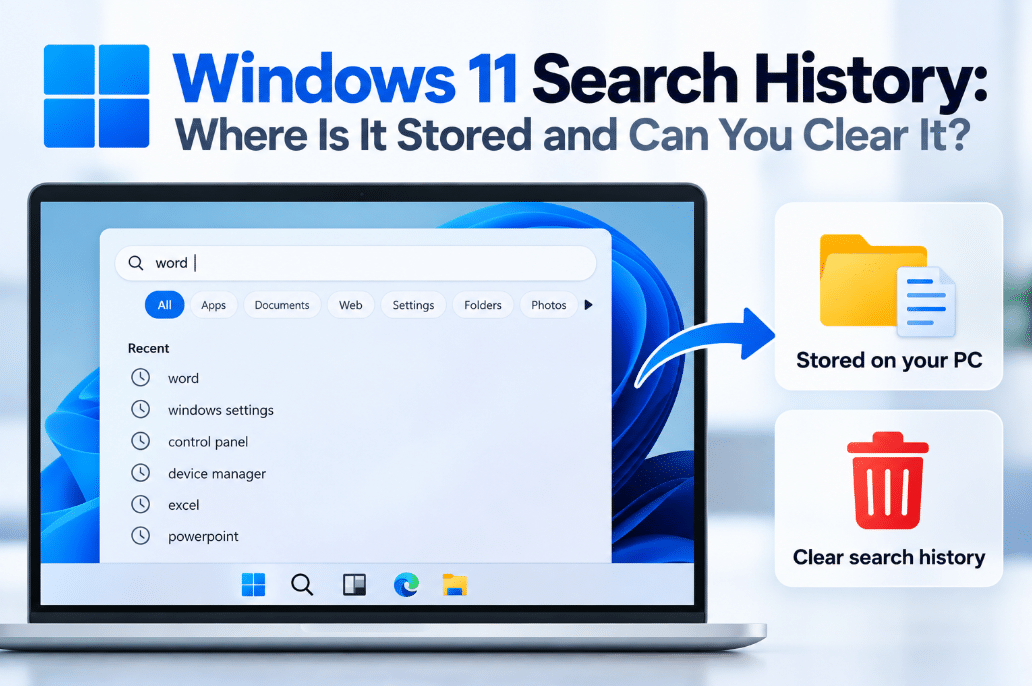
Windows 11 Search History: Where Is It Stored and Can You Clear It?
Sep
Every time you search for an app, setting, or file from the Windows 11 search box, Windows can use that activity to make future searches faster and more relevant.
But where is Windows 11 Search History actually stored?
The answer depends on the type of search. Windows can keep some search history locally on your PC, while web searches may also be associated with your Microsoft account.
Does Windows 11 Save Your Search History?
Yes.
Microsoft says Windows Search saves search history locally on your device.
This allows Windows to improve future results. For example, an app you have searched for before may appear higher in the results next time.
This is separate from Bing or browser search history.
Where Is Windows Search History Stored?
For normal Windows Search, the important point is that the history is stored locally on your device.
You do not normally need to find or manually edit the underlying files.
Windows provides a built-in control for clearing this information under:
Settings → Privacy & security → Search permissions
Under the History section, you can clear the device search history directly.
How to Clear Windows 11 Search History
To remove locally stored Windows Search history:
- Open Settings
- Go to Privacy & security
- Select Search permissions
- Scroll to History
- Select Clear device search history
Windows removes the search history stored locally for Windows Search.
This can be useful if old searches keep appearing or if you simply want a cleaner search experience.
Does Clearing Search History Delete Your Files?
No.
Clearing Windows Search history does not delete:
- Documents
- Photos
- Applications
- Downloads
- Indexed files
It only clears the history Windows uses to help personalize or rank search results.
Your actual files remain where they are.
What About Microsoft Account Search History?
Windows Search can also use web search history associated with your Microsoft account.
If you are signed in and cloud content search is enabled, Windows can use account-based information to provide more personalized web search results and suggestions.
This history is different from the search history stored locally on your PC.
How to Clear Microsoft Account Search History
Microsoft account search history can be viewed and deleted through the Microsoft Privacy Dashboard.
Microsoft says Bing searches performed while signed in can appear there, including search terms and results you interacted with.
Clearing this account history removes it from your Microsoft account.
However, it does not automatically clear your local Windows Search history.
That is why you may need to clear both separately.
Local vs Cloud Search History
| Type | Where It Is Stored | How to Clear It |
|---|---|---|
| Device Search History | Locally on your Windows 11 PC | Settings → Privacy & security → Search permissions |
| Microsoft Account Search History | Associated with your Microsoft account | Microsoft Privacy Dashboard |
| Browser History | Inside your browser/profile | Browser settings |
These are separate systems.
Clearing one does not necessarily clear the others.
Can You Stop Windows From Using Cloud Search?
Yes.
Go to:
Settings → Privacy & security → Search permissions
Under Cloud content search, you can control whether Windows Search uses content from connected accounts.
Microsoft says cloud content search can include results from Microsoft services such as OneDrive, Outlook, and SharePoint for supported work or school accounts.
If you prefer search to focus more on local content, you can adjust these options.
Is Search History the Same as Search Indexing?
No.
This is an important difference.
Search history remembers things you have searched for.
Search indexing creates a searchable database of files, folders, and other content so Windows can find them more quickly.
Microsoft says indexing data is stored locally on the PC, including semantic indexing data on supported Copilot+ PCs.
Clearing search history does not delete or rebuild your search index.
Is Search History the Same as Activity History?
No.
Windows also has a separate Activity history feature.
Activity history can track things such as apps and services you use and files you open, and Microsoft says this information is stored locally on the device.
You can manage it under:
Settings → Privacy & security → Activity history
This is different from the Search permissions page.
Why Would You Clear Search History?
Clearing Windows 11 Search History can help if:
- Old searches keep appearing
- Search suggestions feel irrelevant
- You share the computer with other people
- You want to remove visible traces of previous searches
- You are troubleshooting strange search behavior
It is also a simple privacy cleanup that does not affect your actual files.
Final Thoughts
Windows 11 Search History can exist in more than one place.
Windows stores device search history locally to help improve future results, while web searches may also be associated with your Microsoft account.
To clear local history, go to Settings → Privacy & security → Search permissions → Clear device search history.
If you also use Bing or Microsoft account-based search, check your Microsoft Privacy Dashboard separately.
Need Windows 11 for your PC? Explore our Windows 11 keys and choose the right edition for your computer today.