
Instructions
Windows 11 Start Menu Size: Small, Automatic or Large?
Sep
The Windows 11 Start menu has traditionally decided much of its size automatically based on your display.
Newer Windows 11 updates give you more control.
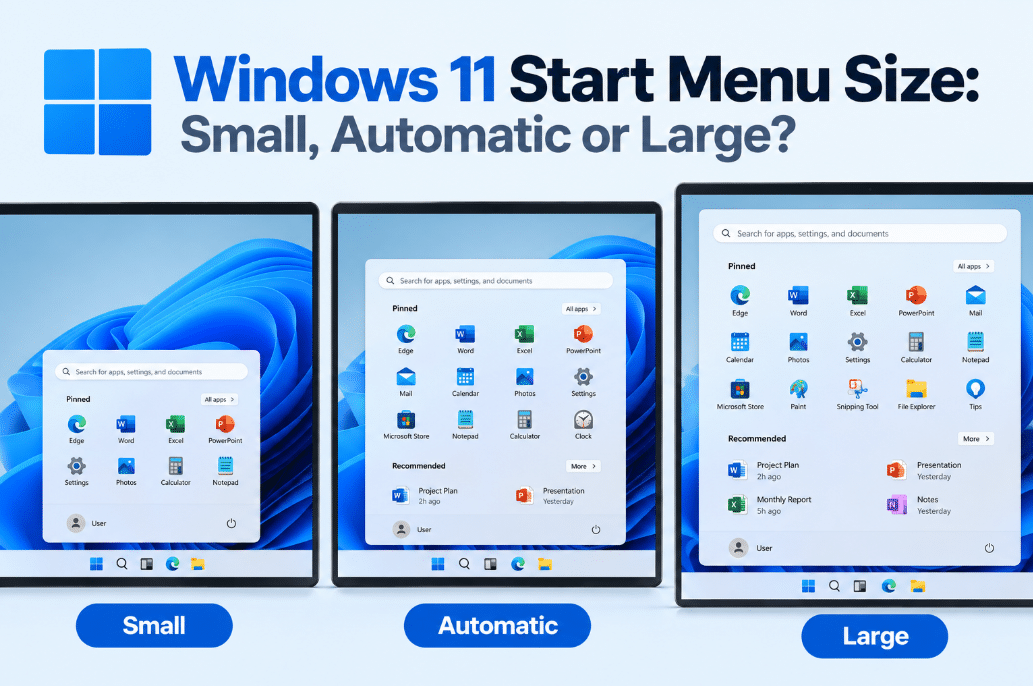
The Windows 11 Start Menu Size setting now offers three choices: Small, Automatic, and Large, letting you decide how much screen space Start should use.
Where Is the Start Menu Size Setting?
Open:
Settings → Personalization → Start → Start menu size
You should see three options:
- Small
- Automatic
- Large
Microsoft lists Automatic as the default option.
If you do not see the setting yet, your PC may not have received the newer Windows 11 update that introduces it.
What Does Automatic Do?
Automatic lets Windows decide how large the Start menu should be based on your display.
This is similar to how Windows 11 handled the Start menu before manual sizing was added.
Microsoft explains that Start normally adapts to the display, while the newer Small and Large choices allow users to keep a preferred size more consistently across displays when possible.
Automatic is therefore the easiest option if you do not want to think about screen size or resolution.
What Does Small Do?
Choosing Small reduces the amount of screen space used by the Start menu.
This can be useful on:
- Small laptops
- Tablets
- Lower-resolution displays
- Screens where you want more room for open applications
The smaller Start layout also shows fewer pinned items at once than the larger version.
Microsoft’s Windows Start documentation describes the smaller layout as displaying fewer pinned items than the larger Start menu.
You can still access the rest of your applications and pinned items when needed.
What Does Large Do?
Large gives the Start menu more screen space.
This can make sense on larger monitors where saving a few centimeters of screen space is less important.
The larger layout can show more content at once, including more pinned applications.
Microsoft’s current Windows documentation indicates that the smaller Start layout can show 12 pinned items in its default view, while the larger layout can show 18.
That can reduce the need to expand or scroll through pinned applications.
Small vs Automatic vs Large
| Setting | Best For | Main Difference |
|---|---|---|
| Small | Small screens | Uses less screen space |
| Automatic | Most users | Windows chooses based on display |
| Large | Large monitors | Shows more Start content at once |
There is no performance advantage to choosing one size over another.
The setting mainly changes how much space Start uses and how much content can be visible at once.
Which Size Should You Choose?
For most users, Automatic is a good starting point because Windows adjusts the Start menu according to the display.
Choose Small if you prefer a more compact interface or use a smaller laptop screen.
Choose Large if you have plenty of screen space and want more apps visible whenever you open Start.
The good thing about the new setting is that you can switch between them whenever you want.
Does This Change the Taskbar Size Too?
No.
The Start menu size and taskbar size are separate settings.
Microsoft has also introduced a smaller taskbar option in newer Windows 11 updates, but changing Start menu size does not automatically change the taskbar.
Taskbar controls are located under:
Settings → Personalization → Taskbar → Taskbar behaviors
So you could, for example, use a Small Start menu with the normal taskbar or a Large Start menu with a smaller taskbar.
Can You Still Customize What Appears in Start?
Yes.
The newer Start settings also provide more control over individual Start sections.
Microsoft has introduced controls to independently show or hide areas such as:
- Pinned
- Recent
- All
The older Recommended name is also being changed to Recent in the updated Start menu.
This means Start menu size is only one part of the newer customization options.
Why Don’t I See Small and Large Yet?
The Start menu sizing controls are part of newer Windows 11 updates and are being introduced through recent releases.
Microsoft included them in the August 27, 2026 preview update for Windows 11 versions 24H2 and 25H2 and in the September 22, 2026 preview update for version 26H1.
Because Windows features can roll out gradually, two PCs running Windows 11 may not receive the option at exactly the same time.
Final Thoughts
The new Windows 11 Start Menu Size setting gives users something Windows previously handled mostly automatically.
Choose Small if you want a compact Start menu, Large if you want more apps and content visible, or leave it on Automatic and let Windows adjust it for your display.
It is a small customization, but it can make Windows 11 feel noticeably better on either very small laptops or large desktop monitors.
Need Windows 11 for your PC? Explore our Windows 11 keys and choose the right edition for your computer today.