
Instructions
Windows Credential Manager: Where Windows Stores Saved Sign-In Details
Oct
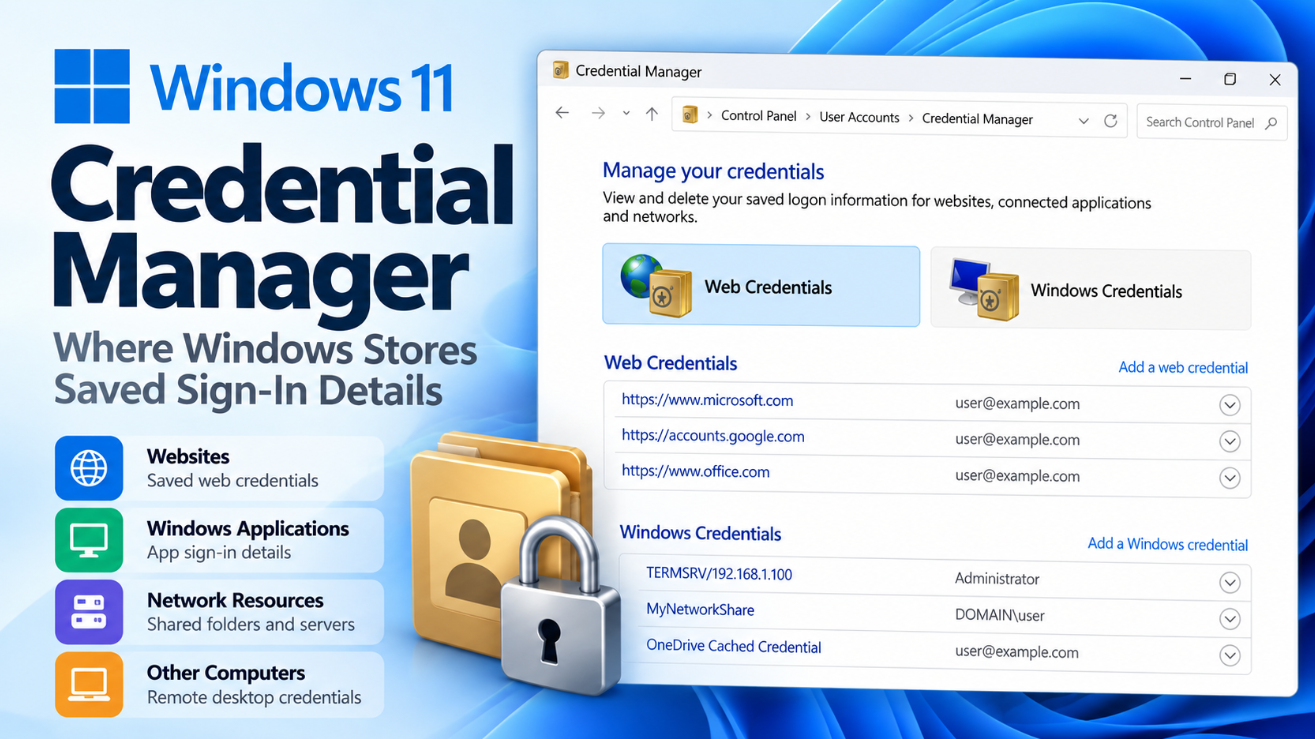
Windows Credential Manager is one of the places Windows can securely keep those saved sign-in details.
It stores credentials used by supported websites, applications, network resources, and other computers so Windows does not have to ask for the same information every time.
But Credential Manager is not the same thing as your browser password manager, your Windows Hello PIN, or your Microsoft account password. Understanding the difference can help when an old password keeps appearing, a network share suddenly stops connecting, or you simply want to remove saved login details.
What Is Windows Credential Manager?
Windows Credential Manager is a built-in Control Panel feature for managing stored authentication information.
Microsoft says it lets you view and delete credentials saved for:
- Websites
- Connected applications
- Networks
- Other computers
Windows and compatible applications can retrieve these saved credentials when they need to authenticate you again.
The feature is available in both Windows 11 and Windows 10.
How to Open Windows Credential Manager
The easiest method in Windows 11 is:
- Open Start or Windows Search.
- Type Credential Manager.
- Select Credential Manager from Control Panel.
You can also open:
Control Panel → User Accounts → Credential Manager
Microsoft’s current instructions use the same Windows Search method.
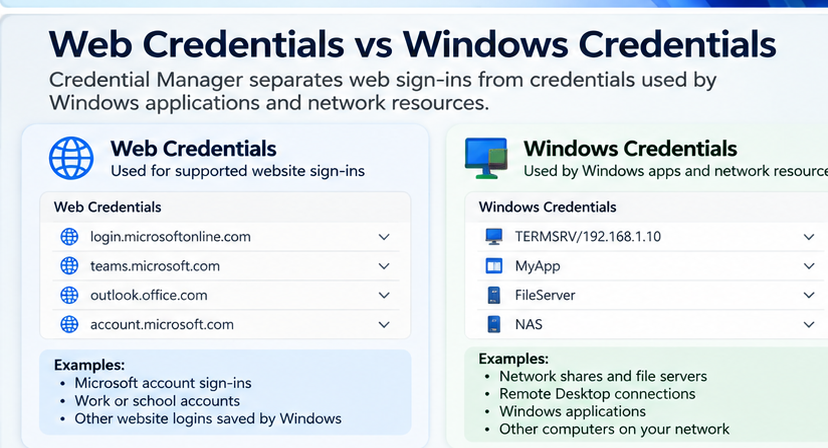
Once opened, you will normally see two main categories:
Web Credentials
and:
Windows Credentials
What Are Windows Credentials?
The Windows Credentials section typically contains saved sign-in information used by Windows, applications, network shares, and other computers.
Examples can include credentials for:
- Network folders
- NAS devices
- Shared drives
- Remote computers
- Business applications
- Microsoft-related services
- Applications using the Windows Credential Manager APIs
Microsoft explains that compatible applications can save usernames, passwords, and related authentication information locally so those details can be supplied automatically the next time the resource is accessed.
For example, if you connect to:
\\OFFICE-PC\Shared
and select an option to remember your credentials, Windows may save the username and password in Credential Manager.
The next time you connect, Windows can use them automatically.
What Are Web Credentials?
The Web Credentials category contains website-related credentials saved through Windows-compatible components.
However, there is an important distinction.
Modern browsers such as Microsoft Edge, Google Chrome, and Firefox have their own password-management systems.
That means a password saved in your browser may not necessarily appear in Windows Credential Manager.
If you are looking for a website password you saved in Edge or Chrome, check the browser’s password manager first.
Credential Manager is therefore not a complete list of every password stored anywhere on your Windows PC.
Where Does Windows Credential Manager Store Passwords?
Microsoft says credentials stored through Credential Manager are saved locally in special encrypted folders under the user’s profile.
Windows protects this stored information rather than keeping passwords as normal readable text files.
Microsoft’s developer guidance says Credential Manager encrypts credentials using Windows security tied to the user’s logon context. Windows can also use technologies such as DPAPI to protect locally stored secrets.
In practical terms:
You should manage saved credentials through Credential Manager rather than trying to find and edit the underlying files manually.
Are Credential Manager Passwords Stored in Plain Text?
Not as ordinary readable files.
Microsoft uses protected credential storage and Windows encryption mechanisms to secure saved authentication data.
However, any stored credential is still sensitive information.
If malware gains sufficient access to your Windows account or system, saved credentials can become a target.
That is one reason Microsoft increasingly recommends passwordless authentication methods such as:
- Windows Hello
- Passkeys
- FIDO2 authentication
- Certificates
when supported.
Does Credential Manager Store Your Windows Login Password?
Not in the simple way many users expect.
Credential Manager is mainly for credentials that Windows and applications use to access other resources.
Your normal Windows sign-in authentication is handled by Windows account and authentication systems rather than appearing as a convenient readable password entry inside Credential Manager.
Likewise, your Windows Hello PIN is not simply stored there as a recoverable password.
So if you forget the password used to sign in to your Windows account, Credential Manager should not be treated as a way to reveal it.
Does Credential Manager Store Your Microsoft Account Password?
You may see entries related to Microsoft services or accounts, but that does not mean Credential Manager gives you a simple way to reveal your current Microsoft account password.
Modern Windows also uses several other identity and account systems beyond Credential Manager.
If you forget your Microsoft account password, use Microsoft’s official account recovery or password-reset process rather than trying to retrieve it from Credential Manager.
How to View Saved Windows Credentials
Open:
Credential Manager → Windows Credentials
You will see available saved entries.
Expand an entry to view information such as:
- Network or internet address
- Username
- Credential type
- Persistence information
The exact information shown depends on the credential.
Credential Manager is particularly useful when you want to identify which account Windows is automatically using for a particular network device or application.
Can You See the Actual Saved Password?
Do not assume every credential can be displayed as readable text.
Credential Manager is designed primarily to store and manage authentication information, not to act as a universal password-recovery tool.
Depending on the credential type and Windows configuration, the actual password may remain protected rather than being available for viewing.
If you no longer know a password, the safest approach is normally to reset or change the password through the service, account, or device that owns it.
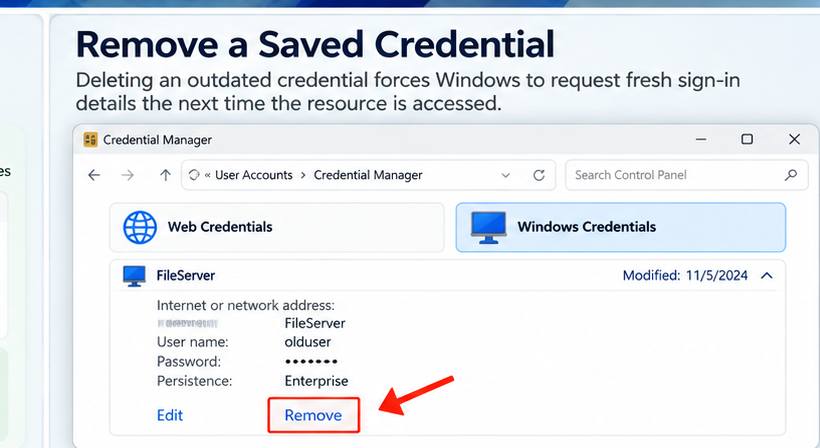
How to Remove a Saved Credential
If Windows keeps using an old username or password, removing the stored credential can often fix the problem.
Open:
Credential Manager → Windows Credentials
Find the relevant entry, expand it, and select:
Remove
Confirm the removal.
Microsoft specifically lists viewing and deleting stored credentials as core Credential Manager functions.
The next time you access that resource, Windows should normally ask you to sign in again.
What Happens When You Delete a Credential?
Deleting a Credential Manager entry does not usually delete the actual account.
For example, removing credentials for a network share does not delete:
- The network account
- The remote computer
- The shared folder
- Files stored on the server
It only removes the saved authentication information from your PC.
The next time Windows needs access, you may be prompted for the username and password again.
This makes removing an entry a useful troubleshooting step when a password has recently changed.
Old Password Keeps Appearing? Credential Manager May Be the Reason
Suppose your password for a NAS or another computer changes.
Windows may continue trying the older credential automatically.
You might then see messages such as:
- Access denied
- Incorrect username or password
- Network credentials are incorrect
- Logon failure
- Windows cannot access this folder
Deleting the old entry from Windows Credentials and signing in again with the new password can solve the problem.
This is one of the most useful practical reasons to know Credential Manager exists.
Can You Add a Windows Credential Manually?
The Windows Credentials area can also allow credentials for network resources to be added manually.
This can be useful when Windows needs to connect to a server or network share using a specific account.
You typically provide:
- Network address
- Username
- Password
However, only save credentials on a computer you trust.
On shared or public computers, allowing Windows to remember passwords can create unnecessary security risk.
Credential Manager vs Browser Password Manager
These are not the same thing.
A browser password manager is mainly designed for website logins.
Credential Manager serves Windows and compatible applications more broadly.
For example:
Credential Manager
May store credentials for network shares, remote resources, Windows applications, and supported web authentication.
Browser password manager
Stores website usernames and passwords, autofill details, and sometimes passkeys within the browser’s own profile and sync system.
So if a website login is missing from Credential Manager, that does not necessarily mean Windows forgot it.
The password may simply be stored by your browser instead.
Credential Manager vs Windows Hello
Windows Hello handles device sign-in using methods such as:
- PIN
- Fingerprint
- Facial recognition
Credential Manager stores credentials used for accessing external resources and supported applications.
These systems serve different purposes.
Your Windows Hello PIN, for example, is not simply another password entry stored under Windows Credentials.
Credential Manager vs Passkeys
Passkeys are another authentication method and are increasingly important in Windows.
They replace traditional passwords with cryptographic credentials.
Microsoft recommends passwordless methods such as Windows Hello and passkeys when possible because they reduce the need for applications and users to handle reusable passwords.
Credential Manager remains useful for systems that still rely on usernames and passwords, especially network resources and legacy applications.
Are Saved Credentials Protected by Credential Guard?
Certain Windows credentials can receive additional protection from Credential Guard.
Microsoft says saved domain credentials can be protected by Credential Guard, while generic credentials have different requirements because applications may need access to the underlying password.
Credential Guard uses virtualization-based security to isolate sensitive authentication information.
For most home users, you do not need to manage these technical details manually, but they illustrate that different credential types receive different levels of protection.
Is It Safe to Save Passwords in Credential Manager?
Credential Manager is much safer than placing passwords in:
- Text files
- Excel sheets
- Sticky notes
- Unencrypted documents
Windows encrypts its credential storage and restricts access through the operating system.
However, no saved credential should be considered completely risk-free.
Good practices include:
- Lock your PC when you leave it.
- Use a strong Windows account password.
- Enable Windows Hello when appropriate.
- Keep Windows updated.
- Do not save sensitive credentials on shared PCs.
- Remove old entries you no longer need.
- Use passkeys or other passwordless methods where supported.
Why Is Credential Manager Still in Control Panel?
Windows 11 has moved many settings into the modern Settings app, but Credential Manager remains a Control Panel feature.
Microsoft’s current Windows 11 documentation still instructs users to open Credential Manager from Windows Search and identifies it as a Control Panel component.
So if you search through:
Settings → Accounts
and cannot find a full Credential Manager page, nothing is necessarily missing.
Search for Credential Manager directly instead.
When Should You Check Windows Credential Manager?
Credential Manager is worth checking when:
- Windows keeps using an old password.
- A network share suddenly stops connecting.
- You changed the password on another computer.
- A mapped drive repeatedly asks for credentials.
- An application automatically signs in with the wrong account.
- You no longer want Windows to remember a network login.
- You want to review credentials saved by Windows-compatible applications.
For browser-only password problems, check your browser password manager as well.
Frequently Asked Questions
What does Windows Credential Manager store?
It can store credentials used for websites, connected applications, networks, and other computers.
Where is Credential Manager in Windows 11?
Search Credential Manager from the taskbar or Start menu and open the Control Panel result.
Are Credential Manager passwords encrypted?
Yes. Microsoft says Credential Manager stores supported credentials in encrypted local storage associated with the user’s Windows profile.
Does Credential Manager contain all my browser passwords?
No. Modern browsers generally maintain their own password stores, so passwords saved in Edge, Chrome, or Firefox may not appear there.
Does deleting a credential delete the account?
No. It normally removes only the saved login information from that Windows PC.
Why does Windows keep using an old network password?
A previously saved entry in Windows Credentials may still be supplying the old username or password. Removing it and reconnecting can force Windows to request the new credentials.
Does Credential Manager store my Windows Hello PIN?
No. Windows Hello authentication is handled separately and should not be treated as a normal saved password inside Credential Manager.
Final Thoughts
Windows Credential Manager is one of those Windows features many people use without realizing it exists.
It can securely store sign-in details for supported applications, network shares, websites, and other computers so Windows can authenticate automatically later.
It is also one of the first places worth checking when Windows keeps using an outdated network password or signing in with the wrong account.
Open Credential Manager → Windows Credentials to review or remove old entries, but remember that browser passwords, Windows Hello, passkeys, and your main Windows account use separate systems.
Setting up a new Windows PC or upgrading from Home to Pro? Browse our Windows 11 Pro keys and choose the license that fits your system.