
Windows 11 Pro for 5 PCs
- License
- Retail · 5 PC
- Delivery
- Instant, by e-mail
- Download
- Official Microsoft
- Brand
- Microsoft
€89,99
One-time payment · no subscription
- Instant delivery to your e-mailkey + download links
- Key won't activate? We replace itunused keys: refund within 7 days
- Official invoice with every order
- 24/7 live chat help with activation
One Windows 11 Pro key that activates up to five PCs. Each one gets BitLocker, Remote Desktop hosting and domain join, on a clean install or as an upgrade from Windows 11 Home.
What you get with Windows 11 Pro for 5 PCs
You get one product key that activates Windows 11 Pro on up to five computers, for example the desktops and laptops of a small office. Every machine gets the complete Pro edition, whether you install it clean or upgrade an existing Windows 11 Home. The product key and Microsoft’s download link come by e-mail together with a PDF invoice. You pay once for all five, and nothing renews.
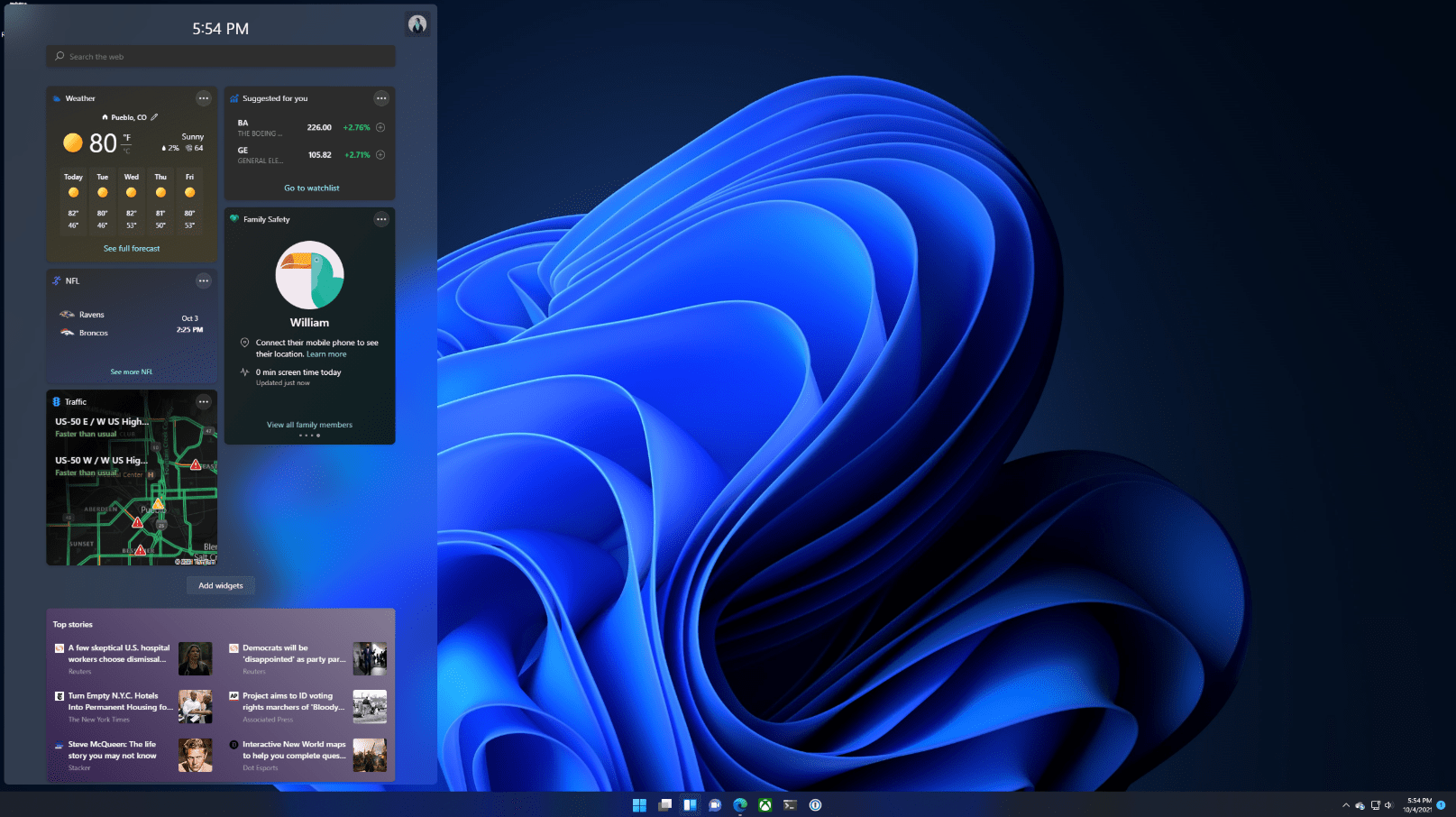
Pro features on every one of the five machines
For a team, the value of Pro is that each computer can be secured and managed the same way:
- Encrypted laptops. BitLocker protects the internal drives, and BitLocker To Go covers USB sticks that leave the office.
- Remote access. Each PC can accept Remote Desktop connections, so staff can reach their office machine from home.
- Central sign-in. The computers can join your Active Directory domain or Microsoft Entra ID instead of using separate local accounts.
- Shared rules. Group Policy, locally with gpedit.msc or from a domain controller, applies the same settings to all five.
- Testing space. Hyper-V runs virtual machines, and Windows Sandbox opens a suspicious attachment in a throwaway desktop whose contents vanish once it is closed.
One key for five PCs, or a key per PC
The five-PC license suits a setup where you configure several computers in one go. If you only have one or two machines, a single Windows 11 Pro key per PC is the simpler choice. Office computers that fail the Windows 11 hardware checks can run Windows 10 Professional 5 Devices, which has the same business features.
Activating Windows 11 Pro on all five PCs
- Run Microsoft’s PC Health Check app on each computer that now has Windows 10, to confirm it qualifies for Windows 11.
- Build one bootable USB stick with Microsoft’s Media Creation Tool, linked in the order e-mail, and reuse it on every PC.
- Install Windows 11 Pro where you need a clean system. Computers that already run Windows 11 Home or Pro keep their installation.
- On each machine, sign in as an administrator and go to Start, Settings, System, Activation.
- Choose Change next to Change product key, paste the key from your order and confirm with Next. A Home installation switches to Pro at this point. Should a PC report error 0xc004f050, move it to Pro with Microsoft’s generic upgrade key first, as the Windows 11 instructions linked below show, and then paste your key again.
- Enter the same key on the remaining computers until all five show Windows as activated.
Screens and error-code fixes for each step are in our Windows 11 install and activation instructions.
System requirements
Each of the five PCs needs:
| Processor | 64-bit, 1 GHz or faster, at least 2 cores, on Microsoft’s list of compatible processors (or SoC) |
|---|---|
| Memory | 4 GB or more |
| Storage | 64 GB minimum |
| Firmware | UEFI, capable of Secure Boot |
| Trusted Platform Module | Version 2.0 |
| Graphics | DirectX 12 or later, WDDM 2.0 driver |
| Display | High definition (720p), bigger than 9 inches diagonal, 8 bits per color channel |
| Hyper-V | Needs a processor with SLAT |
Questions about Windows 11 Pro for 5 PCs
Can I mix clean installs and Home upgrades?
Yes. Each of the five computers can be a fresh Windows 11 Pro install or an existing Windows 11 Home that you move to Pro with the key. Files and apps on the upgraded machines stay in place.
Is Microsoft Office part of this license?
No. The license covers the Windows 11 Pro operating system only. Word, Excel and Outlook are separate products.
One of the PCs won’t activate. What now?
Note the error code shown on the Activation page and contact our support team on live chat or by e-mail, day or night; they help with the activation or send a replacement key. Our refund policy explains what happens with keys you haven’t used.
Be the first to review “Windows 11 Pro for 5 PCs”
You must be logged in to post a review.
- Genuine Retail licenses. Every key is a genuine license that activates with Microsoft, or with ESET or Avast for antivirus. Unless the License line next to the price says OEM, it is a Retail license.
- Replacement if a key won't activate. Contact our support on live chat or by e-mail, day or night: we help you finish the activation or send a replacement key.
- Refund for unused keys. A key that has not been redeemed can be refunded within 7 calendar days of purchase, as set out in our Refund Policy.
- Invoice and instructions. Every order comes with a PDF invoice and instructions to download, install and activate the software.
You may also need
Reviews
There are no reviews yet.