
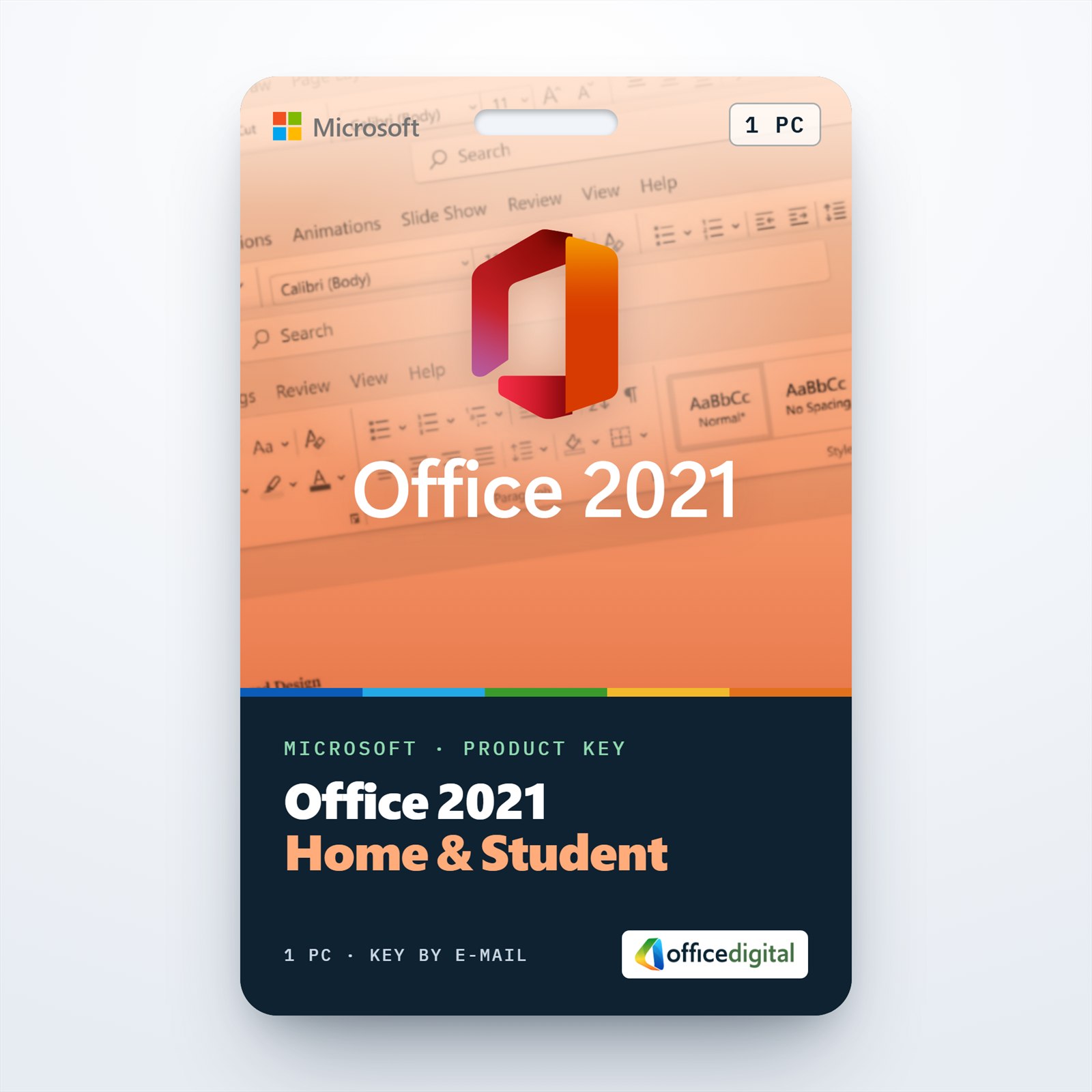
Office 2021 Home & Student
- License
- Retail
- Delivery
- Instant, by e-mail
- Download
- Official Microsoft
- Brand
- Microsoft
€62,00
One-time payment · no subscription
Out of stock
Office 2021 Home & Student for one PC: Word, Excel, PowerPoint and OneNote for non-commercial use. Excel gains XLOOKUP and dynamic arrays; you pay once and nothing renews.
What you get with Office 2021 Home & Student
Office 2021 Home & Student is the 2021 home suite for one PC: Word, Excel, PowerPoint and OneNote, licensed by Microsoft for non-commercial use. It is a perpetual license, so there is no monthly or yearly fee. The order e-mail carries the product key, a link to the installer on Microsoft’s servers and short setup notes; your PDF invoice is attached to the order-completed e-mail.
What is new in the 2021 apps
- Excel 2021 adds XLOOKUP, which finds a value in any column of a table, and dynamic array formulas such as FILTER, SORT and UNIQUE that spill their results into neighboring cells.
- The LET function stores an intermediate result under a name inside one Excel formula, so long calculations stay readable.
- PowerPoint 2021 records a slide show together with your webcam video, ink drawings and laser pointer, and Ink Replay plays a drawing back stroke by stroke.
- In Word 2021, Dark Mode turns the document canvas dark as well as the toolbars, and Line Focus shows one, three or five lines at a time.
- Files saved to OneDrive can be edited by several people at the same time in Word, Excel and PowerPoint.
OneNote is included for notes, clippings and class material, and the apps open and save OpenDocument 1.3 files as well as the usual Office formats.
Home & Student or another Office edition?
This edition fits students, parents and anyone who writes, calculates and presents on a single home computer. It leaves out Outlook, Access and Publisher, and the license excludes commercial use. For an office PC, Office 2021 Professional Plus brings Outlook, Access and Publisher. The previous release, Office 2019 Home & Student, has the same four apps without the 2021 additions listed above. On a Mac, Office Home & Business 2021 for Mac is the matching suite and adds Outlook.
How to activate Office 2021 Home & Student
- Visit setup.office.com and choose Get Started.
- Log in to your Microsoft account (a new one takes a minute to set up).
- Paste the product key from our e-mail and confirm with Next, then set your language and select Redeem; the setup file downloads. Should the download not start, Services & subscriptions in that Microsoft account offers Install next to Office 2021 Home & Student.
- Run the downloaded setup file and wait for Office 2021 to install.
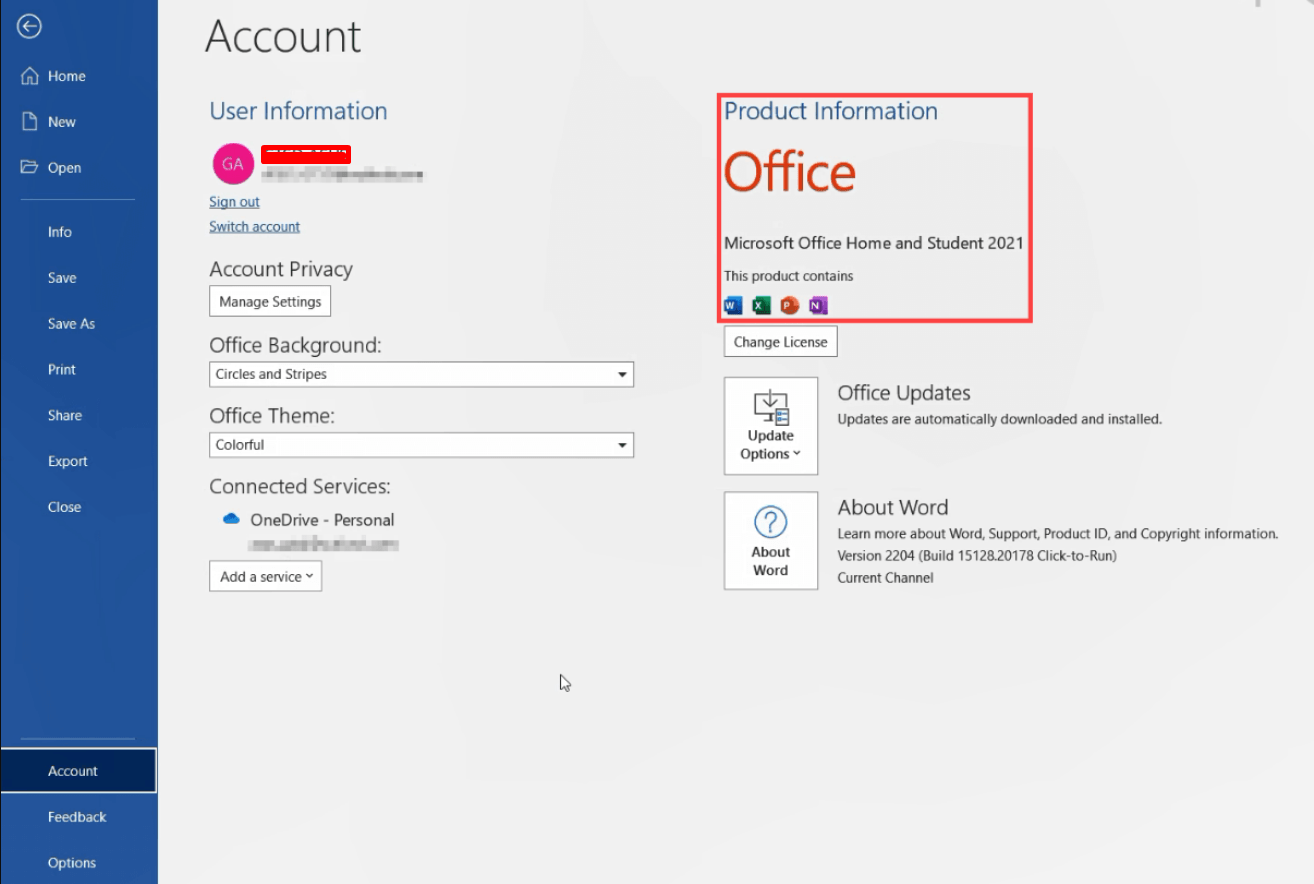
- Open Excel or Word. The Activation Wizard opens after a few seconds; choose online activation and select Next, and the license appears under File → Account.
The redeem and activation screens are shown in our Office 2021 Home & Student setup guide. If activation doesn’t complete, our support team answers on live chat or e-mail, day and night.
System requirements
| Processor | 2-core CPU, 1.1 GHz or more |
|---|---|
| Memory | 4 GB RAM |
| Disk space | 4 GB free |
| Display | 1280 × 768; 4K and higher needs 64-bit Office |
| Graphics | DirectX 9 or later for graphics hardware acceleration |
| Operating system | Windows 11 (Microsoft listed Windows 10 or Windows 11 at release) |
| Account and internet | Microsoft account and internet access to redeem the key and activate |
Questions about Office 2021 Home & Student
May I use Office 2021 Home & Student for paid work?
No. Microsoft sells Home & Student for non-commercial use, so freelance or company work belongs on an edition licensed for business, such as Office 2021 Professional Plus.
What is the Microsoft account used for?
The key is redeemed once and the license is then attached to that account. Later you reinstall Office from Services & subscriptions without typing the key again.
Is this the same Office as Microsoft 365?
No. Office 2021 keeps the feature set it was released with, while a Microsoft 365 subscription adds cloud storage and new features over time for as long as you pay for it.
Be the first to review “Office 2021 Home & Student”
You must be logged in to post a review.
- Genuine Retail licenses. Every key is a genuine license that activates with Microsoft, or with ESET or Avast for antivirus. Unless the License line next to the price says OEM, it is a Retail license.
- Replacement if a key won't activate. Contact our support on live chat or by e-mail, day or night: we help you finish the activation or send a replacement key.
- Refund for unused keys. A key that has not been redeemed can be refunded within 7 calendar days of purchase, as set out in our Refund Policy.
- Invoice and instructions. Every order comes with a PDF invoice and instructions to download, install and activate the software.
You may also need
Reviews
There are no reviews yet.