
Office 2019 Home & Student – 1PC – GLOBAL
- License
- Retail · 1 PC
- Delivery
- Instant, by e-mail
- Download
- Official Microsoft
- Brand
- Microsoft
€49,99
One-time payment · no subscription
- Instant delivery to your e-mailkey + download links
- Key won't activate? We replace itunused keys: refund within 7 days
- Official invoice with every order
- 24/7 live chat help with activation
Office 2019 Home & Student for one PC: Word, Excel, PowerPoint and OneNote, licensed for home and school use. Paid once, nothing renews, and Outlook is not part of this edition.
What you get with Office 2019 Home & Student
This is Office 2019 Home & Student for one PC, with Word, Excel, PowerPoint and OneNote, licensed for use at home and at school. You pay once: there is no subscription and nothing renews. After payment we e-mail the product key, the link to Microsoft’s own download and setup instructions; the PDF invoice arrives together with the order-completed e-mail.
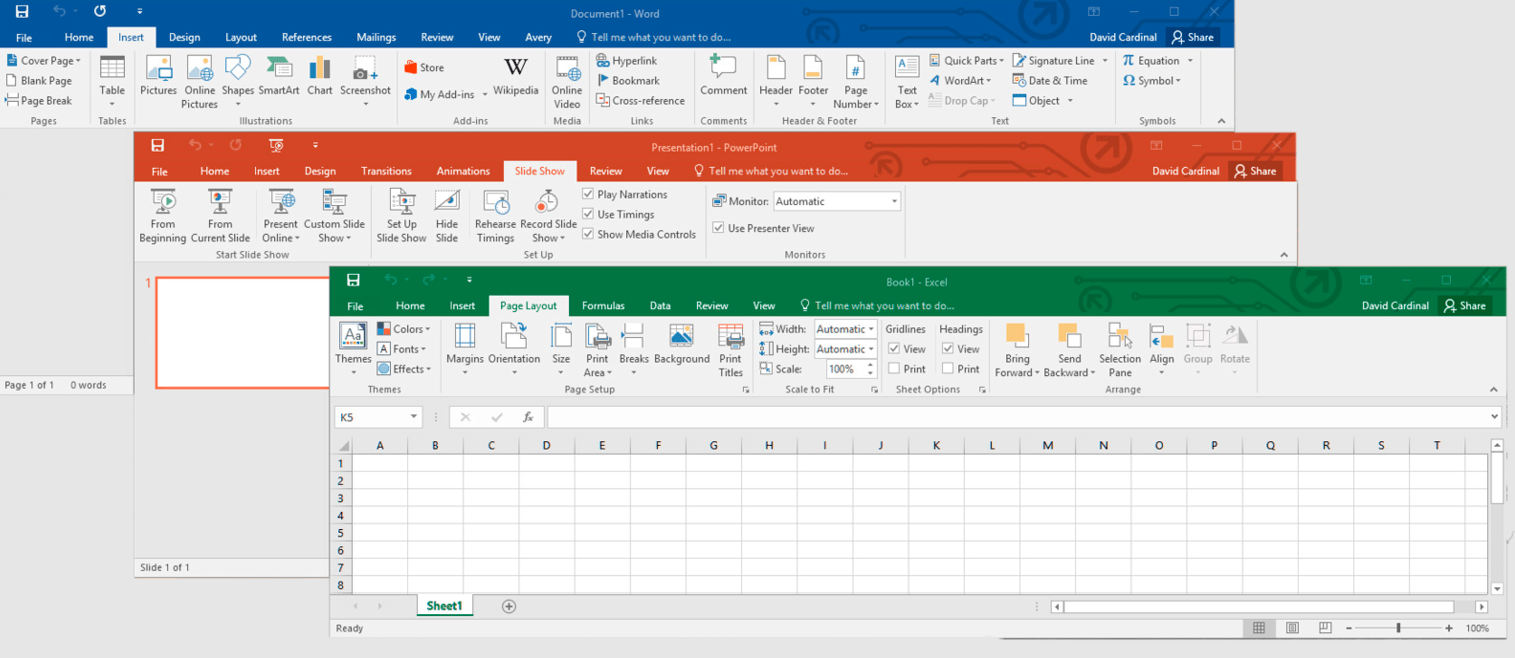
The four apps and what the 2019 release added
- In Word 2019, Learning Tools read a document aloud and highlight each word as it is spoken, and Microsoft Translator translates a selected phrase without leaving the page.
- Excel 2019 brought functions such as TEXTJOIN, CONCAT and IFS.
- PowerPoint 2019 has the Morph transition, which moves objects smoothly from one slide to the next, and Zoom, which jumps to any slide in any order while you present.
- Microsoft did not release a separate 2019 version of OneNote; a version of OneNote installs together with Office 2019.
Word, Excel and PowerPoint 2019 can also insert SVG graphics and 3D models that you rotate through 360 degrees, and the Draw tab turns pen or finger strokes into shapes.
Is Home & Student the right Office 2019 edition?
Home & Student covers schoolwork, household spreadsheets and personal letters on one computer. It has no Outlook, Access or Publisher, and Microsoft licenses it for home use rather than commercial work. If the PC belongs to a business or you want Outlook in the same install, Office 2019 Professional Plus adds Outlook, Access and Publisher. For a newer release with XLOOKUP and dynamic arrays in Excel, Office 2021 Professional Plus is the step up, also for a single PC.
How to activate Office 2019 Home & Student
- Point your browser to setup.office.com and press Get Started.
- Log in to a Microsoft account; you can create one on that page.
- Type the 25-character key from our e-mail, select Next, choose a language and select Redeem. The installer starts downloading; if it doesn’t, select Install next to Office 2019 Home & Student on the Services & subscriptions page of the same account.
- Run the installer and let Office 2019 install.
- Start Word or Excel. A few seconds later the Activation Wizard appears; choose to activate online and select Next, and File → Account then shows the product as activated.
Our Office Home & Student installation guide shows the setup, redeem and activation screens.
System requirements
| Processor | Two cores at 1.1 GHz or faster |
|---|---|
| Memory | 4 GB RAM; 2 GB RAM for 32-bit Office |
| Disk space | 4 GB of free disk space |
| Display | 1280 × 768 resolution |
| Graphics | DirectX 9 or later for hardware acceleration |
| Operating system | Windows 11 (Microsoft’s current list); Windows 10 was the original requirement |
| Other | Internet connection and a Microsoft account to redeem the key and activate |
Questions about Office 2019 Home & Student
Is a company allowed to run this edition?
Microsoft licenses Home & Student for home use. For a company computer choose an edition with business rights, such as Office 2019 Professional Plus.
Does the 2019 Home & Student key include Outlook?
No. The edition contains Word, Excel, PowerPoint and OneNote only; Outlook comes with the Home & Business and Professional Plus editions.
What happens if I replace my PC?
Microsoft’s license terms let you move the software: uninstall Office from the old computer, then install it on the new one from Services & subscriptions with the same Microsoft account. If activation fails after the move, our support team helps day and night by live chat or e-mail.
Be the first to review “Office 2019 Home & Student – 1PC – GLOBAL”
You must be logged in to post a review.
- Genuine Retail licenses. Every key is a genuine license that activates with Microsoft, or with ESET or Avast for antivirus. Unless the License line next to the price says OEM, it is a Retail license.
- Replacement if a key won't activate. Contact our support on live chat or by e-mail, day or night: we help you finish the activation or send a replacement key.
- Refund for unused keys. A key that has not been redeemed can be refunded within 7 calendar days of purchase, as set out in our Refund Policy.
- Invoice and instructions. Every order comes with a PDF invoice and instructions to download, install and activate the software.
You may also need
Reviews
There are no reviews yet.