
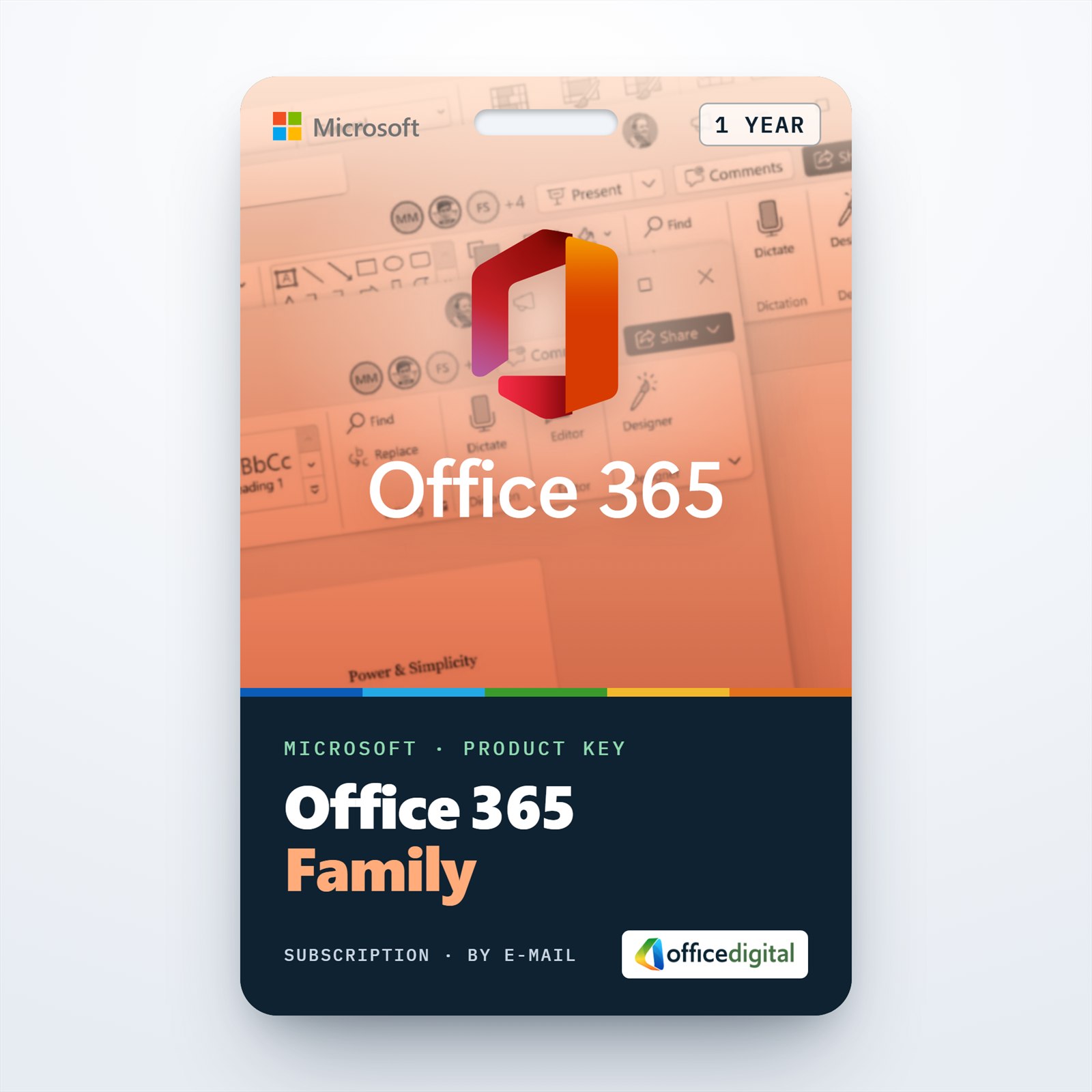
Microsoft Office 365 Family 1 Year License (EUROPE)
- License
- Retail
- Valid for
- 1 year
- Delivery
- Instant, by e-mail
- Download
- Official Microsoft
- Brand
- Microsoft
€98,00
License valid for 1 year
Out of stock
Twelve months of Microsoft 365 Family, the plan once sold as Office 365 Family: up to six people, each using five devices at once. For Microsoft accounts in Europe.
What you get with Office 365 Family for 1 year
Office 365 Family is now called Microsoft 365 Family, and this key adds 12 months of it to a Microsoft account registered in a European country or region. The subscription owner can share it with up to five more people, six in total, and each person may stay logged in on five devices at once. Everyone gets the Office apps (Outlook, Word, Excel, PowerPoint, OneNote) for Windows, Mac, iPhone, iPad and Android, plus OneDrive cloud storage. This is a subscription for a fixed term: after 12 months it ends unless you extend it.

What every member of the family plan gets
- Each person signs in with their own Microsoft account, so mail, files and photos stay separate and private unless someone chooses to share them.
- The desktop apps run on PCs and Macs and the mobile apps on phones and tablets, with up to five devices signed in at once per person.
- On Windows PCs the plan also includes Access, Microsoft’s desktop database app.
- Microsoft lists its Defender security app and OneDrive ransomware protection as part of the plan.
- Copilot features in the apps are reserved for the subscription owner, according to Microsoft’s plan page.
How the shared OneDrive storage works
Microsoft is moving Family from 1 TB per person to one 2 TB pool that all members draw from. New Family subscriptions get the 2 TB shared pool from October 8, 2026. A Family plan that already existed before that date keeps its current storage until its first renewal on or after May 2, 2027. In the pool, each person’s documents remain private, and storage add-ons can raise the total to 10 TB.
Family plan, Personal plan or a one-time Office?
Family makes sense when two or more people in a household work in Office or need cloud space. A single user is covered by Microsoft 365 Personal, which has 1 TB for one person. If you only need the desktop apps on one computer and no cloud storage, a perpetual license has no renewal date: Office 2024 Professional Plus for a Windows PC, or Office Home & Business 2021 for Mac.
How to activate your Office 365 Family key
- Open microsoft365.com/setup and log in to the Microsoft account that will own the subscription, or create one there.
- Type the key, select your European country or region and your language. Recurring billing is a separate choice; the key itself covers the 12 months.
- On the Services & subscriptions page, select Install for your PC or Mac. On phones and tablets, get the apps from the App Store or Google Play and log in with the same account.
- Invite up to five people through the sharing option of your Microsoft account. They accept and install with their own accounts; never pass on the key, since each key can be redeemed only once.
Our Office 365 Family activation guide shows the steps with screenshots, including the sharing invitation.
System requirements
| Windows | Windows 11; 1.6 GHz or faster 2-core processor; 4 GB RAM, or 2 GB with 32-bit Office; 4 GB disk space; 1280 × 768 display |
|---|---|
| Mac | One of the three most recent macOS versions; Intel or Apple silicon processor; 4 GB RAM; 10 GB disk space (APFS or Mac OS Extended); 1280 × 800 display |
| iPhone and iPad | The two most recent iOS versions |
| Android | The last four major Android versions; 1 GB RAM |
| Account | A Microsoft account for each person, and an internet connection |
Questions about Office 365 Family 1 year
Can I add these 12 months to the Family plan I already have?
Yes. Redeem the key on the same Microsoft account and Microsoft extends the current subscription; prepaid time can be stacked up to five years.
Does the key work for an account outside Europe?
It is sold for Microsoft accounts in Europe, so pick a European country or region when you redeem it. If your account is registered elsewhere, ask our support before you order.
Can the other members see my files?
No. Only the storage quota is shared; files, photos and mail stay private unless their owner shares them.
Be the first to review “Microsoft Office 365 Family 1 Year License (EUROPE)”
You must be logged in to post a review.
- Genuine Retail licenses. Every key is a genuine license that activates with Microsoft, or with ESET or Avast for antivirus. Unless the License line next to the price says OEM, it is a Retail license.
- Replacement if a key won't activate. Contact our support on live chat or by e-mail, day or night: we help you finish the activation or send a replacement key.
- Refund for unused keys. A key that has not been redeemed can be refunded within 7 calendar days of purchase, as set out in our Refund Policy.
- Invoice and instructions. Every order comes with a PDF invoice and instructions to download, install and activate the software.
You may also need
Reviews
There are no reviews yet.