
Windows 10 Enterprise (1PC)
- License
- Retail · 1 PC
- Delivery
- Instant, by e-mail
- Download
- Official Microsoft
- Brand
- Microsoft
€22,50
One-time payment · no subscription
Out of stock
A Windows 10 Enterprise key for one PC. You enter it on a Windows 10 Pro installation, which then switches to Enterprise and gains Credential Guard and the Unified Write Filter.
What you get with Windows 10 Enterprise
A Windows 10 Enterprise product key for one PC. Enterprise is Microsoft’s edition for managed business computers: it contains everything in Windows 10 Pro, plus security and lockdown features that Pro lacks. You type the key into a PC running Windows 10 Pro, and Windows changes the edition to Enterprise. The key, the Microsoft download link for the Windows 10 installer and the activation steps come by e-mail, together with a PDF invoice.
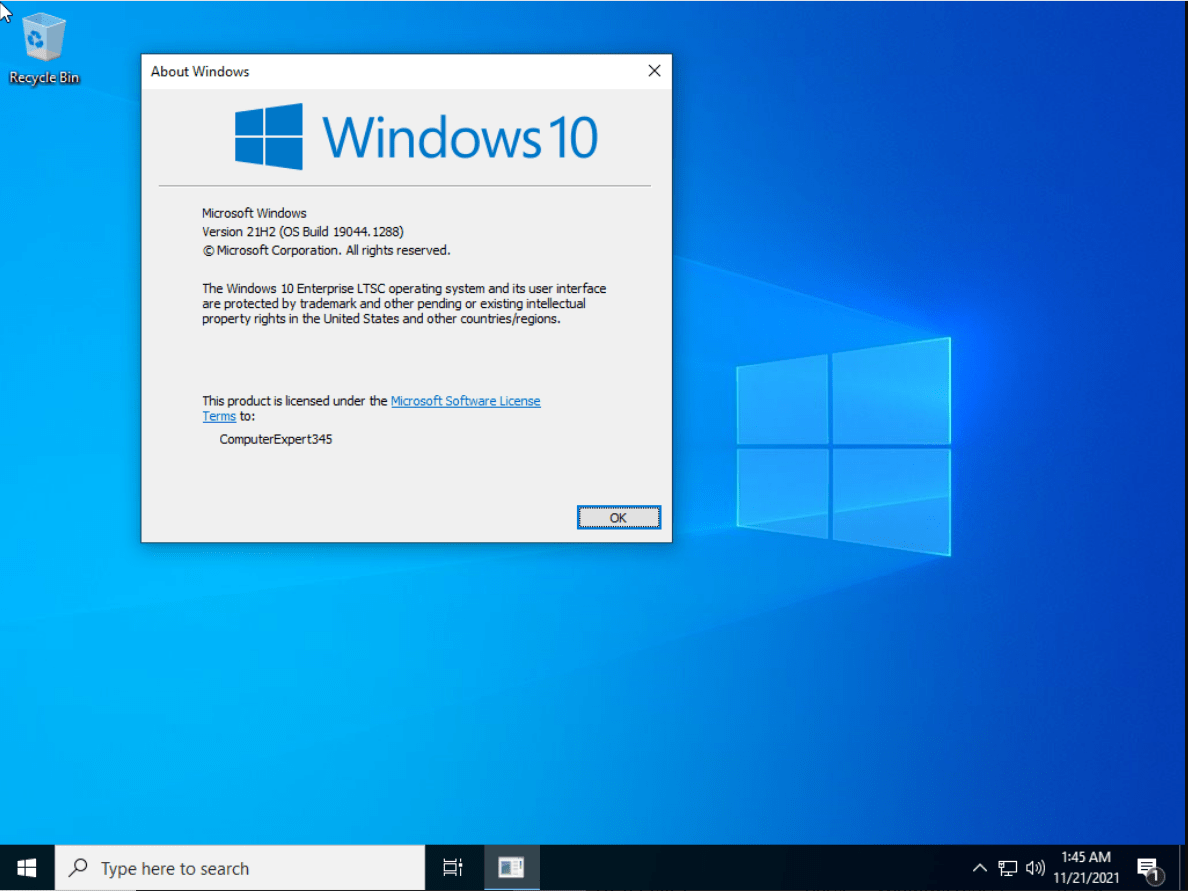
What Enterprise adds to Windows 10 Pro
Enterprise keeps BitLocker, Hyper-V, Remote Desktop hosting, Group Policy and domain join from Pro. On top of that, Microsoft limits these features to Enterprise and Education:
- Credential Guard. Uses virtualization-based security to isolate NTLM password hashes and Kerberos tickets, so malware with admin rights on the PC can’t read them for pass-the-hash attacks.
- Unified Write Filter. Sends every write to the drive into a temporary overlay that is cleared on restart, which keeps shared or kiosk computers, such as library or hotel PCs, in the same clean state.
Credential Guard needs Secure Boot and virtualization-based security on the hardware; Microsoft recommends a TPM as well.
Enterprise or Pro for your PC
Microsoft sells Windows Enterprise to organizations through its commercial licensing programs, and the consumer Media Creation Tool doesn’t include the Enterprise edition. That’s why this key is applied on top of a Windows 10 Pro installation. Pro already encrypts drives, joins a domain and accepts Remote Desktop connections: see the Windows 10 Pro key, or the Windows 11 Pro key for hardware that meets the Windows 11 requirements. Choose Enterprise when you specifically need Credential Guard or a write-protected PC.
How to activate your Windows 10 Enterprise key
- Install Windows 10 Pro with Microsoft’s Media Creation Tool, or start from a PC that already runs Pro.
- Press Windows + R, type ms-settings:activation and press Enter. This opens the Activation page under Update & Security in Settings.
- Under Change product key, paste the Enterprise key from your e-mail, all 25 characters.
- Follow the prompts. Microsoft lists Pro to Enterprise as an edition change that doesn’t need a restart.
- Open Settings → System → About and check that the edition now reads Windows 10 Enterprise and that the Activation page shows it as activated.
The Windows 10 Pro installation part is explained, with screenshots, in our Windows 10 install and activation guide.
System requirements
| Processor | 1 GHz or faster, or SoC |
|---|---|
| Memory | 1 GB for 32-bit or 2 GB for 64-bit Windows |
| Hard disk | 32 GB or more |
| Graphics | DirectX 9 or later, WDDM 1.0 driver |
| Display | 800 x 600 |
| Starting edition | Windows 10 Pro installed on the PC |
| Credential Guard | Secure Boot and virtualization-based security; TPM 1.2 or 2.0 recommended |
Questions about Windows 10 Enterprise
Is Microsoft Defender for Endpoint included?
No. Defender for Endpoint is a separate Microsoft cloud service, which Microsoft bundles with its Windows Enterprise E5 subscription. The Windows 10 Enterprise edition itself comes with the same built-in Microsoft Defender Antivirus as Pro.
Can I switch the PC back to Pro later?
Yes. Microsoft lists Enterprise to Pro as a supported downgrade path with a Pro product key, and apps and settings carry over on supported paths.
Does the key work for Windows 10 Enterprise LTSC?
No. Microsoft treats Enterprise LTSC as a separate edition in its edition and licensing tables. This key is for the regular Windows 10 Enterprise, applied over Pro as described above.
Be the first to review “Windows 10 Enterprise (1PC)”
You must be logged in to post a review.
- Genuine Retail licenses. Every key is a genuine license that activates with Microsoft, or with ESET or Avast for antivirus. Unless the License line next to the price says OEM, it is a Retail license.
- Replacement if a key won't activate. Contact our support on live chat or by e-mail, day or night: we help you finish the activation or send a replacement key.
- Refund for unused keys. A key that has not been redeemed can be refunded within 7 calendar days of purchase, as set out in our Refund Policy.
- Invoice and instructions. Every order comes with a PDF invoice and instructions to download, install and activate the software.
You may also need
Reviews
There are no reviews yet.