
Instructions
How to Use Conditional Formatting in Excel
May
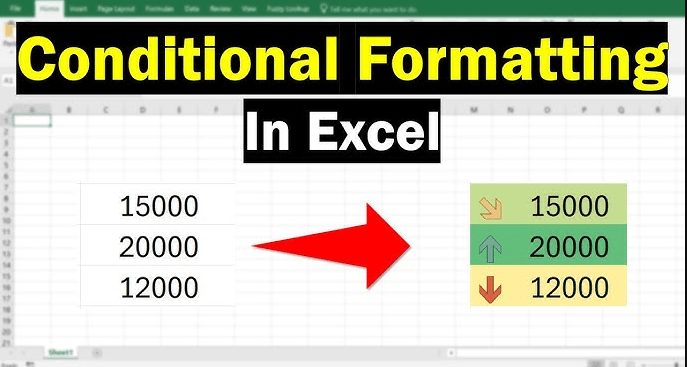
Conditional formatting in Excel helps you highlight important values, patterns, and trends without changing the actual data. Microsoft says it can make patterns and trends more apparent by applying formatting based on cell values, and it works on cell ranges, Excel tables, and, in Excel for Windows, even PivotTable reports.
This makes it useful for things like spotting duplicates, highlighting high or low values, flagging overdue dates, showing performance with color scales, or making large spreadsheets easier to read. Excel also lets you manage multiple rules, control rule order, and build custom formula-based rules when the built-in presets are not enough.
The Short Answer
To use conditional formatting in Excel:
- select the cells you want to format
- go to Home
- click Conditional Formatting
- choose a rule type
- pick the format you want
- apply the rule
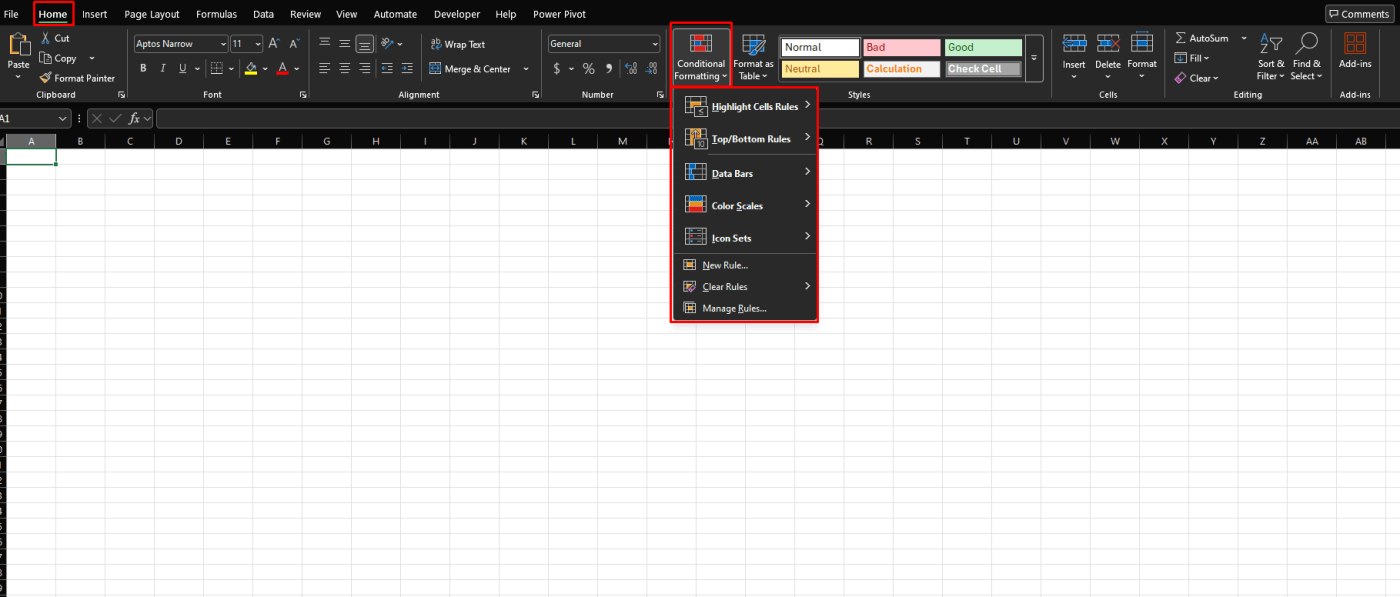
Microsoft says the standard flow starts from Home > Conditional Formatting, where you can choose built-in highlighting options or create a custom rule.
How to Apply Conditional Formatting in Excel
This is the basic method most people use.
Microsoft says to first select the range of cells, an Excel table, or even the whole sheet, then go to Home > Conditional Formatting and choose the type of rule you want. Excel will then apply the format automatically whenever the rule conditions are met.
Best Built-In Conditional Formatting Options
Excel includes several built-in rule types that cover the most common needs.
Highlight Cell Rules
Microsoft’s conditional-formatting page includes built-in highlighting for rules such as greater than, less than, equal to, text that contains, a date occurring, and duplicate values.
This is useful for:
- marking values above a target
- flagging overdue dates
- finding repeated entries
- spotting specific text
Duplicate Values
Microsoft says you can highlight duplicates by selecting the cells, then choosing Home > Conditional Formatting > Highlight Cell Rules > Duplicate Values, and then selecting the formatting style you want.
This is one of the most useful options for cleaning up lists and checking data quality.
Data Bars
Microsoft says data bars help you spot larger and smaller numbers visually by filling the cells with bars that reflect the value size. A longer bar represents a larger value and a shorter bar represents a smaller value.
This is useful for:
- sales results
- budgets
- performance comparisons
- score tables
Color Scales
Microsoft says color scales shade cells with gradations of two or three colors that correspond to minimum, midpoint, and maximum thresholds. This helps you understand data distribution and variation quickly.
This is useful when you want to spot hot and cold areas in a spreadsheet at a glance.
Icon Sets
Microsoft says icon sets let you assign visual indicators to values, such as arrows or symbols, based on thresholds. It also notes that icon sets can be combined with other conditional formats.
This is helpful for dashboards and quick status checks.
How to Use a Formula for Conditional Formatting
Built-in rules are great, but formula-based rules give you more control.
Microsoft says that when creating a custom rule, you can choose Use a formula to determine which cells to format and then enter a formula that returns TRUE or FALSE. An example Microsoft gives is using a formula like =A2>TODAY() to format cells based on dates.
This is useful when you want to:
- highlight overdue dates
- mark completed items
- color alternate rows
- apply logic that built-in rules do not cover
Example: Highlight Alternate Rows
This is a very popular use case.
Microsoft says you can create a new conditional-formatting rule, choose Use a formula to determine which cells to format, and enter:
=MOD(ROW(),2)=0
Then choose the fill color you want. This applies shading to every other row.
That is useful for:
- making long sheets easier to read
- improving printed reports
- creating zebra-striping without manual formatting
How to Manage Conditional Formatting Rules
Once you start using multiple rules, rule management matters.
Microsoft says you can manage rules to understand the order in which they are evaluated, what happens when rules conflict, and when rule evaluation should stop. You can view and edit them through the Manage Rules area.
This is important because if several rules apply to the same cells, Excel follows rule precedence rather than showing everything equally.
How to Edit or Remove Conditional Formatting
Microsoft says that to edit a rule, you can click one of the cells with the rule, go to Home > Conditional Formatting > Manage Rules > Edit Rule, and make your changes there. It also says that to clear conditional formatting, you can select the cells, go to Home > Clear, and choose Clear Formats.
This is useful if:
- the formatting is too strong
- the rule range is wrong
- you want to replace a rule with a better one
How to Copy Conditional Formatting
If you want to reuse the same formatting on another range, Microsoft says you can use Format Painter to copy the conditional formatting to other cells. It also notes that if you used a formula in the rule, you may need to adjust relative and absolute references after copying.
This saves time when you want consistent formatting across multiple parts of a workbook.
FAQ
How do I use conditional formatting in Excel?
Microsoft says to select the cells, go to Home > Conditional Formatting, choose a rule, and apply the formatting you want.
Can I highlight duplicates with conditional formatting?
Yes. Microsoft says you can use Home > Conditional Formatting > Highlight Cell Rules > Duplicate Values to do that.
Can I use formulas in conditional formatting?
Yes. Microsoft says you can create a rule with Use a formula to determine which cells to format and then enter a formula that returns TRUE or FALSE.
How do I edit a conditional-formatting rule?
Microsoft says you can go to Home > Conditional Formatting > Manage Rules > Edit Rule to change an existing rule
Work faster with genuine Office keys, instant delivery, and easy activation that keeps your Excel tools ready when you need them.