
Instructions
Windows 11 Taskbar Positions Are Returning: What Is Changing?
Jun
The Windows taskbar is one of the most frequently used parts of the operating system. It provides quick access to the Start menu, Search, open applications, pinned programs, notifications and system controls.
However, when Microsoft introduced Windows 11, it removed one customization option that many Windows 10 users considered essential: the ability to move the taskbar to another edge of the screen.
Windows 11 users could change whether the icons were centred or aligned to the left, but the taskbar itself remained fixed at the bottom.
That is finally changing.
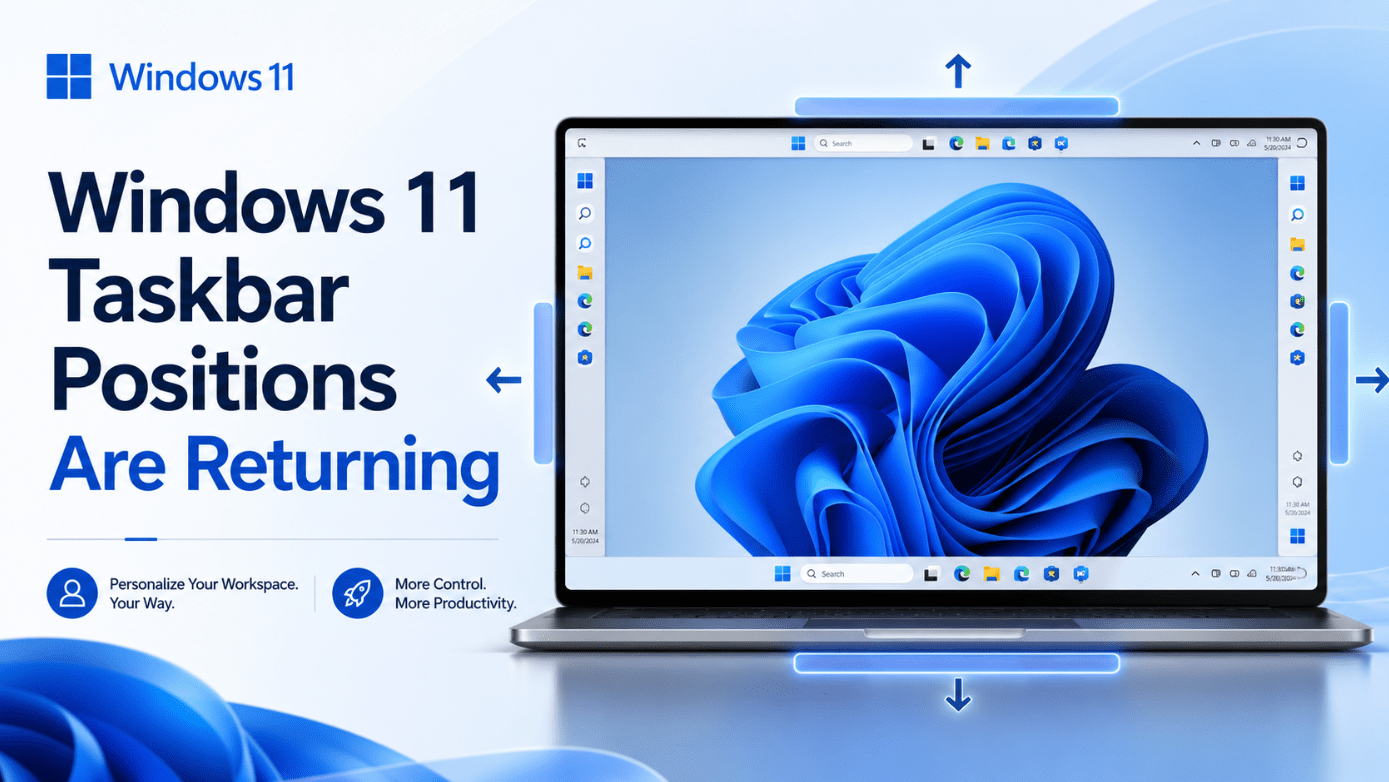
Microsoft has announced that Windows 11 taskbar positions are returning. Windows Insiders testing the feature can place the taskbar at the top, bottom, left or right side of the display.
The new implementation also adjusts Start, Search and other interface elements according to the taskbar’s position. Vertical taskbars can display separate labelled buttons for open windows, making the feature more useful than a simple visual change.
This guide explains what Microsoft is introducing, which limitations remain and when the new options may become available to regular Windows 11 users.
Planning a new installation or edition upgrade? Explore our Windows 11 product keys and choose the correct edition for your PC.
Why Did Windows 11 Remove Movable Taskbars?
Windows 10 allowed users to position the taskbar on any edge of the screen. It could be placed at the bottom, top, left or right.
That flexibility was useful for people with different monitor sizes and working styles. Developers often preferred a vertical taskbar because it left more height available for code. Users with ultrawide monitors could use spare horizontal space rather than reducing the height of every application.
Windows 11 introduced a redesigned taskbar built around a newer interface. The first version focused on a simplified layout, centred icons and improved support for touch devices.
Unfortunately, several older features did not make the transition.
Windows 11 initially lacked:
- Alternate taskbar positions
- Dragging files onto taskbar apps
- Never-combine buttons
- Visible labels for open windows
- Several right-click options
- Flexible taskbar sizing
Microsoft restored some of these features through later updates, but taskbar positioning remained one of the biggest missing options.
Users relied on registry changes and third-party customization programs to recreate top or vertical taskbars. These methods could stop working after Windows updates and sometimes caused interface problems.
The new feature is different because taskbar positioning is being added directly to Windows 11.
What Is Microsoft Changing?
Microsoft is rebuilding taskbar positioning as an official Windows 11 personalization option.
The new version allows users to:
- Position the taskbar on any edge of the display
- Choose how icons are aligned in each position
- Open Start and other flyouts from the taskbar’s location
- Use labelled buttons on a vertical taskbar
- Keep multiple windows from the same application separate
- Combine the new positions with other taskbar customization settings
The feature is currently being tested through the Windows Insider Experimental channel.
Microsoft is using this stage to collect feedback, improve performance and fix visual issues before considering a wider release.
The company has not announced a final general-availability date. Features tested in Experimental builds can change considerably before reaching normal Windows 11 installations.
Which Windows 11 Taskbar Positions Are Returning?
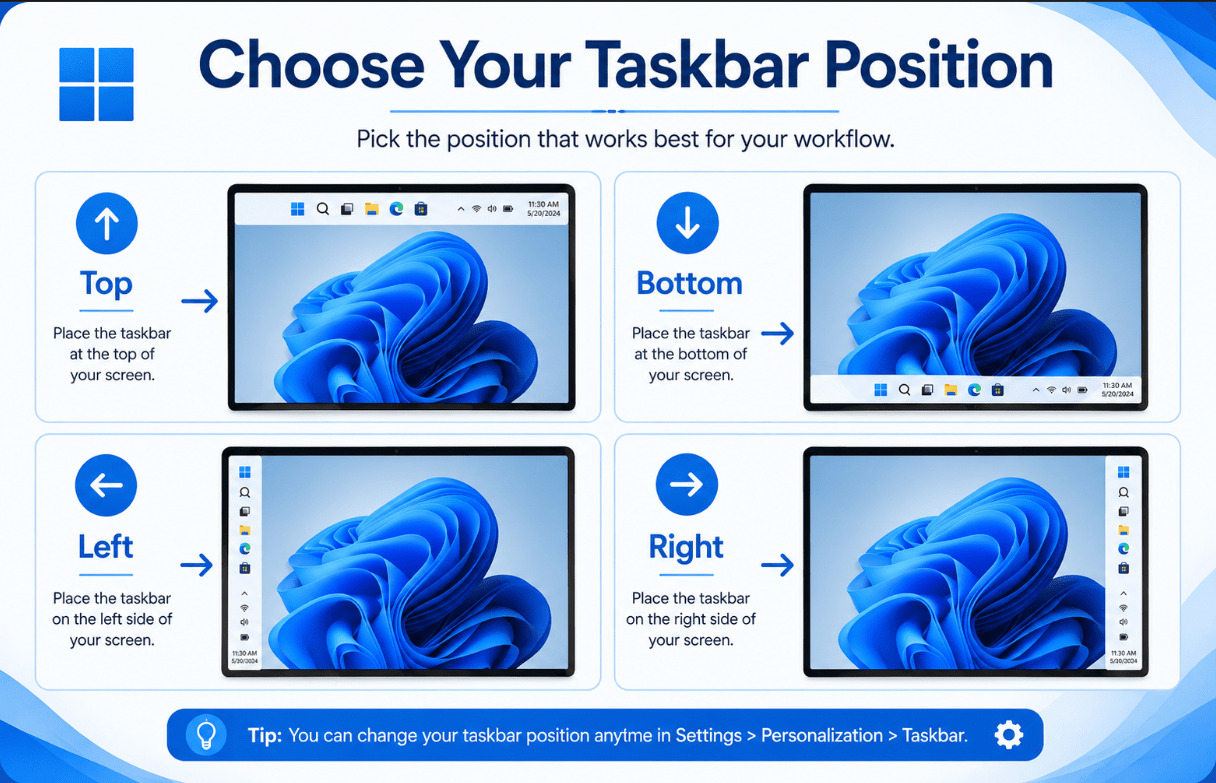
Users will be able to choose between four positions.
Bottom
The bottom remains the default Windows 11 taskbar position.
It is familiar, works well with touch controls and keeps the notification area in the traditional lower-right corner.
Users who do not want to change their layout can continue using Windows exactly as before.
Top
The top position moves the full taskbar above the desktop and application windows.
When the taskbar is at the top, the Start menu and related flyouts open downward from it rather than appearing near the bottom of the screen.
A top taskbar can be useful for people who:
- Frequently interact with browser tabs and menus
- Prefer controls grouped near the top
- Want the bottom edge left clear
- Previously used a top taskbar in Windows 10
- Find the upper part of the screen easier to reach
Left
The left position creates a vertical taskbar along the left edge of the display.
Applications, system controls and the Start button are arranged vertically instead of horizontally.
This layout can provide more vertical room inside applications, which is useful for documents, websites, spreadsheets and development tools.
Right
The right position provides the same basic benefits as the left layout but places the controls on the opposite side.
It may work better when an application already uses a large navigation panel on the left or when the user naturally reaches towards the right edge of the monitor.
How Icon Alignment Works
Microsoft is not limiting users to one icon arrangement for each position.
When the taskbar is at the top or bottom, icons can be:
- Left-aligned
- Centred
When the taskbar is on the left or right, icons can be:
- Top-aligned
- Centred vertically
This makes the feature more flexible than simply rotating the current taskbar.
A user could, for example, place the taskbar on the left while keeping the most important icons near the top. Another user could centre the same icons vertically for a more balanced appearance.
The alignment option is expected to appear beside the position setting in Taskbar behaviours.
What Happens to Start, Search and Other Flyouts?
Moving the taskbar affects much more than app icons.
Start, Search, Quick Settings, notifications and other taskbar flyouts need to appear in a logical position relative to the selected edge.
Microsoft says these interface elements will follow the taskbar.
For example:
- Start opens from the top when the taskbar is at the top
- Start opens beside a vertical taskbar
- Search appears near the selected taskbar edge
- Taskbar menus remain connected to their buttons
- App previews and related panels adjust to the layout
This is important because unofficial taskbar-position workarounds often moved only the visible bar. Menus could continue opening from the wrong location or appear partially off-screen.
Microsoft’s native implementation is intended to make the whole experience behave consistently.
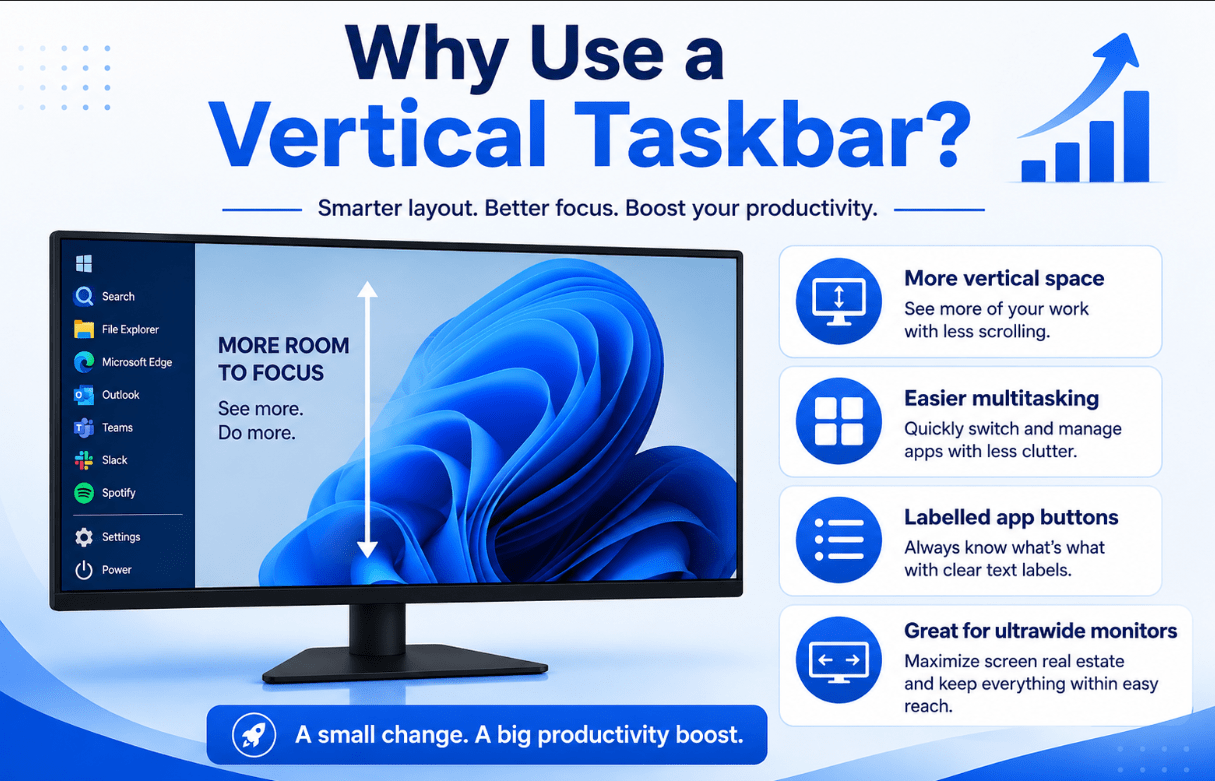
Why Vertical Taskbars Are Useful
A vertical taskbar can be more than a personal design preference.
Most modern monitors use widescreen aspect ratios. They provide considerably more horizontal space than vertical space.
Placing a large taskbar at the bottom uses some of the screen’s more limited height. Moving it to the side uses horizontal room that may otherwise remain unused.
More Room for Documents
A side taskbar leaves additional height available for:
- Word documents
- Web pages
- PDF files
- Email messages
- Excel workbooks
- Coding windows
- Research material
Even a small increase can reduce scrolling during a full working day.
Easier Multitasking
Vertical layouts can display a longer list of open applications and windows.
This is useful when working with several:
- Browser windows
- File Explorer folders
- Word documents
- Excel files
- Remote desktops
- Development tools
Labels for Individual Windows
Microsoft says vertical taskbars support the combination of:
- Never combine taskbar buttons
- Show labels
Each open window can therefore appear as a separate labelled button.
Instead of seeing one small icon representing several documents, users can identify individual windows by name.
This can make switching between files faster and reduce the chance of opening the wrong window.
Better Use of Ultrawide Monitors
Ultrawide displays have an abundance of horizontal space.
A taskbar along the left or right edge can make the layout feel more balanced while preserving the full height for applications.
Accessibility and Ergonomics
Some users may find one edge of the display easier to reach because of their desk arrangement, monitor position or accessibility needs.
Allowing four positions gives users more freedom to build a comfortable workspace.
The New Smaller Taskbar Option
Movable taskbars are not the only customization option Microsoft is testing.
The company is also introducing a smaller taskbar mode.
When enabled, this option reduces:
- Taskbar height
- Icon size
- Space occupied by the taskbar
The smaller taskbar can be useful on laptops and compact displays where every pixel matters.
Microsoft says switching to the smaller taskbar does not require signing out or restarting the computer.
Users testing the feature can find it under:
Settings > Personalization > Taskbar > Taskbar behaviours > Show smaller taskbar buttons
The smaller mode and alternate positions support the same broader goal: giving users more control over how much desktop space the taskbar occupies.
How to Change the Taskbar Position
When the option is available on your installation, use these steps:
- Open Settings.
- Select Personalization.
- Open Taskbar.
- Expand Taskbar behaviours.
- Find the taskbar position option.
- Select Top, Bottom, Left or Right.
- Choose your preferred icon alignment.
The taskbar should move without requiring a restart.
Start and related interface elements should adjust automatically.
When the option does not appear, your Windows build or rollout group does not support it yet.
Avoid downloading unknown programs that promise to unlock unreleased Windows features. Third-party customization software should be researched carefully and backed up before installation.
Is This Better Than the Windows 10 Taskbar?
Windows 10 already allowed users to move the taskbar, so Windows 11 is restoring flexibility that previously existed.
However, the new implementation includes several modern improvements.
These include:
- Position-aware Start and Search flyouts
- Alignment choices for each orientation
- Vertical labelled app buttons
- Integration with Windows 11’s design
- A separate smaller taskbar option
The Windows 10 implementation remains more mature today because all its main features are already complete.
The Windows 11 version has greater potential but still lacks auto-hide, complete touch support and some multi-monitor functionality in alternate positions.
The fairest conclusion is that Windows 11 is finally catching up while rebuilding the experience for its newer interface.
What This Change Means for Windows 11
The return of taskbar positions is significant because it responds directly to years of user feedback.
Windows 11 originally placed more emphasis on simplified design than customization. Microsoft has gradually reversed some of those decisions by restoring:
- Dragging files onto taskbar applications
- Never-combine buttons
- Taskbar labels
- Additional Start menu options
- More control over recommendations
- Smaller taskbar buttons
- Alternate taskbar positions
This suggests that Microsoft is placing more value on choice and productivity.
Not everyone will use a vertical or top taskbar. The important improvement is that users will no longer be forced into the same layout.
Ready to move to a modern and supported Windows operating system?
Browse our selection of Windows 11 product keys, including Windows 11 Home for everyday use and Windows 11 Pro for advanced business and productivity features.