
Instructions
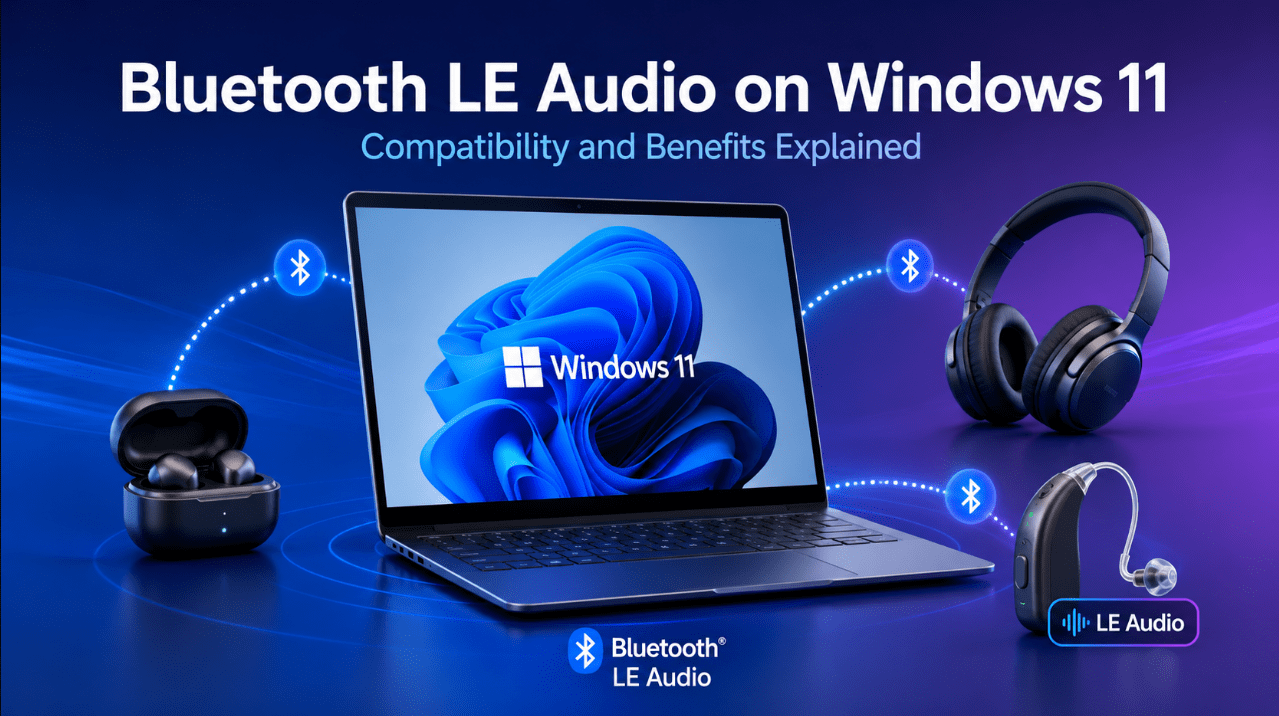
Bluetooth LE Audio on Windows 11: Compatibility and Benefits Explained
Jun
Bluetooth headphones are convenient, but traditional Bluetooth audio has several weaknesses. Sound quality can drop when the microphone is active, latency may be noticeable, and compatibility can vary between computers and accessories.
Bluetooth Low Energy Audio, commonly called Bluetooth LE Audio, is designed to improve that experience.
Windows 11 supports LE Audio on compatible computers. It streams sound through the Bluetooth Low Energy radio rather than the older Bluetooth Classic audio system and uses newer audio profiles and codecs.
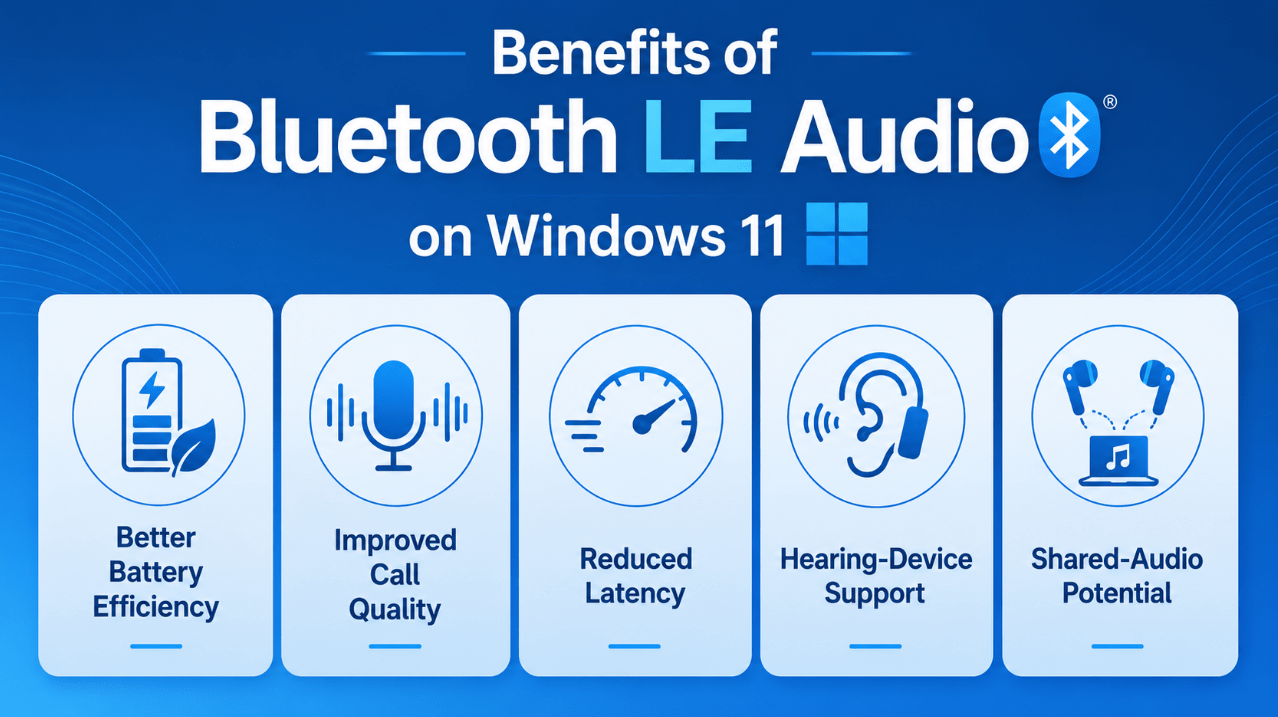
Potential benefits include:
- More efficient power use
- Better voice-call quality
- Reduced latency
- Improved microphone and playback performance
- Direct support for compatible hearing devices
- New audio-sharing capabilities
- Greater flexibility across supported accessories
However, Windows 11 alone is not enough. Both the computer and the headphones, earbuds, speaker or hearing device must support Bluetooth LE Audio.
Need a current Windows installation for a compatible PC? Browse our Windows 11 product keys.
What Is Bluetooth LE Audio?
Bluetooth LE Audio is a newer method of transmitting wireless audio.
Traditional Bluetooth headphones normally use Bluetooth Classic profiles such as:
- A2DP for music playback
- HFP for calls and microphone use
LE Audio uses newer profiles, including the Telephony and Media Audio Profile, or TMAP, and commonly uses the LC3 audio codec.
LC3 is designed to provide efficient audio at lower data rates. This can reduce power consumption while maintaining useful audio quality.
LE Audio is not simply another name for Bluetooth Low Energy. A device can support Bluetooth Low Energy for keyboards, mice or other accessories without supporting LE Audio.
What Are the Main Benefits?
Better Power Efficiency
LE Audio was designed around the low-power Bluetooth radio.
Compatible headphones, earbuds and hearing devices may use less power during audio streaming, although the real battery improvement depends on the device design and manufacturer.
Improved Voice Calls
Traditional Bluetooth audio often changes to a lower-quality mode when the microphone is used.
LE Audio supports more efficient two-way audio. On newer supported Windows 11 systems, playback can remain in higher-quality stereo while the microphone is active.
This can improve:
- Video calls
- Voice chat
- Online classes
- Customer-support work
- Gaming communication
Reduced Latency
LE Audio can reduce delay between the computer and the audio accessory.
Lower latency is helpful for:
- Games
- Video playback
- Real-time communication
- Music applications
- Accessibility devices
The exact improvement varies by hardware and drivers.
Hearing-Device Support
Compatible Windows 11 PCs can connect directly to Bluetooth LE Audio hearing aids and other supported hearing devices.
Users can stream:
- Music
- Video sound
- System audio
- Call audio
Windows 11 version 24H2 also supports additional controls for compatible hearing devices, including audio presets and ambient sound volume.
Shared Audio
Microsoft is testing Shared Audio on selected Windows 11 Copilot+ PCs.
The preview allows one supported PC to transmit the same audio stream to two compatible LE Audio accessories at the same time.
Possible uses include:
- Two people watching a film
- Sharing music while travelling
- Connecting headphones and a hearing device
- Listening together without using speakers
Shared Audio remains a preview feature and is not yet available on every Windows 11 PC.
Windows 11 Compatibility Requirements
Bluetooth LE Audio support was introduced in Windows 11 version 22H2.
To use it, the PC generally needs:
- Windows 11 version 22H2 or later
- Compatible Bluetooth LE hardware
- A supported audio codec
- LE Audio-capable Bluetooth drivers
- LE Audio-capable audio subsystem drivers
- A compatible headset, earbuds, speaker or hearing device
Windows 10 does not support the Windows LE Audio experience.
Not every Windows 11 computer supports it. A PC may advertise Bluetooth 5.2, 5.3 or Bluetooth Low Energy while still lacking the hardware, codec or manufacturer drivers required for LE Audio.
The audio accessory must also explicitly support:
- Bluetooth LE Audio
- TMAP
- Or another clearly stated LE Audio capability
Check the manufacturer’s specifications rather than assuming that every modern Bluetooth product is compatible.
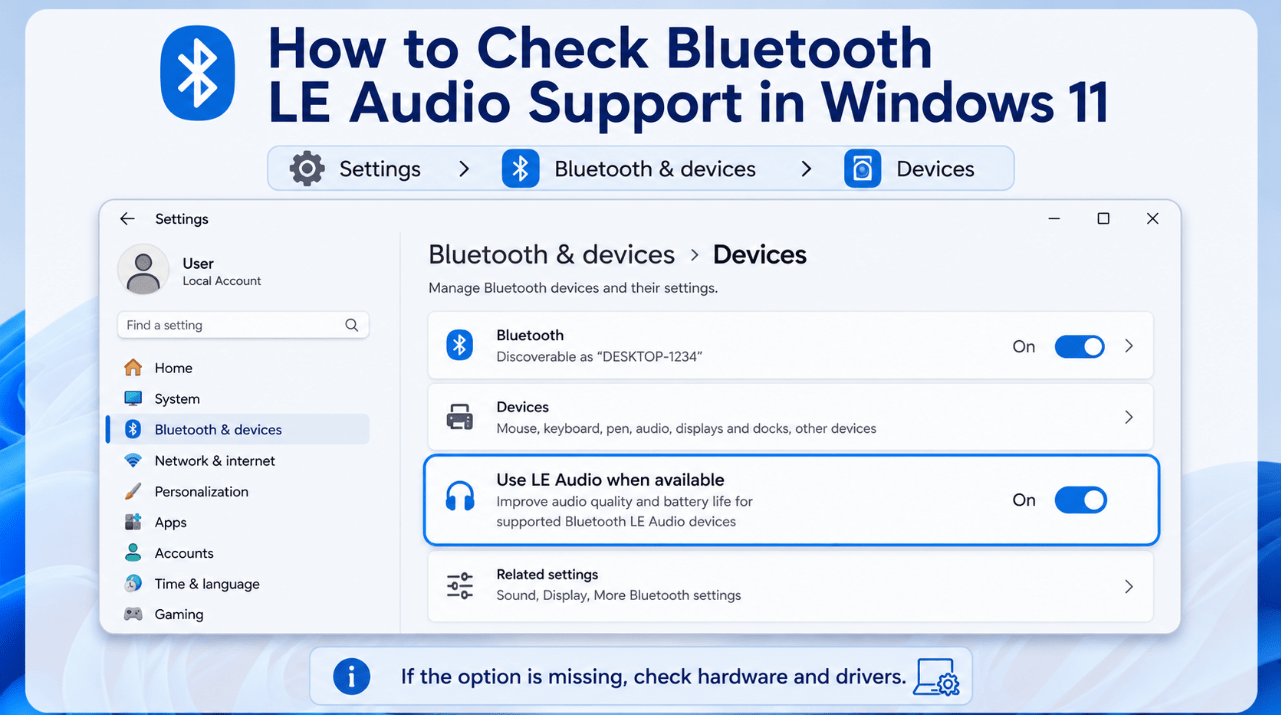
How to Check Whether Your PC Supports LE Audio
Windows provides a simple compatibility check.
Open:
Settings > Bluetooth & devices > Devices
Under Device settings, look for:
Use LE Audio when available
When this option is visible, the PC currently supports Bluetooth LE Audio.
When it is missing, possible reasons include:
- Unsupported Bluetooth hardware
- An incompatible audio subsystem
- Missing manufacturer drivers
- An older Windows version
- LE Audio support not enabled by the manufacturer
Install all Windows updates and check the PC manufacturer’s support page for Bluetooth and audio-driver updates.
Some computers may gain support later through updated drivers, but software cannot guarantee support when the required hardware is missing.
Do Your Headphones or Earbuds Support It?
Check the product specification for wording such as:
- Bluetooth LE Audio
- LE Audio
- TMAP support
- LC3 codec support
- Auracast support
LC3 or Auracast may suggest LE Audio capability, but the manufacturer should clearly confirm Windows-compatible LE Audio support.
Some accessories also require:
- A firmware update
- LE Audio to be enabled in the manufacturer’s app
- Removing and pairing the device again
- A particular connection mode
A Bluetooth accessory can still connect using Bluetooth Classic when LE Audio is unavailable. In that case, you will not receive the newer LE Audio benefits.
Stereo Sound While Using the Microphone
One of the most practical Windows 11 improvements is higher-quality playback while the microphone is active.
This requires:
- Windows 11 version 24H2 or later
- Windows build 26100.4484 or newer
- Factory-integrated Bluetooth LE support
- Updated Bluetooth and audio drivers
- A compatible LE Audio accessory
When supported, Windows normally uses stereo playback during microphone use.
To review the setting:
- Open Settings.
- Select System > Sound.
- Choose the connected LE Audio device under Output.
- Expand Output settings > Format.
- Find Format when microphone is active.
- Select Stereo (2 channels) or Mono (1 channel).
Stereo provides better playback quality. Mono may improve compatibility when the sound drops out or becomes unstable.
If the option is missing, the computer does not currently support stereo playback while the microphone is active.
LE Audio vs Bluetooth Classic Audio
| Feature | Bluetooth Classic Audio | Bluetooth LE Audio |
|---|---|---|
| Wireless system | Bluetooth Classic | Bluetooth Low Energy |
| Common codec | SBC, AAC or aptX | LC3 and supported alternatives |
| Power efficiency | Traditional | Designed for greater efficiency |
| Call audio | Can reduce playback quality | Better modern two-way audio support |
| Hearing-device support | Limited or proprietary | Direct compatible-device support |
| Audio sharing | Limited | Broadcast and shared-audio potential |
| Windows requirement | Broad Windows support | Compatible Windows 11 hardware and drivers |
Bluetooth Classic remains useful and widely compatible.
LE Audio is not automatically better in every situation because performance depends on implementation, signal quality, drivers and the accessory itself.
How to Pair an LE Audio Device
Pairing is similar to other Bluetooth accessories.
- Put the headphones, earbuds or hearing device into pairing mode.
- Open Settings > Bluetooth & devices.
- Select Add device.
- Choose Bluetooth.
- Select the accessory.
- Complete any manufacturer setup.
- Confirm that Use LE Audio when available is enabled.
Some devices support Swift Pair and display a notification when they are nearby and ready to connect.
When LE Audio does not activate:
- Update Windows
- Update Bluetooth and audio drivers
- Update the accessory firmware
- Enable LE Audio in the accessory app
- Remove the accessory from Windows
- Restart both devices
- Pair it again
Is It Worth Upgrading for LE Audio?
Bluetooth LE Audio is worth prioritising when you:
- Use Bluetooth headphones for calls every day
- Want better microphone and playback quality
- Need lower latency
- Use compatible hearing devices
- Want longer accessory battery life
- Plan to use Shared Audio in the future
- Are already replacing your PC or headphones
An immediate upgrade may not be necessary when:
- Your current Bluetooth audio already works well
- You mainly use wired headphones
- You rarely use the microphone
- Your favourite accessories do not support LE Audio
- A new PC would be required only for this one feature
The best long-term setup is a Windows 11 PC and audio accessory that both explicitly list Bluetooth LE Audio support.
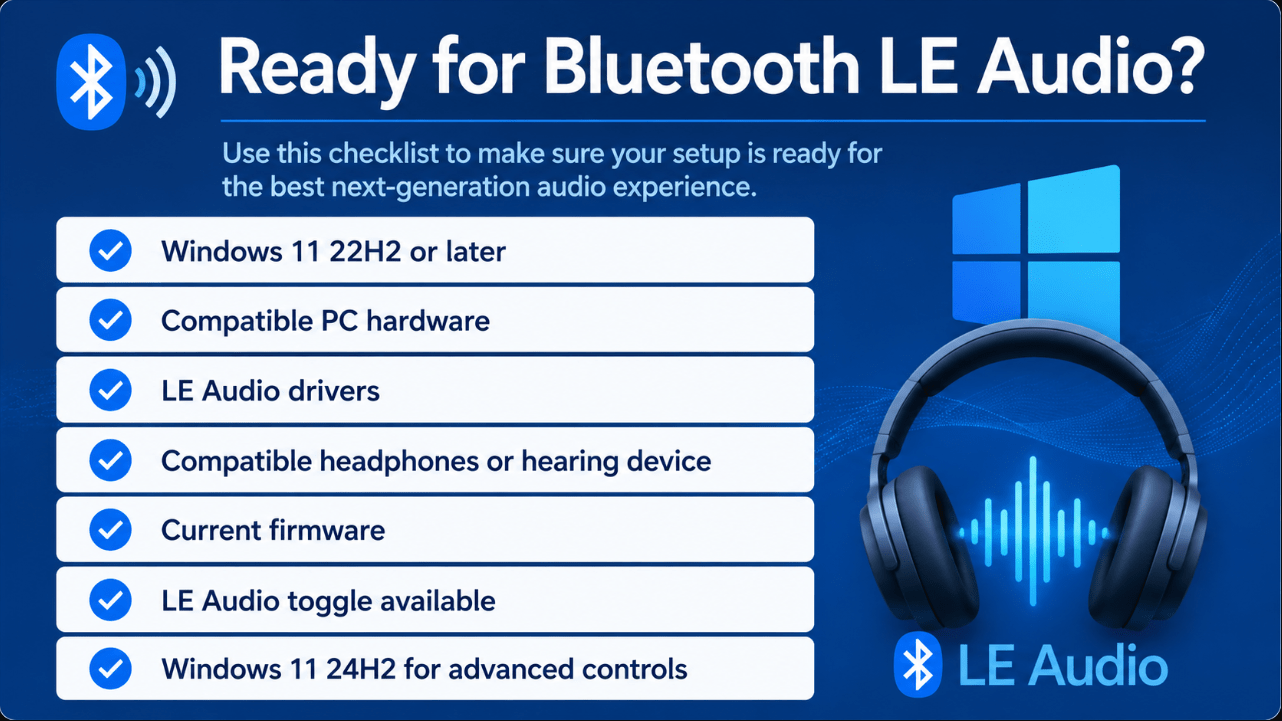
Compatibility Checklist
Before buying new hardware, confirm:
- Windows 11 version 22H2 or later
- The PC explicitly supports Bluetooth LE Audio
- LE Audio-capable Bluetooth and audio drivers are available
- The accessory supports LE Audio or TMAP
- Firmware is current
- Use LE Audio when available appears in Settings
- Windows 11 24H2 is installed for newer controls
- Stereo microphone mode is supported when required
Prepare your compatible PC for current Bluetooth, accessibility and communication features.
Browse our Windows 11 Home licences for everyday use or Windows 11 Pro licences for advanced business and management features.