
Instructions
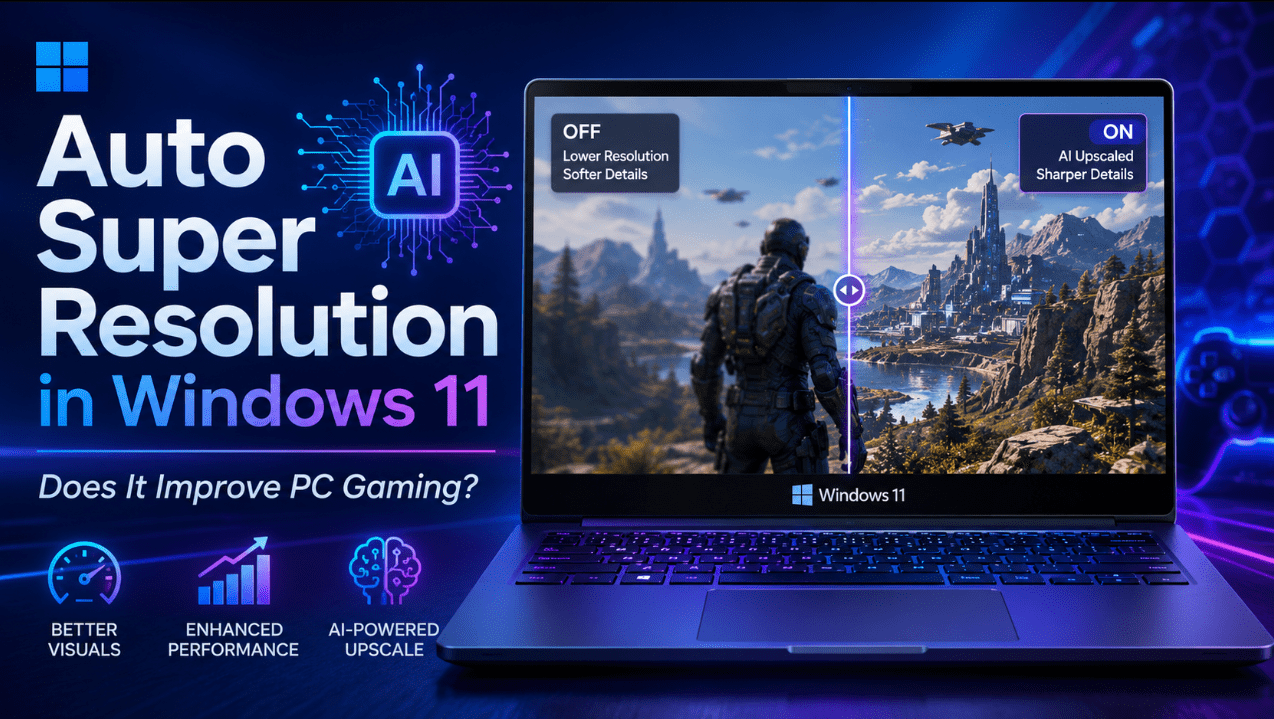
Auto Super Resolution in Windows 11: Does It Improve PC Gaming?
Jun
PC gamers often have to choose between smoother frame rates and sharper image quality.
Increasing a game’s resolution can make it look better, but it also places more pressure on the graphics hardware. Lowering the resolution can improve performance, although the image may become softer or less detailed.
Automatic Super Resolution, usually called Auto SR, is Microsoft’s attempt to reduce that compromise.
Auto SR is built into Windows 11 on supported devices. It allows a game to render at a lower resolution and then uses on-device AI processing to upscale the image for a sharper result. Microsoft says this can deliver smoother frame rates while retaining more visual detail than normal low-resolution rendering.
The feature can improve gaming, but it is not available on every Windows 11 PC or in every game. It also has limitations involving HDR, supported graphics APIs, render resolution and image quality.
Need Windows 11 for a compatible gaming PC? Browse our Windows 11 product keys.
What Is Auto Super Resolution?
Auto SR is an AI-powered upscaling feature integrated into the Windows display pipeline.
Instead of requiring developers to add support individually, Windows can apply it to compatible games at the operating-system level.
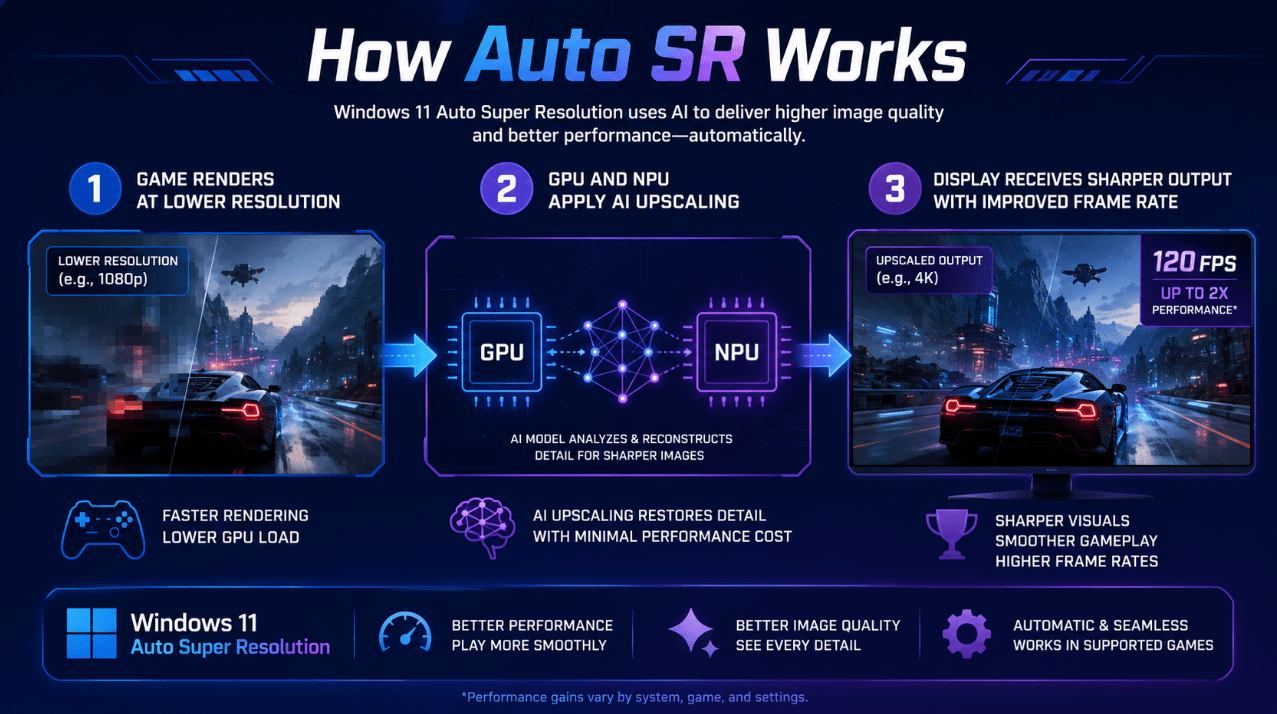
The process works like this:
- The game renders internally at a lower resolution.
- The lower resolution reduces the graphics workload.
- Windows uses the GPU and Neural Processing Unit, or NPU, to upscale the image.
- The display shows a higher-resolution result.
- The reduced rendering load may allow a higher frame rate.
All image processing happens locally on the device. Microsoft states that game graphics are not sent to the cloud for Auto SR processing.
Does Auto SR Actually Improve Gaming Performance?
Auto SR can improve gaming performance when a game is limited by graphics rendering.
Rendering fewer pixels usually requires less GPU work. The available performance can then be used to produce:
- Higher frame rates
- More stable frame pacing
- Lower graphics workload
- Better performance on high-resolution displays
- Smoother gameplay on efficient or compact hardware
The improvement is not identical in every game.
Results depend on:
- The game engine
- The original resolution
- Graphics settings
- CPU and GPU performance
- Display resolution
- Driver support
- Whether the game is compatible
- How clearly the game’s interface scales
Microsoft’s current guidance says Auto SR generally enhances games rendering below 1080p, with supported input resolutions typically between 700p and 900p depending on the device.
What Hardware Do You Need?
Auto SR is not a standard feature available on every Windows 11 computer.
Microsoft currently lists support for:
- Eligible Copilot+ PCs with Snapdragon X or X2 Series processors and a compatible Hexagon NPU
- ROG Xbox Ally X devices in the supported preview configuration
- Windows 11 version 24H2 or later
- A display resolution of at least 1080p
- Current graphics and neural-processor drivers
- The latest Auto Super Resolution package
- Compatible DirectX games
The ROG Xbox Ally X implementation was still being offered as a preview for Xbox Insiders in April 2026, particularly for docked external-display use. Microsoft said the feature could provide 1440p-like detail while maintaining smooth frame rates.
A normal Windows 11 gaming desktop with a powerful graphics card does not automatically support Auto SR. The required Copilot+ hardware and NPU support are essential parts of the current implementation.
Which Games Work with Auto SR?
Microsoft lists support for games using:
- DirectX 10
- DirectX 11
- DirectX 12
- Native x64
- x64 emulation on Arm64
- Native Arm64
Current limitations include:
- DirectX 9 is not supported
- Vulkan is not supported
- OpenGL is not supported
- x86-only games are not supported
- Some 10-bit graphics formats are unsupported
- HDR is not currently supported
Compatibility can also depend on how a game handles fullscreen modes and resolution changes.
Auto SR works best when the game uses:
- Fullscreen
- Exclusive fullscreen
- A supported render resolution
Some borderless-windowed games may require Windows to change the display resolution automatically when the game launches.
How to Turn On Auto SR
Auto SR is an opt-in feature on current systems rather than something that is always active.
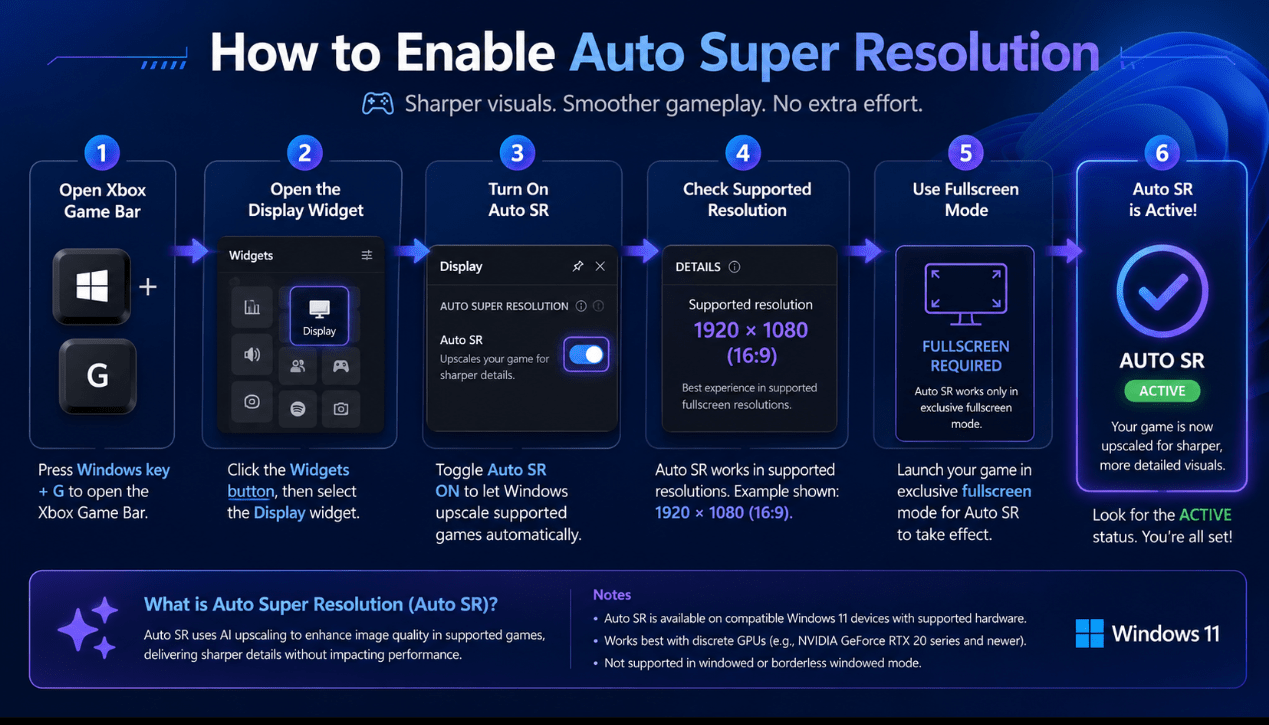
Using Xbox Game Bar
- Launch a supported game.
- Press Windows key + G.
- Open Widgets Menu.
- Select Display.
- Open the Auto SR tab.
- Enable Always use with this game.
- Enable the in-game status indicator if desired.
- Select a supported resolution and fullscreen mode.
The Game Bar widget shows whether Auto SR is:
- On
- Off
- Enabled but waiting for another action
It can also explain whether the resolution or display mode needs to be changed.
Using Windows Settings
Open:
Settings > System > Display > Graphics
You can enable Auto SR as a default for supported games or configure it for an individual application.
Per-game settings override the general default.
Auto SR vs DLSS, FSR and XeSS
Auto SR is similar in purpose to technologies such as:
- NVIDIA DLSS
- AMD FidelityFX Super Resolution
- Intel XeSS
All of these attempt to improve the relationship between image quality and performance.
The main difference is where the feature is integrated.
Auto SR
- Built into Windows
- Can work without direct developer integration
- Uses supported GPU and NPU hardware
- Applied through the Windows display pipeline
DLSS, FSR and XeSS
- Usually integrated into the game
- May offer more game-specific controls
- Can provide several quality modes
- Support depends on the game and graphics hardware
Auto SR operates independently of a game’s own scaling technology. Microsoft notes that combining or changing in-game scaling settings can affect performance and quality differently from one game to another.
For a game with well-implemented DLSS, FSR or XeSS support, the built-in game option may offer better control. Auto SR is especially useful for compatible games that lack a modern upscaler.
Image Quality Limitations
Upscaling cannot perfectly reproduce every detail that would exist if the game rendered natively at the final resolution.
Possible issues include:
- Soft text
- Less clear menus
- Small interface elements appearing imperfect
- Shimmering around detailed objects
- Unusual effects in motion
- Fine lines looking unstable
- Certain scenes appearing over-sharpened
Microsoft specifically warns that some games may have difficulty rendering fine text or interface elements at the lower input resolution used by Auto SR. Users can try another supported resolution or disable the feature for that game.
Because Auto SR is configurable per game, you do not need to use it everywhere.
Does Auto SR Work with HDR?
No, not currently.
Microsoft states that Auto SR does not support HDR content. To use HDR in a compatible game, Auto SR must be disabled.
This creates a choice for some players:
- Use Auto SR for potentially smoother performance
- Disable it to retain HDR
The better option depends on the game, display and personal preference.
Is Auto SR Worth Using?
Auto SR is worth testing when:
- The game struggles to maintain a smooth frame rate
- You use a supported Copilot+ gaming device
- The game lacks DLSS, FSR or XeSS
- You play on a high-resolution external display
- The game works well at an Auto SR-supported resolution
- You prefer smoother movement over native rendering
You may want to leave it off when:
- The game already runs smoothly
- Native image quality is the priority
- Text or interface elements look unclear
- You want to use HDR
- The game includes a better built-in upscaler
- The graphics API is unsupported
The best approach is to enable the status indicator, test the same area of the game with Auto SR on and off, and compare both image quality and frame rate.
How to Get the Best Results
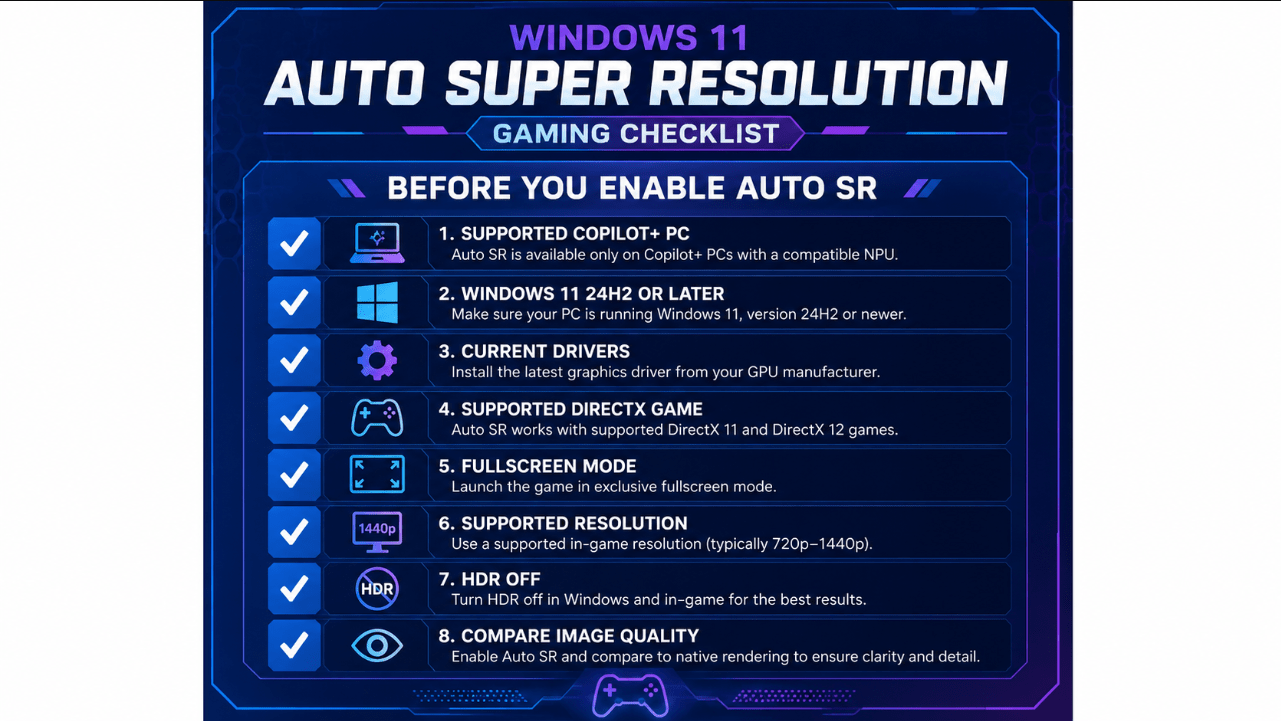
Use this setup checklist:
- Install all Windows updates
- Update graphics and NPU drivers
- Update the Auto Super Resolution package through Microsoft Store
- Update Xbox Game Bar
- Use a supported DirectX game
- Select fullscreen or exclusive fullscreen
- Use the recommended input resolution
- Check that the Auto SR indicator is active
- Test the game’s own upscaler separately
- Disable HDR while using Auto SR
- Turn Auto SR off if interface quality becomes distracting
Microsoft has also simplified Auto SR controls over time, including easier configuration through Game Bar and Windows notifications.
Prepare a compatible gaming PC with a current Windows installation.
Browse our Windows 11 Home licences for everyday and gaming use or Windows 11 Pro licences for advanced management and productivity features.