
Instructions
Windows Backup vs OneDrive: What Is the Difference?
Aug
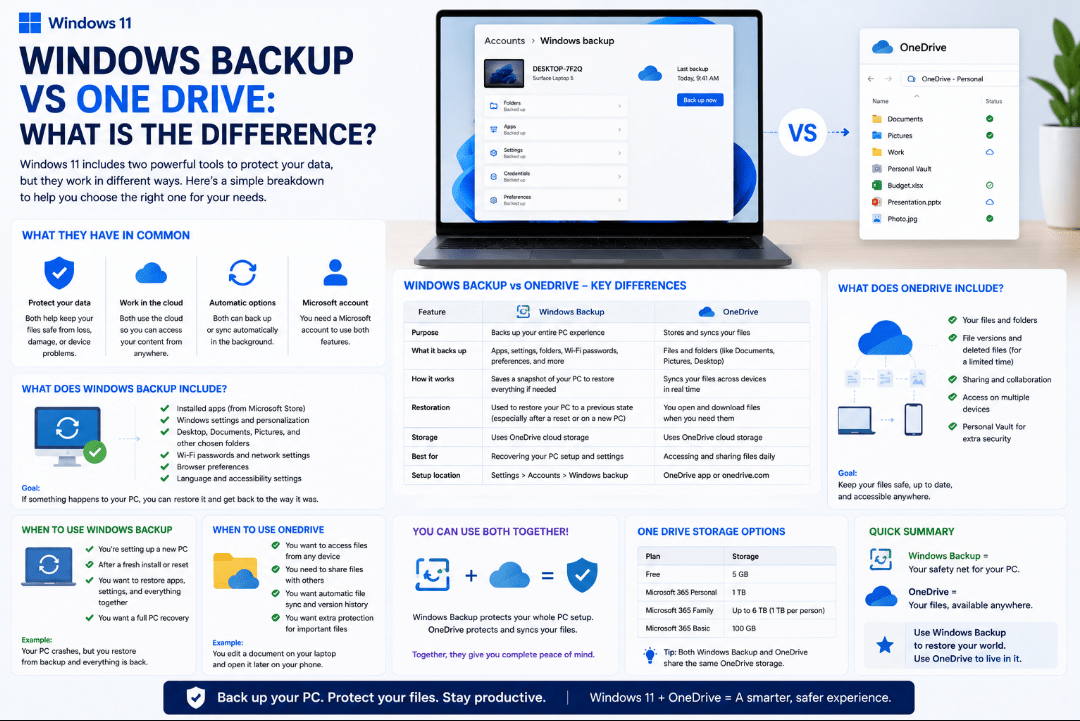
Windows Backup vs OneDrive can be confusing because the two features work closely together. However, they aren’t exactly the same thing.
OneDrive is primarily Microsoft’s cloud storage and file-syncing service. Windows Backup is a broader Windows feature that can use OneDrive to protect selected folders while also backing up many Windows settings and preferences.
Here’s the difference in simple terms.
What Is OneDrive?
OneDrive is Microsoft’s cloud storage service.
Files stored or backed up to OneDrive can sync between your PC and the cloud. This allows you to access them from other computers, phones, or through OneDrive online.
OneDrive can also back up common Windows folders such as:
- Desktop
- Documents
- Pictures
- Music
- Videos
Changes made to synced files are reflected across your connected devices.
OneDrive also includes Files On-Demand, which lets files remain stored online without taking up full storage space on your PC until you need them.
What Is Windows Backup?
Windows Backup is designed to make it easier to protect your Windows setup and move to another PC.
It can back up more than just personal files.
Windows Backup can remember:
- Selected personal folders
- Installed apps
- Accessibility settings
- Wi-Fi networks and passwords
- Wallpaper and themes
- Start layout
- Language preferences
- Other Windows settings
When you sign in to a new Windows PC using the same Microsoft account, Windows can use this information to help restore your previous setup.
Does Windows Backup Use OneDrive?
Yes.
This is where the two services overlap.
When you enable folder backup through Windows Backup, selected folders such as Desktop, Documents, Pictures, Music, and Videos are synced to your OneDrive account.
So Windows Backup doesn’t use a completely separate cloud storage system for these files.
Instead:
Windows Backup → manages the broader Windows backup experience
OneDrive → stores and syncs the selected personal files
This is why you may see OneDrive mentioned while configuring Windows Backup.
Windows Backup vs OneDrive: Main Differences
| Feature | Windows Backup | OneDrive |
|---|---|---|
| Personal file backup | Yes, through OneDrive | Yes |
| Sync files between devices | Uses OneDrive | Yes |
| Windows settings backup | Yes | No |
| Remember installed apps | Yes | No |
| Wi-Fi settings and passwords | Yes | No |
| Windows personalisation | Yes | No |
| Cloud file access | Through OneDrive | Yes |
| Helps set up a new Windows PC | Yes | Mainly provides your files |
The easiest way to think about it is that OneDrive focuses on your files, while Windows Backup focuses on restoring more of your overall Windows experience.
Does Windows Backup Save Installed Programs?
Not completely.
Windows Backup can remember many of the apps you had installed, but it doesn’t create complete cloud copies of every desktop program.
When restoring to another PC, Windows can restore app pins and help you reinstall supported applications. Some programs may still need to be downloaded again manually.
So Windows Backup shouldn’t be treated as a full system image.
Is OneDrive a Full PC Backup?
No.
OneDrive is excellent for protecting and synchronising files, but it doesn’t create a complete copy of your Windows installation.
It doesn’t automatically preserve everything on your PC, including every:
- Installed desktop program
- Windows system file
- Driver
- Application configuration
- File stored outside selected synced locations
If something is important and isn’t stored inside OneDrive or one of your backed-up folders, you should consider another backup method as well.
Do You Need Both?
For most Windows 11 users, using them together makes sense because they are designed to work together.
Use OneDrive when you want to:
- Protect important files in the cloud
- Access files from several devices
- Sync changes automatically
- Save local disk space with Files On-Demand
Use Windows Backup when you also want Windows to remember:
- Apps
- Settings
- Personalisation
- Wi-Fi information
- Other preferences
Windows Backup then uses OneDrive for the file-storage part of that experience.
How to Open Windows Backup
You can search for:
Windows Backup
from the Start menu.
You can also go to:
Settings → Accounts → Windows backup
From there, you can review which folders, apps, and Windows preferences are being backed up.
Summary
When comparing Windows Backup vs OneDrive, the two services aren’t competitors.
For most users, the best approach is to let the two work together: use OneDrive to protect important files and Windows Backup to make moving or restoring your Windows experience easier.
Need Windows 11 for a new or upgraded PC? Explore our Windows 11 keys and choose the right edition for your computer today.