
Instructions
Archive Files in Windows 11: ZIP, RAR and 7z Explained
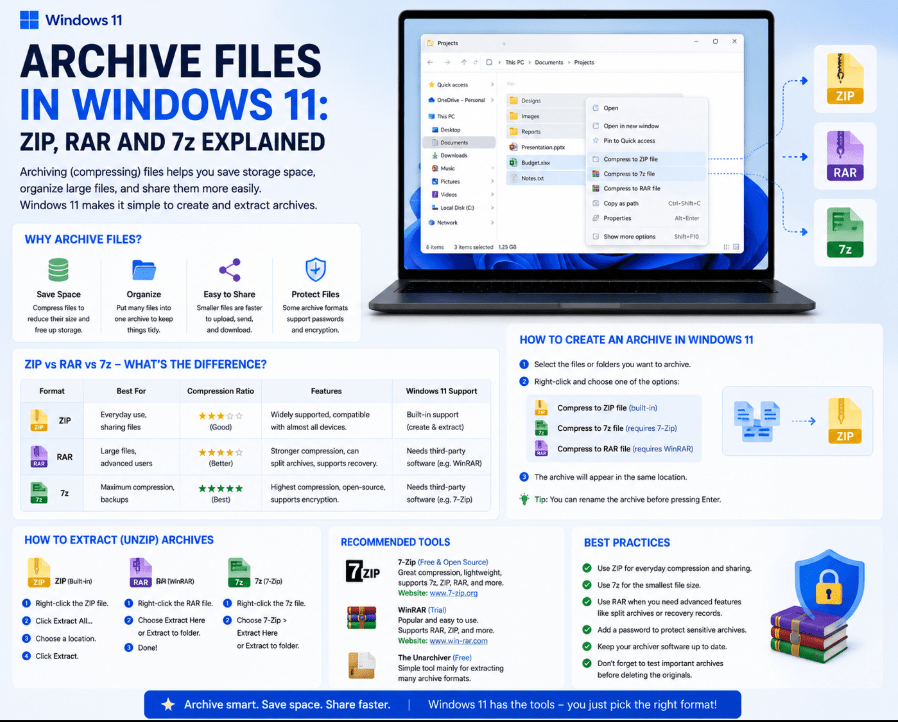
Aug
If you’ve downloaded software, documents, photos, or other files online, you’ve probably come across ZIP, RAR, or 7z files.
These are all archive files, which combine one or more files into a single package and often reduce their overall size. Modern Windows 11 can work with several popular archive formats directly through File Explorer.
Here’s what archive files in Windows 11 are and how ZIP, RAR, and 7z differ.
What Is an Archive File?
An archive is a file that contains other files or folders.
Instead of sending 20 separate files, for example, you can place them inside one archive.
Archive files are commonly used to:
- Combine multiple files into one
- Make files easier to share
- Reduce storage space
- Organize downloads
- Package software or documents
The most common archive formats Windows users encounter are ZIP, RAR, and 7z.
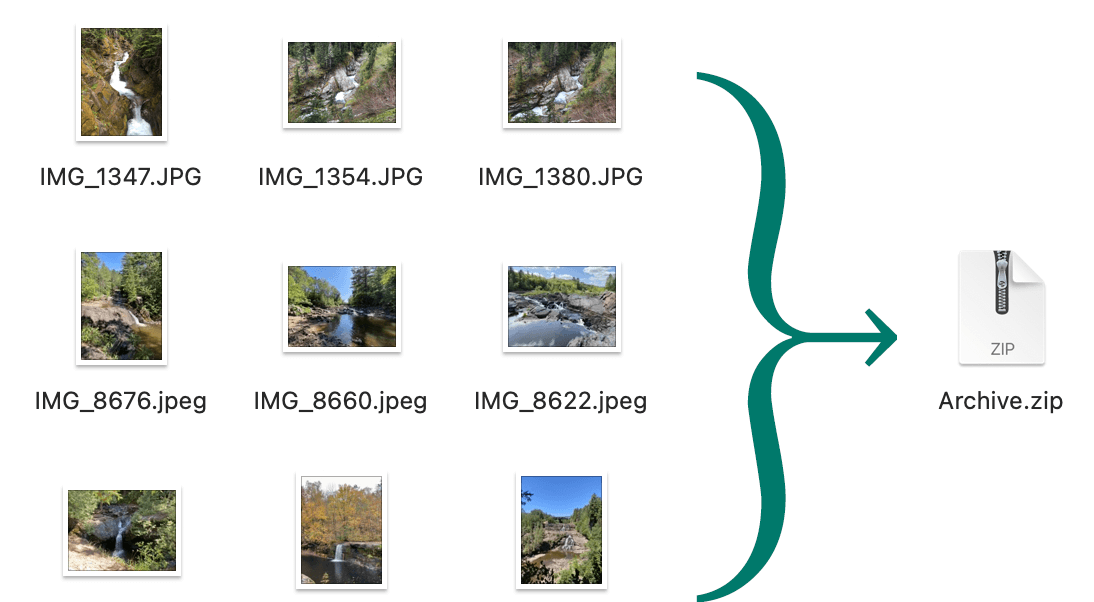
What Is a ZIP File?
ZIP is probably the most familiar archive format.
Windows has supported ZIP files directly for many years. You can open them in File Explorer without installing additional software.
To extract a ZIP file:
- Right-click the ZIP archive.
- Select Extract All.
- Choose where you want the files saved.
- Click Extract.
You can also open a ZIP file like a normal folder and drag individual files out of it.
Microsoft notes that compressed ZIP folders can make groups of files easier to transfer and share.
What Is a RAR File?
RAR is another popular archive format frequently used for larger downloads and collections of files.
Older versions of Windows usually required software such as WinRAR or 7-Zip to open RAR archives.
Modern Windows 11 versions now include native support for reading and extracting RAR files through File Explorer. Microsoft added this support using the open-source libarchive project.
That means you can often simply:
Right-click the RAR file → Extract All
without installing another application.
However, advanced RAR features may still require dedicated archive software.
What Is a 7z File?
A 7z file uses the 7-Zip archive format.
It is popular because it can provide strong compression, meaning it may create smaller archives than ZIP in some situations.
Windows 11 version 24H2 supports 7z archives directly, alongside ZIP, RAR, and TAR formats.
You can therefore open and extract many 7z files directly through File Explorer without installing 7-Zip.
ZIP vs RAR vs 7z
The basic differences are easy to understand:
| Format | Main Advantage | Windows 11 Support |
|---|---|---|
| ZIP | Very widely compatible | Built in |
| RAR | Popular for compressed downloads | Built in on modern Windows 11 |
| 7z | Strong compression | Built in on Windows 11 24H2 and newer |
For everyday file sharing, ZIP remains a convenient choice because almost every operating system can open it.
RAR and 7z are often encountered when downloading larger collections of files or software packages.
How to Create an Archive in Windows 11
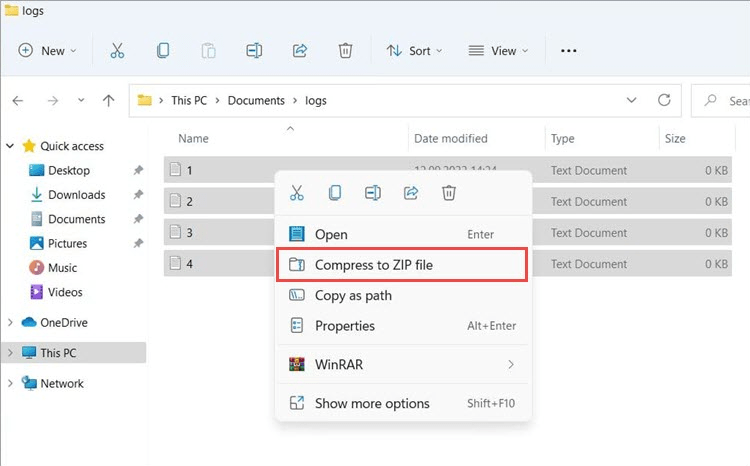
Creating a ZIP archive is simple.
- Select the files or folder.
- Right-click them.
- Choose Compress to or the available ZIP compression option.
- Windows creates the archive.
Newer Windows 11 releases have also expanded File Explorer’s compression features, including support for creating additional archive types such as 7z and TAR.
For basic everyday use, ZIP is usually the simplest option.
What About Password-Protected Archives?
This is one area where Windows’ built-in support has limitations.
Microsoft says Windows 11 does not support operations on encrypted archive files through its standard archive functionality.
If you receive a password-protected or encrypted ZIP, RAR, or 7z archive, you may need compatible third-party archive software to open it.
Third-party tools can also provide additional options such as:
- Password protection
- Encryption
- Advanced compression settings
- Splitting large archives into multiple parts
- Additional archive formats
For normal unencrypted archives, however, Windows File Explorer may be all you need.
Are Archive Files Safe?
An archive isn’t automatically safe simply because Windows can open it.
ZIP, RAR, and 7z files can contain executable programs or other files just like a normal folder.
Before opening files from an archive:
- Make sure you trust the source
- Be cautious with unexpected downloads
- Keep Windows Security enabled
- Pay attention to SmartScreen warnings
Treat the extracted files with the same caution you would use for any other internet download.
Summary
Working with archive files in Windows 11 is much easier than it used to be.
ZIP remains the easiest option for everyday sharing, while RAR and 7z are also widely used for compressed downloads. Third-party tools are mainly useful when you need encryption, password protection, or more advanced archive features.
Need Windows 11 for your PC? Explore our Windows 11 keys and choose the right edition for your computer today.