
Instructions
Excel Calculation Mode: Why Formulas Sometimes Don’t Update
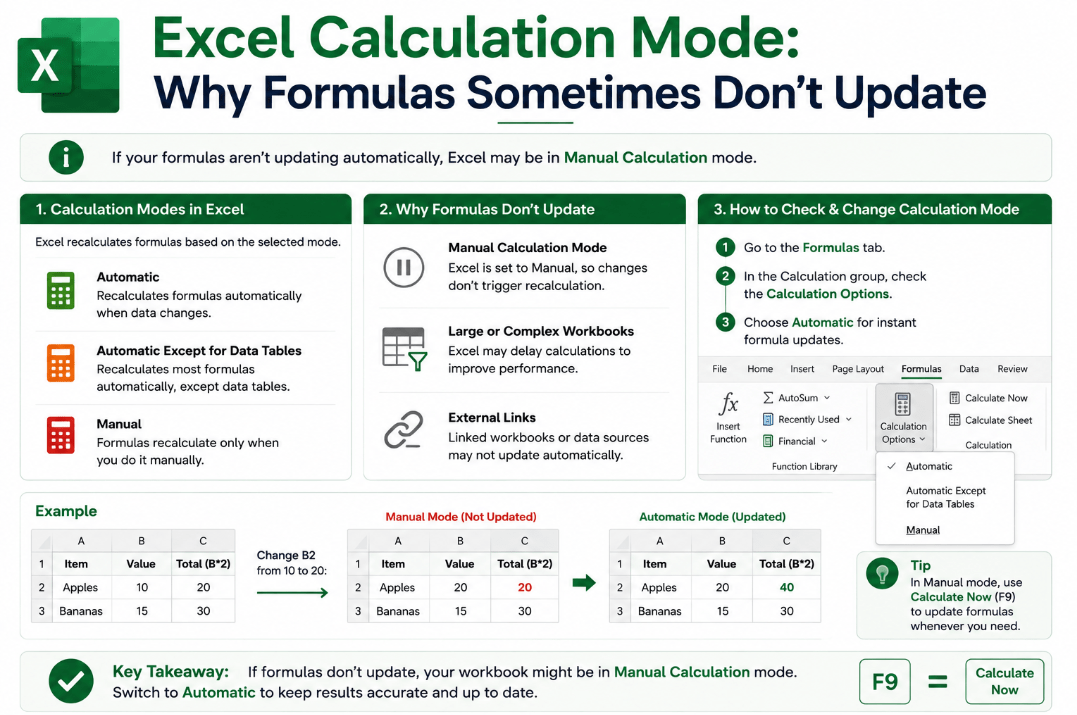
Aug
Have you ever changed a number in Excel but noticed that the formula result stayed exactly the same?
The problem may not be the formula itself. Excel calculation mode controls when formulas are recalculated, and if your workbook is set to Manual mode, results may not update automatically.
What Is Excel Calculation Mode?
Excel normally recalculates formulas whenever the values they depend on change.
For example, if cell C2 contains:
=A2+B2
and you change A2, Excel normally updates C2 immediately.
However, Excel provides different calculation modes that control when recalculation happens.
The main options are:
- Automatic
- Automatic except for data tables
- Manual
For most everyday users, Automatic is the normal and recommended setting.
Why Do Excel Formulas Stop Updating?
A common reason is that Excel has been switched to Manual calculation mode.
In Manual mode, changing a value does not necessarily cause dependent formulas to recalculate immediately.
This can make it look like your spreadsheet is broken.
For example:
A2 contains 100
B2 contains 50
C2 contains =A2+B2
C2 correctly shows 150.
If calculation mode is Manual and you change A2 to 200, C2 may continue showing 150 until Excel recalculates the workbook.
How to Check Excel Calculation Mode
To check the current setting:
- Open Excel.
- Select the Formulas tab.
- Click Calculation Options.
- Check which option is selected.
For normal use, choose:
Automatic
Excel should then recalculate formulas when their dependent values change.
You can also find calculation settings under:
File → Options → Formulas
Look for the Workbook Calculation section.
How to Recalculate Formulas Manually
If you’re working in Manual mode, you don’t necessarily need to switch back to Automatic immediately.
You can force Excel to recalculate.
Press:
F9
This recalculates formulas in open workbooks.
You can also use the Calculate Now and Calculate Sheet commands from the Formulas tab.
This can be useful with very large spreadsheets where automatic recalculation causes delays.
Why Would Anyone Use Manual Calculation?
Automatic calculation is best for most spreadsheets, but large workbooks can contain thousands or even millions of formulas.
Constant recalculation may slow them down.
Manual calculation lets advanced users make several changes first and then recalculate the workbook when they are ready.
It can be helpful with:
- Large financial models
- Complex reports
- Huge datasets
- Workbooks containing many formulas
- Slow calculations
For a normal spreadsheet, however, Manual mode can cause unnecessary confusion.
Why Did Excel Switch to Manual Mode?
Sometimes users don’t intentionally change the setting.
Excel’s calculation behavior can be influenced by workbooks opened during the same Excel session.
This means you may open a workbook and unexpectedly discover that formulas are no longer updating automatically.
If this happens, always check:
Formulas → Calculation Options
before rewriting or replacing your formulas.
What If Calculation Mode Is Already Automatic?
If your formulas still don’t update while Automatic mode is enabled, the cause may be something else.
Check whether:
- The formula is stored as text
- The cell starts with an apostrophe
- Show Formulas is enabled
- The referenced cells contain text instead of numbers
- The formula contains an error
- Circular references are present
You can also try pressing F9 to force a recalculation.
If that fixes the result, calculation settings are likely involved.
Formula Stored as Text vs Calculation Mode
These two problems can look similar.
If Excel displays:
=A2+B2
inside the cell instead of showing the result, the formula may be stored as text.
If Excel shows a result but the result doesn’t change when your data changes, calculation mode is a more likely cause.
That distinction can make troubleshooting much faster.
Should You Leave Excel on Automatic?
For most users, yes.
Automatic calculation keeps formulas and results synchronized whenever spreadsheet data changes.
Manual mode should mainly be used when you have a specific reason, such as improving performance in a very large workbook.
If your spreadsheet isn’t unusually complex, leaving Excel calculation mode set to Automatic is normally the simplest option.
Summary
When Excel formulas appear correct but don’t update, check Excel calculation mode before doing anything complicated.
Open Formulas → Calculation Options and make sure Automatic is selected.
Need Microsoft Office with Excel for your PC? Explore our Microsoft Office keys and choose the version that fits your work today.