
Instructions
Office File Compatibility Mode: What Does It Mean?
Aug
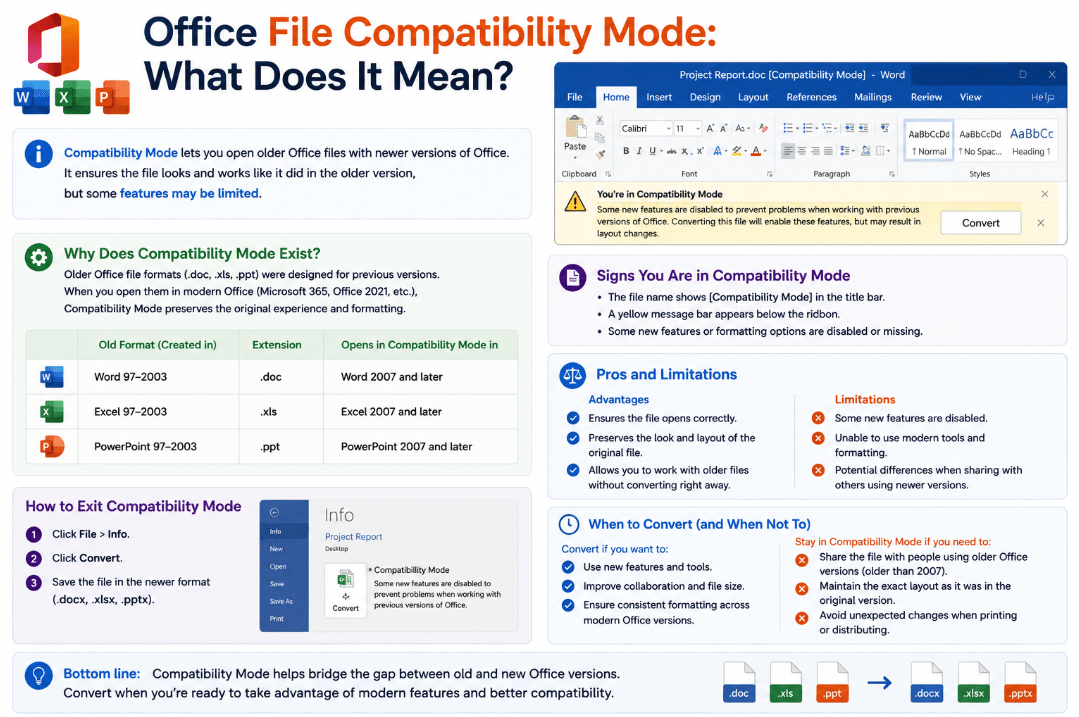
Have you opened a Word, Excel, or PowerPoint file and noticed Compatibility Mode next to the file name?
It doesn’t mean the document is damaged or that something is wrong with Microsoft Office.
Office Compatibility Mode simply means you’re working with a file created in an older Office format, and Office is limiting certain newer features so the file remains compatible with older software.
Why Does Compatibility Mode Appear?
Compatibility Mode commonly appears when you open an older Office file format.
Examples include:
- DOC instead of DOCX
- XLS instead of XLSX
- PPT instead of PPTX
For example, Microsoft says an Excel 97–2003 .xls workbook automatically opens in Compatibility Mode in current versions of Excel.
The same general idea applies to older Word and PowerPoint files.
What Does Compatibility Mode Actually Do?
Compatibility Mode prevents you from accidentally adding content that older Office versions or file formats cannot properly support.
This can mean certain newer:
- Formatting options
- Charts
- SmartArt features
- Effects
- Document features
- Worksheet features
- Presentation tools
may be unavailable or behave differently.
In PowerPoint, for example, Microsoft says some newer commands are suppressed while working with old .ppt files so the presentation can still be opened and edited by older versions.
Is Compatibility Mode an Error?
No.
Compatibility Mode is not an error message.
Your file can normally still be:
- Opened
- Edited
- Saved
- Printed
- Shared
Office is simply trying to preserve compatibility with the older file format.
If you need to send the file back to someone using old Office software, staying in Compatibility Mode can actually be useful.
Why Are Some Office Features Disabled?
This is one of the most noticeable effects of Compatibility Mode.
You may find that a feature you normally use is unavailable or greyed out.
This happens because the older file format may not know how to store that feature correctly.
Microsoft notes that PowerPoint Compatibility Mode disables features that could introduce content incompatible with PowerPoint 97–2003 files.
Converting the file to a modern format can make those newer features available again.
How to Check for Compatibility Problems
Office includes a built-in Compatibility Checker.
In Word, Excel, or PowerPoint:
- Click File.
- Select Info.
- Click Check for Issues.
- Select Check Compatibility.
Office will show features or content that may not work correctly in older versions.
This is particularly useful before sending a modern Office file to someone who uses older software.
How to Get Out of Compatibility Mode
If you no longer need the file to work with older Office versions, you can usually convert it to a modern format.
For example:
DOC → DOCX
XLS → XLSX
PPT → PPTX
One simple method is:
- Open the file.
- Click File → Save As.
- Select the modern Office file format.
- Save the new version.
Word also provides a File → Info → Convert option for supported older documents. Microsoft notes that converting removes compatibility restrictions and enables newer Word features.
Should You Always Convert Old Office Files?
Not necessarily.
Keep the older format if:
- Someone still needs to open it with old Office software
- A legacy business system requires it
- You’re working with archived company documents
- You need to preserve compatibility with older applications
Convert to the modern format if:
- Everyone uses recent Office versions
- You want newer Office features
- You no longer need old-software compatibility
- You’re creating an updated version of an old document
For most everyday users, converting older files to modern formats makes sense.
Can Converting Change the File?
Potentially.
Most simple documents convert without major problems, but complicated formatting or older features can sometimes behave differently.
This is why creating a new copy instead of immediately replacing the original can be a good idea.
Microsoft’s Compatibility Checker can also warn about content that might lose functionality or look different when moving between Office versions.
Compatibility Mode vs Compatibility Checker
These two features are related but different.
Compatibility Mode keeps the current file working with an older Office format.
Compatibility Checker analyzes the file and warns you about features that may not work in older Office versions.
You may therefore encounter both when working with older Word, Excel, or PowerPoint files.
Summary
Office Compatibility Mode simply means Microsoft Office is protecting compatibility with an older file format.
It isn’t an error, and you can normally continue editing the file. If you no longer need compatibility with older Office software, converting it to a modern format such as DOCX, XLSX, or PPTX is usually the easiest way to get the newer features back.
Need Microsoft Office for Word, Excel, and PowerPoint? Explore our Microsoft Office keys and choose the version that fits your work today.