
Instructions
Windows 11 Administrator Protection: What Is It?
Sep
Administrator accounts in Windows can install software, change important settings, and modify parts of the operating system that normal users cannot.
That access is useful, but it can also create a security risk if malicious software manages to use those privileges.
Windows 11 Administrator Protection is designed to reduce that risk by keeping administrator privileges turned off until they are actually needed.
What Is Administrator Protection?
Administrator Protection is a security feature based on the principle of least privilege.
Even if your Windows account is an administrator, you normally operate without full administrator privileges.
When an application or task genuinely needs elevated access, Windows asks you to approve the action.
Administrator privileges are then granted temporarily for that specific task rather than remaining available all the time.
Microsoft calls this just-in-time elevation.
Why Does Windows Need This?
Administrator privileges can make major changes to Windows.
They can be used to:
- Install software
- Modify the Windows Registry
- Change system-wide settings
- Access sensitive areas of the system
- Disable certain security features
Malware may try to gain administrator privileges so it can make these changes without the user realizing what is happening.
Administrator Protection makes that more difficult because elevated privileges are not permanently available to the signed-in administrator account.
How Does Administrator Protection Work?
When you sign in, Windows gives your account a deprivileged user token.
If you start something that requires administrator rights, Windows asks you to authorize it.
Windows then creates an isolated administrator token through a hidden system-managed account and gives that token only to the process that needs it.
When the process finishes, the elevated token is destroyed.
So instead of:
Administrator account → administrator privileges all the time
the idea becomes:
Administrator account → normal privileges → temporary elevation when required
Does It Use Windows Hello?
Yes.
Administrator Protection integrates with Windows Hello to verify that you really intended to approve an administrative action.
Depending on your PC and configuration, Windows Hello authentication can involve methods such as:
- PIN
- Fingerprint
- Facial recognition
This adds another barrier before software can make administrator-level changes.
Administrator Protection vs UAC
Administrator Protection may sound similar to User Account Control, or UAC, but it goes further.
Traditional UAC warns you when a program wants permission to make important system changes.
Administrator Protection changes how those administrator privileges are created and used in the first place.
With Administrator Protection enabled, elevated access is isolated and generated only when necessary rather than relying on administrator privileges that already exist in the normal user session.
How to Enable Administrator Protection
Microsoft says Administrator Protection is available on supported Windows 11 devices and is off by default.
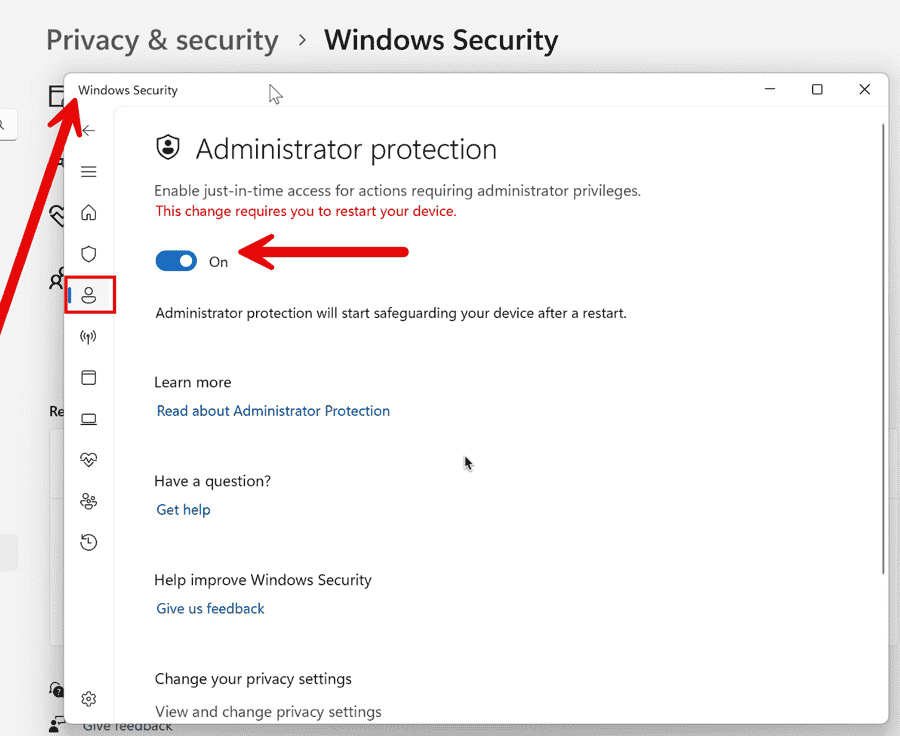
On PCs where the Windows Security option is available:
- Open Start.
- Search for Windows Security.
- Open Account protection.
- Find Administrator protection.
- Turn the feature On.
- Restart your computer.
A restart is required before the protection becomes active.
Microsoft is rolling out some configuration options gradually, so the toggle may not appear on every Windows 11 PC immediately.
Which Windows 11 Editions Support It?
Microsoft currently lists Administrator Protection for:
- Windows 11 Home
- Windows 11 Pro
- Windows 11 Enterprise
- Windows 11 Education
Availability can still depend on your Windows build and whether the feature has reached your device.
Can Administrator Protection Cause Problems?
Possibly.
Some older applications were designed with the expectation that administrator privileges would be continuously available.
Because Administrator Protection separates normal and elevated activity more aggressively, some applications or installers may not behave exactly as expected.
Microsoft specifically notes some compatibility limitations involving certain applications and advanced environments.
For normal users, this mainly means that if an older program suddenly behaves differently after enabling Administrator Protection, the feature may be worth checking during troubleshooting.
Should You Enable Administrator Protection?
For users who regularly sign in with an administrator account, Administrator Protection can provide another useful layer of security.
Its main advantages are:
- Administrator privileges are granted only when needed
- Each elevated action requires explicit approval
- Windows Hello can verify the person approving it
- Elevated processes are isolated from the normal user session
- Malware has fewer opportunities to silently gain administrator access
It does not replace antivirus software, SmartScreen, UAC, or other Windows security features. Instead, it adds another layer of protection around one of the most powerful parts of Windows: administrator access.
Summary
Windows 11 Administrator Protection changes the traditional administrator model by keeping users deprivileged most of the time and granting administrator rights only for specific approved tasks.
For everyday users, the biggest difference may simply be an additional Windows Hello verification when something needs elevated access.
Need Windows 11 for your PC? Explore our Windows 11 keys and choose the right edition for your computer today.