
Instructions
Word Session Recovery: What Happens After Word Crashes?
Sep
You are working on an important Word document when Word suddenly freezes, closes, or your computer restarts.
Is everything you typed gone?
Not necessarily.
Word Session Recovery can automatically detect recovery files and offer to restore your recent work the next time you open Word.
What Happens When Word Crashes?
When Word closes unexpectedly, it can look for available recovery information when the application starts again.
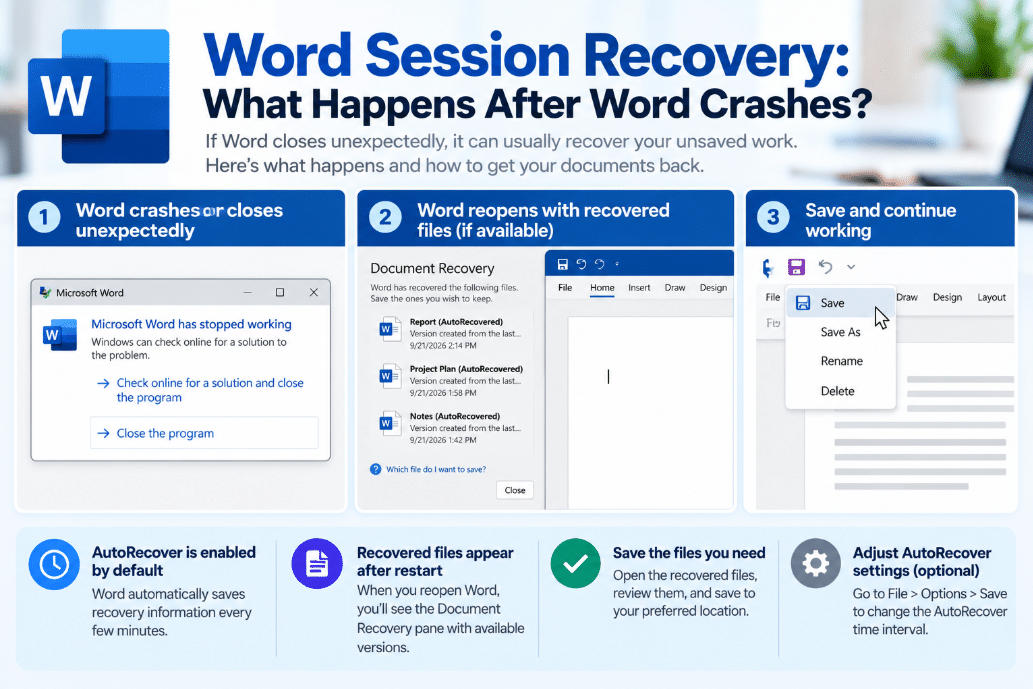
If recoverable files are found, Word normally displays the Document Recovery pane.
The pane can contain versions based on:
- Your last manual save
- An AutoRecover copy
- An AutoSaved version when using supported OneDrive or SharePoint files
Microsoft recommends reviewing the recovered files before closing the recovery pane.
What Is the Document Recovery Pane?
The Document Recovery pane usually appears on the side of Word after an unexpected shutdown.
You may see one or several versions of the document.
Word shows information such as the file name and recovery time, which can help you determine which version contains your latest changes.
If several versions appear, open them and compare the contents before deleting anything.
Microsoft recommends checking the most recent timestamp first because it will often contain the newest work.
Does Word Recover Everything You Typed?
Not always.
Word Session Recovery depends on the most recent information that Word managed to save.
For example, if AutoRecover was saving recovery information every 10 minutes and Word crashes eight minutes after the last recovery save, some recent edits could be missing.
AutoRecover is therefore a safety feature rather than a replacement for regularly saving your document.
Microsoft also recommends saving files frequently even when AutoRecover is enabled.
What Is AutoRecover?
AutoRecover periodically saves recovery information while you work.
On Word for Windows, you can check its settings under:
File → Options → Save
Look for:
Save AutoRecover information every X minutes
You can change how frequently Word creates recovery information from this menu.
For example, reducing the interval from 10 minutes to 5 minutes can potentially reduce how much work is lost during an unexpected crash.
However, you should still use Ctrl + S regularly.
AutoRecover vs AutoSave
These features sound similar, but they are not the same.
AutoRecover is mainly designed to help recover work after a crash, power failure, or unexpected shutdown.
AutoSave continually saves changes to supported files stored in OneDrive or SharePoint and is available in supported Microsoft 365 configurations.
In simple terms:
AutoRecover → emergency recovery
AutoSave → continuous saving
If AutoSave is enabled, there may be less unsaved work to recover after a crash.
What Should You Do When a Recovered File Appears?
Open the recovered document and check whether your latest changes are there.
If everything looks correct, save the file immediately.
Use:
File → Save As
or press:
Ctrl + S
This is important because a recovery copy should not be treated as your permanent saved document.
Microsoft specifically recommends saving recovered files you want to keep before closing them.
What If Multiple Recovered Versions Appear?
Word may sometimes show more than one version.
For example, you might see:
- An earlier manually saved version
- A newer AutoRecover version
- An AutoSaved cloud version
Check the time shown under each document.
Open the newest version first, but do not immediately delete the others until you confirm that it contains everything you need.
You can review each version individually from the Document Recovery pane.
What If the Document Recovery Pane Does Not Appear?
You can also manually check for unsaved documents.
In Word for Windows, go to:
File → Info → Manage Document → Recover Unsaved Documents
If Word has an available unsaved copy, it may appear there.
Open the document and then use Save As to keep it permanently.
This is worth checking if Word crashed but did not automatically offer a recovered version.
Can You Recover a Previously Saved Version?
Sometimes.
If the document had previously been saved and AutoRecover captured a later version, Word may show an available version under:
File → Info → Manage Document
You can open that version and compare it with your current document.
Word may also provide a Restore option for certain recovered versions.
What If the Word File Is Damaged?
A crash can occasionally leave a document damaged rather than simply unsaved.
Word includes an Open and Repair option for this situation.
Go to:
File → Open → Browse
Select the document, click the arrow beside Open, and choose:
Open and Repair
Microsoft says this feature may be able to recover documents that Word cannot open normally.
How to Reduce the Risk of Losing Work
A few simple habits can make Word crashes much less stressful:
- Keep AutoRecover enabled
- Reduce the AutoRecover interval if needed
- Save regularly with Ctrl + S
- Store important Microsoft 365 documents in OneDrive or SharePoint when appropriate
- Use AutoSave when it is available
- Save recovered documents immediately
Microsoft recommends OneDrive or SharePoint with AutoSave for Microsoft 365 users who want continuous saving.
Final Thoughts
Word Session Recovery can save you from losing a large amount of work after Word crashes, freezes, or your computer shuts down unexpectedly.
When Word reopens, check the Document Recovery pane carefully and save the newest useful version immediately.
If nothing appears automatically, Recover Unsaved Documents and Open and Repair give you additional options.
AutoRecover is extremely useful, but regular saving and AutoSave remain the best protection against losing important work.
Need Microsoft Office with Word and its recovery features? Explore our Microsoft Office keys and choose the version that fits your work today.