
Instructions
PowerPoint 400% Zoom: Magnify Slides During a Presentation
Sep
Have you ever shown a detailed chart, screenshot, or diagram in PowerPoint and realized that people at the back of the room could barely see it?
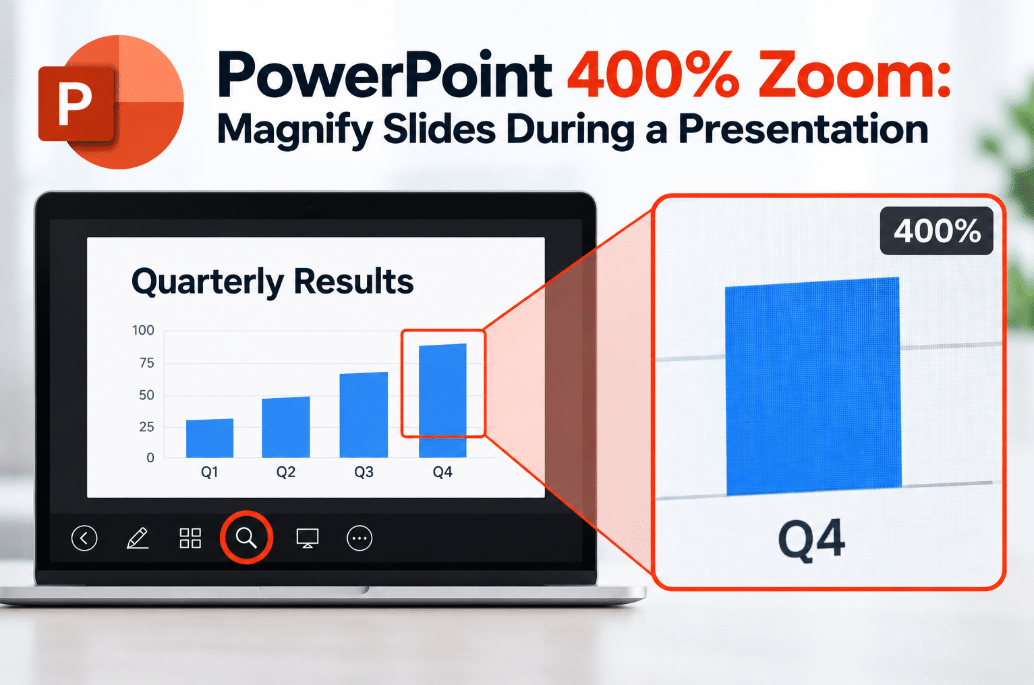
PowerPoint 400% Zoom lets you magnify part of a slide while you are presenting.
Instead of creating an extra slide just to enlarge one detail, you can zoom directly into the existing slide and move around the enlarged content.
What Is PowerPoint 400% Zoom?
PowerPoint includes a magnification tool for Slide Show view.
When presenting, you can select an area of the current slide and initially magnify it to 200%.
You can then continue zooming up to 400% using the + key or a stretch gesture on a supported trackpad or touchscreen.
This is designed for presentation viewing rather than permanently changing the size of objects on your slide.
How to Zoom Into a Slide
Start your presentation in Slide Show view.
Then:
- Move your mouse to reveal the presentation controls.
- Select the magnifying glass icon in the lower-left area.
- Move the highlighted rectangle over the part of the slide you want to enlarge.
- Click that area.
PowerPoint magnifies the selected section to 200%.
From there, you can continue increasing the magnification.
How to Reach 400% Zoom
Once the slide is already magnified, press:
+
to continue zooming in.
PowerPoint supports magnification up to 400%.
On supported touchscreens and trackpads, you can also use a stretch or pinch-out gesture to increase the zoom level.
This can make even small details much easier for your audience to see.
Move Around the Enlarged Slide
When the slide is enlarged, the pointer changes into a hand.
You can then click and drag to move around the zoomed slide.
For example, you could zoom into a large spreadsheet screenshot and then move from one section to another without leaving the slide.
This is useful when explaining:
- Detailed charts
- Excel screenshots
- Maps
- Software interfaces
- Technical diagrams
- High-resolution photos
- Small text or numbers
Microsoft specifically allows you to drag to another area while the slide remains magnified.
How to Return to Normal View
When you finish showing the detail, press:
Esc
You can also select the magnifying glass control again.
PowerPoint returns the presentation to the normal slide view.
This means you can zoom in briefly, explain something, and continue presenting normally.
400% Zoom vs Normal PowerPoint Zoom
PowerPoint has several different features called “Zoom,” so they can be easy to confuse.
The 400% magnification feature is used while presenting and simply enlarges part of the current slide.
The normal View → Zoom controls change how large the slide appears while you are editing the presentation.
PowerPoint also has a separate feature called Zoom under the Insert tab, including:
- Summary Zoom
- Slide Zoom
- Section Zoom
Those features are designed for navigating between slides and sections rather than magnifying small details.
When Is 400% Zoom Most Useful?
The feature is particularly helpful when your slide contains something that cannot easily be made larger without changing the entire design.
For example, imagine you are showing a screenshot of an Excel report.
Instead of creating three separate slides showing different parts of the report, you can keep the full screenshot on one slide and zoom into the important sections as you explain them.
It also works well for presentations where your audience is viewing a large projector screen from a distance.
Should You Rely on Zoom for Small Text?
Not completely.
Zoom is useful for temporarily highlighting details, but important information should still be readable at normal presentation size.
If every slide requires 400% magnification just to read the text, the slide probably contains too much information.
A better approach is to use zoom as an occasional presentation tool for details rather than as a replacement for clear slide design.
Does PowerPoint 400% Zoom Work in Older Versions?
Microsoft currently lists slide magnification support for:
- PowerPoint for Microsoft 365
- PowerPoint 2024
- PowerPoint 2024 for Mac
- PowerPoint 2021
- PowerPoint 2019
- PowerPoint 2016
So this feature is not limited to Microsoft 365 or PowerPoint 2024.
The exact interface may look slightly different depending on your PowerPoint version and platform.
Final Thoughts
PowerPoint 400% Zoom is a small presentation feature that can be surprisingly useful.
You can magnify a chart, screenshot, image, or other detail without creating another slide, then drag around the enlarged view as you explain different areas.
Use the magnifying glass during Slide Show view, zoom in further with the + key when needed, and press Esc when you want to return to the normal presentation.
For detailed presentations, demonstrations, and technical slides, it is an easy feature worth remembering.
Need Microsoft Office with PowerPoint and its presentation tools? Explore our Microsoft Office keys and choose the version that fits your work today.