
Instructions
Excel GROUPBY: Create Summary Tables Without a PivotTable
Oct
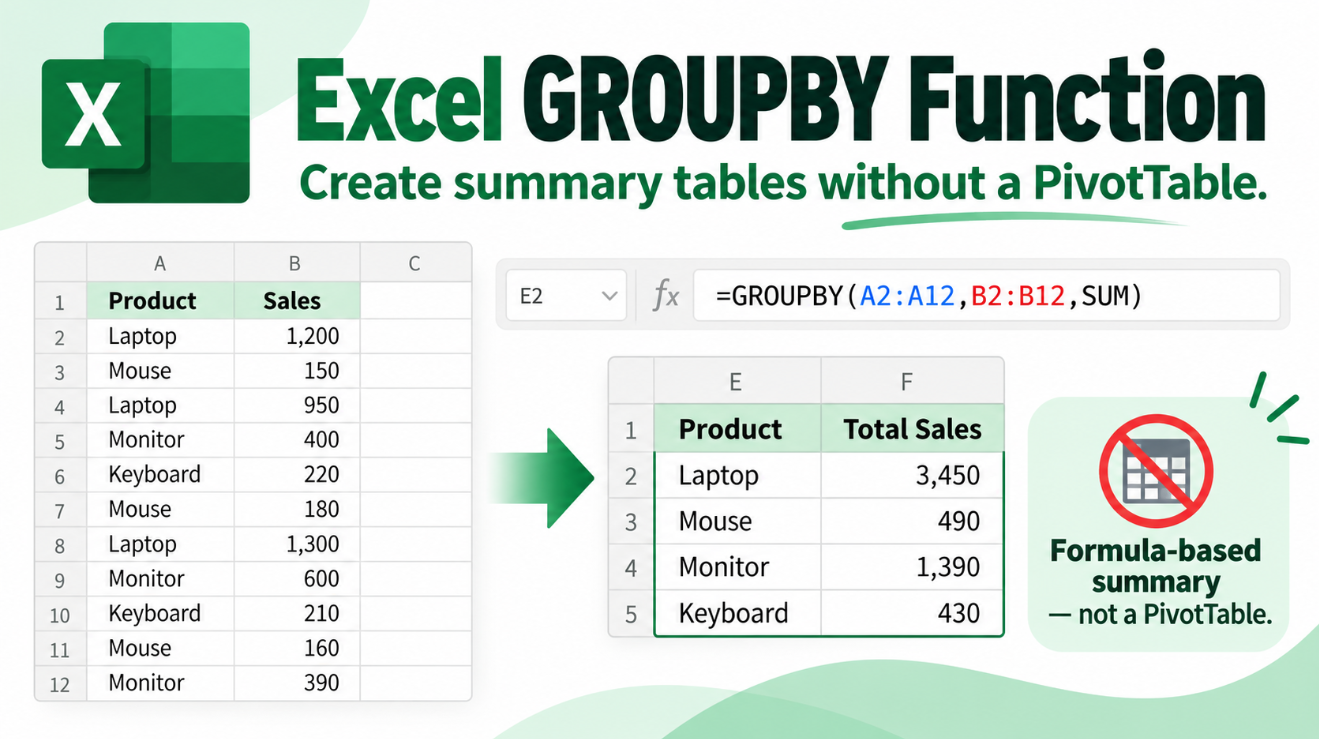
Excel GROUPBY gives Microsoft 365 users a new way to summarize data without manually creating a PivotTable or building separate UNIQUE and SUMIFS formulas.
With one formula, GROUPBY can take a long dataset and return totals, averages, counts, minimums, maximums, and other summaries for each category.
For example, if your worksheet contains hundreds of sales transactions, GROUPBY can instantly create a compact Sales by Product or Revenue by Region summary that updates when the source data changes.
Microsoft describes GROUPBY as a function that can group, aggregate, sort, and filter data based on the fields you specify.
What Does Excel GROUPBY Do?
GROUPBY takes repeated categories from a dataset, groups matching values together, and applies a calculation to each group.
Its syntax is:
=GROUPBY(row_fields,values,function,[field_headers],[total_depth],[sort_order],[filter_array],[field_relationship])
The three arguments you will use most often are:
row_fields – The categories you want to group.
values – The numbers or data you want to summarize.
function – The calculation Excel should perform, such as SUM, AVERAGE, or COUNT.
Microsoft also provides optional arguments for headers, totals, sorting, filtering, and how multiple grouping fields relate to each other.
Simple Excel GROUPBY Example
Suppose your worksheet contains:
- Column A: Product
- Column B: Sales
Your data might look like:
Laptop 1200
Monitor 450
Laptop 900
Keyboard 120
Monitor 380
Use:
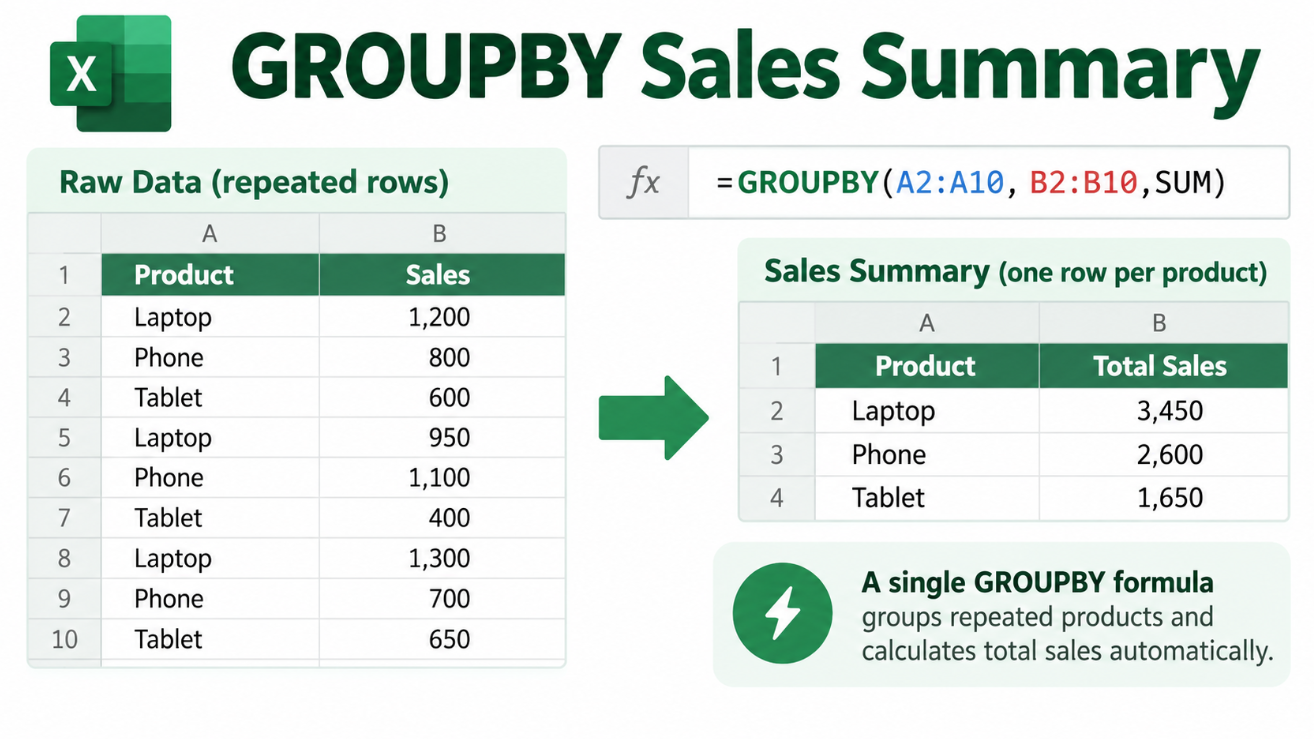
=GROUPBY(A2:A100,B2:B100,SUM)
Excel can automatically return:
| Product | Sales |
| Keyboard | 120 |
| Laptop | 2,100 |
| Monitor | 830 |
| Grand Total | 3,050 |
You do not need to manually create a unique product list or add a separate SUMIFS formula beside every product.
GROUPBY handles both the categories and calculations.
Why Is GROUPBY Useful?
Before GROUPBY, a formula-based summary often required several steps.
You might first use UNIQUE to generate the list of categories and then use SUMIFS, COUNTIFS, or AVERAGEIFS to calculate a result for each one.
A PivotTable could also create the same kind of report.
GROUPBY gives you another option:
one formula that returns the complete summary.
That makes it especially useful for:
- Sales reports
- Expense summaries
- Inventory analysis
- Employee reports
- Department totals
- Customer summaries
- Dashboard calculations
- Dynamic reporting
Because GROUPBY is formula-based, the result can recalculate as the underlying data changes.
Calculate Average Instead of Total
GROUPBY is not limited to SUM.
Suppose:
- Column A contains Department
- Column B contains Employee Score
Use:
=GROUPBY(A2:A100,B2:B100,AVERAGE)
Excel can calculate the average score for each department.
You can use aggregation functions such as:
- SUM
- AVERAGE
- COUNT
- MAX
- MIN
- PERCENTOF
Microsoft also supports compatible lambda-based aggregation functions.
Count Records With GROUPBY
Suppose you want to know how many transactions belong to each category.
You could use COUNT as the aggregation function when the values range contains numeric data:
=GROUPBY(A2:A100,B2:B100,COUNT)
This could produce:
Laptop 18
Monitor 12
Keyboard 26
The result updates automatically when the source data changes.
Sort GROUPBY Results
GROUPBY can sort its own output, so you may not need to wrap it in a separate SORT function.
Suppose:
- Column A contains Product
- Column B contains Sales
Use:
=GROUPBY(A2:A100,B2:B100,SUM,,,-2)
The negative 2 tells Excel to sort by the second output field, which is the summarized value, in descending order.
That means the highest-selling product appears first.
Microsoft uses the same approach in its official GROUPBY examples.
This is useful for reports such as:
- Best-selling products
- Highest-spending customers
- Largest expenses
- Top-performing departments
- Most profitable categories
Filter Data Inside GROUPBY
GROUPBY also includes a filter_array argument.
Suppose:
- Column A = Product
- Column B = Sales
- Column C = Status
You only want to summarize rows where Status equals:
Completed
A formula can use:
=GROUPBY(A2:A100,B2:B100,SUM,,,,C2:C100=”Completed”)
Excel first excludes rows that do not meet the condition and then calculates the grouped totals.
This means filtering and summarizing can happen inside the same formula.
For more general filtering where you need the actual matching rows instead of a summary, Excel’s FILTER function remains useful.
Can GROUPBY Create Grand Totals?
Yes.
The optional total_depth argument controls whether GROUPBY displays totals.
Microsoft currently defines options including:
- 0 – No totals
- 1 – Grand total
- 2 – Grand total and subtotals
- -1 – Grand total at the top
- -2 – Grand total and subtotals at the top
If you omit the argument, Excel uses its automatic behavior.
For simple reports, you may not need to change this setting.
Group by More Than One Field
GROUPBY is described as grouping along one axis, but that does not mean it can only use one category column.
The row_fields range can contain multiple columns.
For example:
- Column A = Region
- Column B = Product
- Column C = Sales
You could use:
=GROUPBY(A2:B100,C2:C100,SUM)
Excel can build a hierarchical summary such as:
North
→ Laptop
→ Monitor
South
→ Laptop
→ Monitor
with sales summarized for each level.
Microsoft says multiple columns in row_fields create multiple row-group levels.
Hierarchy vs Table Relationships
When you group by several columns, GROUPBY also includes an optional field_relationship setting.
Microsoft provides two choices:
0 – Hierarchy
The default. Later grouping fields are treated as being nested under earlier fields.
1 – Table
Each field is handled more independently.
Microsoft notes that subtotals are not supported with the Table relationship because subtotals depend on hierarchical grouping.
For most beginner GROUPBY formulas, you can leave this argument out.
Excel GROUPBY vs PivotTable
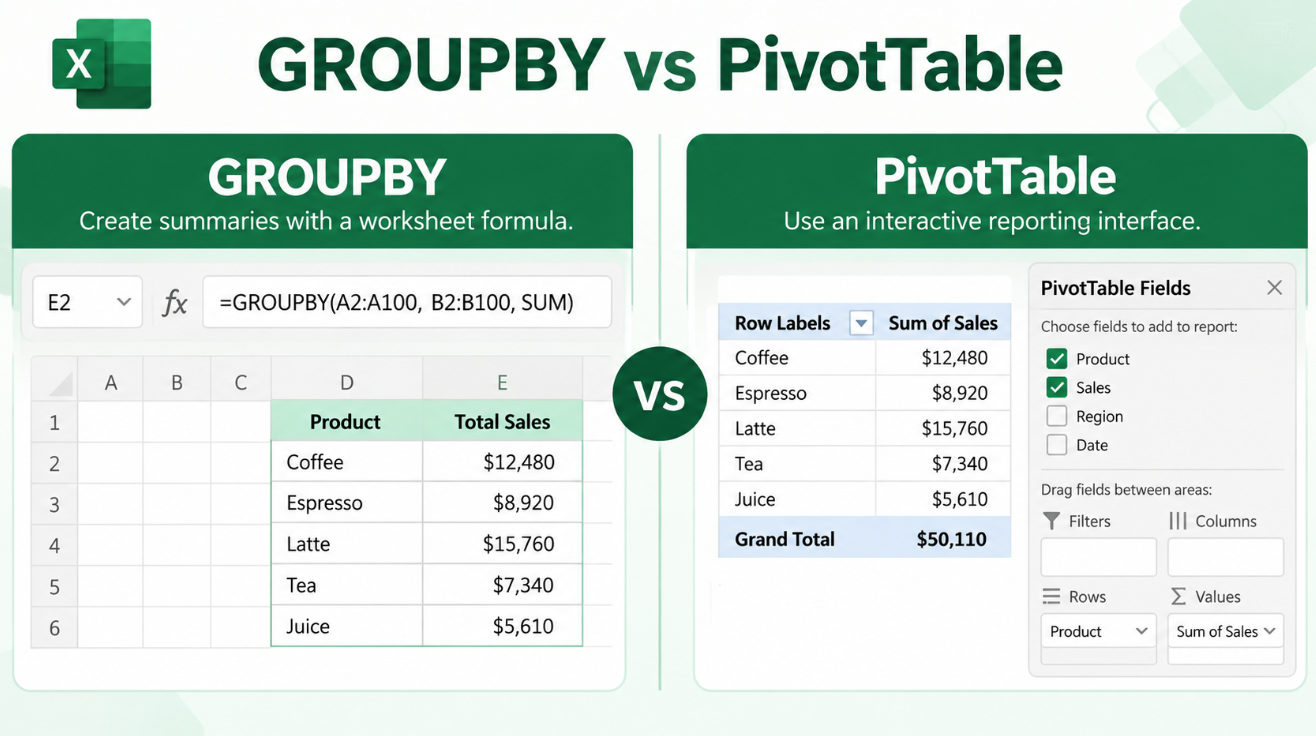
GROUPBY and PivotTables can often produce similar summaries, but they work very differently.
A PivotTable is an interactive Excel reporting feature. You drag fields into Rows, Columns, Values, and Filters.
GROUPBY is a worksheet formula.
That difference makes GROUPBY attractive when you prefer formula-driven reports.
Use GROUPBY when:
- You want the summary controlled by a formula
- You want automatic recalculation
- The report is part of a dashboard
- You prefer visible worksheet logic
- You only need row-based grouping
Use a PivotTable when:
- You want drag-and-drop analysis
- Other users need to explore the data interactively
- You frequently rearrange fields
- You need PivotTable-specific features
GROUPBY does not make PivotTables obsolete. It simply gives Excel users another way to create summaries.
Excel GROUPBY vs PIVOTBY
GROUPBY and PIVOTBY are closely related.
The main difference is the number of grouping axes.
GROUPBY creates summaries along one axis.
PIVOTBY can group data along both rows and columns.
For example:
=GROUPBY(Product,Sales,SUM)
could create:
| Product | Sales |
| Laptop | 25,000 |
| Monitor | 14,000 |
PIVOTBY could instead create:
| Product | 2025 | 2026 |
| Laptop | 11,000 | 14,000 |
| Monitor | 6,000 | 8,000 |
Microsoft describes PIVOTBY as supporting two-axis grouping.
GROUPBY vs SUMIFS
SUMIFS remains one of Excel’s best functions for calculating totals based on conditions.
But the workflow is different.
With SUMIFS, you normally already need to know which category you are calculating.
For example:
=SUMIFS(B:B,A:A,”Laptop”)
calculates Laptop sales.
If you need totals for every product, you might first build a unique list and then copy the formula down.
GROUPBY creates the category list and summary together:
=GROUPBY(A2:A100,B2:B100,SUM)
That can make GROUPBY much cleaner when your goal is a complete summary table.
SUMIFS may still be better when you only need one specific calculation inside another part of the worksheet.
GROUPBY vs Power Query Group By
Power Query also includes a Group By feature.
It can combine rows and calculate operations such as Sum, Average, Median, Min, Max, Count Rows, and Count Distinct Rows.
The difference is workflow.
Power Query Group By transforms data during the query process.
Excel GROUPBY creates a worksheet result using a formula.
Power Query may be better for complex data-import and transformation workflows.
GROUPBY is usually faster when your data is already in Excel and you simply want a dynamic summary on the worksheet.
Does GROUPBY Create a Dynamic Array?
Yes.
GROUPBY returns a multi-cell result from a single formula.
As categories are added or removed from the source data, the output can resize automatically.
Make sure the cells where the GROUPBY result needs to appear are empty.
If something blocks the result, Excel can display a #SPILL! error.
Is GROUPBY Available in Excel 2024?
This is an important limitation.
Microsoft currently lists GROUPBY as a Microsoft 365 function.
The dedicated GROUPBY page currently says it applies to:
Excel for Microsoft 365.
Microsoft’s alphabetical function directory also marks:
GROUPBY (Microsoft 365).
So GROUPBY is not currently listed as a standard Excel 2024 perpetual-license function.
If you enter GROUPBY and see:
#NAME?
your Excel edition or update channel may not support it.
Why Is GROUPBY Better Than Building the Report Manually?
Imagine your source data receives another 200 transactions next week.
A manually typed summary may need updating.
A correctly structured GROUPBY formula can automatically recalculate the categories and values.
That is especially useful for reports that are refreshed regularly.
Instead of maintaining:
- Category lists
- SUMIFS formulas
- Manual sorting
- Separate totals
you can potentially control the entire summary from one formula.
Frequently Asked Questions
What does GROUPBY do in Excel?
GROUPBY groups matching values and calculates a summary such as SUM, AVERAGE, COUNT, MAX, or MIN for each group.
Is GROUPBY the same as a PivotTable?
No. GROUPBY is a worksheet formula, while a PivotTable is an interactive reporting feature.
Can GROUPBY sort results?
Yes. GROUPBY includes a built-in sort_order argument.
Can GROUPBY filter data?
Yes. The optional filter_array argument lets you choose which source rows should be included.
Can GROUPBY use multiple categories?
Yes. The row_fields range can contain multiple columns, producing multiple grouping levels.
Can GROUPBY show totals?
Yes. You can control grand totals and subtotals with the total_depth argument.
What is the difference between GROUPBY and PIVOTBY?
GROUPBY groups data along one axis. PIVOTBY adds a second grouping axis, allowing summaries such as Product by Year.
Is GROUPBY available in Excel 2024?
Microsoft currently labels GROUPBY as a Microsoft 365 function, not a standard Excel 2024 perpetual function.
Final Thoughts
Excel GROUPBY makes it possible to create dynamic summary tables with a single formula.
Instead of manually generating unique categories and building SUMIFS or AVERAGEIFS formulas, GROUPBY can handle the grouping, calculation, sorting, filtering, and totals together.
For a straightforward Sales by Product, Expenses by Category, or Revenue by Region report, GROUPBY can be considerably quicker than building the summary manually.
And when you need a second grouping dimension, such as Product by Year, PIVOTBY provides the natural next step.
Need a permanent desktop suite for everyday Word, Excel and PowerPoint work? Browse our Office keys and choose the Microsoft Office edition that fits your PC.