
Instructions
GROUPBY vs PIVOTBY in Excel: What’s the Difference?
Oct
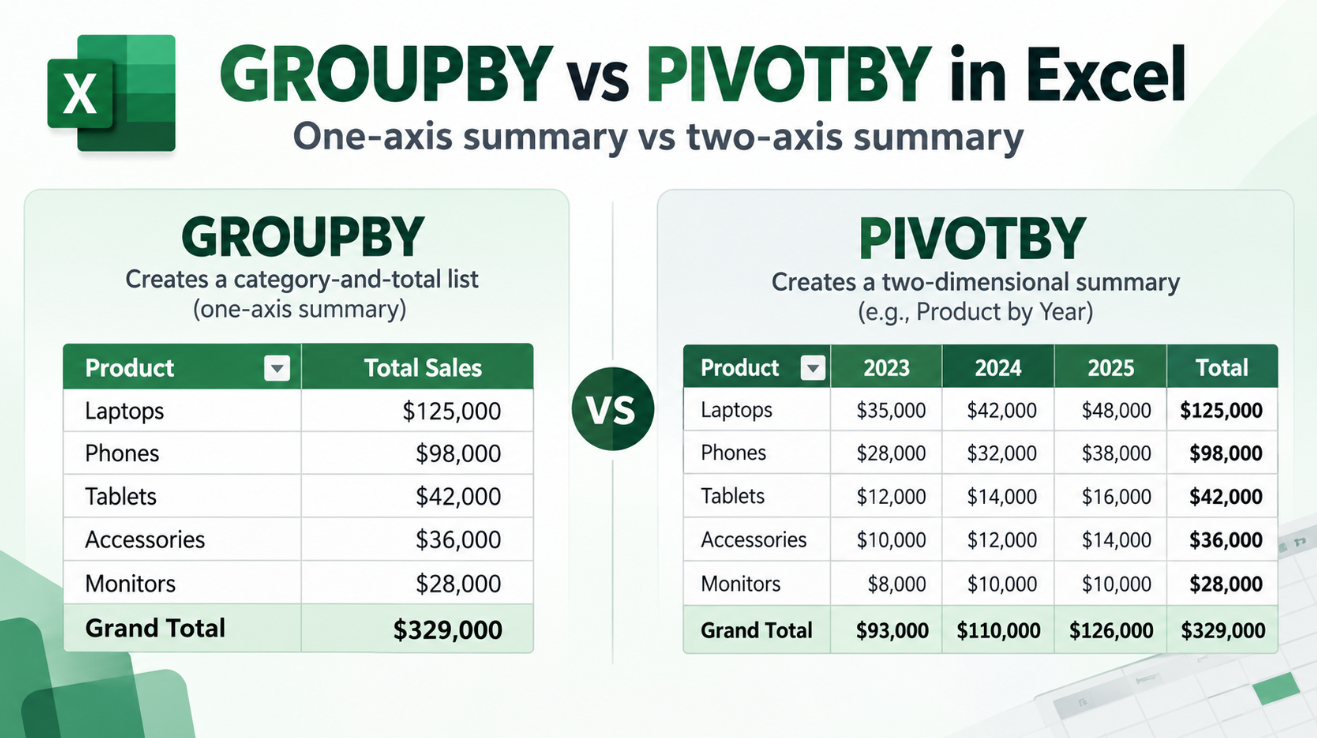
GROUPBY vs PIVOTBY in Excel can be confusing because both functions summarize data, both can calculate totals, and both can create results that resemble reports built with PivotTables.
The main difference is much simpler than it first appears:
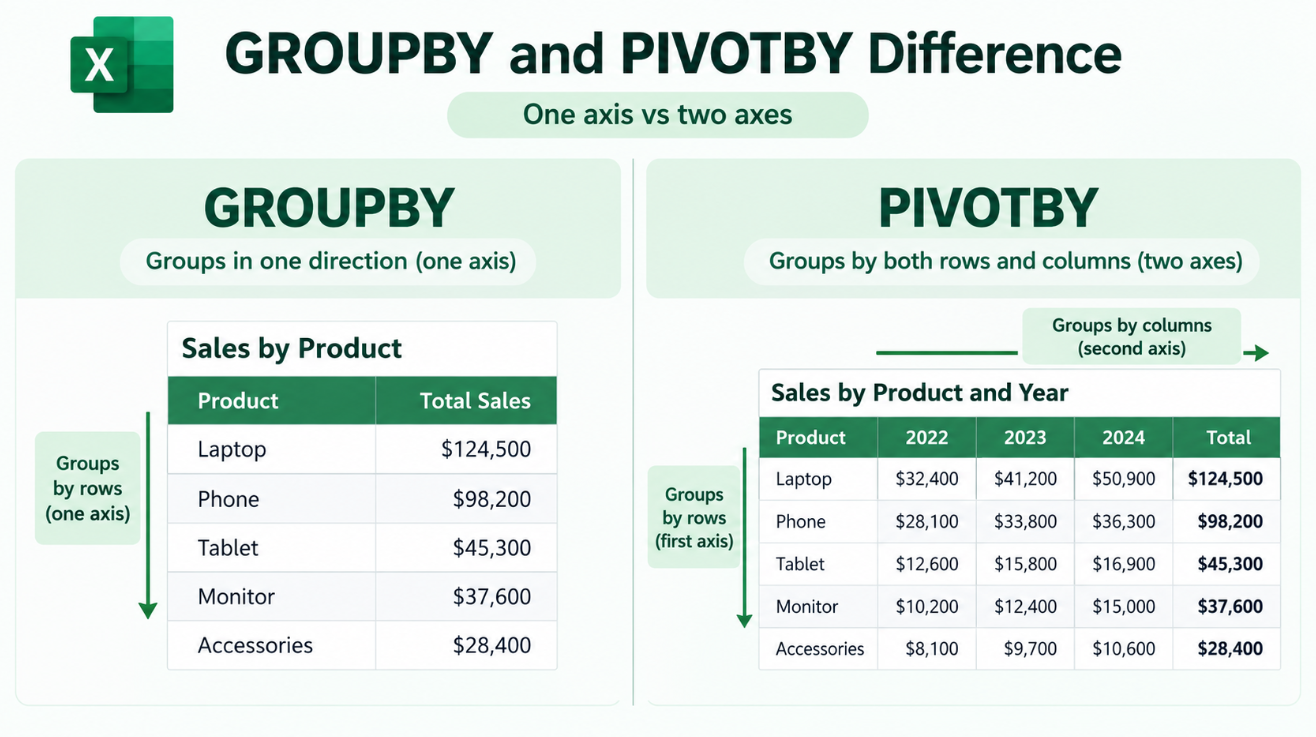
GROUPBY summarizes data along one axis.
PIVOTBY summarizes data across two axes.
For example, GROUPBY can show total sales by product, while PIVOTBY can show total sales by product and year in the same formula-generated table.
What Does GROUPBY Do in Excel?
GROUPBY creates a formula-based summary by grouping values into categories and applying an aggregation such as SUM, AVERAGE, COUNT, MAX, or MIN.
Its syntax begins:
=GROUPBY(row_fields,values,function,…)
Suppose:
- Column A contains Product
- Column B contains Sales
You could use:
=GROUPBY(A2:A100,B2:B100,SUM)
Excel could return a summary like:
| Product | Total Sales |
| Laptop | 42,500 |
| Monitor | 18,200 |
| Keyboard | 9,750 |
Instead of manually creating a list of unique products and adding SUMIF formulas, GROUPBY handles the grouping and aggregation in one formula.
Microsoft says GROUPBY can also sort, filter, add totals and create multiple grouping levels.
What Does PIVOTBY Do in Excel?
PIVOTBY takes the same general idea and adds a second grouping direction.
Its syntax begins:
=PIVOTBY(row_fields,col_fields,values,function,…)
Suppose:
- Column A contains Product
- Column B contains Year
- Column C contains Sales
You could use:
=PIVOTBY(A2:A100,B2:B100,C2:C100,SUM)
The result could look like:
| Product | 2024 | 2025 | 2026 |
| Laptop | 12,000 | 14,500 | 16,000 |
| Monitor | 5,200 | 6,100 | 6,900 |
| Keyboard | 2,800 | 3,100 | 3,850 |
Product appears down the rows, while Year appears across the columns.
Microsoft describes PIVOTBY as supporting grouping along two axes and aggregating the values associated with those combinations.
GROUPBY vs PIVOTBY in Excel: Quick Difference
| Feature | GROUPBY | PIVOTBY |
| Group by rows | Yes | Yes |
| Group by columns | No separate column axis | Yes |
| One-dimensional summary | Excellent | Possible, but often unnecessary |
| Two-dimensional cross-tab | No | Yes |
| SUM, AVERAGE, COUNT, etc. | Yes | Yes |
| Sorting | Yes | Yes |
| Filtering | Yes | Yes |
| Grand totals | Yes | Yes |
| Subtotals | Yes | Yes |
| Formula-based result | Yes | Yes |
The easiest rule is:
One grouping direction → GROUPBY
Rows + columns → PIVOTBY
Example: Sales by Region With GROUPBY
Suppose A2:A100 contains regions and B2:B100 contains sales.
Use:
=GROUPBY(A2:A100,B2:B100,SUM)
You might get:
North 25,400
South 31,700
West 18,900
This is a straightforward one-axis summary.
GROUPBY is ideal when your question is something like:
“What is the total for each category?”
Example: Sales by Region and Year With PIVOTBY
Now suppose:
- A = Region
- B = Year
- C = Sales
Use:
=PIVOTBY(A2:A100,B2:B100,C2:C100,SUM)
Now Excel can show each region down the left and each year across the top.
This answers a more detailed question:
“What is the total for each region in each year?”
That second grouping dimension is the main reason to choose PIVOTBY.
Can GROUPBY Use More Than One Field?
Yes.
“One axis” does not mean GROUPBY is limited to one column.
Microsoft says row_fields can contain multiple columns, producing multiple grouping levels.
For example, you could group by:
Region → Product
and calculate total sales for each product inside each region.
The important distinction is that those fields still form a row hierarchy.
PIVOTBY adds a separate column grouping axis.
Both Functions Can Calculate More Than SUM
Neither GROUPBY nor PIVOTBY is limited to totals.
Microsoft supports aggregation functions such as:
- SUM
- AVERAGE
- COUNT
- MAX
- MIN
- PERCENTOF
- Compatible custom LAMBDA calculations
For example:
=GROUPBY(A2:A100,B2:B100,AVERAGE)
could calculate average sales by region.
Similarly:
=PIVOTBY(A2:A100,B2:B100,C2:C100,AVERAGE)
could calculate average sales for each Region × Year combination.
Can GROUPBY and PIVOTBY Add Totals?
Yes.
Both functions include optional arguments for controlling totals.
GROUPBY uses total_depth.
PIVOTBY has separate controls for row and column totals.
Depending on the formula, you can show:
- No totals
- Grand totals
- Grand totals and subtotals
- Totals above the grouped data
This makes both functions useful for more complete reports rather than only simple lists.
Can You Sort the Results?
Yes.
GROUPBY includes a sort_order argument.
PIVOTBY provides separate row and column sorting controls.
For example, Microsoft demonstrates GROUPBY summaries sorted by sales rather than alphabetically by category.
That means you could create a report showing the highest-selling products first without wrapping the result inside a separate SORT function.
Can You Filter Before Summarizing?
Yes.
Both functions include a filter_array argument.
For example, you could summarize:
- Only 2026 sales
- Only active products
- Only one department
- Only transactions above a minimum value
This lets you combine filtering and aggregation inside the same summary formula.
For more general row-by-row filtering, Excel’s FILTER function remains useful.
GROUPBY vs PivotTable
GROUPBY may produce a report that resembles a small PivotTable, but it is still a worksheet formula.
A traditional PivotTable is built through Excel’s interactive interface.
GROUPBY is often better when:
- You prefer formulas
- The summary is part of a larger formula-based report
- You want the result to recalculate automatically
- You only need row-based grouping
A PivotTable may be better when you want users to interactively drag fields around, expand groups, or explore data without editing formulas.
PIVOTBY vs PivotTable
PIVOTBY comes even closer visually to a PivotTable because it can create both row and column groupings.
However, Microsoft specifically notes that PIVOTBY is not directly related to Excel’s PivotTable feature, even though its result can look similar.
PIVOTBY is still a normal formula.
That can be useful for dashboards and reports where you want all logic visible inside worksheet formulas rather than in PivotTable configuration panels.
GROUPBY vs PIVOTBY: Which Should You Use?
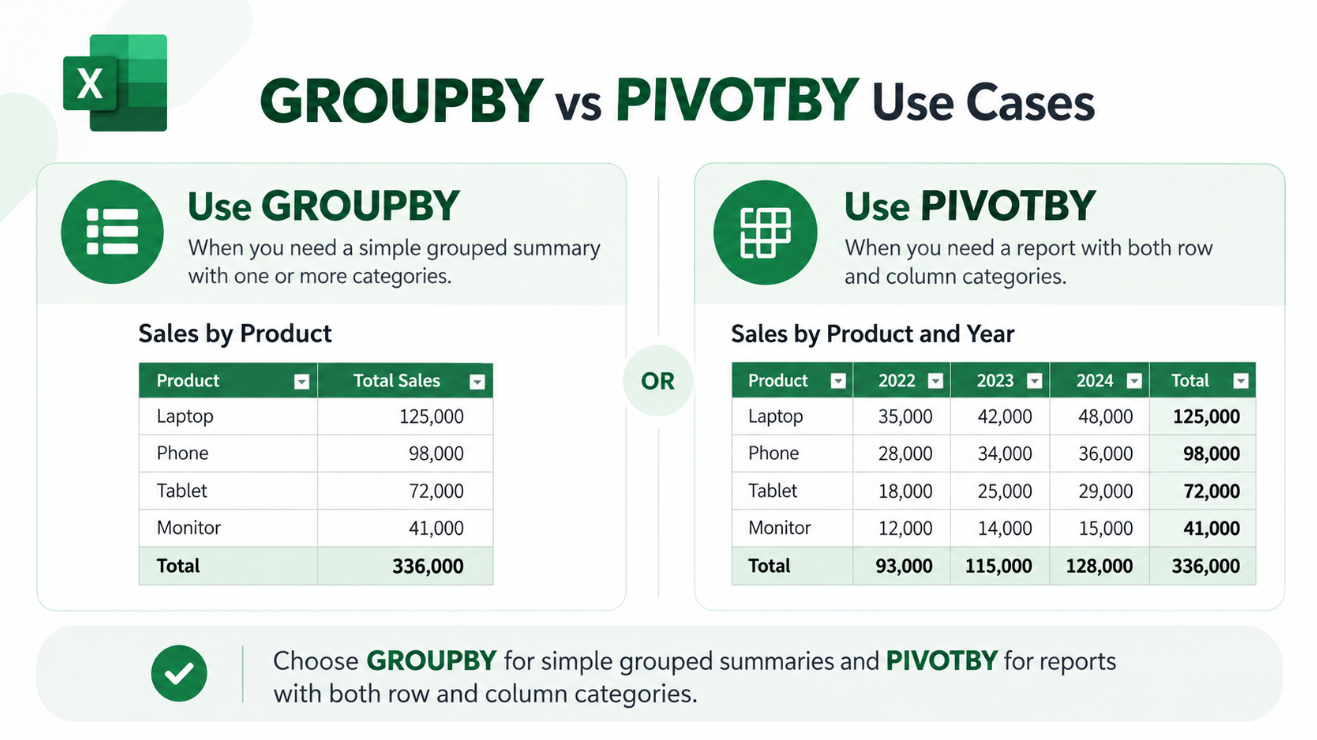
Use GROUPBY when your summary sounds like:
- Sales by Product
- Revenue by Region
- Orders by Employee
- Average Score by Department
- Transactions by Category
Use PIVOTBY when your summary sounds like:
- Sales by Product and Year
- Revenue by Region and Quarter
- Orders by Employee and Month
- Average Score by Department and Location
If your question contains two grouping dimensions, PIVOTBY is usually the more natural choice.
What About PERCENTOF?
Microsoft also provides the PERCENTOF function, which is specifically designed to work well with GROUPBY and PIVOTBY.
PERCENTOF calculates how much one subset contributes to the overall dataset.
For example, you could use it to calculate:
What percentage of total sales came from each product?
or:
What percentage of a region’s sales came from each category?
This makes GROUPBY and PIVOTBY useful for more than simple SUM-based summaries.
GROUPBY vs PIVOTBY vs SUMIFS
You could build many similar reports with SUMIFS.
For example, traditional Excel users might create a unique category list and then calculate:
=SUMIFS(…)
for every category.
That approach still works.
GROUPBY can reduce the amount of setup because Excel creates the grouped categories and summaries together.
PIVOTBY goes further by automatically producing a two-dimensional matrix.
So:
SUMIFS → Excellent when you want individual controlled calculations.
GROUPBY → Better for automatic one-axis summaries.
PIVOTBY → Better for automatic two-axis summaries.
Which Excel Versions Support GROUPBY and PIVOTBY?
Microsoft’s current function directory labels both GROUPBY and PIVOTBY as Microsoft 365 functions.
GROUPBY’s dedicated support page also currently lists Excel for Microsoft 365 as its supported version.
There is one documentation inconsistency worth noting: Microsoft’s dedicated PIVOTBY page currently shows a broader “Applies To” list that includes some perpetual Excel releases, while Microsoft’s main function directory labels PIVOTBY as Microsoft 365.
Because of that discrepancy, if PIVOTBY returns:
#NAME?
check your exact Excel build and Microsoft 365 update status rather than assuming every perpetual Excel installation includes it.
Frequently Asked Questions
What is the main difference between GROUPBY and PIVOTBY?
GROUPBY summarizes data along one grouping axis. PIVOTBY supports both row and column grouping axes.
Is GROUPBY a replacement for PivotTables?
Not completely. GROUPBY is formula-based and useful for automatic summaries, while PivotTables provide an interactive reporting interface.
Can GROUPBY calculate averages?
Yes. You can use aggregation functions such as SUM, AVERAGE, COUNT, MAX and MIN.
Can PIVOTBY create row and column totals?
Yes. PIVOTBY includes arguments that control both row totals and column totals.
Can GROUPBY filter data?
Yes. GROUPBY includes an optional filter_array argument.
Can GROUPBY group by several columns?
Yes. Multiple fields can create hierarchical grouping levels along the row axis.
Are GROUPBY and PIVOTBY available in Excel 2024?
Microsoft’s main function directory currently labels both functions as Microsoft 365, although Microsoft’s dedicated PIVOTBY page shows broader version availability. Check your exact Excel build if the function is unavailable.
Final Thoughts
The GROUPBY vs PIVOTBY in Excel difference comes down mainly to the shape of the summary you need.
Use GROUPBY when you want to group records down one axis and calculate values such as totals, averages, or counts.
Use PIVOTBY when you want categories across both rows and columns, such as Product × Year or Region × Quarter.
Both can also sort, filter, calculate totals and create dynamic formula-based summaries, making them powerful alternatives to building every report manually.
If you’re looking for a one-time Microsoft Office license for everyday Word, Excel and PowerPoint work, browse our Office keys and choose the edition that fits your PC.