
Instructions
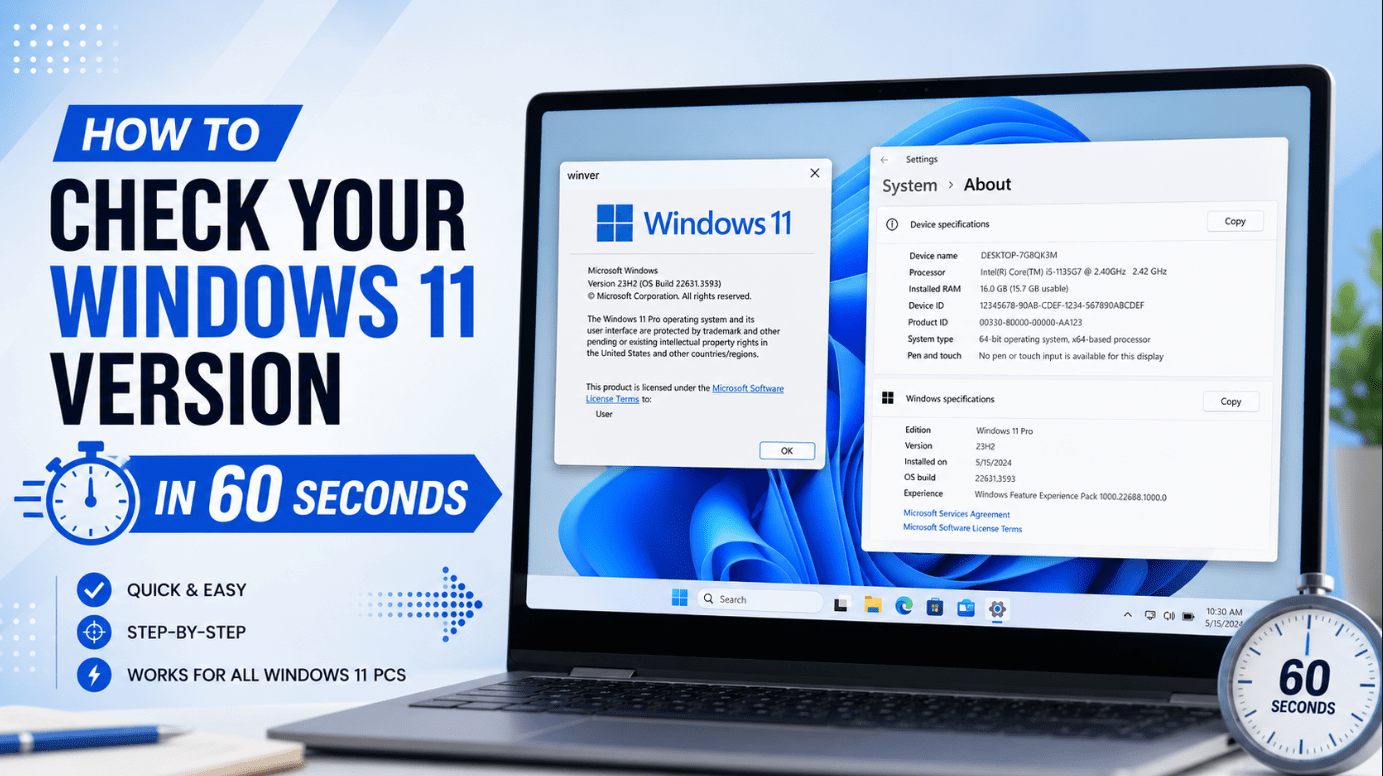
How to Check Your Windows 11 Version in 60 Seconds
Aug
Need to know exactly which version of Windows 11 is installed on your PC? You can check your Windows 11 version in less than a minute without installing any additional software.
Here are two quick ways to find your Windows 11 version, edition, and OS build.
Method 1: Check Windows 11 Version with Winver
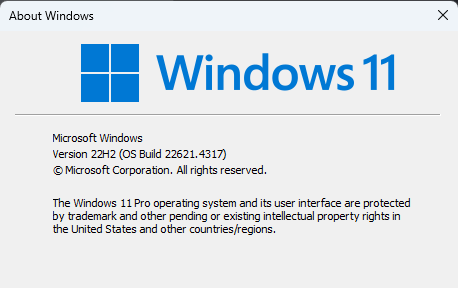
The fastest method is to use the built-in winver command.
- Press Windows + R on your keyboard.
- Type winver.
- Press Enter.
The About Windows window will appear.
Here you can see important information such as:
- Your Windows 11 version
- OS build number
- Windows edition information
This method is useful when you quickly need your Windows version for troubleshooting, software compatibility, or technical support.
Method 2: Check Your Version in Windows Settings
You can also find more detailed information through Windows Settings.
- Open Start.
- Select Settings.
- Go to System.
- Scroll down and select About.
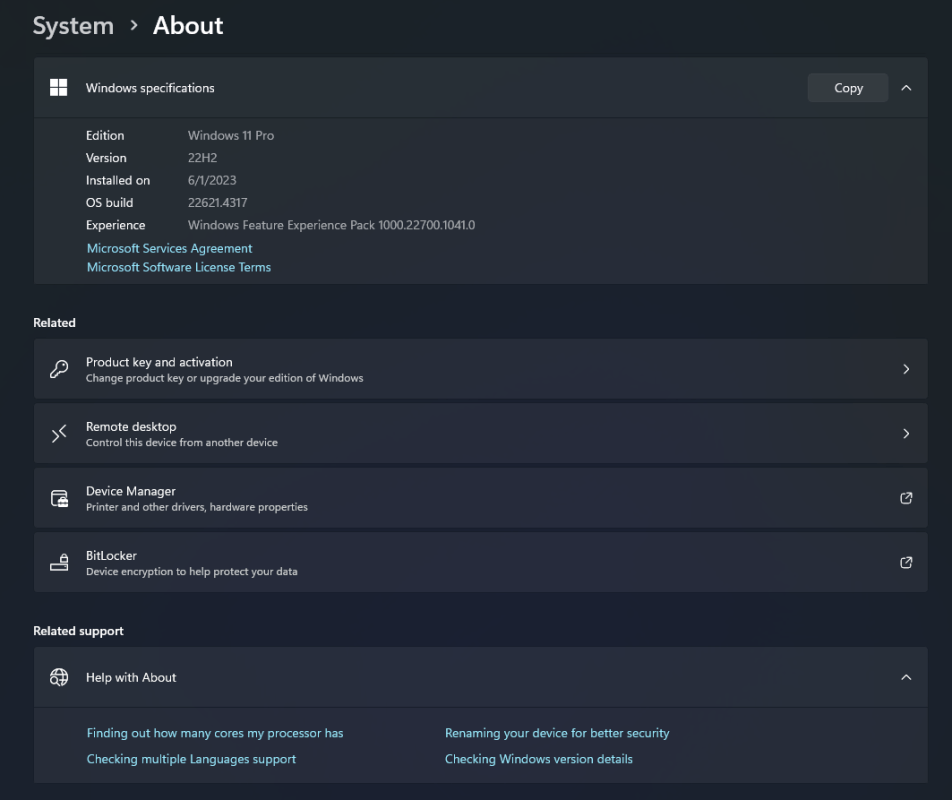
- Find the Windows specifications section.
You should see details including:
- Edition – such as Windows 11 Home or Windows 11 Pro
- Version – the Windows release installed on your computer
- Installed on – when the current version was installed
- OS build – the specific Windows build running on your PC
Windows Edition vs Version vs OS Build
These terms can be confusing, but they describe different things.
Edition tells you which type of Windows you have, such as Windows 11 Home or Windows 11 Pro.
Version identifies the Windows feature release installed on your PC.
OS build is a more specific number that identifies the exact Windows build and update level.
If you’re troubleshooting an activation or compatibility problem, checking all three can be helpful.
Why Check Your Windows 11 Version?
Knowing your Windows version can help when:
- Installing software or drivers
- Troubleshooting Windows problems
- Checking compatibility
- Installing Windows updates
- Contacting technical support
- Checking whether you have Windows 11 Home or Pro
Which method to use
If you only need to check your Windows 11 version quickly, press Windows + R, enter winver, and press Enter.
For more detailed information about your edition and OS build, go to Settings > System > About > Windows specifications.
Need a Windows 11 license? Explore our Windows 11 keys and choose the right edition for your PC today.