
Instructions
PowerPoint 2024 Cameo: When to Use a Live Camera Feed
Jun
PowerPoint presentations often force online audiences to choose between watching the presenter and focusing on the slides.
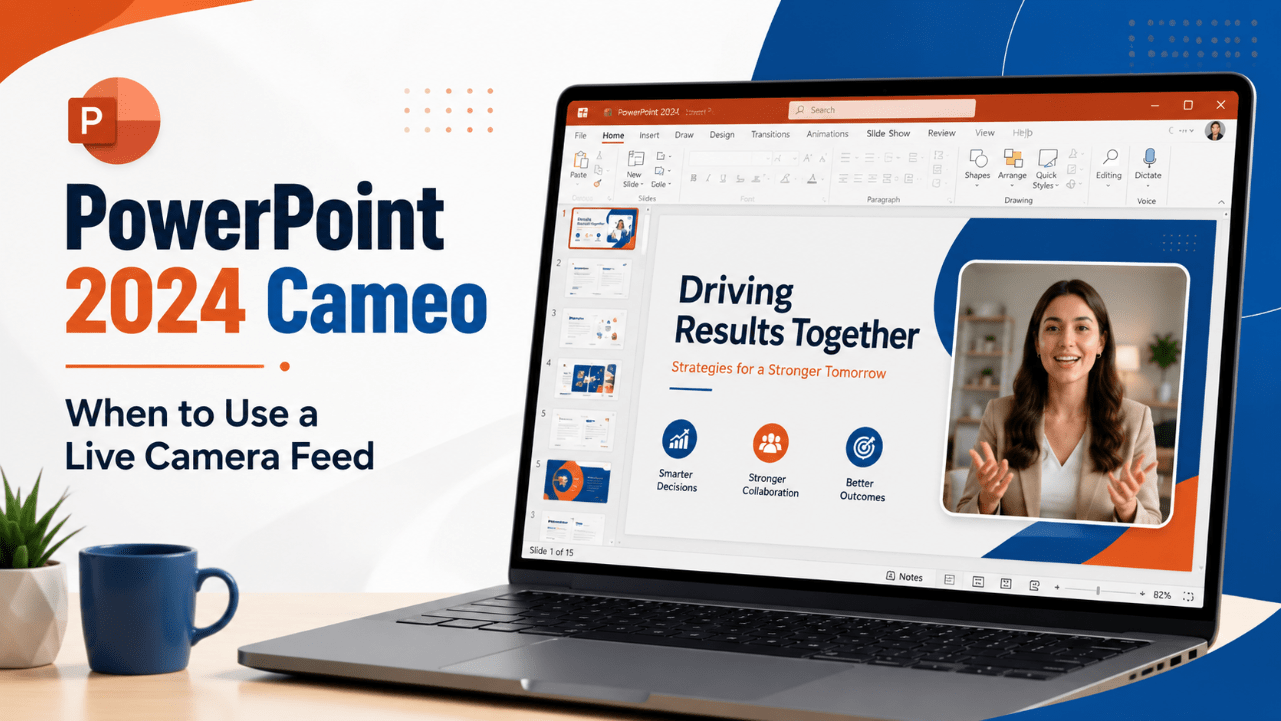
Cameo in PowerPoint 2024 solves this by placing your live camera feed directly inside a slide.
Instead of showing your webcam in a separate video-call box, Cameo makes it part of the slide design. You can resize it, reposition it, crop it into different shapes and apply visual styles or transitions.
This can make remote presentations feel more personal and polished. However, using a camera feed on every slide can also distract viewers from important content.
The best results come from using Cameo selectively—when the presenter’s presence adds meaning, trust or clarity.
Need PowerPoint with a one-time Office licence? Browse our Office Professional Plus 2024 licences.
What Is Cameo in PowerPoint 2024?
Cameo is a PowerPoint object that displays a live feed from your computer’s camera.
You add it through:
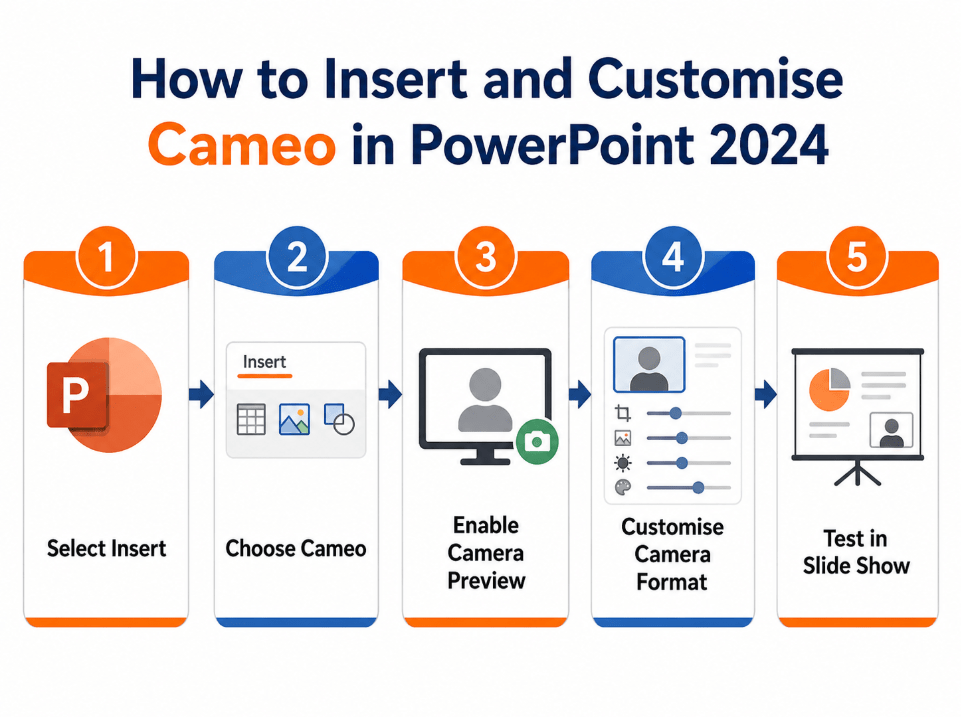
Insert > Cameo
PowerPoint places a camera placeholder on the slide. You can then turn on the preview, choose a camera and customise the frame.
Microsoft allows Cameo to use many of the same visual options available for pictures and shapes, including:
- Camera styles
- Different frame shapes
- Borders
- Visual effects
- Cropping
- Positioning
- Resizing
- Slide transitions
Cameo is available in PowerPoint 2024 and PowerPoint 2024 for Mac. Microsoft also lists it among the features included in PowerPoint LTSC 2024 unless otherwise noted.
How to Add Cameo to a Slide
To insert a live camera feed:
- Open the presentation.
- Select the slide where the camera should appear.
- Open the Insert tab.
- Select Cameo.
- Click the preview button inside the placeholder.
- Choose the correct camera if several are connected.
- Resize and position the camera frame.
- Use Camera Format to customise its appearance.
- Start Slide Show mode to test the result.
In a shared presentation file, collaborators do not see your live video while editing. Each presenter sees their own camera feed when using Cameo.
When Cameo Works Best
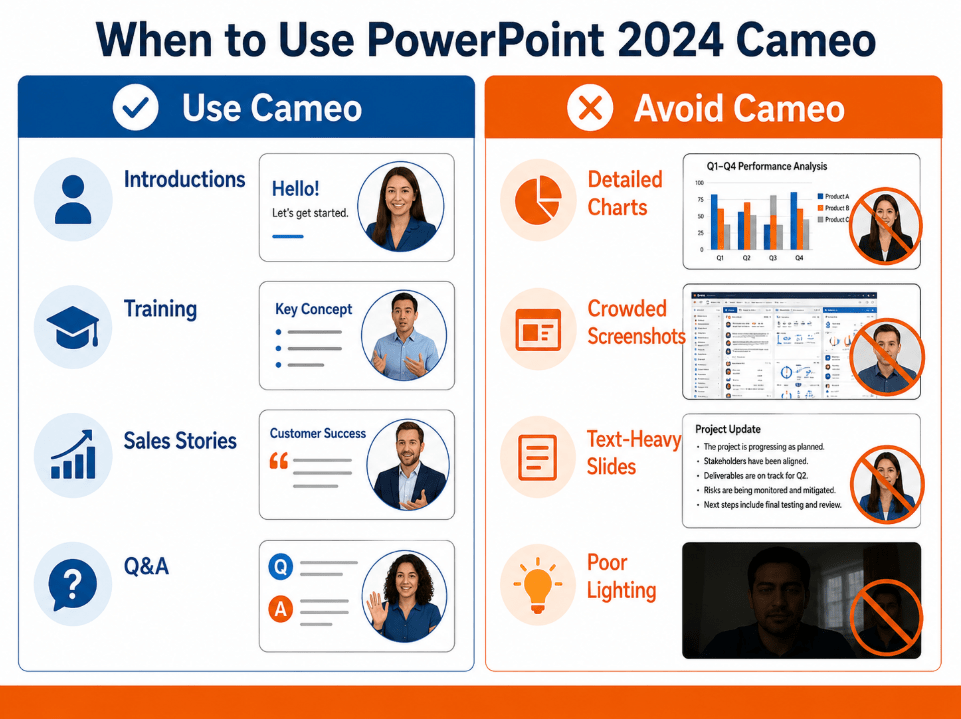
Opening and Closing Slides
A camera feed can make the beginning of a presentation feel more welcoming.
Use Cameo while:
- Introducing yourself
- Explaining the session goals
- Greeting customers or students
- Summarising the main conclusion
- Delivering a final call to action
The audience can connect with the presenter before moving into more detailed content.
Training and Tutorials
Cameo is useful when body language and spoken explanation support the slide.
Examples include:
- Employee training
- Software demonstrations
- Online classes
- Product walkthroughs
- Safety briefings
- Coaching sessions
Place the camera away from screenshots, diagrams and instructional text.
Sales Presentations
A live presenter can make a sales deck feel less automated.
Cameo may help when:
- Introducing a product
- Explaining customer benefits
- Presenting pricing options
- Answering common objections
- Delivering the final offer
Your camera feed can build trust, but it should not cover product images, pricing or key evidence.
Personal Stories and Testimonials
When a slide contains a personal story, short quote or customer experience, seeing the speaker can increase emotional connection.
A simple full-width background with a small Cameo frame often works better than a crowded slide.
Question-and-Answer Sections
Cameo is useful on Q&A slides because attention should return to the speaker rather than remain fixed on detailed content.
A larger camera frame can signal that the presentation is moving from structured information to conversation.
When You Should Avoid Cameo
Data-Heavy Slides
Charts, tables and financial reports need visual space.
A live camera feed may hide labels or divide attention when viewers are trying to understand detailed figures.
Use Cameo briefly while introducing the section, then remove it from the data-heavy slides.
Detailed Software Screenshots
Tutorial slides often contain small buttons and interface labels.
Adding a camera frame can make the screenshot harder to read, especially on a laptop or mobile screen.
Every Slide
Using Cameo throughout the entire presentation can become repetitive.
The audience may focus on your movement rather than the content. A better approach is to use it on selected slides where your presence adds value.
Weak Lighting or Distracting Backgrounds
Cameo cannot fix a poor camera setup.
Avoid using it when:
- Your face is too dark
- The background is cluttered
- The camera angle is uncomfortable
- The connection is unstable
- Movement behind you is distracting
Improve the camera environment before making it part of the slide design.
How to Design Cameo Slides Well
Keep the Camera Frame Consistent
Use the same general size and position across related slides.
Moving the camera randomly from one corner to another can feel distracting unless the movement supports the slide design.
Leave Space for the Presenter
Create intentional empty space in the layout.
Do not place Cameo over:
- Headings
- Charts
- Product images
- Captions
- Important numbers
- Navigation elements
Use Simple Shapes
Circles and rounded rectangles usually work well.
Unusual shapes may suit a creative presentation, but they can look unprofessional in business or academic settings.
Match the Presentation Theme
Use borders and effects that fit the colours and style of the deck.
Avoid heavy shadows, bright outlines or decorative effects that compete with the speaker’s face.
Use Transitions Carefully
Cameo can work with transitions, including movement between slides.
Subtle transitions can make the camera frame shift smoothly. Excessive animation can make the presentation feel more like a visual effect demonstration than a professional talk.
Camera and Lighting Tips
For a clearer Cameo feed:
- Position the camera near eye level
- Face a window or soft light
- Avoid bright light behind you
- Use a clean background
- Look at the camera during key statements
- Keep your face centred
- Test the microphone separately
- Close applications that may use the camera
- Preview the complete slide show before presenting
The camera frame may be small, but poor lighting remains noticeable.
Cameo and Microsoft Teams
Presentations containing Cameo can also be shown through PowerPoint Live in a Microsoft Teams meeting.
Microsoft says PowerPoint Live can detect Cameo on a slide, while compatible Teams camera settings and effects may carry into the presentation session.
This can create a more integrated experience than sharing the entire desktop.
Before an important meeting:
- Test the presentation in Teams
- Confirm camera permissions
- Select the correct camera
- Check background effects
- Review slide readability
- Make sure the camera feed does not cover content
Cameo vs Recording Studio
Cameo and Recording Studio serve different purposes.
Use Cameo When:
- Presenting live
- Teaching an online class
- Delivering a sales call
- Hosting a webinar
- Speaking in a Teams meeting
Use Recording Studio When:
- Creating a presentation video
- Recording narration in advance
- Producing reusable training material
- Sharing an asynchronous presentation
- Re-recording individual slides
Cameo can also be part of a recorded presentation, but Recording Studio is the broader tool for producing and exporting presentation recordings.
Recommended Cameo Workflow
A practical workflow is:
- Complete the slide content first.
- Identify slides where the presenter adds value.
- Add Cameo only to those slides.
- Keep the camera frame consistent.
- Check that no content is covered.
- Test lighting and camera quality.
- Run the presentation in Slide Show mode.
- Test again in Teams when presenting online.
- Remove Cameo from slides where it distracts.
- Keep a backup version without live video.
Create professional presentations with PowerPoint 2024 and a one-time Office licence.
Browse our Office Professional Plus 2024 licences.