
Instructions
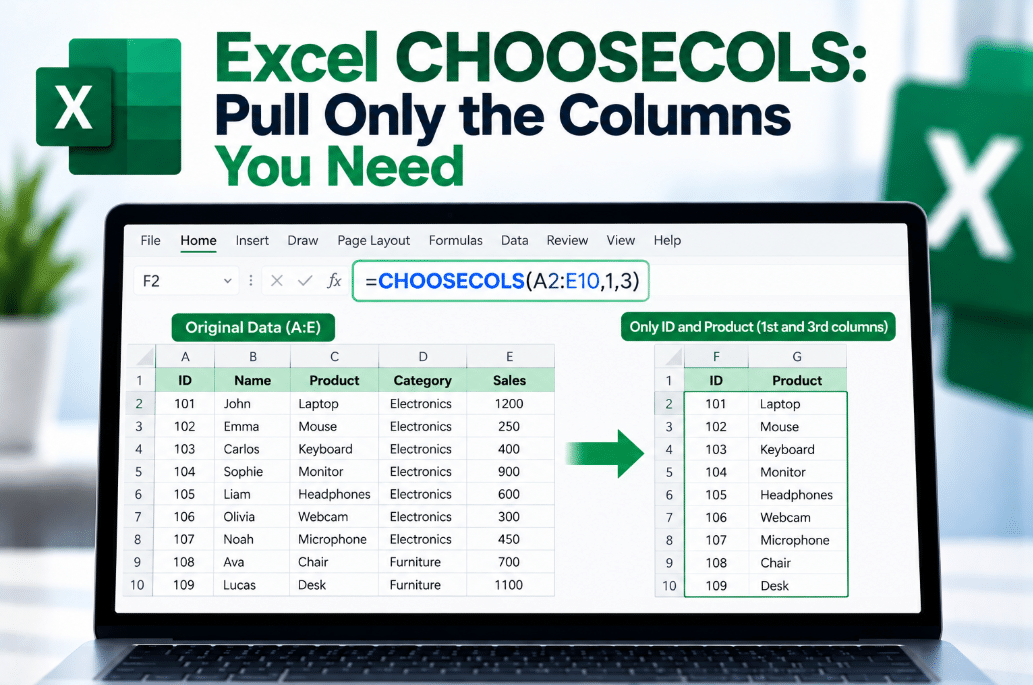
Excel CHOOSECOLS: Pull Only the Columns You Need
Sep
Working with a large table but only need a few specific columns?
The Excel CHOOSECOLS function lets you return only the columns you want without deleting, hiding, or manually copying anything.
It is especially useful for dynamic reports where you want to display selected data from a much larger table.
What Does Excel CHOOSECOLS Do?
CHOOSECOLS returns selected columns from an array or range.
The syntax is:
=CHOOSECOLS(array,col_num1,[col_num2],...)
The first argument is the source data.
The remaining arguments tell Excel which columns you want returned.
Microsoft currently supports CHOOSECOLS in Excel 2024 and Microsoft 365.
A Simple CHOOSECOLS Example
Suppose A2 contains:
- Product
- Category
- Supplier
- Price
- Stock
If you only want Product and Price, use:
=CHOOSECOLS(A2:E20,1,4)
Excel returns columns 1 and 4 from the original range.
The result automatically spills into the cells beside and below the formula.
Pull Non-Adjacent Columns
One of the best things about CHOOSECOLS is that the columns do not need to be next to each other.
For example:
=CHOOSECOLS(A2:F100,1,3,6)
returns:
- Column 1
- Column 3
- Column 6
You do not need to rearrange the original table.
This is useful when a large dataset contains information you do not need in a particular report.
Change the Order of Columns
You can also return columns in a different order.
For example:
=CHOOSECOLS(A2:D20,4,1,2)
returns:
- Column 4 first
- Column 1 second
- Column 2 third
So CHOOSECOLS can both select and reorder columns.
Microsoft’s own examples show that columns can be returned in a different order from the original array.
Select Columns From the End
CHOOSECOLS also accepts negative numbers.
A negative number counts from the right side of the array.
For example:
=CHOOSECOLS(A2:E20,-1)
returns the last column.
And:
=CHOOSECOLS(A2:E20,-1,-2)
returns the last column followed by the second-to-last column.
This can be useful when you know you need the final columns but the total number of columns may vary.
Can You Repeat a Column?
Yes.
CHOOSECOLS can return the same column more than once.
For example:
=CHOOSECOLS(A2:E20,1,3,5,1)
returns column 1, column 3, column 5, and then column 1 again.
Microsoft includes this type of example in its CHOOSECOLS documentation.
CHOOSECOLS vs Hiding Columns
Hiding columns only changes how the original worksheet looks.
CHOOSECOLS creates a new dynamic result containing only the columns you need.
That makes it useful when:
- Building reports
- Creating dashboard data
- Preparing smaller tables
- Removing unnecessary fields
- Reordering exported data
- Feeding selected columns into another formula
Your original data stays untouched.
CHOOSECOLS With FILTER
CHOOSECOLS becomes more powerful when combined with other dynamic array functions.
For example:
=CHOOSECOLS(FILTER(A2:F100,F2:F100>0),1,4,6)
This could first filter the data and then return only columns 1, 4, and 6.
You can also combine CHOOSECOLS with:
- SORT
- SORTBY
- FILTER
- UNIQUE
- TAKE
- DROP
- VSTACK
- HSTACK
This makes it useful for building compact reports from larger datasets.
What Causes a #VALUE! Error?
Microsoft says CHOOSECOLS returns #VALUE! when a requested column number is:
- 0
- Greater than the number of available columns
- More negative than the number of available columns
For example, if A2 contains only three columns:
=CHOOSECOLS(A2:C20,4)
returns an error because column 4 does not exist.
CHOOSECOLS vs CHOOSEROWS
These two functions work almost the same way.
CHOOSECOLS selects columns.
CHOOSEROWS selects rows.
For example:
=CHOOSECOLS(A2:E20,1,3)
returns selected columns.
While:
=CHOOSEROWS(A2:E20,1,3)
returns selected rows.
Microsoft introduced both as modern lookup and reference functions in Excel 2024 and Microsoft 365.
Which Excel Versions Support CHOOSECOLS?
Microsoft currently lists CHOOSECOLS for:
- Excel for Microsoft 365
- Excel for Microsoft 365 for Mac
- Excel 2024
- Excel 2024 for Mac
It is not available in older perpetual versions such as Excel 2021.
If Excel returns #NAME?, your version may not support the function.
Final Thoughts
Excel CHOOSECOLS is a simple way to pull only the columns you need from a larger range or dynamic array.
You can use it to select non-adjacent columns, change their order, repeat columns, or work from the right side of a table using negative numbers.
Instead of manually copying data or constantly hiding columns, CHOOSECOLS gives you a cleaner and more dynamic result.
Need Microsoft Office with modern Excel functions? Explore our Microsoft Office keys and choose the version that fits your work today.