
Instructions
Excel LAMBDA: Create Your Own Functions Without VBA
Aug
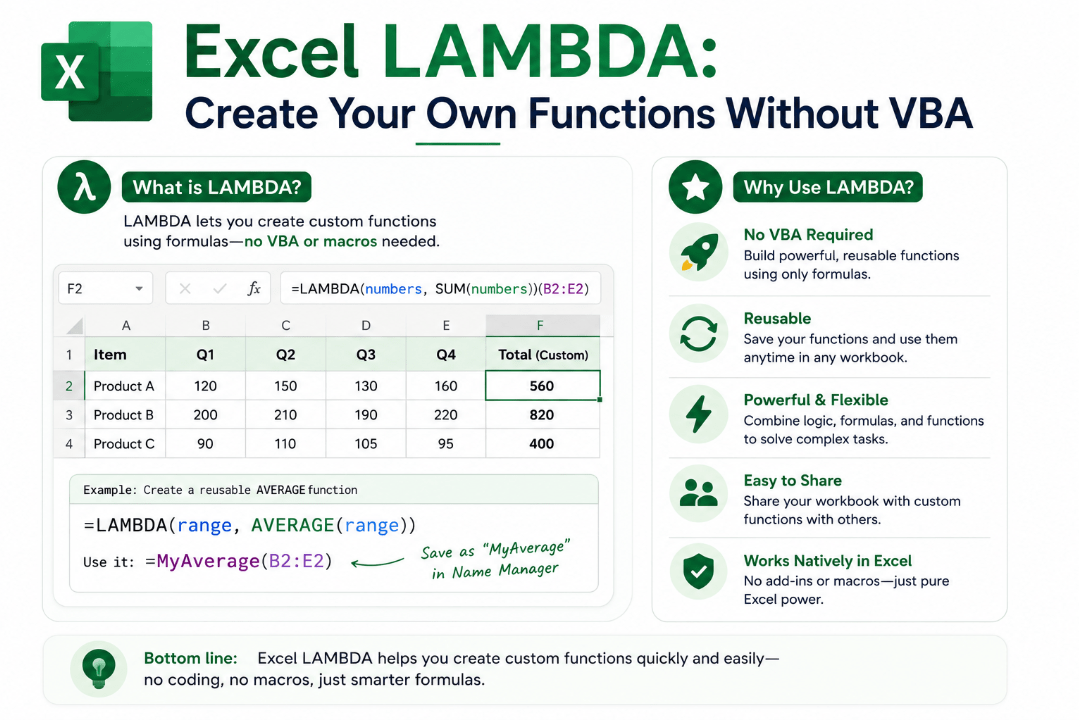
What if you could create your own Excel function without learning VBA or writing a macro?
The Excel LAMBDA function lets you do exactly that. You can take a formula you use repeatedly, give it a custom name, and then use it almost like a built-in Excel function.
For users who work with repetitive formulas, LAMBDA can make spreadsheets cleaner and much easier to manage.
What Is the Excel LAMBDA Function?
LAMBDA lets you create your own reusable functions using normal Excel formulas.
The basic syntax looks like this:
=LAMBDA(parameter, calculation)
You define one or more inputs, tell Excel what calculation to perform, and LAMBDA returns the result.
Microsoft says LAMBDA functions can be reused throughout a workbook and called using a friendly name, similar to built-in functions such as SUM or AVERAGE.
A Simple LAMBDA Example
Imagine you frequently need to add 20% VAT to prices.
Normally, you might use:
=A2*1.2
and copy that formula wherever you need it.
With LAMBDA, you could create:
=LAMBDA(price,price*1.2)
To test it directly in a cell, you could use:
=LAMBDA(price,price*1.2)(100)
Excel would return:
120
The 100 is passed into the price parameter, and Excel performs the calculation.
How to Turn It Into Your Own Excel Function
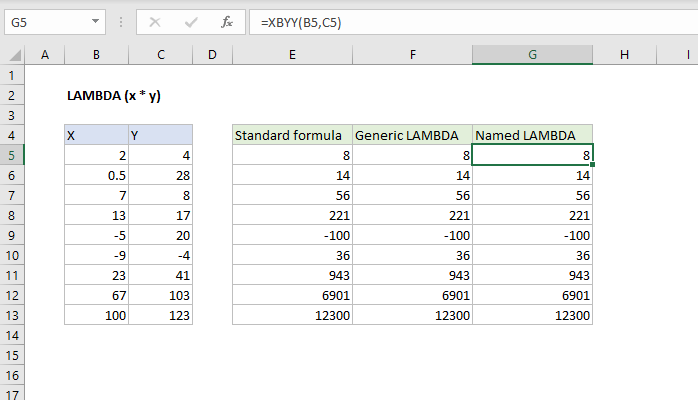
The real advantage appears when you give your LAMBDA a name.
Open:
Formulas → Name Manager → New
Then enter a name such as:
AddVAT
In the Refers to box, enter:
=LAMBDA(price,price*1.2)
Save it.
Now you can use:
=AddVAT(A2)
anywhere in that workbook.
Instead of repeatedly writing the full VAT formula, you have effectively created your own Excel function.
Microsoft’s Name Manager supports reusable formulas created with LAMBDA and lets you manage them from the Formulas tab.
Why Is LAMBDA Useful?
The biggest advantage is reducing repeated formulas.
Suppose you have a long calculation that appears dozens of times throughout a workbook.
Instead of copying something like:
=((A2*B2)-C2)*1.2
you could create a custom function with a meaningful name.
For example:
=FinalPrice(A2,B2,C2)
That makes the spreadsheet much easier to read.
LAMBDA can help with:
- Repeated calculations
- Complex business formulas
- Pricing formulas
- Tax calculations
- Custom data transformations
- Cleaning up long formulas
- Making workbooks easier for other people to understand
Does LAMBDA Replace VBA?
For certain formula-related tasks, it can.
Before LAMBDA, creating your own reusable Excel functions often meant writing a VBA User Defined Function, or UDF.
LAMBDA allows many custom calculation functions to be created using normal Excel formula syntax instead.
Microsoft specifically notes that LAMBDA doesn’t require VBA, macros, or JavaScript.
However, LAMBDA doesn’t replace VBA completely.
VBA can automate broader tasks such as:
- Opening and closing workbooks
- Creating reports automatically
- Controlling worksheets
- Formatting large ranges
- Responding to buttons or events
LAMBDA is mainly about creating custom calculations and reusable formulas.
Can LAMBDA Use Multiple Parameters?
Yes.
You can give a LAMBDA function several inputs.
For example:
=LAMBDA(price,quantity,price*quantity)
You could save this as:
OrderTotal
Then use:
=OrderTotal(A2,B2)
If A2 contains the price and B2 contains the quantity, Excel calculates the total.
Microsoft allows a LAMBDA function to use up to 253 parameters, although most practical functions will need far fewer.
LAMBDA Works With Other Modern Excel Functions
LAMBDA becomes even more powerful when combined with functions such as:
- LET
- FILTER
- MAP
- BYROW
- BYCOL
- REDUCE
- SCAN
For example, MAP can apply a LAMBDA calculation to each value in an array, while BYROW and BYCOL can apply one to individual rows or columns.
You don’t need these advanced combinations to start using LAMBDA, but they can become useful as your formulas get more sophisticated.
What If LAMBDA Shows #CALC!?
A common beginner mistake is entering something like:
=LAMBDA(x,x+1)
directly into a cell.
Excel knows you’ve defined a function, but you haven’t given it anything to calculate.
Instead, test it like this:
=LAMBDA(x,x+1)(1)
That returns 2.
Alternatively, save the LAMBDA through Name Manager and call it using your custom function name.
Who Should Use LAMBDA?
LAMBDA is worth learning if you regularly create Excel workbooks with repeated or complicated formulas.
You don’t need to be a programmer.
If you’re already comfortable using functions such as IF, XLOOKUP, SUMIFS, or LET, learning basic LAMBDA formulas is a natural next step.
Summary
The Excel LAMBDA function gives ordinary Excel users something that previously often required VBA: the ability to create reusable custom functions.
For anyone building larger or more complex spreadsheets, LAMBDA can make formulas cleaner, easier to maintain, and much easier to understand.
Need Microsoft Office with modern Excel features? Explore our Microsoft Office keys and choose the version that fits your work today.