
Instructions
Excel REGEXEXTRACT: Pull Numbers, Codes and Patterns From Text
Oct
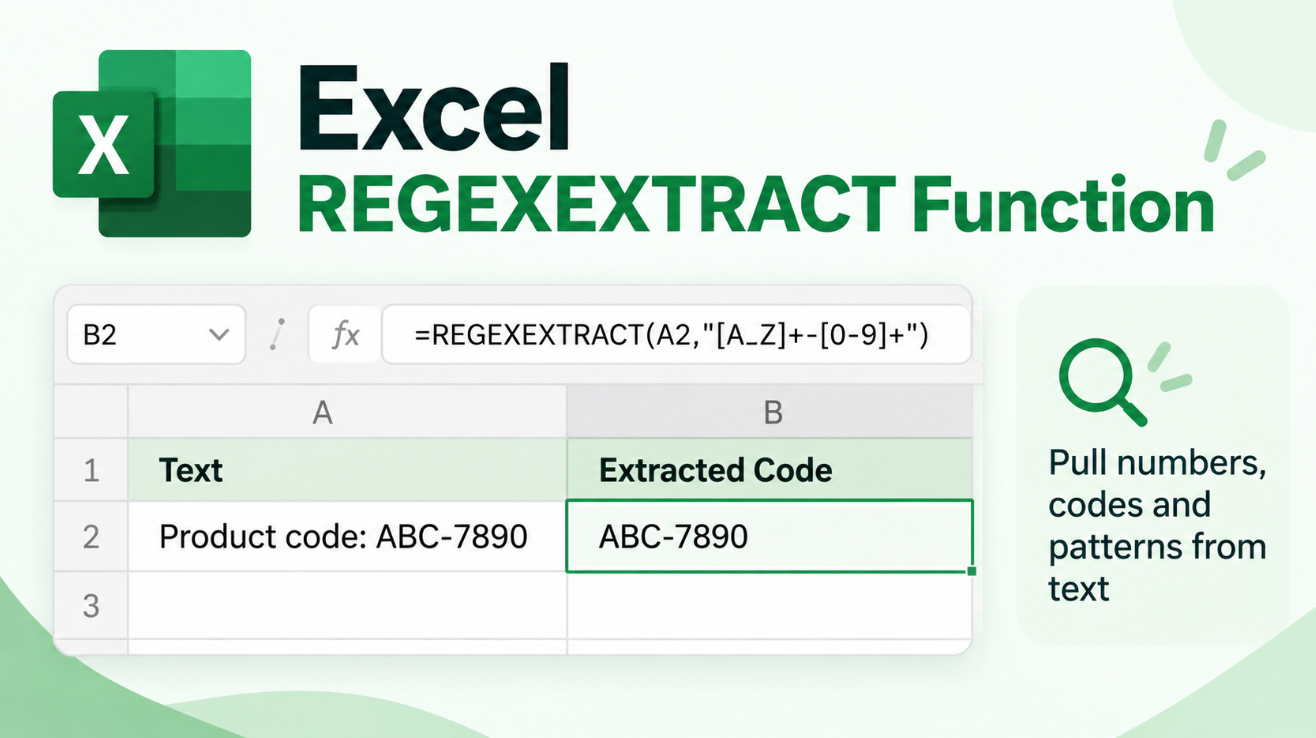
The Excel REGEXEXTRACT function gives Microsoft 365 users a much more flexible way to pull information from messy text.
Instead of building long combinations of LEFT, MID, FIND, SEARCH, and TEXT functions, you can describe the pattern you are looking for.
That pattern could be a number, product code, phone number, email-like string, order ID, or almost any consistently structured piece of text.
Microsoft says REGEXEXTRACT can return the first match, every match, or individual capture groups from a matching pattern.
What Does Excel REGEXEXTRACT Do?
REGEXEXTRACT searches text using a regular expression, commonly shortened to regex.
Its syntax is:
=REGEXEXTRACT(text,pattern,[return_mode],[case_sensitivity])
The arguments are:
- text – The text or cell you want to search.
- pattern – The regex pattern describing what you want to find.
- return_mode – Controls whether Excel returns the first match, all matches, or capture groups.
- case_sensitivity – Controls whether uppercase and lowercase letters are treated differently.
Microsoft uses the PCRE2 style of regular expressions for Excel’s REGEXEXTRACT, REGEXTEST, and REGEXREPLACE functions.
Extract Numbers From Text With REGEXEXTRACT
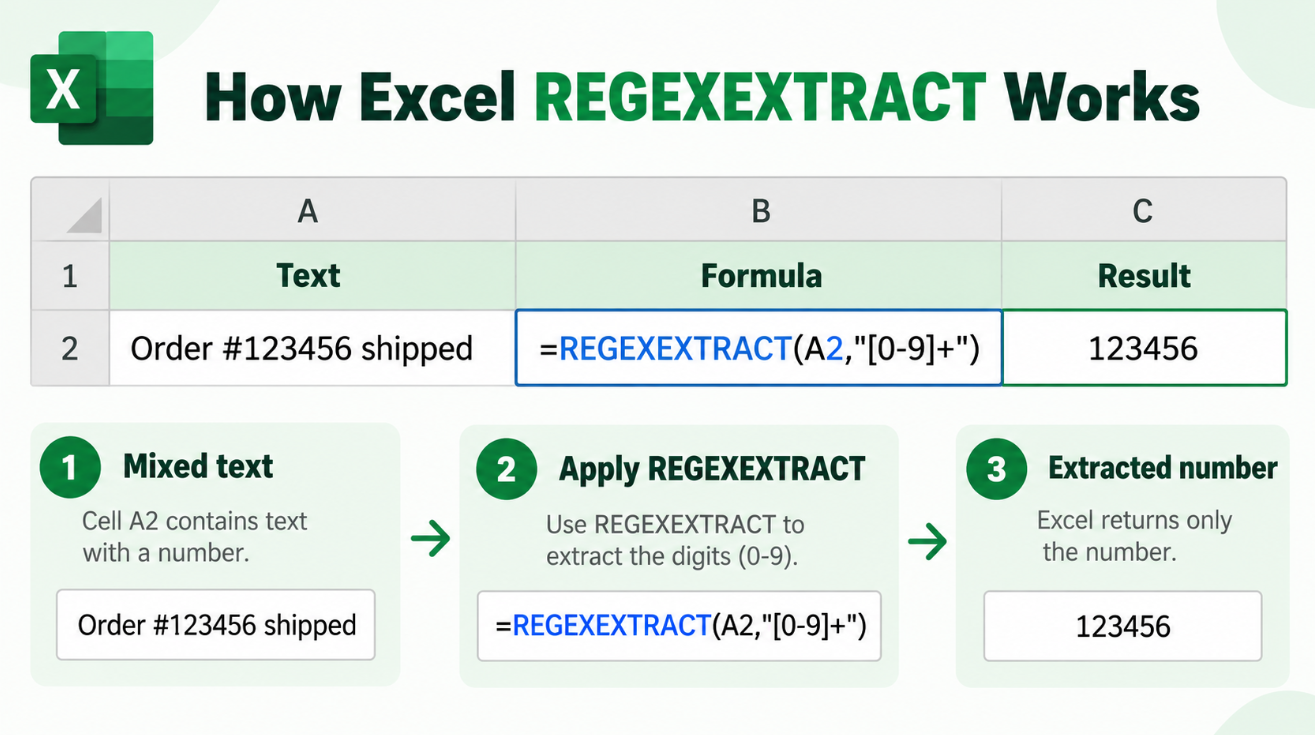
Suppose A2 contains:
Order number: 45821
To extract the number, use:
=REGEXEXTRACT(A2,”[0-9]+”)
The result is:
45821
Here:
[0-9]
means any digit from 0 to 9.
The + means one or more of those digits.
So Excel looks for one continuous group of numbers.
This can be useful for extracting:
- Order numbers
- Invoice IDs
- Quantities
- Reference numbers
- Customer codes
- Numeric IDs
Extract a Product Code
Suppose A2 contains:
Product: WIN11-PRO-2458
If the code always follows a similar pattern, you could use:
=REGEXEXTRACT(A2,”[A-Z0-9-]+”)
Depending on the surrounding text, you may want to make the pattern more specific.
For example:
=REGEXEXTRACT(A2,”WIN11-[A-Z]+-[0-9]+”)
returns:
WIN11-PRO-2458
This is one of the biggest advantages of regex: you can describe the structure rather than an exact fixed string.
Extract the First Number Only
REGEXEXTRACT uses return mode 0 by default.
For example, if A2 contains:
Order 45821 contains 3 products
then:
=REGEXEXTRACT(A2,”[0-9]+”)
returns:
45821
Excel stops after the first match.
Microsoft defines return mode 0 as returning the first string that matches the pattern.
Extract All Numbers From One Cell
What if you need every matching number?
Use return mode 1:
=REGEXEXTRACT(A2,”[0-9]+”,1)
For:
Order 45821 contains 3 products costing 129 each
Excel can return:
45821
3
129
as a dynamic array.
Microsoft defines return mode 1 as returning all matching strings as an array.
This makes REGEXEXTRACT especially useful when one cell contains several values you need to separate.
Extract a Phone Number From Mixed Text
Suppose A2 contains:
Contact John at (378) 555-4195 today
A pattern such as:
=REGEXEXTRACT(A2,”[0-9()]+ [0-9-]+”)
can return:
(378) 555-4195
Microsoft uses a similar phone-number extraction example in its official REGEXEXTRACT documentation.
For real-world data, you may need a more specific pattern if phone-number formats vary between countries.
What Are Capture Groups?
Capture groups let you extract separate parts of a single match.
You create them using parentheses inside the regex pattern.
Suppose A2 contains:
INV-2026-45821
You could use:
=REGEXEXTRACT(A2,”([A-Z]+)-([0-9]{4})-([0-9]+)”,2)
Return mode 2 tells Excel to return the captured groups separately.
The result could be:
INV | 2026 | 45821
Microsoft defines return mode 2 as returning the capture groups from the first matching result as an array.
This can be extremely useful for separating structured IDs into individual fields.
Useful Regex Patterns for Excel
You do not need to learn every regex rule to start using REGEXEXTRACT.
Some useful basics are:
| Pattern | Meaning |
| [0-9] | Any digit |
| [0-9]+ | One or more digits |
| [A-Z] | Any uppercase letter |
| [a-z] | Any lowercase letter |
| [A-Za-z]+ | One or more letters |
| . | Any character |
| a+ | One or more letter a characters |
| {4} | Exactly four repetitions |
| ^ | Beginning of the text |
| $ | End of the text |
For example:
[A-Z]{3}[0-9]{4}
could match a code such as:
ABC4582
because it looks for three uppercase letters followed by four numbers.
Extract the Year From a Code
Suppose A2 contains:
ORDER-2026-EU-4582
If the four-digit year is always present, try:
=REGEXEXTRACT(A2,”[0-9]{4}”)
The result is:
2026
The {4} tells Excel to look for exactly four consecutive digits.
This can be useful for dates, years, fixed-length IDs, and reference numbers.
Is REGEXEXTRACT Case-Sensitive?
Yes, by default.
The optional case_sensitivity argument controls this behavior.
Microsoft uses:
- 0 – Case-sensitive
- 1 – Case-insensitive
For example:
=REGEXEXTRACT(A2,”office”,0,1)
can match:
Office
OFFICE
or:
office
because the search is case-insensitive.
REGEXEXTRACT Always Returns Text
This detail is easy to miss.
Even when REGEXEXTRACT extracts something that looks like a number, Microsoft says the function returns the result as text.
For example:
=REGEXEXTRACT(A2,”[0-9]+”)
may display:
45821
but Excel can still treat it as text.
If you need a real numeric value for calculations, use:
=VALUE(REGEXEXTRACT(A2,”[0-9]+”))
That converts the extracted text into a number.
REGEXEXTRACT vs TEXTBEFORE and TEXTAFTER
Use TEXTBEFORE or TEXTAFTER when your text has a clear delimiter.
For example:
ORDER-45821
can easily be separated with:
=TEXTAFTER(A2,”-“)
REGEXEXTRACT becomes more useful when the position or delimiter is less predictable.
For example:
Customer John | Ref 45821 | Paid
If you simply want to find the numeric reference wherever it appears:
=REGEXEXTRACT(A2,”[0-9]+”)
can be much easier.
REGEXEXTRACT vs TEXTSPLIT
TEXTSPLIT is ideal when the entire string follows a delimiter structure.
For example:
John,London,2026
works well with:
=TEXTSPLIT(A2,”,”)
REGEXEXTRACT is better when you only want a particular pattern from less consistent text.
For example:
Customer John moved to London in 2026
can use:
=REGEXEXTRACT(A2,”[0-9]{4}”)
to extract:
2026
without needing to know exactly where it appears.
REGEXEXTRACT vs REGEXTEST vs REGEXREPLACE
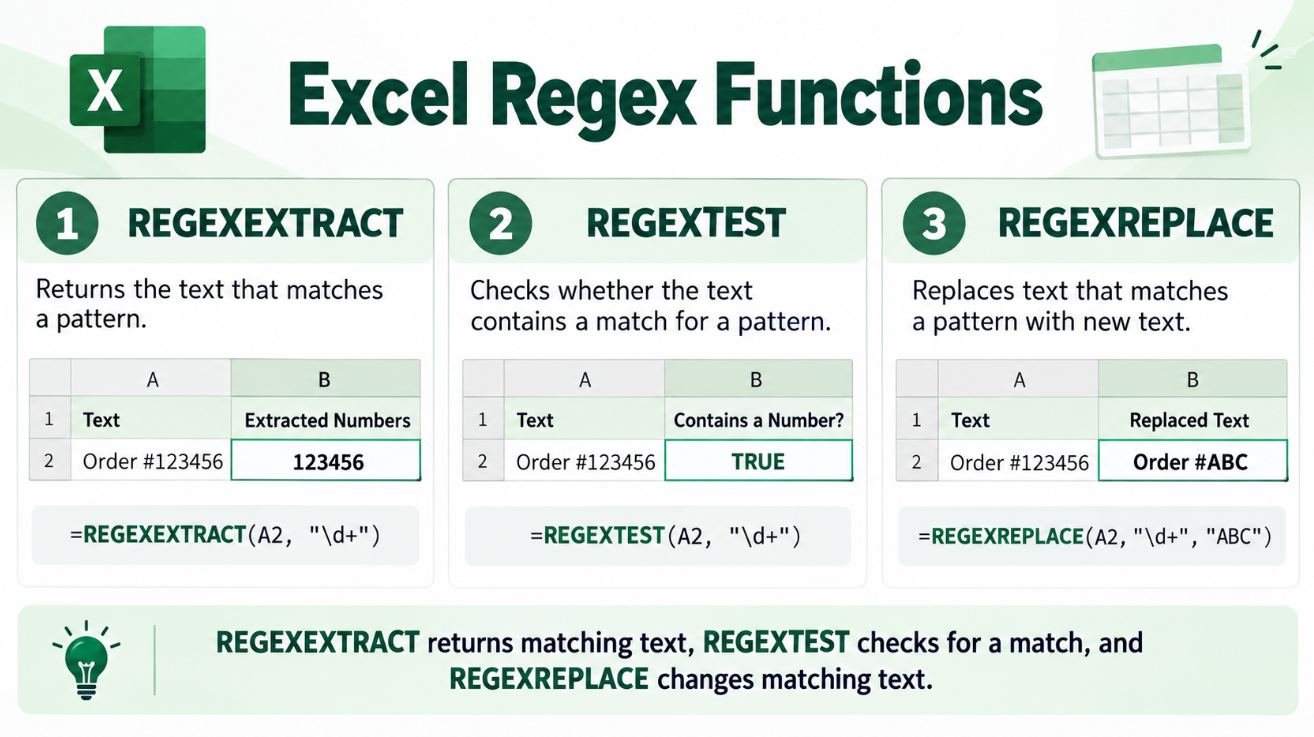
Microsoft currently provides three main regex functions in Excel:
REGEXEXTRACT
Finds and returns matching text.
REGEXTEST
Checks whether a pattern exists and returns TRUE or FALSE.
REGEXREPLACE
Finds matching text and replaces it with something else.
For example:
REGEXEXTRACT → Find the order number
REGEXTEST → Does this cell contain a valid order number?
REGEXREPLACE → Remove or reformat the order number
Together, these functions give Excel much stronger text-processing capabilities.
Which Excel Versions Support REGEXEXTRACT?
This is important.
Microsoft currently lists REGEXEXTRACT for:
- Excel for Microsoft 365
- Excel for Microsoft 365 for Mac
Microsoft’s official Excel function directory labels REGEXEXTRACT as a Microsoft 365 function.
It is therefore not a standard Excel 2024 perpetual-license function.
If Excel displays:
#NAME?
when you try to use REGEXEXTRACT, check whether you are using a qualifying and up-to-date Microsoft 365 version of Excel.
When Is Excel REGEXEXTRACT Most Useful?
REGEXEXTRACT is especially useful when working with imported or inconsistent text such as:
- Product descriptions
- Order exports
- CRM data
- Log files
- Customer records
- Phone numbers
- Invoice references
- Tracking codes
- SKU numbers
- Mixed text and numeric IDs
For clean data with fixed separators, traditional Excel text functions may still be simpler.
But once the structure becomes irregular, regex can eliminate surprisingly complicated formulas.
Frequently Asked Questions
What does REGEXEXTRACT do in Excel?
It extracts text that matches a regular-expression pattern. You can return the first match, all matches, or capture groups.
Can REGEXEXTRACT extract only numbers?
Yes. A common formula is:
=REGEXEXTRACT(A2,”[0-9]+”)
Can REGEXEXTRACT return multiple matches?
Yes. Set return_mode to 1.
Does REGEXEXTRACT return numbers as numbers?
No. Microsoft says REGEXEXTRACT returns text values. Wrap it in VALUE if you need a numeric result.
Is REGEXEXTRACT available in Excel 2024?
Microsoft currently lists REGEXEXTRACT as a Microsoft 365 function rather than an Excel 2024 perpetual function.
What regex system does Excel use?
Microsoft says REGEXEXTRACT, REGEXTEST, and REGEXREPLACE use PCRE2-style regular expressions.
Final Thoughts
Excel REGEXEXTRACT is one of the most powerful new text-processing functions available to Microsoft 365 users.
Instead of depending on the exact position of a character or delimiter, you can tell Excel to search for a pattern such as:
[0-9]+
or:
[A-Z]{3}[0-9]{4}
and extract exactly the information you need.
For simple text, functions such as TEXTBEFORE, TEXTAFTER, and TEXTSPLIT may still be easier.
But for messy imported data, product codes, phone numbers, IDs, and inconsistent text, REGEXEXTRACT can dramatically simplify your formulas.
If you prefer a one-time Office purchase for everyday Word, Excel, and PowerPoint work and don’t need Microsoft 365-only functions such as REGEXEXTRACT, explore our Office keys options.