
Instructions
Excel REGEXREPLACE: Clean Messy Text With Pattern Matching
Oct
Messy data is one of the most common problems in Excel. Phone numbers arrive in different formats, product codes contain unwanted characters, imported text includes extra spaces, and names may need to be rearranged.
Excel REGEXREPLACE can clean many of these problems with a single formula.
Instead of telling Excel the exact characters or positions to change, you describe a pattern. Excel finds text matching that pattern and replaces it automatically.
That makes REGEXREPLACE especially useful when the values are different but follow the same general structure. Microsoft defines REGEXREPLACE as a function that replaces text matching a supplied regular expression with replacement text.
What Does Excel REGEXREPLACE Do?
The syntax is:
=REGEXREPLACE(text,pattern,replacement,[occurrence],[case_sensitivity])
The main arguments work like this:
| Argument | Purpose |
| text | The text or cell you want to clean |
| pattern | The regex pattern Excel should find |
| replacement | What should replace the match |
| occurrence | Optional control over which match is replaced |
| case_sensitivity | Optional case-sensitive or case-insensitive matching |
By default, Excel replaces all matching occurrences.
Microsoft also lets you replace only a specific occurrence or use a negative number to count backward from the end.
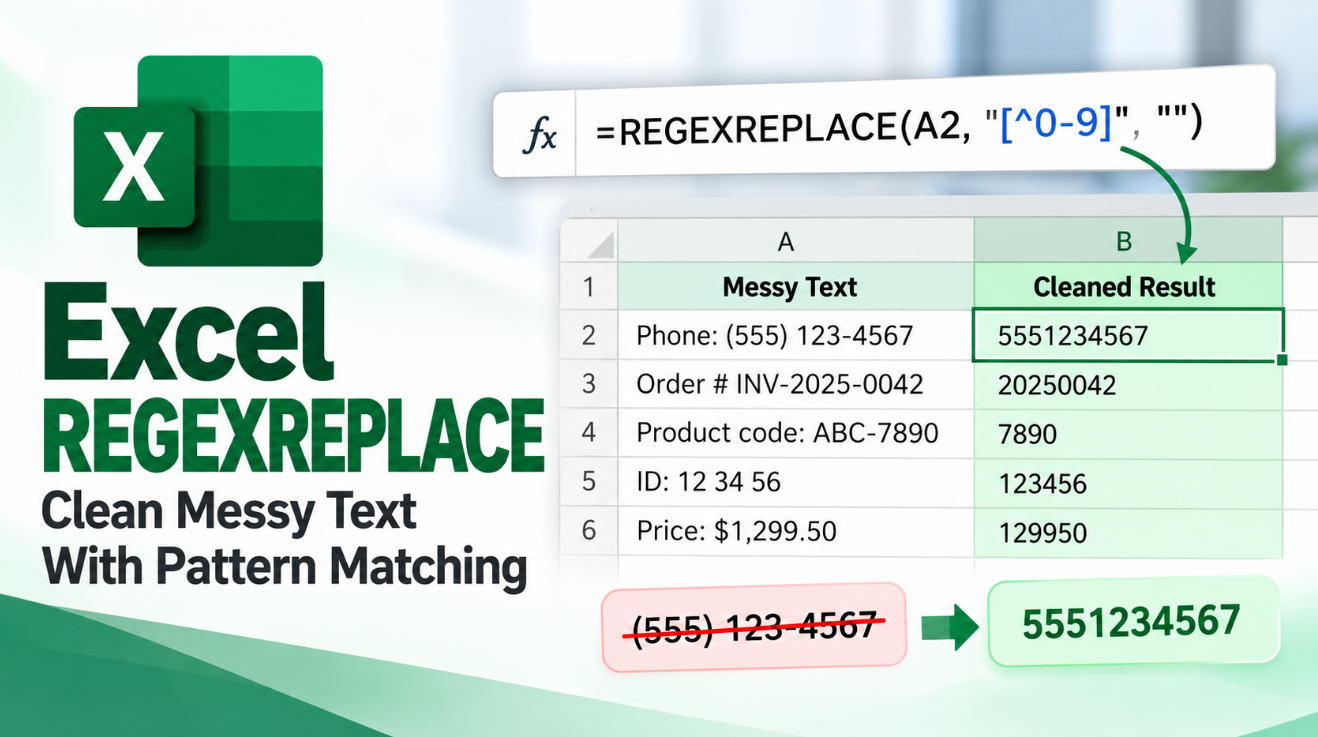
Excel REGEXREPLACE Example: Keep Only Numbers
Suppose A2 contains:
Order #45821
and you want only:
45821
You can remove everything that is not a number:
=REGEXREPLACE(A2,”[^0-9]”,””)
The result is:
45821
The important part is:
[^0-9]
This means:
anything that is not a digit from 0 to 9
Excel replaces every matching character with nothing.
This technique is useful for cleaning phone numbers, order numbers, customer IDs and other numeric data.
Remove Formatting From a Phone Number
Suppose A2 contains:
+1 (555) 123-4567
Use:
=REGEXREPLACE(A2,”[^0-9]”,””)
The result becomes:
15551234567
Spaces, brackets, the plus sign and hyphen are removed, while the digits remain.
This can be useful before comparing phone numbers or importing them into another system.
Keep in mind that phone numbers are often identifiers rather than values used for arithmetic, so storing the cleaned result as text may still be appropriate.
Remove Extra Spaces From Text
Imported data often contains several spaces where only one is needed.
For example:
Microsoft Office 2026
You can use:
=REGEXREPLACE(A2,”\s+”,” “)
The result becomes:
Microsoft Office 2026
Here:
\s
matches whitespace, while:
+
means one or more consecutive matches.
So several spaces are replaced with one normal space.
This is particularly useful for text copied from websites, PDFs, exported databases and external software.
Remove Everything Except Letters and Numbers
Suppose you have:
PROD-4582 / EU
and want:
PROD4582EU
Use:
=REGEXREPLACE(A2,”[^A-Za-z0-9]”,””)
Excel removes spaces, slashes, hyphens and other characters that are not letters or numbers.
This approach can help normalize:
- Product IDs
- SKUs
- Account references
- Imported codes
- Serial-number-style strings
- CRM or database fields
Replace Every Number With the Same Text
REGEXREPLACE does not have to remove matches.
It can replace them with something else.
Suppose A2 contains:
Customer 45821 ordered 3 products
Use:
=REGEXREPLACE(A2,”[0-9]+”,”NUMBER”)
The result becomes:
Customer NUMBER ordered NUMBER products
This can be helpful when anonymizing or standardizing text.
Hide Part of a Phone Number
REGEXREPLACE can also mask sensitive-looking information.
Suppose A2 contains:
555-123-4567
You could use:
=REGEXREPLACE(A2,”^[0-9]{3}”,”***”)
The result is:
***-123-4567
The ^ tells Excel to look at the beginning of the text, while {3} means exactly three digits.
This is useful when you want to display only part of an identifier.
Reformat Text With Capture Groups
One of the most powerful REGEXREPLACE features is capture groups.
Suppose A2 contains:
2026-WIN-PRO
but you want:
WIN-PRO-2026
Use:
=REGEXREPLACE(A2,”([0-9]{4})-([A-Z]+)-([A-Z]+)”,”$2-$3-$1″)
The original pattern creates three groups:
| Group | Value |
| $1 | 2026 |
| $2 | WIN |
| $3 | PRO |
The replacement:
$2-$3-$1
rearranges them.
The result becomes:
WIN-PRO-2026
Microsoft also documents this technique for rearranging captured parts of text. Capture groups are created with parentheses and referenced in the replacement using $1, $2 and so on.
Rearrange First and Last Names
Suppose A2 contains:
JohnSmith
and the naming format consistently uses capital letters to separate the names.
A formula such as:
=REGEXREPLACE(A2,”([A-Z][a-z]+)([A-Z][a-z]+)”,”$2, $1″)
can return:
Smith, John
This is similar to Microsoft’s official capture-group example for REGEXREPLACE.
For inconsistent real-world names, however, regex patterns may need to be more sophisticated.
Replace Only One Match
By default, occurrence is 0, which replaces every match.
Suppose A2 contains:
123-456-789
and you want to replace only the first numeric group.
You can specify occurrence 1.
The general structure is:
=REGEXREPLACE(text,pattern,replacement,1)
Using 2 targets the second occurrence.
Microsoft also supports negative values.
For example:
-1
targets the final match when searching from the end.
This is useful when the same pattern appears several times but only one instance should change.
Is REGEXREPLACE Case-Sensitive?
Yes, by default.
Microsoft provides an optional case_sensitivity argument:
| Value | Behavior |
| 0 | Case-sensitive |
| 1 | Case-insensitive |
For example:
=REGEXREPLACE(A2,”office”,”Excel”,0,1)
can match variations such as:
Office
OFFICE
and:
office
because the final argument makes the pattern case-insensitive.
Useful Regex Patterns for REGEXREPLACE
You do not need to become a regex expert to start using the function.
| Pattern | Meaning |
| [0-9] | Any digit |
| [0-9]+ | One or more digits |
| [A-Z] | One uppercase letter |
| [a-z]+ | One or more lowercase letters |
| [^0-9] | Anything except a digit |
| \s+ | One or more whitespace characters |
| ^ | Beginning of the text |
| $ | End of the text |
| {4} | Exactly four repetitions |
| ( … ) | Capture a matching group |
Excel’s regex functions use the PCRE2 flavor of regular expressions.
REGEXREPLACE vs Excel SUBSTITUTE
SUBSTITUTE is still useful when you already know the exact text you want to replace.
For example:
=SUBSTITUTE(A2,”Windows 10″,”Windows 11″)
works perfectly when the phrase is predictable.
REGEXREPLACE becomes more useful when the actual text varies.
For example:
Order 4582
Order 81726
Order 993
A pattern such as:
[0-9]+
can find all three numbers even though their values and lengths are different.
So the difference is:
SUBSTITUTE finds specific text.
REGEXREPLACE finds patterns.
REGEXREPLACE vs REPLACE
Excel’s older REPLACE function works according to character position.
For example:
=REPLACE(A2,1,3,”ABC”)
tells Excel to replace three characters beginning at position 1.
REGEXREPLACE does not require you to know the exact position.
Instead, it looks for a pattern wherever that pattern appears.
Microsoft’s traditional REPLACE function remains available in Excel 2024, Excel 2021 and earlier supported versions, while REGEXREPLACE is currently Microsoft 365-specific.
REGEXREPLACE vs REGEXEXTRACT
These two functions work well together but do different jobs.
REGEXEXTRACT finds matching text and returns it.
REGEXREPLACE finds matching text and changes it.
For example, if A2 contains:
Order ID: 45821
then:
=REGEXEXTRACT(A2,”[0-9]+”)
returns:
45821
while:
=REGEXREPLACE(A2,”[0-9]+”,”XXXXX”)
returns:
Order ID: XXXXX
REGEXREPLACE vs REGEXTEST
The third Excel regex function is REGEXTEST.
REGEXTEST checks whether a pattern exists and returns:
TRUE
or:
FALSE
So the three functions have different jobs:
| Function | Purpose |
| REGEXEXTRACT | Return matching text |
| REGEXREPLACE | Replace matching text |
| REGEXTEST | Check whether a match exists |
Microsoft currently uses the same PCRE2 regex style across all three.
Can REGEXREPLACE Clean Imported Data?
Yes, and this is probably one of its best practical uses.
Imagine an exported product list contains:
SKU: WIN-4582 / EU
while another row contains:
SKU-WIN-8843-EU
Traditional text formulas can become complicated because the separators are inconsistent.
REGEXREPLACE lets you target patterns rather than fixed positions.
This makes it useful for cleaning data imported from:
- Websites
- CSV exports
- CRM systems
- Accounting software
- Databases
- PDFs
- Third-party applications
For predictable delimiter-based text, functions such as TEXTSPLIT, TEXTBEFORE and TEXTAFTER may still be simpler.
Why Does REGEXREPLACE Show #NAME?
If Excel shows:
#NAME?
your Excel version may not support REGEXREPLACE.
Microsoft currently lists the function for:
Excel for Microsoft 365
Excel for Microsoft 365 for Mac
Microsoft’s function directory also identifies REGEXREPLACE as a Microsoft 365 function.
It is not currently listed as a standard Excel 2024 perpetual-license function.
Availability can also depend on your Microsoft 365 update channel and whether Excel is fully updated.
When Is Excel REGEXREPLACE Worth Using?
REGEXREPLACE is most useful when the text follows a pattern but not an exact fixed layout.
It is particularly good for cleaning phone numbers, removing unwanted characters, standardizing IDs, masking sensitive-looking data, rearranging structured codes and fixing inconsistent imported text.
For a simple one-off replacement, SUBSTITUTE is usually easier.
But when you find yourself building long formulas because your data varies from row to row, REGEXREPLACE may be the cleaner solution.
Frequently Asked Questions
What does REGEXREPLACE do in Excel?
REGEXREPLACE searches text for a regex pattern and replaces matching text with another value.
Can REGEXREPLACE remove characters?
Yes. Use an empty replacement string “”.
For example:
=REGEXREPLACE(A2,”[^0-9]”,””)
removes everything except digits.
Can REGEXREPLACE replace every match?
Yes. By default, occurrence is 0, which replaces all matches.
Can REGEXREPLACE replace only the last occurrence?
Yes. Microsoft allows negative occurrence values that count from the end.
Can REGEXREPLACE rearrange text?
Yes. Capture groups can be referenced using $1, $2, $3 and so on in the replacement text.
Is REGEXREPLACE available in Excel 2024?
Microsoft currently lists it as a Microsoft 365 function rather than a standard Excel 2024 perpetual-license function.
What regex format does Excel use?
Microsoft says REGEXREPLACE, REGEXEXTRACT and REGEXTEST use PCRE2-style regular expressions.
Final Thoughts
Excel REGEXREPLACE gives Microsoft 365 users a powerful new way to clean and reorganize text.
Instead of relying only on fixed positions or exact words, you can define patterns such as:
[0-9]+
\s+
or:
[^A-Za-z0-9]
and let Excel find and replace every matching value automatically.
For simple text changes, SUBSTITUTE and REPLACE are still easier.
But for inconsistent product codes, phone numbers, imported data, IDs and other messy text, REGEXREPLACE can make formulas considerably shorter and more flexible.
If you prefer a one-time Office license for everyday Word, Excel and PowerPoint work, browse our Office keys and choose the edition that suits your PC.