
Instructions
Excel TEXTSPLIT: Split Text Without Text to Columns
Sep
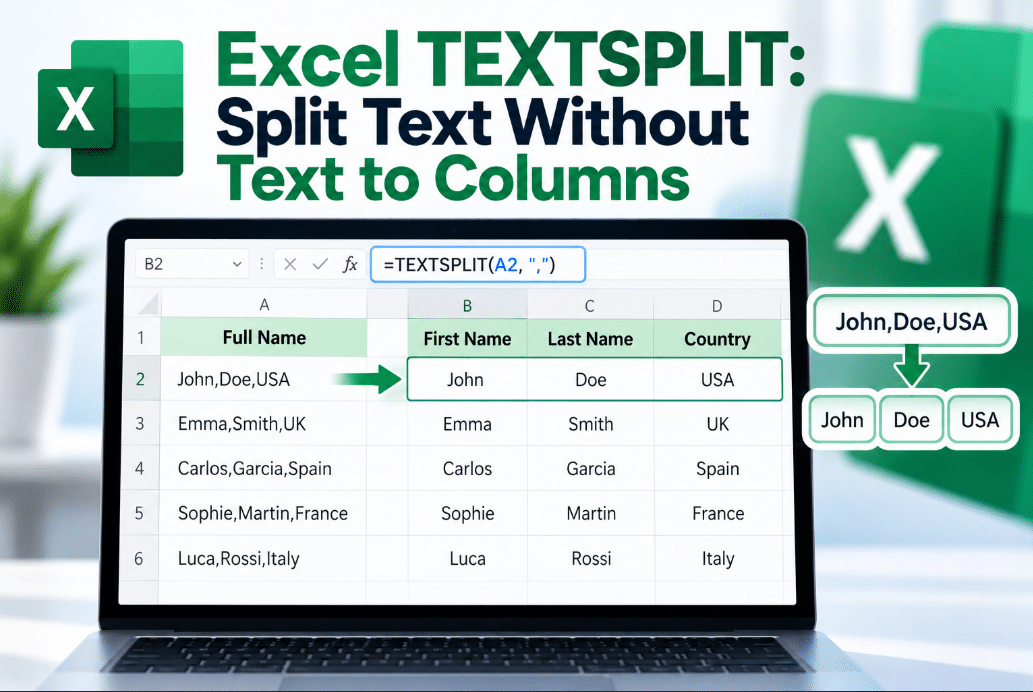
Need to separate a full name, product code, or comma-separated list into multiple cells?
The Excel TEXTSPLIT function can do it with a formula, without repeatedly using the Text to Columns tool.
It is especially useful when the original text may change because the split results update automatically with the formula.
What Is Excel TEXTSPLIT?
TEXTSPLIT separates text wherever it finds a character or piece of text that you specify.
That separator is called a delimiter.
Common delimiters include:
- Spaces
- Commas
- Semicolons
- Hyphens
- Periods
- Other characters
Microsoft describes TEXTSPLIT as working like the Text to Columns wizard, but in formula form. It can return results across columns or down rows.
Basic TEXTSPLIT Syntax
The function uses this syntax:
=TEXTSPLIT(text,col_delimiter,[row_delimiter],[ignore_empty],[match_mode],[pad_with])
For simple tasks, you usually only need the first two arguments:
=TEXTSPLIT(text,delimiter)
For example, if A2 contains:
John Smith
you can use:
=TEXTSPLIT(A2," ")
Excel returns:
John | Smith
in two neighboring cells.
Split a Full Name Into Columns
Suppose A2 contains:
Michael James Brown
Enter:
=TEXTSPLIT(A2," ")
Excel automatically spills the results across three cells:
Michael | James | Brown
Unlike Text to Columns, the original text remains unchanged and the results are controlled by a formula.
If A2 changes, the split results update automatically.
Split a Comma-Separated List
TEXTSPLIT is also useful for data such as:
Apple,Banana,Orange
Use:
=TEXTSPLIT(A2,",")
Excel returns:
Apple | Banana | Orange
This is useful when data has been copied from:
- CSV-style lists
- Online forms
- Databases
- Email exports
- Other software
Split Text Down Rows Instead
TEXTSPLIT doesn’t have to place results across columns.
You can also split content vertically.
If A2 contains:
Apple,Banana,Orange
use:
=TEXTSPLIT(A2,,",")
Excel returns:
Apple
Banana
Orange
in separate rows.
Microsoft’s syntax uses separate arguments for column and row delimiters, which is what makes this possible.
Split Using More Than One Delimiter
TEXTSPLIT can also recognize multiple separators.
For example, if your text contains both commas and periods:
Apple,Banana.Orange
you could use:
=TEXTSPLIT(A2,{",","."})
Excel splits the text wherever either delimiter appears.
Microsoft specifically supports arrays of multiple delimiters for this kind of formula.
What Does Ignore Empty Do?
Sometimes your data contains repeated delimiters.
For example:
Apple,,Orange
Normally, Excel may return an empty cell between Apple and Orange.
You can tell TEXTSPLIT to ignore empty results:
=TEXTSPLIT(A2,",",,TRUE)
The TRUE argument means consecutive delimiters should not create blank results.
TEXTSPLIT vs Text to Columns
Both tools can separate text, but they work differently.
Text to Columns:
- Permanently changes the selected data
- Usually requires several clicks
- Good for one-time cleanup
- Does not automatically update if the source text changes
TEXTSPLIT:
- Uses a formula
- Keeps the original text unchanged
- Updates automatically
- Can spill across columns or rows
- Works well in dynamic spreadsheets
If you are cleaning data once, Text to Columns may be perfectly fine.
If your data changes regularly, TEXTSPLIT is usually much more flexible.
Does TEXTSPLIT Replace LEFT, RIGHT and MID?
For many delimiter-based tasks, yes.
Before TEXTSPLIT, users often had to combine functions such as:
- LEFT
- RIGHT
- MID
- SEARCH
- FIND
- LEN
to separate text.
Those functions are still useful when the split position depends on character positions rather than a clear separator.
But when your data already contains spaces, commas, hyphens, or another consistent delimiter, TEXTSPLIT is usually much simpler.
What If You Only Need Part of the Text?
Excel also includes related functions:
TEXTBEFORE returns everything before a selected delimiter.
TEXTAFTER returns everything after it.
TEXTSPLIT is better when you want all sections separated into different cells.
Microsoft lists TEXTSPLIT, TEXTBEFORE, and TEXTAFTER among its modern text functions.
Which Excel Versions Support TEXTSPLIT?
Microsoft currently lists TEXTSPLIT for:
- Excel for Microsoft 365
- Excel 2024
- Excel 2024 for Mac
- Excel for Microsoft 365 for Mac
It is not part of older perpetual versions such as Excel 2021.
If Excel shows #NAME? when you enter TEXTSPLIT, an unsupported Excel version may be one possible reason.
Final Thoughts
Excel TEXTSPLIT is one of the easiest ways to separate structured text into multiple cells.
Instead of repeatedly opening Text to Columns, you can use formulas such as:
=TEXTSPLIT(A2," ")
or:
=TEXTSPLIT(A2,",")
The results update automatically when the original text changes, making TEXTSPLIT especially useful for names, product codes, exported data, and comma-separated lists.
Need Microsoft Office with modern Excel functions? Explore our Microsoft Office keys and choose the version that fits your work today.