
Instructions
How to Add a Watermark in Word
May
Adding a watermark in Word is a simple way to mark a document as Draft, Confidential, Sample, or with your own custom text or image. Microsoft says you can insert a built-in watermark, create a custom text watermark, or use a picture watermark from the Design > Watermark menu.
Watermarks are useful for business documents, review copies, internal paperwork, school drafts, or branded files. Microsoft also explains that you can remove a watermark later, place one on just one page, or edit it by opening the header area and selecting the watermark itself.
The Short Answer
To add a watermark in Word:
- open the Design tab
- click Watermark
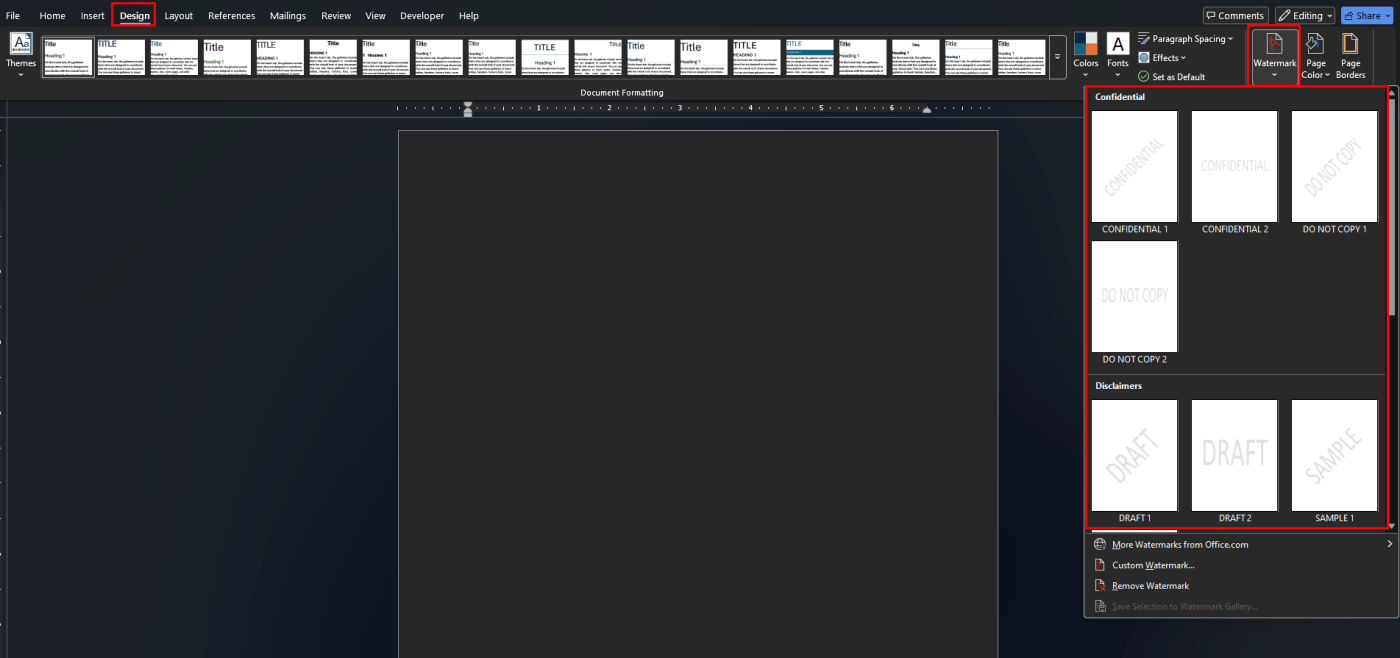
- choose a built-in watermark
Microsoft says this is the fastest way to apply a watermark such as DRAFT or Confidential across the document.
How to Add a Built-In Watermark in Word
This is the easiest method for most people.
Microsoft says to go to Design > Watermark and then choose one of the predefined watermark options, such as DRAFT or Confidential. The watermark is then applied to the document pages.
When built-in watermarks are useful
Built-in watermarks are good for:
- draft documents
- internal review files
- confidential paperwork
- documents that are not final yet
How to Add a Custom Text Watermark
If you want your own wording instead of a built-in preset, Word can do that too.
Microsoft says to go to Design > Watermark > Custom Watermark, then choose Text watermark and enter the text you want. From there, you can also adjust the style and other options before confirming.
This is useful for custom wording like:
- Internal Use Only
- Copy
- Sample
- Company Review Draft
How to Add a Picture Watermark
If you want to use a logo or image as the watermark, Word supports that through the same custom watermark menu.
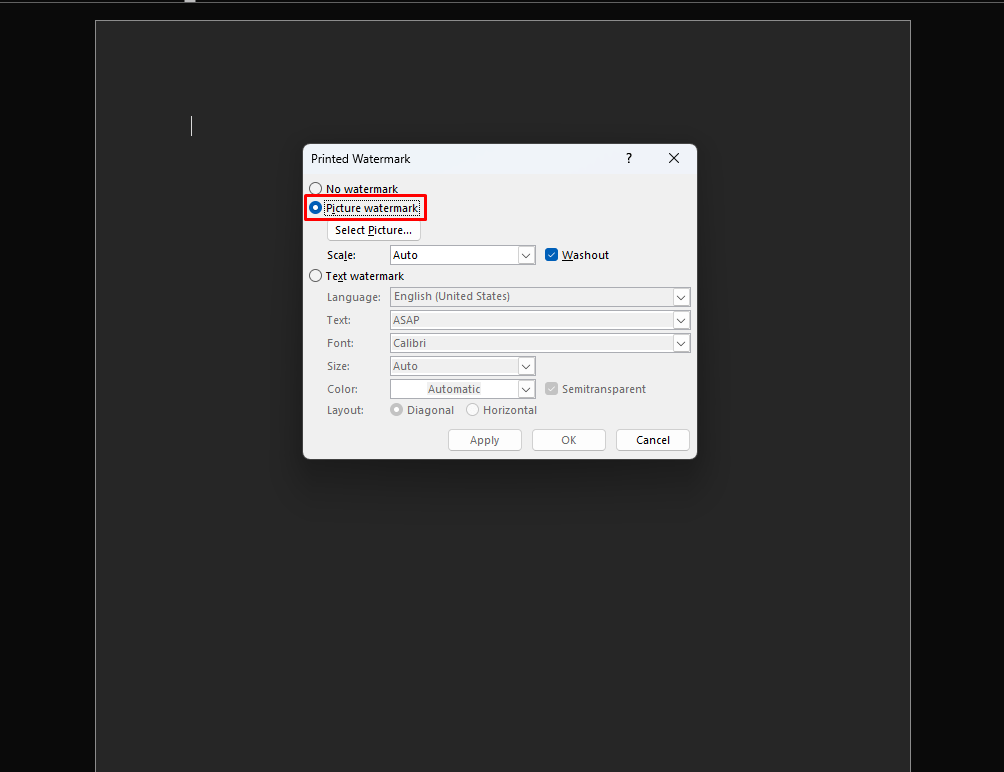
Microsoft says to go to Design > Watermark > Custom Watermark, choose Picture Watermark, then select Select Picture and insert the image you want to use. It also notes that you can choose whether to use the Washout effect.
Picture watermarks are useful for
- company logos
- branded documents
- custom visual stamps
- internal document branding
How to Put a Watermark on Just One Page
Sometimes you do not want the watermark on every page.
Microsoft says you can select where you want the watermark, then go to Design > Watermark, right-click the watermark you want, and choose Insert at Current Document Position. It notes that the watermark appears as a text box when inserted this way.
This is useful for:
- cover pages
- title pages
- single-page notices
- one-page draft labels
How to Edit a Watermark in Word
If you already inserted a watermark and want to adjust it, Microsoft says to double-click near the top of the page to open the header area, then click the watermark to select it. Once selected, you can move it or edit it depending on whether it is text or a picture watermark.
What you can change
Depending on the watermark type, you may be able to adjust:
- position
- transparency
- fill color
- picture brightness or contrast
- washout effect
Microsoft’s watermark-editing and washout articles describe these adjustments through WordArt Tools or Picture Tools after the watermark is selected.
How to Remove a Watermark in Word
If you no longer want the watermark, Word has a built-in remove option.
Microsoft says to go to Design > Watermark > Remove Watermark. If that does not work, it says you can double-click near the top of the page to open the header area, select the watermark, and press Delete.
This second method is especially helpful when the watermark does not disappear with the normal remove command.
How to Save a Custom Watermark for Later
If you made a watermark you want to reuse, Word can save it.
Microsoft says that after selecting the watermark, you can go to Design > Watermark and choose Save Selection to Watermark gallery, then give it a name. After that, you can reuse it from the gallery in other documents.
This is useful for:
- company branding
- repeated review labels
- custom text watermarks you use often
Common Mistakes to Avoid
Using two watermarks on the same page
Microsoft warns that if you already have a watermark on one page, you should remove it first before adding a new document-wide watermark, so you do not end up with two on one page.
Forgetting that watermarks are often in the header area
Microsoft’s edit and remove instructions show that watermarks are commonly selected through the header area, which is why some people cannot click them right away from the main document view.
Using the wrong watermark type
A text watermark is best for words like Draft or Confidential, while a picture watermark is better for logos and custom images. Microsoft presents these as separate options in the custom watermark menu.
Best Use Cases for Watermarks in Word
Watermarks in Word are especially useful for:
- draft documents
- confidential paperwork
- internal review copies
- sample files
- branded business documents
- cover pages
- document status marking
They help show document status without changing the main content.
FAQ
How do I add a watermark in Word?
Microsoft says to go to Design > Watermark and choose a built-in watermark, or use Custom Watermark for text or picture options.
Can I add my own text watermark in Word?
Yes. Microsoft says you can use Design > Watermark > Custom Watermark, then choose Text watermark and enter your own wording.
Can I use a logo as a watermark in Word?
Yes. Microsoft says you can choose Picture Watermark in the custom watermark settings and insert your own image.
How do I remove a watermark in Word?
Microsoft says to use Design > Watermark > Remove Watermark. If that does not work, open the header area, select the watermark, and press Delete.
Get genuine Office keys with instant delivery, simple activation, and the tools you need to create polished documents with less hassle.