
Instructions
How to Add Headers and Footers in Word
May
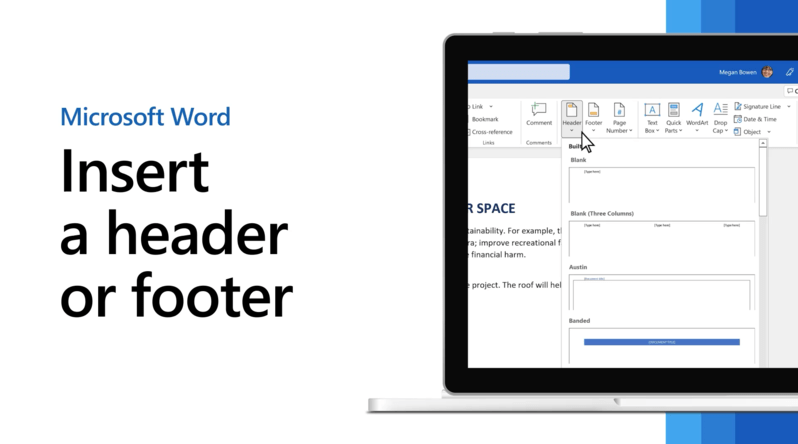
Headers and footers in Word are useful for adding repeated information at the top or bottom of your pages, such as document titles, chapter names, dates, page numbers, or company details. Microsoft says you can insert a header or footer from the Insert tab, choose a built-in style, and then add or change the text as needed.
They are especially useful in reports, essays, manuals, business documents, and long files where repeated page information makes the document easier to navigate. Microsoft also says some built-in header and footer designs already include page numbers, which can save time when setting up a document.
How to Add a Header in Word
Adding a header is straightforward.
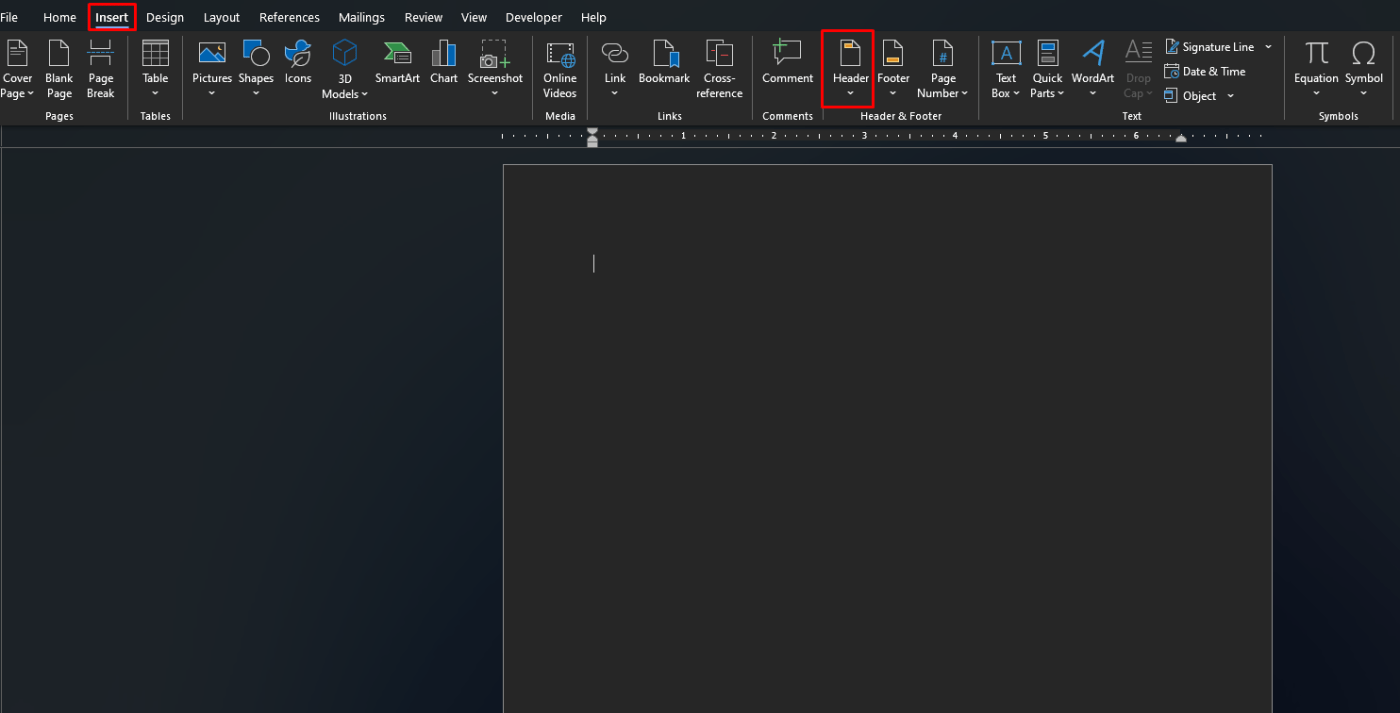
Microsoft says to go to Insert > Header, then choose the header style you want. After that, you can type or change the text in the header area. To edit an existing header later, Microsoft says you can double-click it.
This is useful for adding things like:
- document titles
- chapter names
- company names
- page numbers
- dates
How to Add a Footer in Word
The footer works the same way as the header.
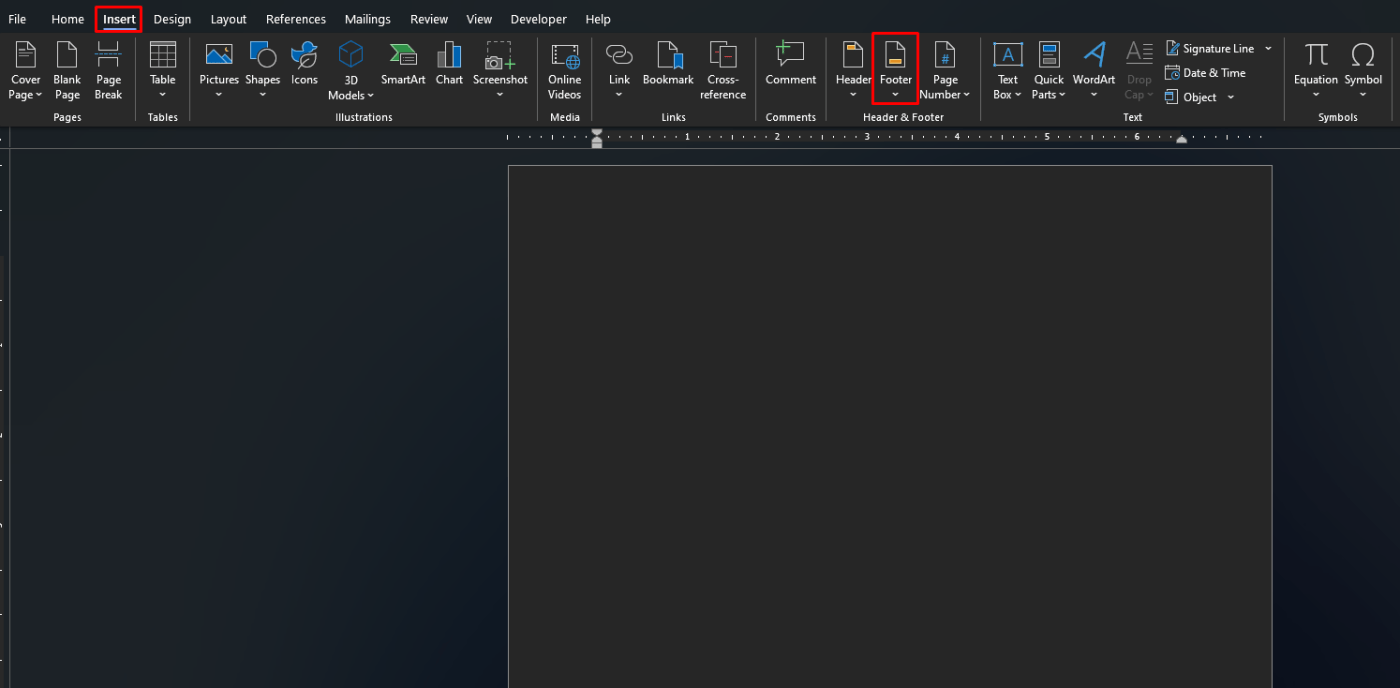
Microsoft says to go to Insert > Footer, then choose a built-in footer style or choose Edit Footer if you want to create your own. Once inserted, you can add your own text or other page information.
This is useful for:
- page numbers
- author names
- document dates
- contact information
- file version info
How to Edit Existing Headers and Footers
If the header or footer is already there, you do not need to recreate it.
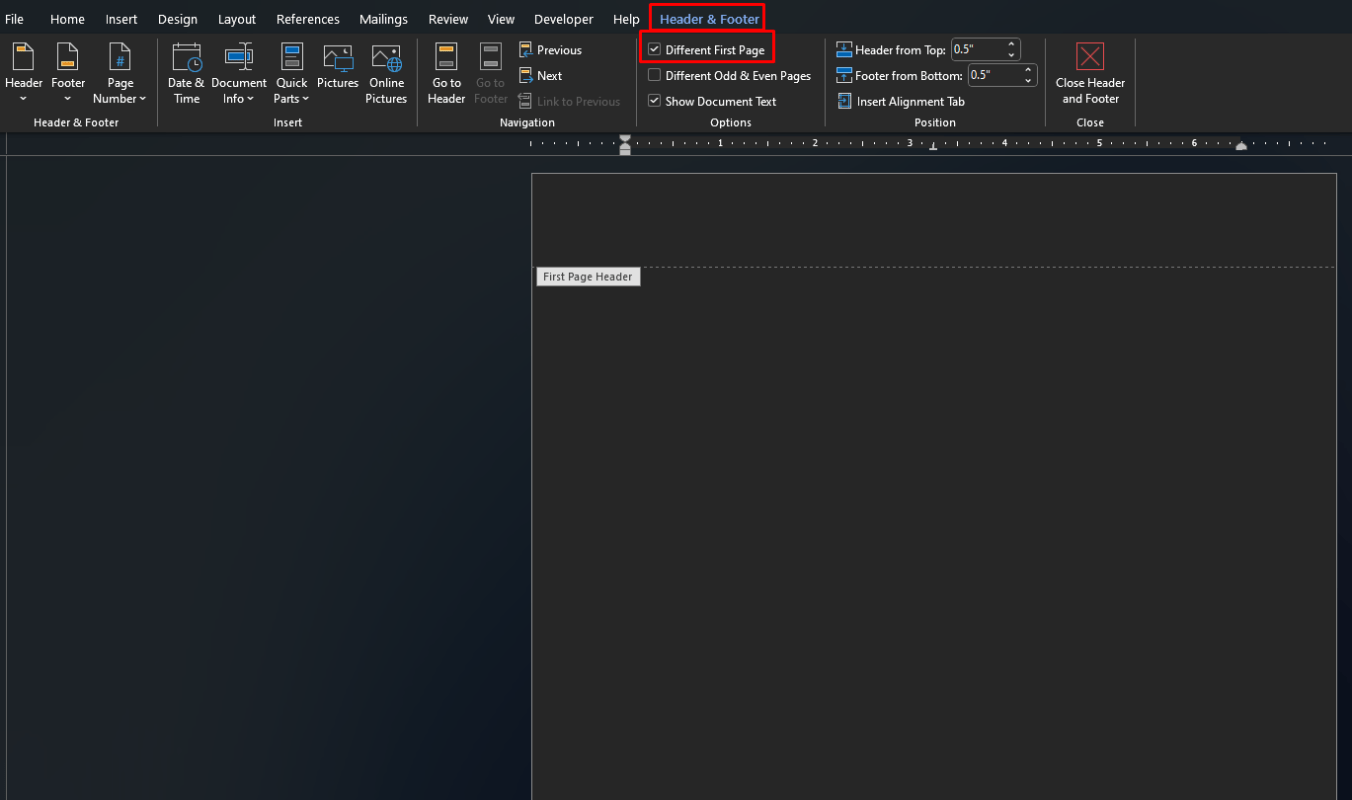
Microsoft says you can double-click the header or footer area to edit it. From there, you can change text, add page numbers, and use header and footer options such as Different First Page.
This is the fastest way to update an existing document without rebuilding the whole layout.
How to Use a Different First Page Header or Footer
This is very common for title pages and formal documents.
Microsoft says that if you want to remove the header or footer from the first page, you should select Different First Page while editing the header or footer. This keeps the main header or footer for the rest of the document while allowing the first page to be different.
This is useful for:
- cover pages
- essay title pages
- reports with a front page
- proposals with a clean first page
How to Add Page Numbers to a Header or Footer
Headers and footers are often used together with page numbers.
Microsoft says you can double-click the header or footer area, then go to Header & Footer > Page Number and choose the position you want. It also explains that you can use Format Page Numbers to change the number style.
This is useful when you want:
- page numbers in the header
- page numbers in the footer
- Roman numerals
- different number styles for different sections
How to Remove Headers and Footers in Word
If you no longer want them, Word also makes removal easy.
Microsoft says to go to Insert > Header or Insert > Footer, then choose Remove Header or Remove Footer. It also notes that if your document has more than one section, you may need to repeat this process for each section.
That matters because headers and footers can behave differently across sections.
How to Change or Remove a Header or Footer on Just One Page
This is a more advanced case, but very useful.
Microsoft says that if you want to change or delete a header or footer on a single page within a document, you should start by inserting a section break, not just a page break. Its support page explains that section breaks are required when you want different header or footer behavior on one specific page or section.
The general idea is:
- insert a section break
- open the header or footer in the new section
- turn off Link to Previous
- edit or remove the header/footer for that section only
FAQ
How do I add headers and footers in Word?
Microsoft says to go to Insert > Header or Insert > Footer, choose the style you want, and then add or change the text.
Can I make the first page header different in Word?
Yes. Microsoft says to select Different First Page while editing the header or footer if you want the first page to be different.
How do I remove headers and footers in Word?
Microsoft says to go to Insert > Header or Insert > Footer, then choose Remove Header or Remove Footer.
How do I use different headers or footers in different sections?
Microsoft says to insert a section break with Layout > Breaks > Next Page, then edit the header or footer in the new section.
Get genuine Office keys with instant delivery, easy activation, and the tools you need to create cleaner, more professional documents every day.