
Instructions
VSTACK vs HSTACK in Excel: Combine Tables Without Copying
Sep
Have two Excel tables that you want to combine without manually copying and pasting everything?
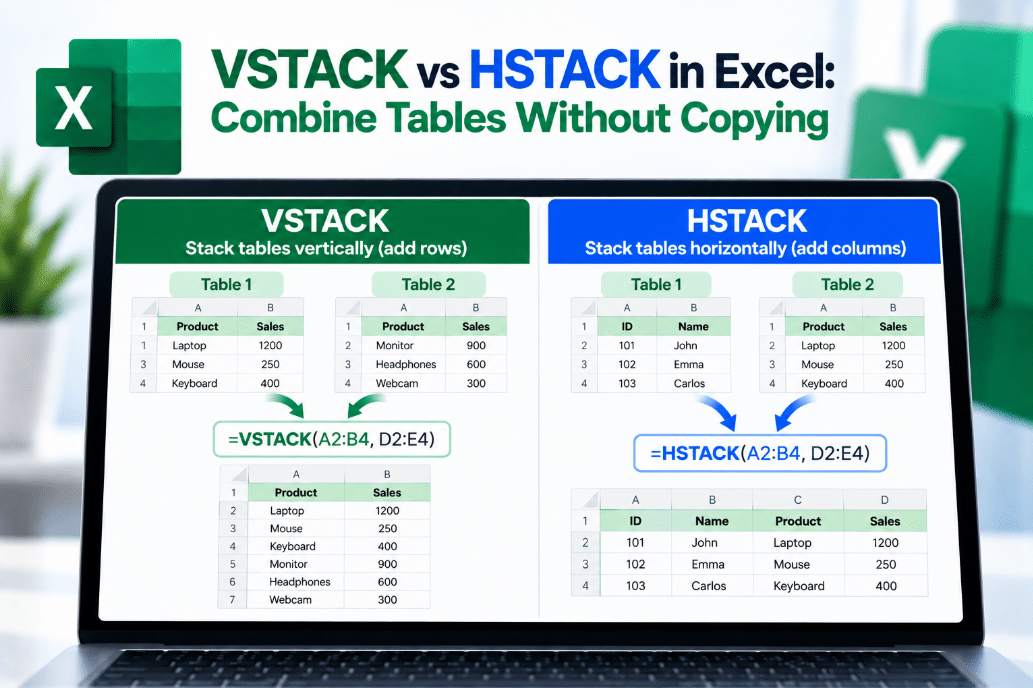
VSTACK vs HSTACK in Excel gives you two simple dynamic-array functions for joining ranges together.
The difference is easy to remember:
VSTACK puts one range below another.
HSTACK puts one range beside another.
What Does VSTACK Do?
VSTACK combines two or more arrays vertically.
Its syntax is:
=VSTACK(array1,[array2],...)
For example, imagine A2 contains January sales and E2 contains February sales.
You can use:
=VSTACK(A2:C6,E2:G6)
Excel creates one larger table with the January data first and the February data directly underneath it.
Microsoft describes VSTACK as appending arrays vertically and in sequence.
What Does HSTACK Do?
HSTACK combines arrays horizontally.
Its syntax is:
=HSTACK(array1,[array2],...)
For example:
=HSTACK(A2:C6,E2:G6)
Excel places the second range beside the first.
Instead of adding more rows, HSTACK creates additional columns.
Microsoft describes HSTACK as appending arrays horizontally and in sequence.
VSTACK vs HSTACK: Quick Difference
| Function | What It Does |
|---|---|
| VSTACK | Places arrays underneath each other |
| HSTACK | Places arrays beside each other |
| Result with VSTACK | More rows |
| Result with HSTACK | More columns |
A simple way to remember it is:
V = Vertical
H = Horizontal
Combine Monthly Tables With VSTACK
Suppose you have three monthly sales tables:
- January in A2
- February in E2
- March in I2
Instead of copying them into one table manually, use:
=VSTACK(A2:C20,E2:G20,I2:K20)
Excel returns one combined dynamic array.
This can be useful for:
- Monthly reports
- Regional sales tables
- Combining exports
- Joining department lists
- Creating one master dataset
If the source ranges change, the formula result can update automatically.
Combine Related Data With HSTACK
HSTACK is useful when the data belongs side by side.
For example, imagine:
A2 contains:
- Employee ID
- Employee Name
and D2 contains:
- Department
- Location
Use:
=HSTACK(A2:B20,D2:E20)
Excel creates one combined table with all four columns.
This can be much quicker than moving or copying columns manually.
What Happens If the Tables Are Different Sizes?
This is important.
With VSTACK, the arrays can have different numbers of rows, but if one has fewer columns than the widest array, Excel fills the extra positions with #N/A.
For example, if one table contains three columns and another contains only two, the missing third-column values may show #N/A.
With HSTACK, the same idea applies vertically. If one array has fewer rows than another, Excel fills the missing positions with #N/A.
How to Hide the #N/A Results
You can wrap the formula in IFERROR.
For example:
=IFERROR(VSTACK(A2:C10,E2:F10),"")
This replaces #N/A results with blank cells.
The same approach works with HSTACK:
=IFERROR(HSTACK(A2:B10,D2:E5),"")
This can make the final table look cleaner when the source ranges are different sizes.
Can You Combine More Than Two Tables?
Yes.
Both functions support multiple arrays.
For example:
=VSTACK(A2:C10,E2:G10,I2:K10)
combines three tables vertically.
And:
=HSTACK(A2:B10,D2:E10,G2:H10)
combines three tables horizontally.
You are not limited to only two ranges.
VSTACK and HSTACK With Other Functions
These functions become more useful when combined with other dynamic-array formulas.
For example:
=VSTACK(FILTER(A2:C100,C2:C100="North"),FILTER(E2:G100,G2:G100="South"))
could filter two datasets and then combine the results vertically.
You can also combine VSTACK or HSTACK with:
- FILTER
- SORT
- SORTBY
- UNIQUE
- TAKE
- DROP
- CHOOSECOLS
- CHOOSEROWS
This makes them useful for building dynamic reports without manually rearranging the original data.
VSTACK vs Copy and Paste
Copy and paste creates a fixed result.
If the original data changes later, the copied version does not automatically update.
VSTACK and HSTACK use formulas, so the combined result can change when the source ranges change.
That makes them particularly useful for recurring reports and dashboards.
Which Excel Versions Support Them?
Microsoft currently lists both VSTACK and HSTACK for:
- Excel for Microsoft 365
- Excel for Microsoft 365 for Mac
- Excel 2024
- Excel 2024 for Mac
Microsoft’s function list marks both as Excel 2024 functions.
If Excel shows #NAME? when you enter VSTACK or HSTACK, your Excel version may not support them.
Final Thoughts
The VSTACK vs HSTACK in Excel difference is straightforward.
Use VSTACK when you want to place tables underneath each other and create more rows.
Use HSTACK when you want to place ranges beside each other and create more columns.
Both functions can save time, keep reports dynamic, and eliminate a lot of repetitive copying and pasting.
Need Microsoft Office with modern Excel functions? Explore our Microsoft Office keys and choose the version that fits your work today.