
Instructions
What Is Click to Do in Windows 11?
Jun
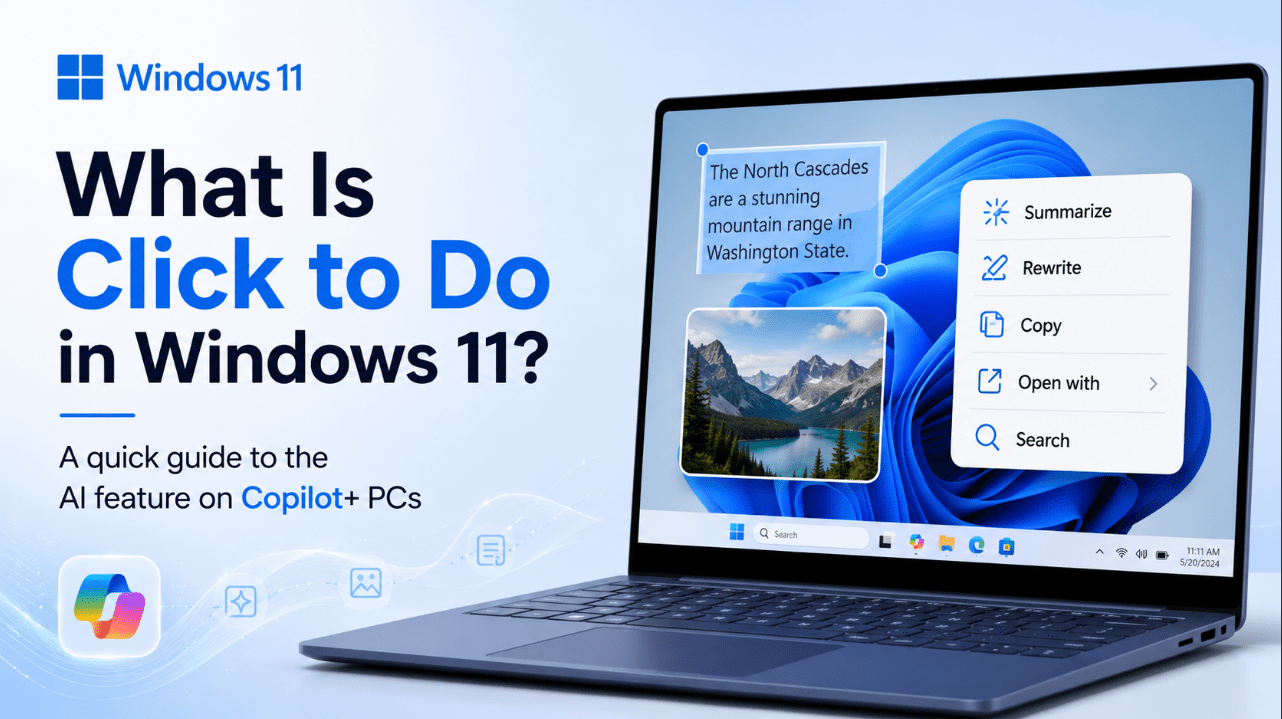
Click to Do is one of Microsoft’s newer AI-powered Windows features, and it is designed to help you act on things you already see on your screen. Instead of copying text into another app or opening extra tools manually, Click to Do is meant to recognize text and images and give you quick actions right away.
In simple terms, it is a shortcut layer built into Windows 11 for supported Copilot+ PCs. It helps you stay in the flow by reducing the need to jump between apps just to do small tasks.
The Short Answer
If you want the quick version:
- Click to Do identifies text and images on your screen
- it lets you take actions on that content directly
- it is part of the newer AI feature set on Copilot+ PCs
- it is designed to save time and reduce extra steps
So the easiest way to describe it is this:
Click to Do is a built-in Windows 11 AI feature that lets you act on on-screen text and images more quickly.
What Click to Do Actually Does
Click to Do looks at what is currently on your screen and helps you do something with it.
That can include content like:
- text
- images
- visual elements you want to search, edit, or work with
Instead of treating what is on screen as something static, Click to Do treats it as something actionable.
That is the main idea behind the feature.
Why Microsoft Added It
A lot of normal PC tasks involve unnecessary steps.
For example:
- you see text and want to summarize it
- you want to rewrite something quickly
- you want to copy content from an image
- you want to search what you are looking at
- you want to do something with an image without manually opening several apps first
Click to Do is Microsoft’s way of making those small actions faster and more natural inside Windows.
Who Can Use Click to Do?
Click to Do is tied to the newer Copilot+ PC category, not to every Windows 11 PC.
That means not all Windows 11 devices will get it in the same way. If someone is using a normal older Windows 11 machine without the newer Copilot+ hardware class, they should not assume the feature will be there.
This is an important point because many Windows users hear about a new feature and assume it is universal. Click to Do is more limited than that.
How Click to Do Works
The basic idea is simple.
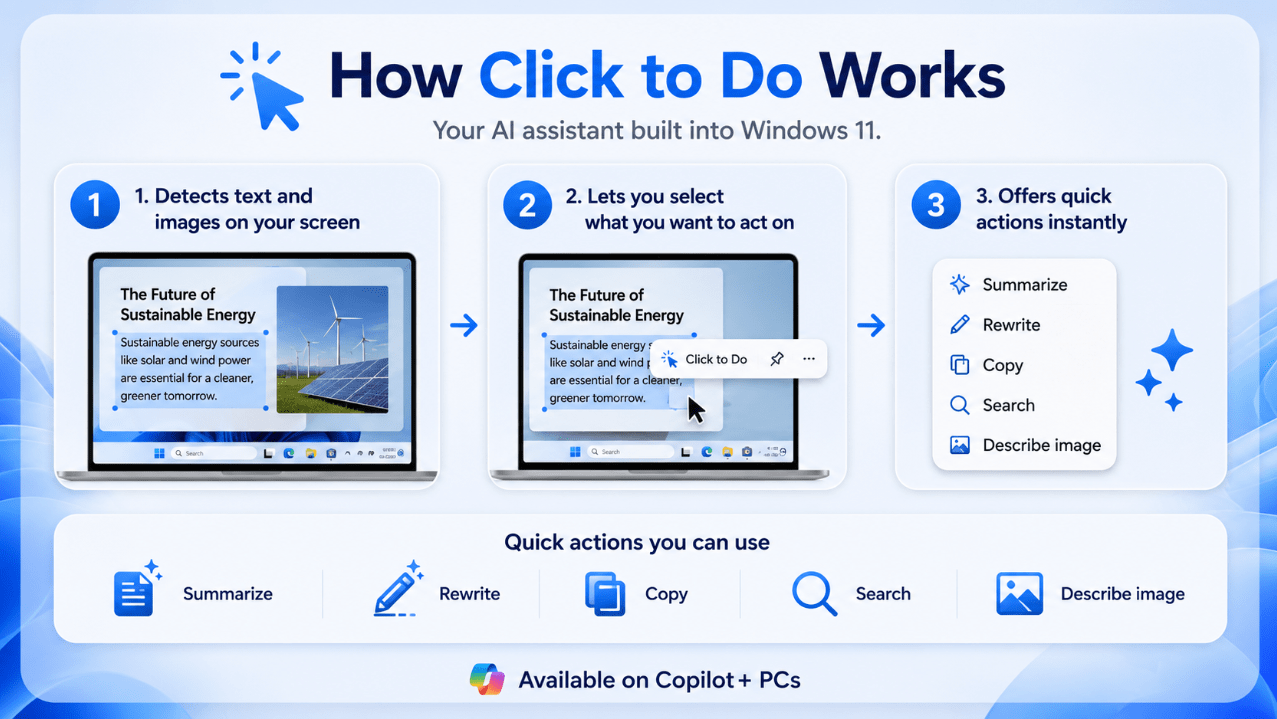
Step 1: It recognizes what is on the screen
Click to Do identifies text or images that you may want to use.
Step 2: You choose the content
You select the part you want to act on.
Step 3: Windows offers quick actions
Instead of forcing you to move everything manually into another app, Windows gives you direct options based on the selected content.
That is why the feature feels more like an “action layer” than a normal standalone app.
What Can You Do With Click to Do?
The exact actions can vary, but the main use cases are easy to understand.
With text
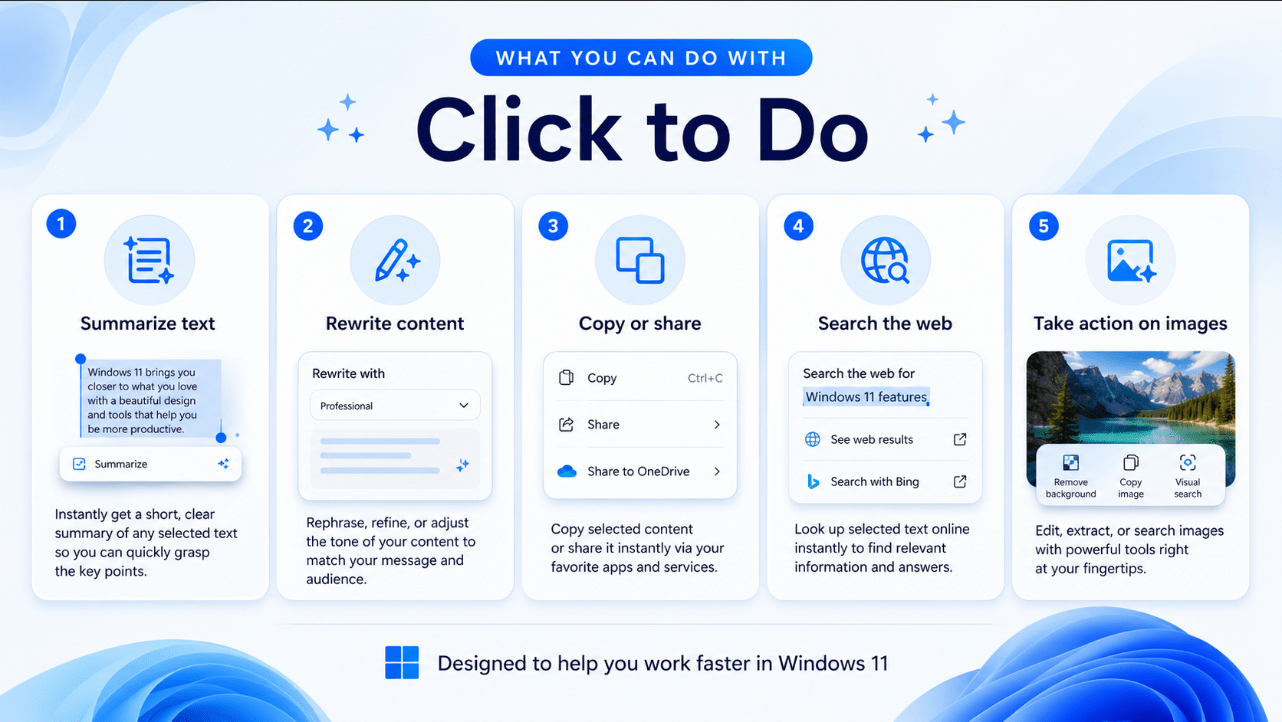
Click to Do can help with text-related actions like:
- summarize
- rewrite
- create a bulleted list
- copy
- search
With images
It can also help with image-related actions, such as sending the image to the right tool or helping you perform visual tasks more quickly.
For normal users, the easiest way to think about it is:
text actions for writing and productivity, image actions for quick visual tasks.
Why It Matters for Productivity
The biggest value of Click to Do is not that it does something impossible. It is that it removes friction.
A lot of Windows productivity gains come from saving small chunks of time over and over:
- fewer copy-paste steps
- fewer app switches
- fewer manual lookups
- faster edits
- easier access to actions when you need them
That is exactly where Click to Do fits.
Click to Do vs Copilot
Some users will confuse Click to Do with Microsoft Copilot, but they are not exactly the same thing.
Copilot is the broader AI assistant experience.
Click to Do is more like a direct action system inside Windows. It is focused on what is already on your screen and what you want to do with it right now.
So the practical difference is:
- Copilot = broader AI assistant experience
- Click to Do = quick on-screen actions for text and images
How Do You Open Click to Do?
Microsoft has described several ways users may enter Click to Do, depending on the device and workflow.
Common entry methods include:
- Windows key + mouse click
- Windows key + Q
- touch gestures on supported touch devices
- access from certain supported workflow menus
For most readers, the key point is not memorizing every shortcut. The key point is understanding that Click to Do is meant to be easy to trigger while you are already working.
Is Click to Do Available Offline?
Partly, yes.
Microsoft says Copilot+ PC AI features are designed to run on the PC itself, including without an internet connection in many cases. But Microsoft also says full functionality for many AI-enhanced workflows may still require internet access for things like web content, remote files, and connected services.
So the honest answer is:
- some of the experience is designed around on-device AI
- full behavior can still depend on the task you are trying to perform
Is Click to Do Safe to Use?
For most users, the safety question is less dramatic than with Recall.
Click to Do is more about acting on selected content than continuously storing a searchable history of your screen. That makes it feel more like a productivity tool than a timeline-style feature.
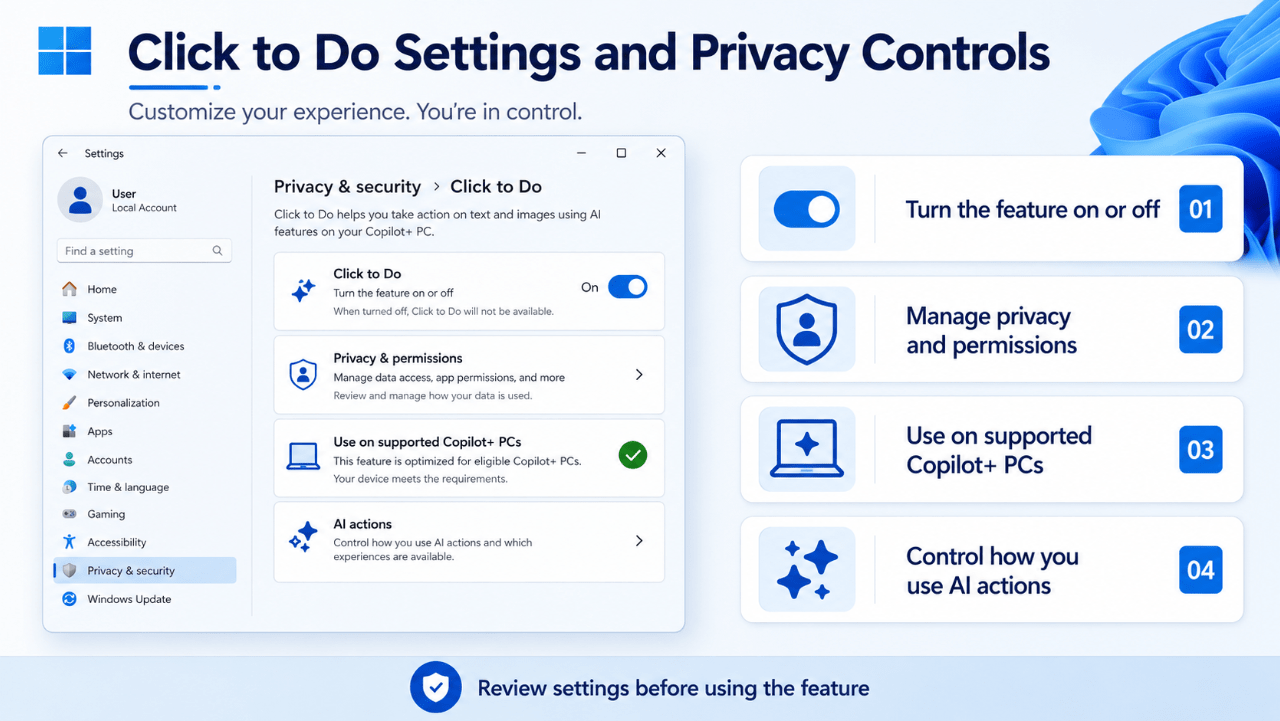
Still, it is smart to review:
- device support
- privacy settings
- what kinds of actions the feature can take
- whether the workflow fits how you use your PC
For most normal users, Click to Do is easier to accept from a privacy perspective than features that save snapshots over time.
What Kinds of Users Will Like It Most?
Click to Do will probably be most useful for people who:
- work with text often
- research online
- rewrite content
- handle screenshots or images
- want faster shortcuts inside Windows
- like AI tools but do not want to open a separate assistant window every time
It is especially easy to imagine it being useful for:
- students
- office users
- writers
- marketers
- researchers
- general productivity-focused users
Who Might Not Care About It?
Not every feature is for every user.
Some people may not care much about Click to Do if they:
- rarely use AI tools
- do not have a Copilot+ PC
- prefer manual workflows
- mostly use Windows for gaming or very basic tasks
So this is not one of those features that changes everything for everyone. Its value depends heavily on how you work.
Common Mistakes to Avoid
Thinking it is available on every Windows 11 PC
It is tied to the newer Copilot+ PC feature set, so users should not assume universal support.
Confusing it with Recall
Click to Do is about taking actions on current screen content, not browsing through saved activity history.
Expecting every action to work the same way offline
Some AI experiences are on-device, but some workflows still benefit from or require internet access.
Treating it like a full replacement for other apps
It is better understood as a shortcut and action layer, not a complete replacement for Word, Photos, Paint, search tools, or web tools.
Quick Verdict
Click to Do in Windows 11 is a productivity feature that helps you do more with what is already on your screen. It is designed to identify text and images, then offer quick actions so you can move faster without extra copy-paste work or app switching.
For supported Copilot+ PC users, it looks like one of the more practical Windows AI features because it focuses on small real-world tasks instead of only big AI demos.
FAQ
What is Click to Do in Windows 11?
It is a Windows 11 feature that identifies text and images on your screen and lets you take actions on them more quickly.
Is Click to Do available on all Windows 11 PCs?
No. It is part of the newer Copilot+ PC experience, so not every Windows 11 device supports it.
What can Click to Do do with text?
It can offer text-related actions such as summarizing, rewriting, copying, and searching, depending on the device and rollout.
Is Click to Do the same as Copilot?
No. Copilot is the broader AI assistant experience, while Click to Do is more focused on direct actions for the content already on your screen.
Get the most from Windows 11 with a genuine license, instant delivery, and simple activation that keeps your PC ready for the latest features.