
Instructions
What Is Delivery Optimization in Windows 11?
Sep
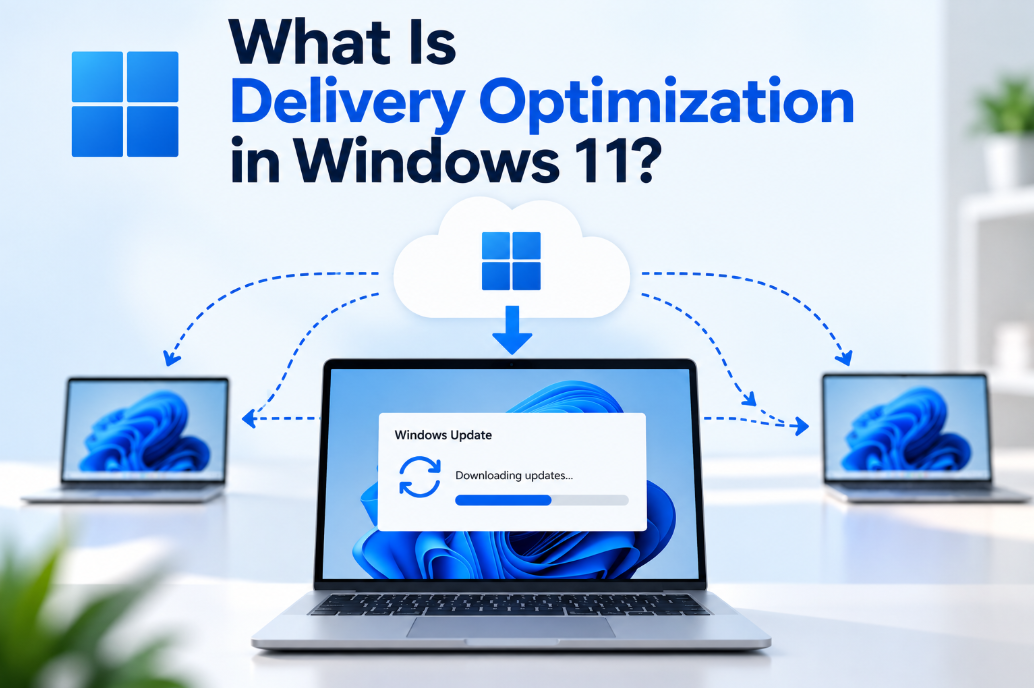
Windows updates can sometimes involve downloading several gigabytes of data. Delivery Optimization in Windows 11 is designed to make those downloads faster and more efficient.
Instead of always downloading every part of an update directly from Microsoft, Windows can also receive parts from other PCs that already have the same files.
What Is Delivery Optimization?
Delivery Optimization is a built-in Windows download system used for content such as:
- Windows updates
- Microsoft Store apps
- Other Microsoft products and content
It can download files directly from Microsoft and, depending on your settings, from other Windows PCs on your local network or the internet.
Windows automatically chooses suitable sources while downloading the content.
Does Windows Really Download Updates From Other PCs?
Yes.
Delivery Optimization uses a type of peer-to-peer sharing.
Instead of downloading an entire update from one computer, Windows can divide it into smaller parts.
Some parts might come directly from Microsoft, while others can come from compatible PCs that already downloaded them.
Windows then combines those parts into the complete update.
Does Your PC Upload Updates Too?
It can.
If sharing is enabled, your computer can provide parts of previously downloaded update files to other Windows PCs.
You can choose whether sharing is allowed with:
- Devices on your local network
- Devices on your local network and the internet
Microsoft currently uses local-network peer sharing as the default peer-to-peer mode on Windows clients.
Does Delivery Optimization Share Personal Files?
No.
Delivery Optimization does not share your documents, photos, videos, or other personal files.
Microsoft states that it only handles supported Windows updates, apps, and related Microsoft content.
Files downloaded from other PCs are also checked for authenticity before Windows installs them.
Where Are Delivery Optimization Settings?
Open:
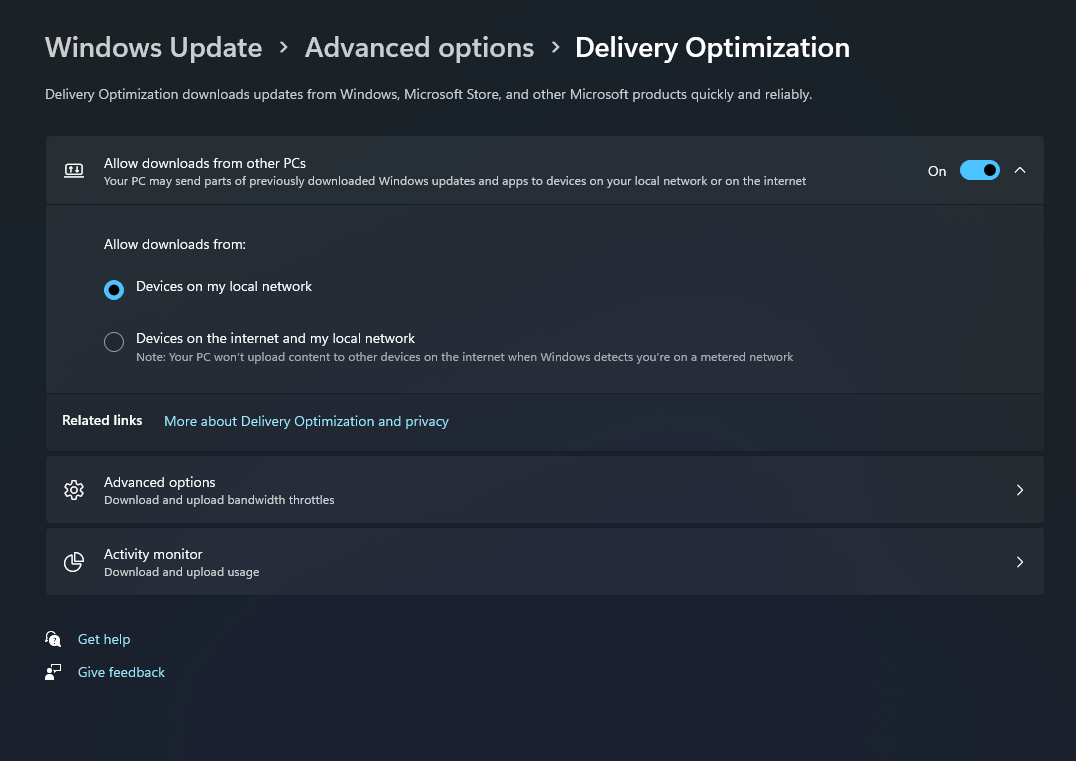
Settings → Windows Update → Advanced options → Delivery Optimization
From here, you can control whether Windows is allowed to download content from other devices.
Look for:
Allow downloads from other devices
You can then choose whether sharing is restricted to your local network or also includes devices on the internet.
Should You Turn Delivery Optimization Off?
Not necessarily.
If you have several Windows PCs at home, Delivery Optimization can actually reduce internet usage.
For example, if one computer has already downloaded a large Windows update, another PC on the same network may receive part of that update locally rather than downloading everything again from Microsoft.
This can be particularly useful when:
- You have several Windows PCs
- Your internet connection is slow
- Your connection is unreliable
- You want to reduce repeated downloads
If you only have one Windows PC, the benefit may be smaller.
Can You Stop Sharing With PCs on the Internet?
Yes.
If you want the benefits of local sharing without exchanging update data with PCs outside your network, choose:
Devices on my local network
under Delivery Optimization settings.
You can also completely turn off downloads from other devices.
Windows Update will still work. Your computer will simply get its updates directly from Microsoft rather than other PCs.
Can Delivery Optimization Use Too Much Internet?
Windows is designed to automatically manage how much bandwidth Delivery Optimization uses.
However, you can set your own limits.
Go to:
Settings → Windows Update → Advanced options → Delivery Optimization
You can configure limits for:
- Background download bandwidth
- Foreground download bandwidth
- Upload bandwidth
- Monthly upload data
This can be useful if you have a slower internet connection or a limited monthly data allowance.
How to See How Much Data It Uses
Windows includes an Activity monitor for Delivery Optimization.
Open:
Settings → Windows Update → Advanced options → Delivery Optimization → Activity monitor
Here you can see information such as:
- Where update data came from
- Download statistics
- Upload statistics
- How much data came from other PCs
This makes it easier to see whether Delivery Optimization is actually helping on your network.
What Are Delivery Optimization Files?
Windows temporarily stores downloaded update data in a local cache.
These files may appear under Delivery Optimization Files when using Windows storage cleanup tools.
Windows normally manages and removes this cache automatically, but you can also clear it manually with Disk Cleanup if you need additional storage space.
What About Metered Connections?
If your internet connection has a limited data allowance, you can configure Windows to treat it as a metered connection.
Microsoft says Delivery Optimization does not automatically download or send parts of updates to internet peers when the connection is marked as metered or capped.
This can help prevent unnecessary data usage.
Summary
Delivery Optimization in Windows 11 helps Windows download updates and Microsoft content more efficiently by combining Microsoft’s servers with optional peer-to-peer sharing.
If you prefer not to share update files with other PCs, you can change the settings at any time under Windows Update → Advanced options → Delivery Optimization without disabling Windows Update itself.
Need Windows 11 for your PC? Explore our Windows 11 keys and choose the right edition for your computer today.