
Instructions
SmartScreen in Windows 11: What It Does
Aug
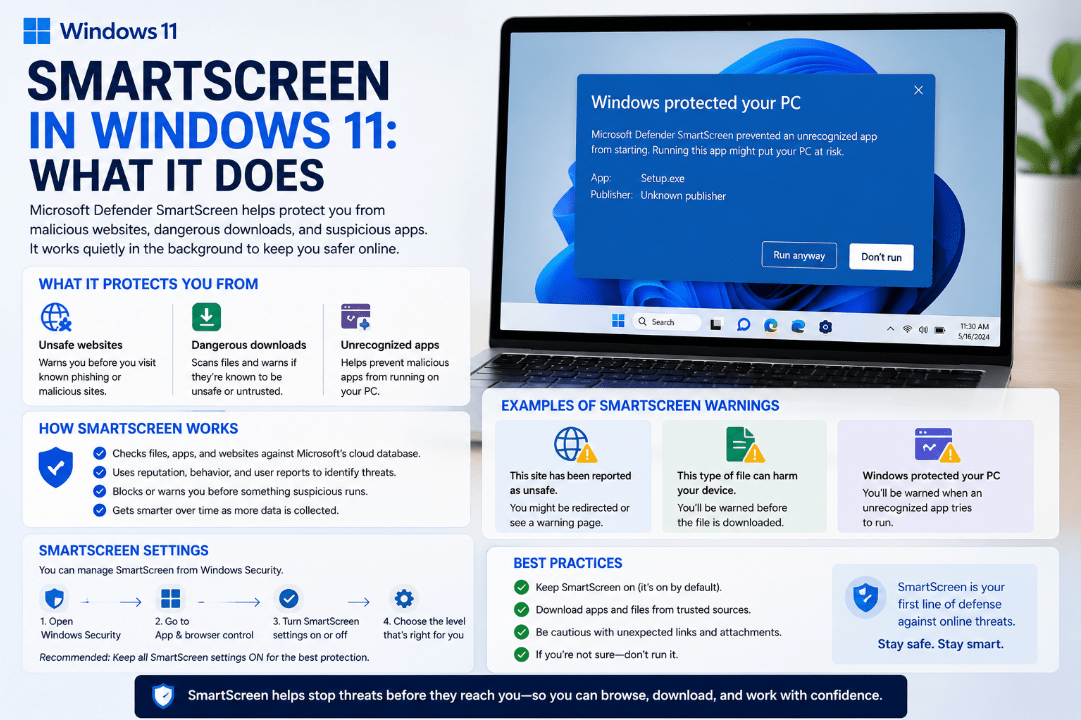
You may have seen a warning saying Windows protected your PC when opening a downloaded file. In many cases, SmartScreen in Windows 11 is responsible for that warning.
Microsoft Defender SmartScreen is a built-in security feature that helps identify suspicious websites, downloads, apps, and files before they can cause problems.
What Does SmartScreen Do?
SmartScreen uses reputation-based protection.
When you visit a website or open a downloaded file, Microsoft can compare it with information about known threats and reputation data.
SmartScreen can help protect against:
- Phishing websites
- Malware
- Dangerous downloads
- Suspicious applications
- Potentially unwanted apps
- Scam and deceptive websites
If something appears dangerous or suspicious, Windows or Microsoft Edge may display a warning before you continue.
How Does SmartScreen Check Downloaded Apps?
SmartScreen doesn’t simply check whether a program contains a known virus.
It also looks at the reputation of the file and its publisher.
Microsoft says SmartScreen can consider factors such as:
- Whether the file is known to be unsafe
- Whether it has been downloaded frequently
- The reputation of the software publisher
- Whether the file has a recognised digital signature
A new or rarely downloaded application may therefore trigger a warning even if it isn’t necessarily malware.
What Does a SmartScreen Warning Mean?
A SmartScreen warning means Windows has identified a reason to be cautious.
It does not always mean that the file is definitely malicious.
For example, a legitimate new program with very few downloads may not yet have an established reputation.
However, you shouldn’t automatically ignore a SmartScreen warning.
Before opening the file, check:
- Where you downloaded it from
- Whether you trust the website
- Whether the publisher is recognised
- Whether you expected to download the file
If you’re unsure about a file, the safest option is not to run it.
Does SmartScreen Work in Microsoft Edge?
Yes.
Microsoft Edge uses Defender SmartScreen to evaluate websites and downloads.
If Edge detects a known phishing page, malicious website, scam, or suspicious download, it can display a warning before you continue.
SmartScreen can therefore provide protection both while browsing and when opening files downloaded from the internet.
Is SmartScreen the Same as Microsoft Defender Antivirus?
No.
Microsoft Defender Antivirus and SmartScreen provide different types of protection.
Microsoft Defender Antivirus scans your computer for malware and other threats.
Microsoft Defender SmartScreen focuses heavily on reputation and helps stop suspicious websites, apps, and downloaded files before you interact with them.
The two features work together as part of Windows security.
Where Are SmartScreen Settings in Windows 11?
You can review SmartScreen-related settings through Windows Security.
Open:
Windows Security → App & browser control → Reputation-based protection
Here you can find options including:
- Check apps and files
- SmartScreen for Microsoft Edge
- Phishing protection
- Potentially unwanted app blocking
- SmartScreen for Microsoft Store apps
The exact options available can vary depending on your Windows configuration.
Should You Turn SmartScreen Off?
For most users, SmartScreen should remain enabled.
It provides an additional security layer and can warn you before opening known or suspicious content.
Turning it off can reduce the protection Windows provides against unsafe downloads, phishing pages, and suspicious applications.
If SmartScreen incorrectly warns about a legitimate application, it is better to verify the program and its source rather than permanently disabling the protection.
SmartScreen vs Smart App Control
These two Windows 11 features can sound similar, but they aren’t the same.
SmartScreen uses reputation-based checks to warn about suspicious websites, files, and apps.
Smart App Control is another Windows 11 security feature designed to prevent malicious or untrusted applications from running. Microsoft says it uses cloud-based intelligence and code-signing information when deciding whether an app can run.
They can work alongside each other as different layers of Windows security.
Summary
SmartScreen in Windows 11 is an important security feature that checks websites, applications, and downloaded files against Microsoft’s reputation and threat information.
It won’t replace antivirus protection or good browsing habits, but it can provide an important warning before you open something potentially dangerous.
Need Windows 11 for your PC? Explore our Windows 11 keys and choose the right edition for your computer today.