
Instructions
Windows 11 Lock Screen Widgets: Why Does It Only Show Weather?
Oct
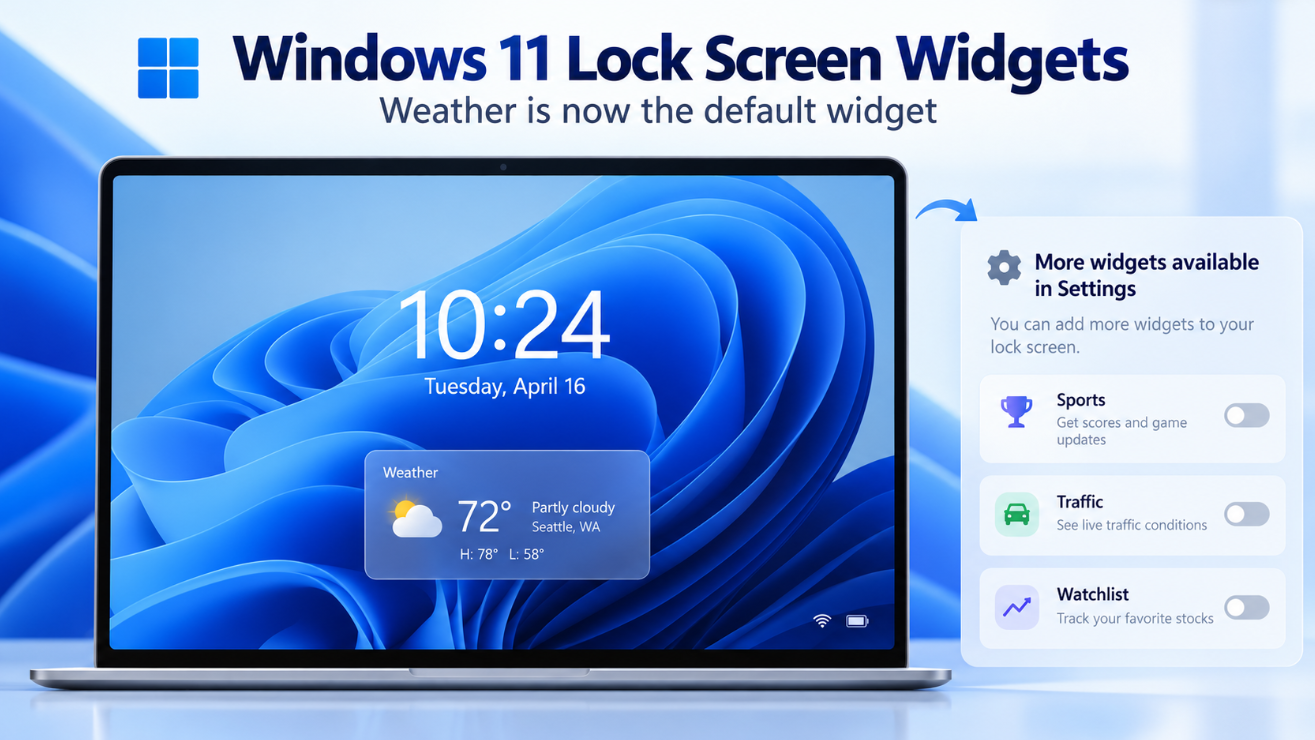
Have you noticed that your Windows 11 Lock Screen Widgets suddenly show only the weather?
You are not missing a setting.
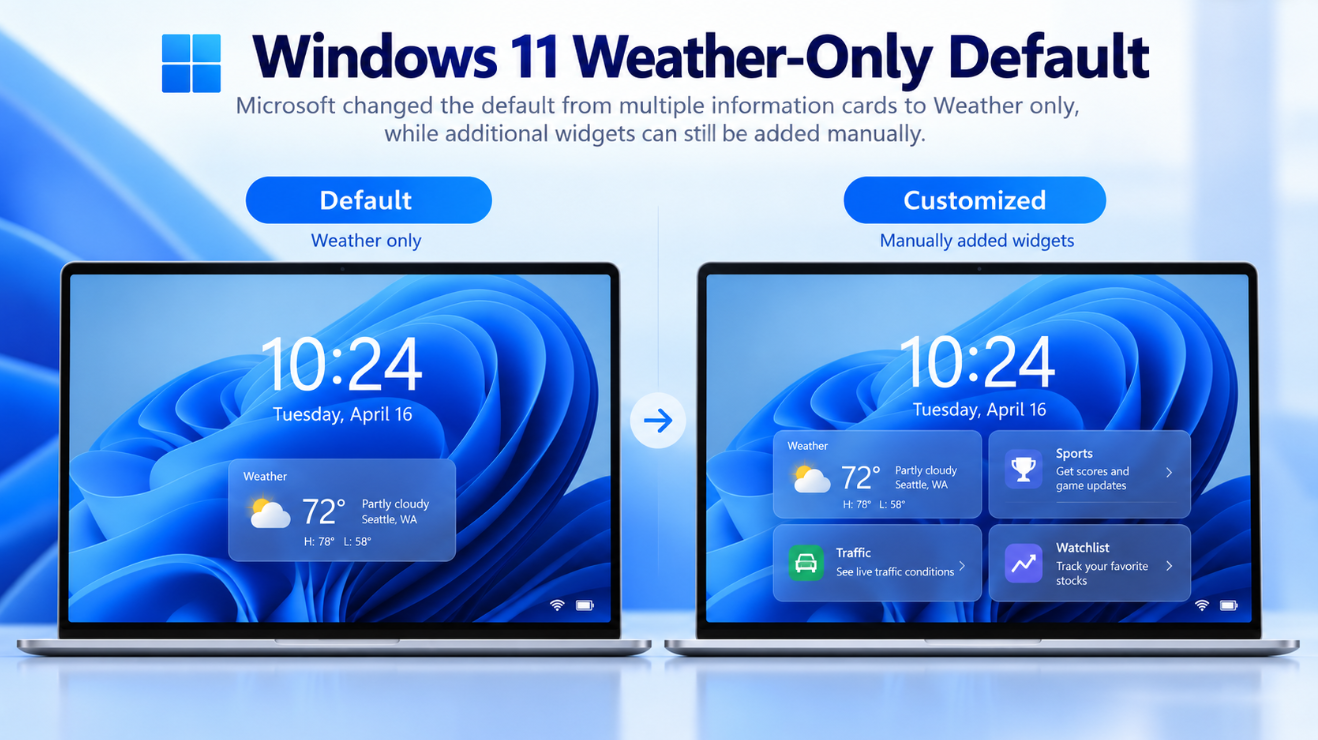
Microsoft intentionally changed the default Windows 11 lock screen experience in 2026 so that Weather is now the only widget shown automatically. Other widgets can still be added, but Windows no longer fills the lock screen with several cards by default.
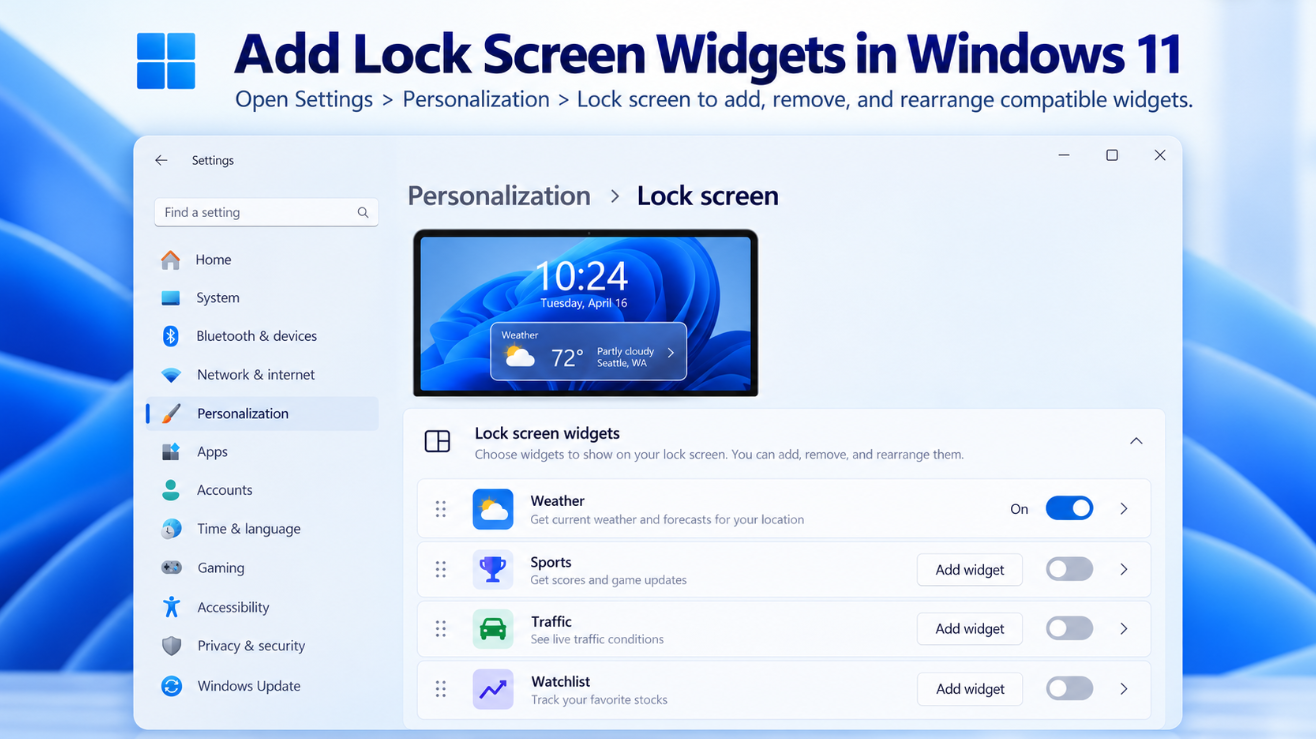
Depending on your Windows version and update status, you can add widgets such as Weather, Watchlist, Sports, Traffic, and other compatible small widgets from:
Settings → Personalization → Lock screen
Here is what changed, how to customize the widgets, and what to do if your PC still does not show the new controls.
Why Does Windows 11 Lock Screen Only Show Weather?
The short answer is:
Microsoft made Weather the default.
In a Windows 11 update released in August 2026, Microsoft changed the lock screen so that Weather is the only widget automatically shown for users.
Microsoft said the goal was to provide a quieter and more focused lock screen experience while giving users more control over which additional widgets they want to display.
So if you previously saw cards for things such as:
- Weather
- Sports
- Traffic
- Finance
but now see only Weather, this is most likely expected behavior.
The other widgets have not necessarily been removed from Windows.
You simply need to add the ones you want.
How to Add Lock Screen Widgets in Windows 11
Open:
Settings → Personalization → Lock screen
Look for the Widgets section.
You should see the widgets currently enabled for your lock screen.
To add another one:
- Open Settings.
- Select Personalization.
- Select Lock screen.
- Find Widgets.
- Select Add widget.
- Choose an available widget.
Microsoft says Windows can currently add lock screen widgets that support the small widget size.
So not every widget available on the full Windows Widgets board will necessarily appear as an option for the lock screen.
Which Windows 11 Lock Screen Widgets Can You Add?
Microsoft has specifically mentioned examples including:
Weather
Shows current weather information for your location.
Watchlist
Can display finance and market information.
Sports
Shows sports-related updates.
Traffic
Provides information about traffic conditions.
Microsoft has also opened the lock screen to other widgets that support the required small size.
The exact list can therefore vary depending on:
- Your installed applications
- Available widget providers
- Windows version
- Microsoft Store updates
- Widget size support
The list may continue to expand as more Windows widgets support the lock screen format.
How to Rearrange Windows 11 Lock Screen Widgets
The new system is not limited to adding and removing widgets.
You can also change their order.
Go to:
Settings → Personalization → Lock screen
Under Widgets, drag a widget higher or lower in the list.
Microsoft says the order shown in Settings corresponds to the reading order used on the lock screen.
For example, you could arrange them as:
Weather → Sports → Traffic
or:
Watchlist → Weather → Sports
depending on which information you want to see first.
Can You Remove the Weather Widget?
Yes.
Weather may now be the default widget, but you are not required to keep it.
Go to:
Settings → Personalization → Lock screen → Widgets
Open the options for the Weather widget and choose Remove.
You can also turn the entire Widgets setting off if you do not want any widget information displayed on the lock screen.
That gives you a cleaner lock screen showing only your background image, date, time, and other basic Windows elements.
Why Did Microsoft Change the Default to Weather Only?
Microsoft began testing the change in 2026 as part of a wider effort to make Windows less distracting.
In May 2026, Microsoft said it was working on calmer defaults for Widgets and planned to reduce the default set of lock screen widgets to Weather only.
The company explained that users would then have more control over which widgets they personally chose to add.
The change later started rolling out to regular Windows 11 users.
So instead of Windows deciding that you need Weather, Sports, Traffic, and Finance simultaneously, it now begins with Weather and lets you build your own lock screen.
What Happened to “Weather and More”?
Older versions of Windows 11 used an experience called:
Weather and more
It displayed several informational cards on the lock screen.
However, customization was limited.
Microsoft’s older documentation notes that users could not individually customize the widget list inside the original Weather and more experience.
Microsoft later redesigned this system so users could add, remove, and rearrange individual lock screen widgets.
This newer design effectively replaces the older all-in-one approach with a more flexible widget system.
What If I Still See “Weather and More”?
If your Lock screen settings still show an option named:
Weather and more
instead of a dedicated Widgets section with individual controls, your PC may still be using the older experience.
The newer lock screen widgets were introduced gradually rather than appearing on every PC at the same time.
Microsoft first tested the customizable experience with Windows Insiders and initially rolled it out in the European Economic Area before expanding it to other regions.
Make sure Windows is fully updated.
Open:
Settings → Windows Update → Check for updates
Install available updates and restart the PC.
What If There Is No “Add Widget” Button?
If you see Weather but cannot find the option to add other widgets, several things may be responsible.
First, make sure your Windows installation is current.
The newer customizable lock screen widget system was delivered through Windows updates and has been expanded gradually.
Second, update the Windows Web Experience Pack.
Microsoft says this package helps deliver widget-based features such as Weather, news, and personalized Windows content. It is updated separately through the Microsoft Store.
To update it:
- Open Microsoft Store.
- Select Library.
- Search for Windows Web Experience Pack.
- Select Update if one is available.
Microsoft also recommends keeping the related Windows widget components updated when Widgets are missing features or are not working correctly.
Do Lock Screen Widgets Require Microsoft Edge?
Some Windows widgets depend on Microsoft Edge components.
Microsoft says widgets such as Weather, Sports, Stocks, and certain web-powered widgets use Edge technologies to provide their content.
This does not mean Edge has to be your default browser.
However, removing or heavily modifying Microsoft Edge components can prevent some widget-based Windows features from working correctly.
Selecting a lock screen widget may also direct you to a full information page after you sign in to Windows.
Why Is the Weather Widget Showing the Wrong Location?
Lock screen Weather can use location information to provide relevant conditions.
Microsoft says Windows widgets may estimate your location using:
Windows Location services
or, when location access is unavailable:
Your internet connection’s IP address.
If the Weather widget shows the wrong city, first check the Weather widget’s own settings.
You can also review:
Settings → Privacy & security → Location
If Windows Location services are disabled, Windows may have to rely on less precise location estimation.
The normal Windows Widgets settings can also control things such as location, language, region, and temperature units.
Can You Change Weather From Fahrenheit to Celsius?
Yes.
Weather settings are tied to the wider Windows Widgets experience.
Open the Windows Widgets board with:
Windows key + W
Then open the Weather widget settings and change the temperature unit where available.
You can also adjust the preferred location.
These settings can affect weather information presented elsewhere in the Windows widget experience.
Are Lock Screen Widgets the Same as Taskbar Widgets?
They use the same broader Windows widget platform, but they are not exactly the same interface.
The taskbar Widgets button opens the full Widgets board.
You can access it with:
Windows key + W
The board can contain larger widgets for things such as:
- Weather
- Stocks
- Photos
- News
- Apps
- Other installed widget providers
The lock screen uses much smaller cards designed to show information at a glance before you sign in.
Microsoft currently limits lock screen additions to widgets that support the required small size.
Why Can I Use a Widget on the Widgets Board but Not the Lock Screen?
Widget availability does not automatically mean lock screen compatibility.
A widget provider can support several sizes:
- Small
- Medium
- Large
For the Windows 11 lock screen, Microsoft currently requires a compatible small widget.
If an application provides only a medium or large widget, it may appear on your Widgets board but not in the Lock screen widget picker.
This is why the list under Add widget may be much shorter than the widget list available after pressing Windows + W.
Does Windows 11 Automatically Add New Widgets?
Microsoft may provide suggested widgets to help users discover available options, but the newer 2026 design emphasizes user control.
The important change is that Windows now defaults primarily to Weather rather than automatically filling the lock screen with several information cards.
You can then choose which additional widgets are useful to you.
Do Lock Screen Widgets Work With Windows Spotlight?
Yes.
Lock screen widgets are separate from the background option.
You can use them with:
Windows Spotlight
Picture
or:
Slideshow
Windows Spotlight controls the background image and related content, while Widgets control the informational cards displayed on top of the lock screen.
So you do not have to switch away from Windows Spotlight to use widgets.
Can You Turn Windows 11 Lock Screen Widgets Off Completely?
Yes.
Go to:
Settings → Personalization → Lock screen
Find Widgets and switch the feature Off.
This is useful if you prefer a minimal lock screen or simply do not want weather, sports, traffic, or financial information displayed before sign-in.
Turning off lock screen widgets does not remove the full Widgets board from Windows.
You can still open that separately with:
Windows key + W
Why Do Windows 11 Lock Screen Widgets Need Internet?
Most lock screen widgets display information that changes regularly.
Weather needs current forecast information.
Sports needs live or recently updated results.
Traffic requires current traffic conditions.
Watchlist information may depend on current market data.
Those widgets therefore need an internet connection to refresh their content.
If your PC is offline, the lock screen may show cached information, incomplete information, or nothing until the service refreshes.
Are Lock Screen Widgets Available on Windows 10?
Windows 10 had its own lock screen status and Weather and more experience, but the newer customizable Windows 11 widget system discussed here is specifically part of the Windows 11 experience.
Windows 10 also reached the end of normal free support on October 14, 2025.
For current widget development and customization, Windows 11 is therefore the relevant platform.
Frequently Asked Questions
Why does my Windows 11 lock screen only show Weather?
Because Microsoft changed the default in 2026 so Weather is the only lock screen widget automatically enabled. You can add other compatible widgets manually.
How do I add Sports to the Windows 11 lock screen?
Open:
Settings → Personalization → Lock screen → Add widget
and select Sports if it appears in your available widget catalog.
Can I add Traffic to the lock screen?
Yes. Microsoft specifically identifies Traffic as one of the supported lock screen widget examples.
Can I remove Weather?
Yes. Open the Lock screen widget settings and remove Weather, or disable lock screen widgets entirely.
Why don’t I have the Add widget option?
Your Windows version, staged feature rollout, or Windows Web Experience Pack may not yet be up to date. Install Windows updates and check Microsoft Store updates for the Windows Web Experience Pack.
Can I put any Windows widget on the lock screen?
No. Microsoft currently says only widgets supporting the required small size can be added.
Can I rearrange lock screen widgets?
Yes. Drag widgets into a different order under Settings → Personalization → Lock screen.
Does Weather need location access?
Weather can use Windows Location services. If location access is unavailable, Microsoft says it may estimate your location using your IP address.
Final Thoughts
If your Windows 11 Lock Screen Widgets now show only Weather, that is most likely intentional rather than a bug.
Microsoft changed the 2026 default so that Weather is the only widget enabled automatically, creating a cleaner lock screen and leaving the choice of additional widgets to the user.
Open:
Settings → Personalization → Lock screen
to add, remove, or rearrange compatible widgets such as Sports, Traffic, Watchlist, and Weather.
If those controls are missing, update Windows and make sure the Windows Web Experience Pack is current through Microsoft Store.
So the important distinction is simple:
Only Weather by default does not mean only Weather is supported.
It means Microsoft now expects you to choose which other lock screen widgets you actually want.
Setting up a new PC or upgrading your Windows edition? Browse our Windows 11 keys and choose the license that fits your system.