
Instructions
Windows 11 Energy Saver: Does It Actually Help?
Sep
If you use a laptop, saving battery power is always useful. But Windows 11 Energy Saver is not limited to laptops anymore.
It is designed to reduce the amount of energy your PC uses by changing certain background activities, display settings, and system behavior.
So, does it actually help? Yes — especially on laptops, although there are a few trade-offs.
What Is Windows 11 Energy Saver?
Energy Saver is a power-saving feature available in Windows 11 24H2 and newer.
It replaces the older Battery Saver feature and is designed to reduce energy use across Windows and installed apps.
Unlike the old Battery Saver, Energy Saver can also be enabled while a PC is plugged in, which means desktop users can use it to reduce power consumption too.
What Happens When Energy Saver Is On?
Windows changes several things to reduce power usage.
Microsoft says Energy Saver can:
- Reduce screen brightness
- Limit certain background activity
- Disable transparency effects
- Reduce some app syncing
- Delay non-critical Windows Update downloads
- Manage system processes more aggressively
On supported devices, the display brightness can be reduced automatically when Energy Saver is enabled.
These small changes reduce how much work the CPU, display, and background apps need to do.
Does Energy Saver Actually Improve Battery Life?
Yes.
The exact difference depends on your laptop, workload, screen brightness, battery condition, and the apps you use.
Energy Saver is most useful when:
- Your battery is getting low
- You are away from a charger
- You are doing light work
- You are browsing the web
- You are writing documents
- You are watching videos
- You want your laptop to last longer between charges
Microsoft specifically recommends Energy Saver as a way to extend battery life by automatically managing system processes and power usage.
You should not expect it to double your battery life, but it can reduce unnecessary power use.
Can You Leave Energy Saver On All the Time?
Yes.
Windows lets you enable Energy Saver manually even when your battery is still full.
Microsoft actually recommends keeping it enabled if your priority is maximizing battery life.
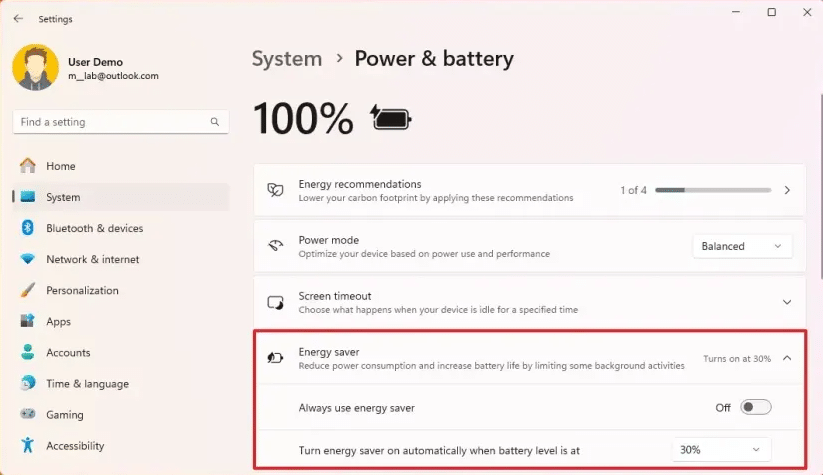
You can also configure Windows to automatically turn it on when the battery reaches a certain percentage.
For example, you might choose:
30% battery → Energy Saver turns on automatically
This lets Windows work normally most of the time while conserving power when the battery begins getting low.
How to Turn On Energy Saver
Go to:
Settings → System → Power & battery → Energy saver
From there, you can:
- Turn Energy Saver on manually
- Choose when it activates automatically
- Enable it while the PC is plugged in
- Control whether screen brightness is reduced
You can also quickly enable Energy Saver from the Quick Settings panel on the taskbar.
Can You Use Energy Saver on a Desktop PC?
Yes.
This is one of the biggest differences compared with the older Battery Saver feature.
Energy Saver can run on desktop PCs and plugged-in laptops to reduce overall electricity consumption.
The benefit may not be as obvious because there is no battery percentage to worry about, but reducing background activity and display power consumption can still lower energy use.
Does Energy Saver Reduce Performance?
Potentially, but usually not dramatically during normal everyday use.
Energy Saver limits certain background activities and prevents some processes from using unnecessary power.
For basic tasks such as:
- Word processing
- Web browsing
- Video streaming
you may notice little or no difference.
However, if you are:
- Gaming
- Rendering video
- Running demanding software
- Performing heavy calculations
you may prefer to turn Energy Saver off so Windows can prioritize performance instead.
What Happens to Background Apps?
When your laptop is unplugged and running low on battery, Energy Saver becomes more aggressive.
Microsoft says some background applications may stop syncing, and background apps can be restricted while the feature is active.
For example, certain apps such as OneDrive, OneNote, or Phone Link may temporarily reduce or pause background syncing.
This is one of the ways Windows saves power.
Energy Saver vs Power Mode
These are related but different settings.
Power Mode lets you choose a general balance between performance and efficiency.
Options can include:
- Best power efficiency
- Balanced
- Best performance
Energy Saver is a more specific mode that actively reduces background activity and energy usage.
Microsoft notes that while Energy Saver is active, you cannot change Power Mode.
Should You Use Energy Saver?
For laptop users, yes – especially when battery life matters more than maximum performance.
It is particularly useful when:
- Traveling
- Working away from a charger
- Using an older battery
- Doing light productivity work
- Trying to reduce unnecessary background activity
Desktop users can also enable it if reducing power consumption is more important than maximum performance.
If you are gaming or running demanding applications, however, turning it off may give your PC more performance headroom.
Final Thoughts
Windows 11 Energy Saver does help reduce power consumption.
It works by lowering screen brightness, limiting some background activity, reducing certain syncing behavior, and adjusting how Windows uses system resources.
The difference will vary from one PC to another, but on a laptop it can help extend battery life when you need it most.
For everyday work, there is little downside to letting Energy Saver turn on automatically when your battery gets low.
Need Windows 11 for your PC? Explore our Windows 11 keys and choose the right edition for your computer today.