
Instructions
Windows 11 Release Health: How to Check Known Issues
Aug
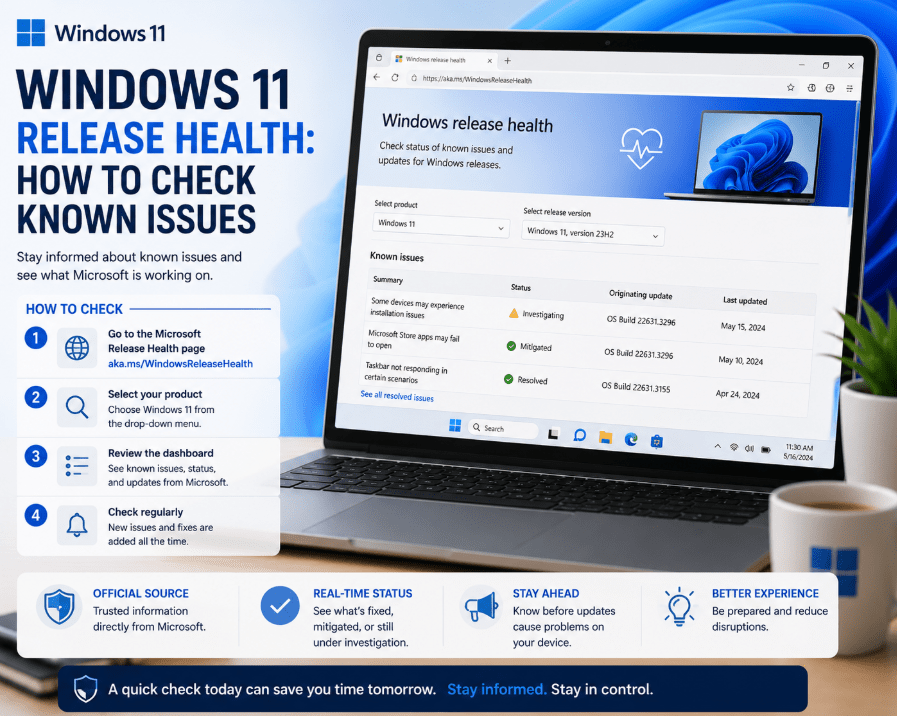
Did a recent Windows update cause a problem with your PC? Before spending time troubleshooting, it can be useful to check Windows 11 Release Health.
Microsoft’s Windows Release Health website provides official information about known Windows problems, affected updates, workarounds, and fixes.
What Is Windows 11 Release Health?
Windows Release Health is an official Microsoft resource that tracks the health of supported Windows versions.
It provides information about:
- Known Windows issues
- Recently resolved problems
- Affected Windows versions
- Problematic Windows updates
- Available workarounds
- Safeguard holds
- Windows servicing and release information
This can help you determine whether a problem you’re experiencing is already known to Microsoft.
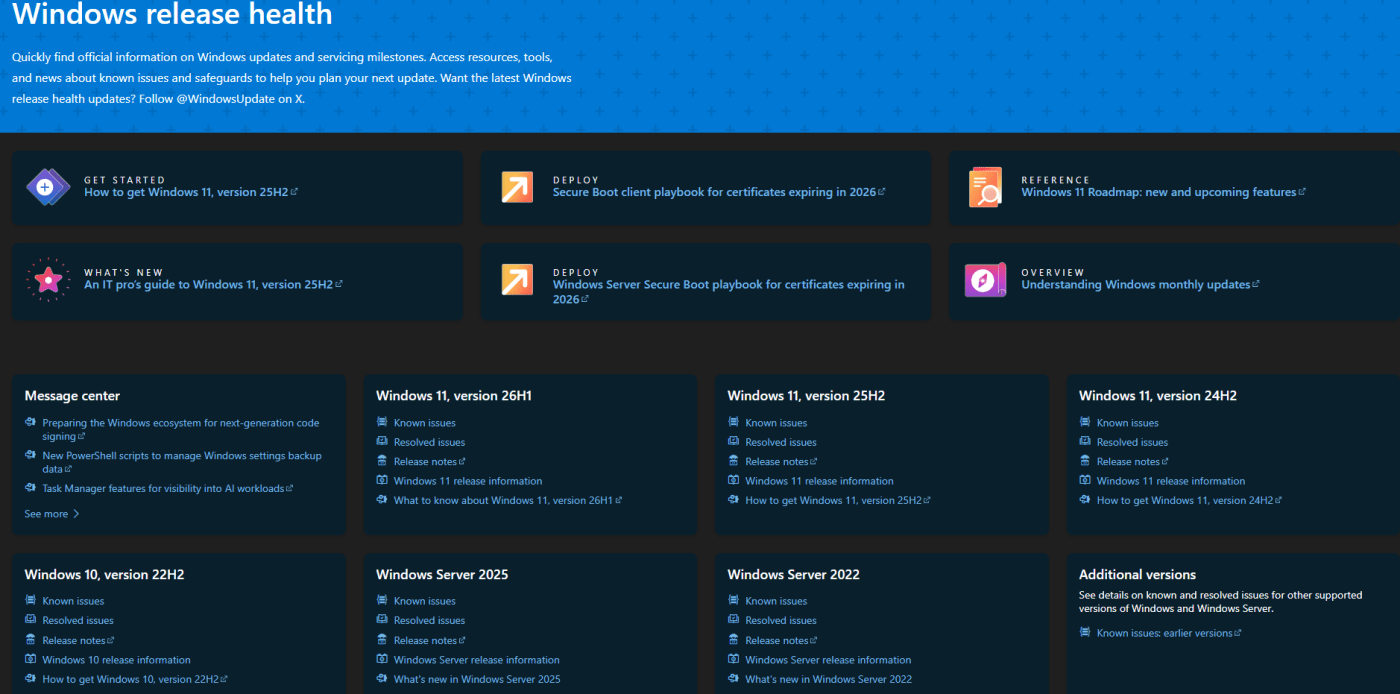
How to Check Windows 11 Known Issues
Checking for known issues is straightforward.
- Open Microsoft’s Windows Release Health website.
- Find your Windows 11 version.
- Select Known issues.
- Review the list of current and recently updated problems.
- Select an issue to see additional details.
Microsoft currently provides separate information for supported releases such as Windows 11 24H2, 25H2, and 26H1.
How Do You Know Your Windows 11 Version?
Before checking Release Health, make sure you know which version of Windows is installed.
Press:
Windows + R
Type:
winver
Then press Enter.
The About Windows window will show your Windows 11 version and OS build.
Once you know your version, you can check the corresponding Release Health page.
What Information Does a Known Issue Show?
Microsoft’s known-issues pages provide several useful details.
You will typically see:
- Summary – a short description of the problem
- Originating update – the update or KB number associated with it
- Status – whether Microsoft is investigating, mitigating, or has resolved the issue
- Last updated – when Microsoft last provided new information
Opening an individual issue can provide more details about affected devices, possible workarounds, and available fixes.
What Do the Issue Statuses Mean?
Microsoft uses different statuses to show how a known problem is progressing.
For example:
Reported – Microsoft has received information about a possible problem.
Investigating – Microsoft believes users may be affected and is investigating.
Confirmed – Microsoft has confirmed that the issue affects Windows users.
Mitigated – A workaround or temporary solution is available.
Resolved – Microsoft has released or documented a solution to the problem.
Checking the status can help you decide whether you need to take action or simply wait for an upcoming fix.
What Is a Safeguard Hold?
Sometimes Microsoft discovers that a Windows feature update could cause serious compatibility problems on certain PCs.
In these situations, Microsoft may apply a safeguard hold.
A safeguard hold temporarily prevents affected devices from receiving the new Windows version until the compatibility problem has been resolved.
If Windows Update tells you that an update is coming but isn’t ready for your device, a compatibility safeguard may be one possible reason.
For most users, it is better to wait until Microsoft removes the hold rather than trying to force the feature update.
When Should You Check Windows Release Health?
Windows Release Health is particularly useful when:
- A problem appears immediately after a Windows update
- An update fails to install
- A feature suddenly stops working
- You are considering installing a major Windows update
- Windows Update isn’t offering a new version to your PC
- You want to know whether Microsoft has already acknowledged a problem
Checking Microsoft’s known-issues list first can save time troubleshooting something that is already being investigated.
Check before you troubleshoot
Windows 11 Release Health is one of the best places to check whether an update problem is already known to Microsoft.
If Microsoft has confirmed the issue, you can also check whether a workaround is available or whether it is better to wait for a future Windows update.
Need a Windows 11 license for your PC? Explore our Windows 11 keys and choose the right edition for your computer today.