
Instructions
Windows 11 Restore Points: Are They Still Useful?
Aug
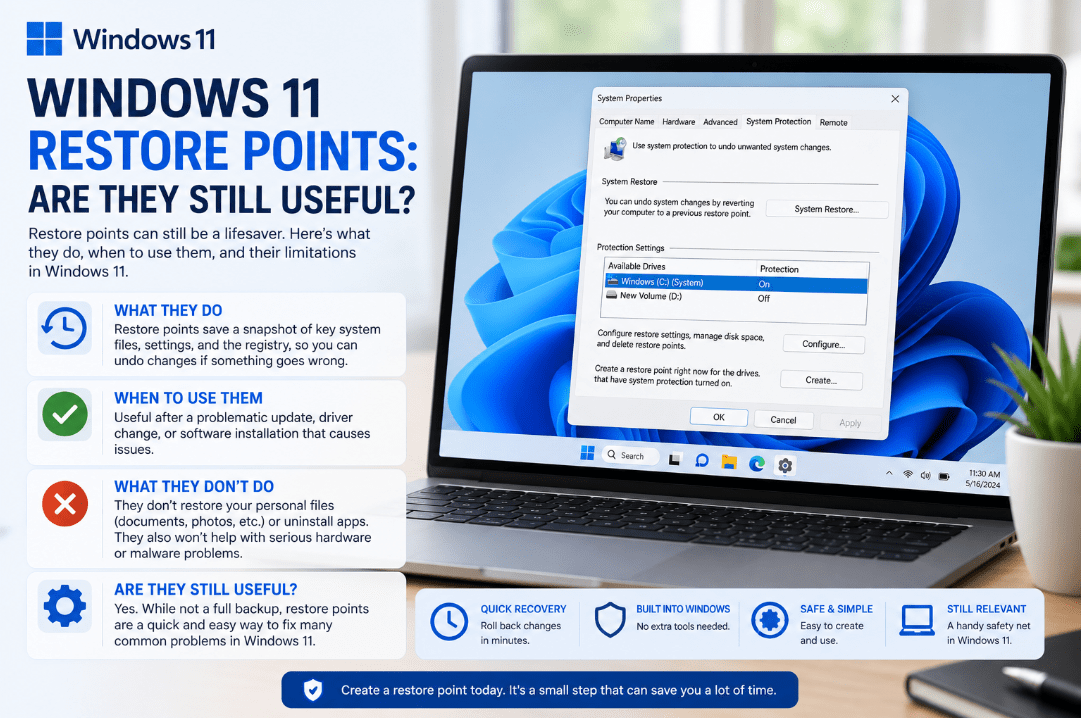
With cloud backups and modern Windows recovery tools available, you might wonder whether Windows 11 restore points are still useful.
The answer is yes. Restore points remain a simple way to undo certain system changes when Windows starts behaving badly after a driver, program, update, or settings change.
However, they are not a replacement for backing up your personal files.
What Is a Windows 11 Restore Point?
A restore point is a snapshot of important parts of your Windows system configuration.
It can contain information about:
- Windows system files
- Registry settings
- Installed applications
- Drivers
- System settings
Using System Restore allows Windows to return these areas to an earlier state without normally affecting your personal files.
When Are Restore Points Useful?
Restore points are most useful when a problem appears shortly after making a change to your PC.
For example, System Restore may help if:
- A recently installed driver causes problems
- A program makes Windows unstable
- System settings were changed incorrectly
- Windows behaves differently after an update
- A recently installed application causes conflicts
Instead of resetting or reinstalling Windows, you can try returning the system to a point when everything was working correctly.
Do Restore Points Back Up Personal Files?
No.
Traditional System Restore is not a personal file backup.
Using a restore point normally does not remove documents, pictures, videos, or other personal files. However, it also doesn’t provide a backup copy of those files.
For important personal data, you should use another backup method such as Windows Backup, OneDrive, an external drive, or another backup service.
Will System Restore Remove Programs?
It can.
If you restore Windows to a point created before a particular application or driver was installed, that application or driver may be removed.
Likewise, programs removed after the restore point was created may potentially be restored as part of the system changes.
System Restore lets you check for affected programs before starting the process.
How to Check If System Protection Is Enabled
Windows uses System Protection to manage traditional restore points.
To check it:
- Open Start.
- Search for Create a restore point.
- Open the result.
- Look under Protection Settings.
- Check whether protection is On for your Windows drive.
If protection is off, select the drive, click Configure, and choose Turn on system protection.
Microsoft recommends enabling System Protection so restore points are available when needed.
How to Create a Restore Point Manually
Creating one before making a major system change can be useful.
Open:
Start → Create a restore point
Then:
- Select your Windows drive.
- Click Create.
- Enter a description.
- Select Create again.
Windows will create a restore point you can return to later if something goes wrong.
How to Use System Restore
To restore your PC:
- Search for Create a restore point.
- Open System Restore.
- Select a restore point.
- Review the affected programs.
- Follow the instructions to begin the restore.
Windows will restart during the process.
If BitLocker protects your device, make sure you have access to your BitLocker recovery key before using recovery tools.
Are Restore Points Still Worth Using?
Yes, but think of them as one recovery tool rather than a complete backup solution.
Restore points are particularly useful for quickly reversing:
- Bad driver installations
- Problematic software changes
- Incorrect system settings
- Certain update-related problems
They can sometimes save you from having to reset Windows completely.
However, they won’t replace a proper backup of your important files.
What About Windows 11 Point-in-Time Restore?
Microsoft is also introducing a newer point-in-time restore experience on Windows 11.
Unlike traditional System Restore, the newer feature can restore a broader system state, including apps, settings, and local files from recent restore points. Traditional System Restore remains available and is useful when you need to roll back system files and settings.
Summary
Windows 11 restore points are still useful, especially when a recent driver, program, update, or settings change causes problems.
Just remember that System Restore is not a replacement for backing up your personal files. Using both restore points and a proper backup gives you more options when something goes wrong.
Need Windows 11 for a new or reinstalled PC? Explore our Windows 11 keys and choose the right edition for your computer today.