
Software Activation Updates
Windows 11 Advanced Haptics: What Can a Haptic Mouse Actually Do?
Nov
A normal mouse gives you visual feedback: you move the pointer, click something, and watch the screen respond.
Windows 11 Advanced Haptics adds another layer.
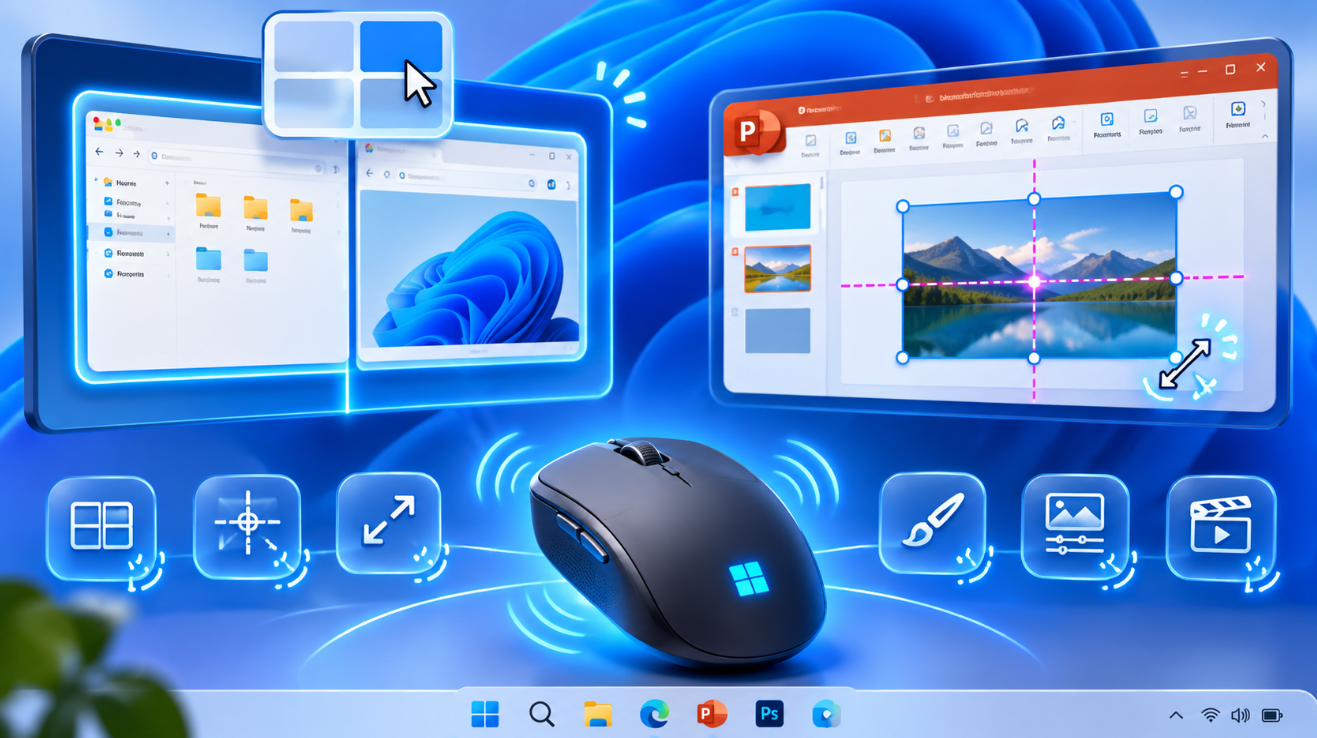
With compatible hardware, the mouse can produce subtle physical vibrations when something happens on screen. You might feel a small response when a window snaps into position, when two objects align in PowerPoint, or when a video clip locks into place on a timeline.
Microsoft describes these as tactile cues designed to provide immediate physical confirmation of an action.
It sounds a little like the vibration feedback found on phones and game controllers, but Windows 11 is using it for productivity rather than explosions or notifications.
So what can a haptic mouse actually do, which mice support it, and is the feature useful or just a gimmick?
What Are Windows 11 Advanced Haptics?
Advanced haptics use precisely controlled vibrations in a compatible input device.
Instead of every vibration feeling identical, Windows and supported applications can trigger different tactile effects depending on what you are doing.
For example, a mouse might provide a light vibration when:
- A window snaps into place
- An object aligns correctly
- A resize operation reaches a meaningful point
- A clip snaps to a video timeline
- A supported UI interaction completes
Microsoft says the goal is to connect what you see on screen with something you can physically feel through the input device.
What Does a Haptic Mouse Feel Like?
It does not normally shake strongly like a game controller.
The feedback is intended to be subtle.
Microsoft describes the Surface Mouse experience as a light vibration that happens when an action completes.
Imagine dragging a window toward the edge of the screen.
Normally, you watch for the translucent Snap preview.
With advanced haptics, the mouse can also provide a small physical cue at the moment Windows recognizes that the window is ready to snap.
That extra confirmation can make some actions feel more precise without requiring you to constantly watch for visual indicators.
Feel Windows Snap Through the Mouse
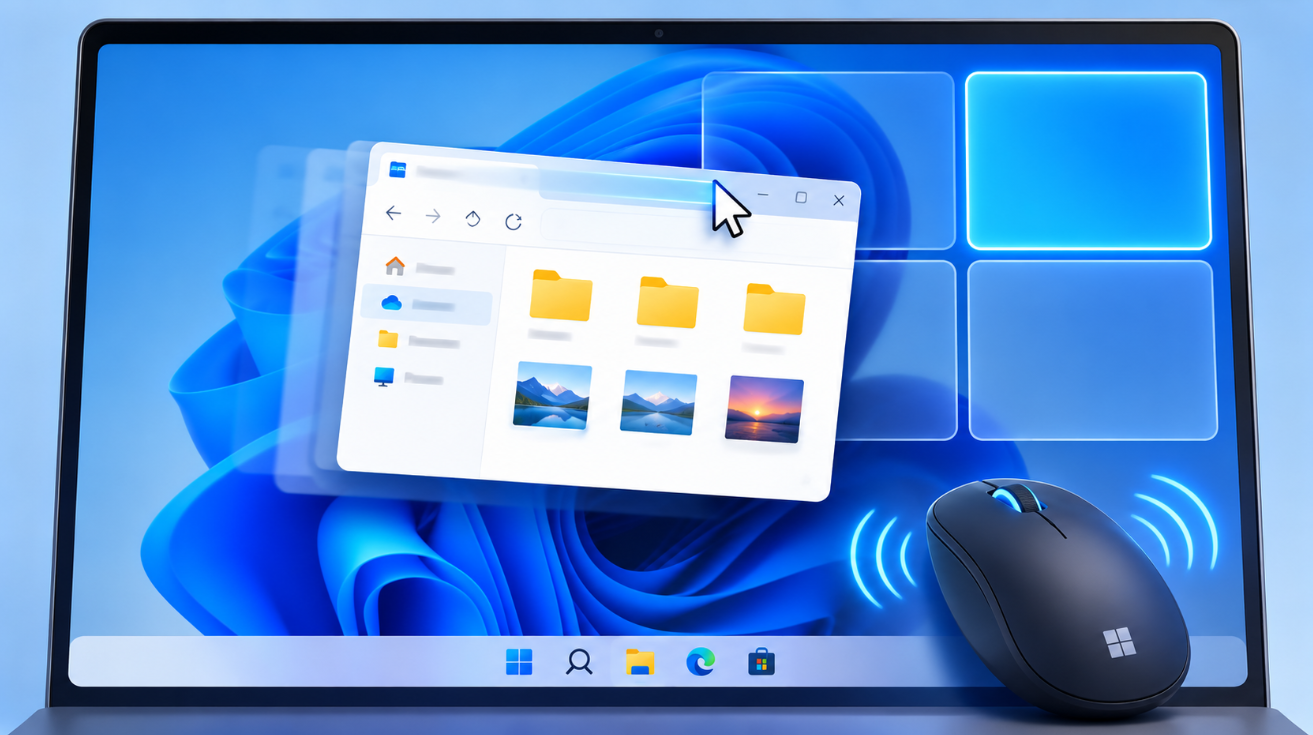
One of the clearest Windows 11 uses for advanced haptics is Snap Assist and Snap Layouts.
On supported hardware, Microsoft says haptic feedback can be triggered when you perform actions such as:
Snap to side – Dragging a window to the left or right edge.
Snap to corner – Moving a window into one of the four screen corners.
Vertical maximize – Dragging a window so it fills the available screen height.
Snap Assist – Choosing another application to fill the remaining area.
Snap Layouts – Moving a window across the layout choices that appear near the top of the screen.
The mouse can provide physical confirmation as the window reaches the appropriate snap position.
This is probably one of the easiest ways to understand the feature because snapping already has a very clear point where something “locks” into place.
Feel Window Resizing
Microsoft also supports haptic feedback while resizing windows.
Instead of relying entirely on visual movement, a compatible input device can provide tactile confirmation during supported resizing interactions.
This may be particularly useful when arranging several applications on a large or ultrawide display.
The effect is not intended to replace what you see.
It simply adds another signal that Windows has recognized the interaction.
PowerPoint Can Tell You When Objects Align
One of the more interesting Microsoft 365 integrations is PowerPoint.
When you drag:
- Images
- Shapes
- Text boxes
- Other slide objects
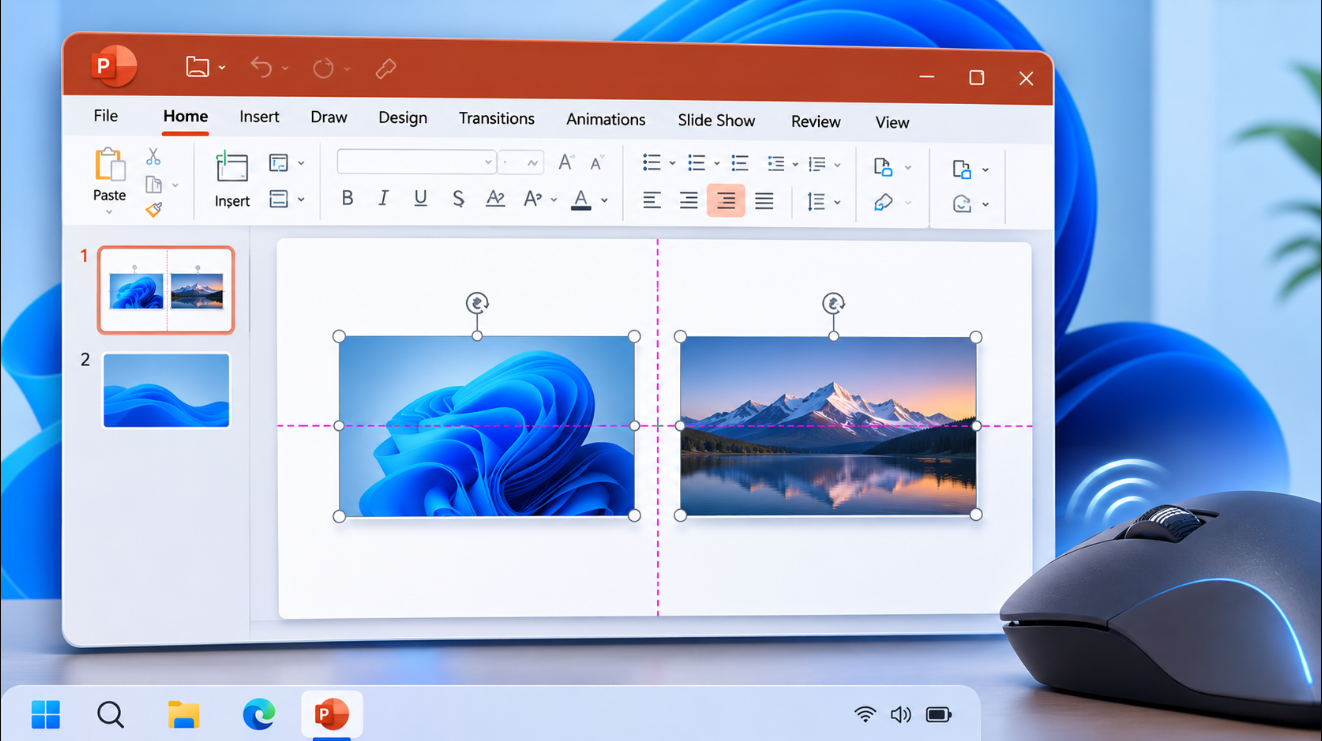
PowerPoint already displays alignment guides to help you position elements correctly.
With a compatible haptic mouse, you can also feel when objects align.
Microsoft recommends moving the mouse relatively slowly for the clearest result.
For people who regularly design presentations, this may be more useful than it initially sounds.
Instead of constantly watching alignment guides, you receive another cue through your hand when the object reaches the correct position.
Haptics Can Work in Video Editing Apps
Advanced haptics are not limited to Microsoft software.
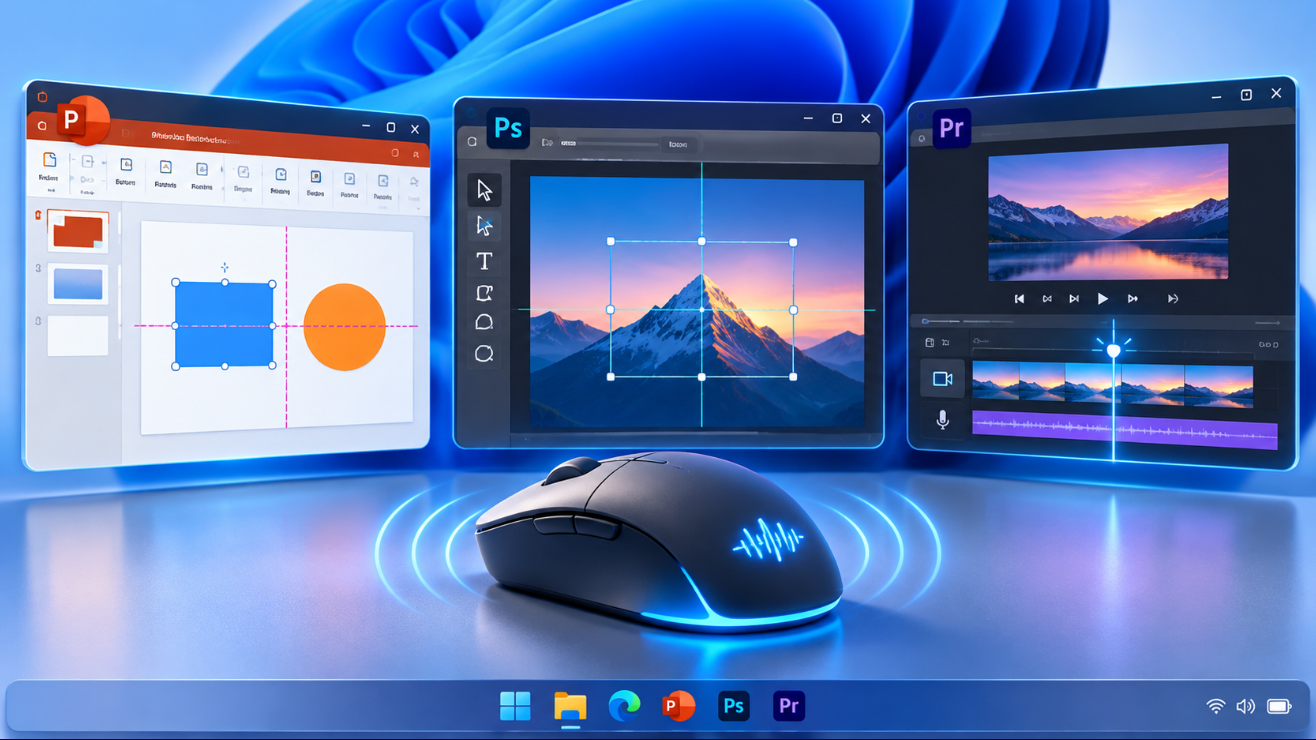
Microsoft currently lists several applications that can provide supported haptic experiences, including:
Filmora
DaVinci Resolve
Adobe Premiere Pro
For video editing, one obvious use is timeline snapping.
Microsoft specifically describes feeling a tactile response when a clip snaps into place on a Filmora timeline.
This type of interaction makes sense for haptics because editors frequently drag clips until they reach an exact boundary.
A tiny physical response can confirm that the clip has reached that point without depending entirely on visual feedback.
Affinity by Canva Supports Haptic Alignment
Microsoft also highlights Affinity by Canva.
When positioning visual elements, compatible haptic hardware can give tactile confirmation when an object reaches an alignment point.
The principle is similar to PowerPoint:
Move object → reach alignment guide → feel confirmation
For graphic design work, that could make object placement feel more direct.
Which Apps Currently Support Advanced Haptics?
Microsoft’s Surface Mouse documentation currently identifies several applications where advanced haptics can be experienced:
- PowerPoint
- Affinity by Canva
- Concepts
- Filmora
- DaVinci Resolve
- Adobe Premiere Pro
- ProtoPie
Microsoft also says more applications may be added over time.
Support is therefore not automatic in every Windows application.
An application has to use the Windows haptics APIs or otherwise provide compatible support.
Which Mice Support Windows 11 Advanced Haptics?
This is the most important limitation:
A normal mouse cannot suddenly become haptic because you updated Windows.
The mouse must contain physical haptic hardware.
Microsoft currently highlights:
Surface Mouse (2nd Edition)
and:
Logitech MX Master 4
as supported advanced-haptics accessories.
Microsoft’s developer documentation also lists Logitech MX Master 4 among supported haptic input devices.
Other compatible hardware can be added as manufacturers update products and drivers.
What Is Special About Surface Mouse (2nd Edition)?
Microsoft’s newer Surface Mouse is designed specifically with advanced Windows 11 integration in mind.
Its haptic system provides controlled tactile feedback for actions including:
- Snap Assist
- Window resizing
- Drag-and-drop interactions
- PowerPoint
- Supported third-party applications
The mouse also includes a customizable Action button and Bluetooth connectivity.
Microsoft introduced the new model in September 2026 and began availability in select markets on October 13, 2026.
Advanced Haptics Are Not Only for Mice
Windows 11’s haptic platform supports more than mice.
Microsoft’s developer documentation says compatible input-device classes include:
- Mice
- Touchpads
- Pens
Supported devices currently listed by Microsoft include hardware such as Surface Slim Pen 2, ASUS Pen 3.0, MSI Pen 2, Logitech MX Master 4, and supported Surface touchpads.
The exact experience depends on the type of device.
A pen can provide feedback while drawing or interacting with on-screen objects, while a mouse is better suited to snapping, dragging, aligning, and resizing.
How to Turn Haptic Mouse Feedback On or Off
For a compatible mouse, open:
Settings → Bluetooth & devices → Mouse → Haptic signals
From there, you can control the haptic experience.
Microsoft’s Surface Mouse documentation also provides a Signal intensity slider so you can decide how strong the vibration should feel.
If you find the feedback distracting, reduce the intensity or turn it off.
If the response feels too subtle, increase the strength.
That personalization is important because the ideal level will vary from person to person.
Why Don’t I See “Haptic Signals” in Settings?
There are two main possibilities.
First, your input device may not support Windows advanced haptics.
A standard Bluetooth or USB mouse does not gain haptic hardware through software.
Second, Windows may need updating.
Microsoft specifically says that if Haptic signals does not appear for a supported Surface Mouse, you may need the latest version of Windows.
Open:
Settings → Windows Update → Check for updates
and install available updates.
Also make sure your mouse firmware and manufacturer software are current.
Does Windows 11 26H2 Support Advanced Haptics?
Windows’ modern advanced-haptics work started rolling out during 2026.
Microsoft documented compatible haptic input support in its April and May servicing updates, including feedback for snapping, resizing, and PowerPoint object alignment.
Windows 11 version 26H2 – the Windows 11 2026 Update – includes improvements introduced through the year’s cumulative updates.
For the best chance of getting the full experience, keep Windows and the device’s drivers or firmware current.
Is This the Same as Mouse Vibration in Games?
Not really.
Gaming haptics normally try to represent events inside the game:
an explosion, collision, weapon recoil, or driving surface.
Windows advanced haptics are primarily about interface feedback.
For example:
Window reached snap position
Object aligned
Timeline clip locked into place
The purpose is not immersion.
It is confirmation and precision.
Is It the Same as Apple’s Force Touch or Trackpad Feedback?
The concepts overlap because both use tactile feedback to make digital interactions feel physical.
But Windows 11 advanced haptics are designed as a broader input platform that can work across mice, pens, touchpads, Windows itself, Microsoft 365, and supported third-party applications.
Microsoft also provides APIs so developers can implement haptic feedback directly in Windows applications.
That means the eventual usefulness of the feature depends heavily on developer adoption.
Can Any App Add Haptic Feedback?
Potentially, if the developer implements Microsoft’s haptics APIs and the PC has compatible hardware.
Microsoft’s current InputHapticsManager platform gives developers access to supported effects and lets an application check whether the connected input device supports haptic feedback.
Importantly, applications are expected to check hardware compatibility at runtime.
So an app should continue working normally on a PC with an ordinary mouse.
You simply will not receive the tactile effects.
Could Haptics Become Annoying?
Yes, if every tiny action created a strong vibration.
That is why Microsoft describes the effects as subtle and purposeful rather than constant.
The most useful haptic cues are typically tied to clear events:
- An object reaching alignment
- A window entering a snap zone
- A clip reaching a timeline boundary
- An action completing
And because Windows lets you adjust the intensity, users can reduce or disable the experience if they do not like it.
Does Advanced Haptics Improve Productivity?
It depends on what you do.
For basic web browsing and email, the difference may be minor.
But advanced haptics make more sense for tasks that involve repeated precision movement, including:
Presentation design
Feeling when PowerPoint objects align.
Video editing
Feeling when clips reach timeline snap points.
Graphic design
Getting feedback when objects line up.
Window management
Feeling Snap Layout and resize interactions.
The biggest benefit is that tactile feedback can supplement visual feedback rather than replace it.
Do You Need a Copilot+ PC?
Microsoft does not describe advanced input haptics as a Copilot+ PC-exclusive technology.
The important requirements are:
a compatible version of Windows 11
and:
supported haptic input hardware.
Microsoft’s developer documentation specifically tells applications to check both OS API availability and whether a haptic-capable input device is connected.
So the feature is fundamentally about Windows support plus compatible hardware, not simply whether the PC carries Copilot+ branding.
Is a Haptic Mouse Worth Buying Just for This?
Probably not for everyone.
If your current mouse works well and you mainly browse the web, write documents, or perform basic office tasks, advanced haptics alone may not justify replacing it.
The feature becomes more interesting if you regularly:
- Arrange many windows
- Build PowerPoint presentations
- Edit video
- Design graphics
- Work with precise timeline or alignment tools
It also depends on whether the applications you use support Windows haptics.
The technology is still expanding, so its value could increase as more hardware manufacturers and software developers adopt it.
Frequently Asked Questions
What are Windows 11 Advanced Haptics?
Advanced haptics let compatible input devices create physical tactile feedback for supported Windows and application actions, such as snapping windows or aligning objects.
Can a mouse vibrate when a window snaps?
Yes. Supported haptic mice can provide feedback during Windows Snap and Snap Layout interactions.
Does PowerPoint support haptic mice?
Yes. Microsoft supports haptic feedback when positioning and aligning supported objects in PowerPoint.
Which mice support Windows 11 Advanced Haptics?
Microsoft currently highlights Surface Mouse (2nd Edition) and Logitech MX Master 4 as compatible examples.
Does every Windows 11 mouse support haptics?
No. The mouse needs physical haptic hardware and compatible Windows support.
Can I change the vibration strength?
Yes. On supported hardware, open Settings → Bluetooth & devices → Mouse → Haptic signals and adjust the signal intensity.
Do video editors support Windows haptics?
Microsoft currently lists applications including Filmora, DaVinci Resolve, and Premiere Pro among supported experiences for Surface Mouse.
Are advanced haptics only for mice?
No. Microsoft’s Windows haptics platform also supports compatible pens and touchpads.
Final Thoughts
Windows 11 Advanced Haptics are an interesting attempt to make everyday desktop interactions feel more physical.
With a compatible haptic mouse, you can feel subtle confirmation when a window snaps into place, when an object aligns correctly in PowerPoint or Affinity, or when supported editing actions reach the right position.
It is not something every Windows user needs.
For basic computing, a normal mouse remains perfectly adequate.
But for presentation design, video editing, creative work, and heavy window management, tactile feedback could make precise interactions feel more natural.
The biggest limitation today is hardware and software support. Only compatible input devices can generate the effects, and applications need to support the Windows haptics platform.
As more manufacturers and developers adopt it, however, haptic feedback could become another normal part of how Windows communicates with the person using it.
Building a new Windows PC or upgrading your current system? Browse our Windows 11 keys and choose the edition that fits your setup.