
Instructions
Windows 11 Startup Impact: What Does High Impact Mean?
Sep
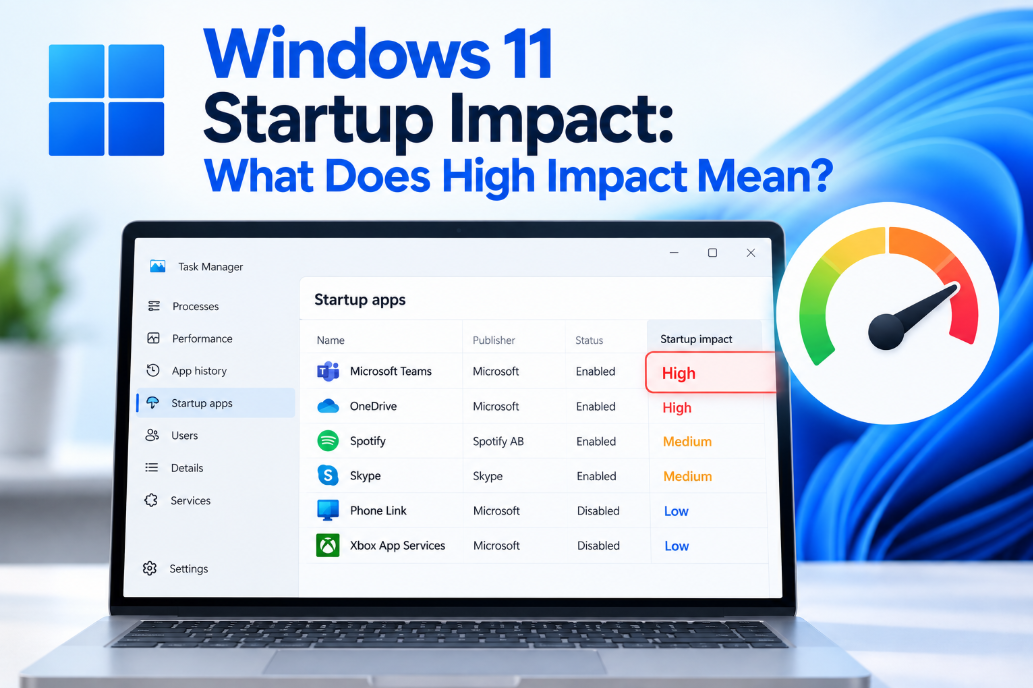
Open Task Manager in Windows 11 and look at your startup apps, and you may see labels such as Low Impact, Medium Impact, or High Impact.
But what does Windows 11 Startup Impact actually mean?
A High Impact label doesn’t mean that an app is dangerous or badly designed. It simply means the application used a relatively larger amount of processor time or disk activity while Windows was starting.
Where Can You See Startup Impact?
The easiest place to find it is Task Manager.
- Right-click Start.
- Select Task Manager.
- Open Startup apps.
- Look at the Startup impact column.
Windows may show one of several values:
- None
- Not Measured
- Low
- Medium
- High
Task Manager uses this information to help you identify applications that may be slowing down the startup process.
What Does High Impact Mean?
Microsoft classifies a startup app as High Impact when it uses:
- More than 1 second of CPU time, or
- More than 3 MB of disk activity
during startup.
That means Windows noticed the app requiring a relatively significant amount of system resources while you were signing in.
If several High Impact applications start at the same time, your desktop may take longer to become fully responsive.
What Does Medium or Low Impact Mean?
Microsoft currently defines the categories roughly like this:
Low Impact
Uses less than 300 milliseconds of CPU time and less than about 300 KB of disk activity.
Medium Impact
Uses between roughly 300 milliseconds and 1 second of CPU time, or between about 300 KB and 3 MB of disk activity.
High Impact
Uses more than 1 second of CPU time or more than 3 MB of disk activity.
These labels are mainly useful for comparing startup applications.
Does High Impact Mean the App Is Slowing Down Your PC?
It means the app has a noticeable effect during startup, but that doesn’t necessarily mean it slows your computer all the time.
An application might use a lot of resources for a few seconds while starting and then remain almost idle afterward.
The Startup Impact rating is therefore mainly about the Windows startup experience, not the application’s overall performance.
Should You Disable Every High Impact App?
No.
The better question is whether you actually need that application to start automatically.
For example, you may want to keep startup enabled for:
- Security software
- Cloud storage syncing
- Hardware utilities you rely on
- Communication apps you use immediately
- Important work software
On the other hand, you probably don’t need every game launcher, media application, updater, or utility to open whenever Windows starts.
Microsoft recommends disabling unnecessary startup apps as one way to improve Windows startup and overall performance.
How to Disable a Startup App
From Task Manager:
- Open Task Manager.
- Select Startup apps.
- Choose the application.
- Click Disable.
You can also go to:
Settings → Apps → Startup
Then switch unwanted startup applications to Off.
Disabling a startup app does not uninstall it.
You can still open the program normally whenever you need it.
What Does “Not Measured” Mean?
Sometimes Startup Impact may show:
Not Measured
This simply means Windows does not currently have enough information to calculate the application’s startup impact.
It doesn’t automatically mean there is a problem.
After the application has started normally and Windows gathers enough information, an impact rating may eventually appear.
What Does “None” Mean?
If Task Manager displays None, the startup application is normally disabled.
Because the app isn’t launching automatically, Windows doesn’t need to calculate its current startup impact.
Will Disabling High Impact Apps Make Windows Start Faster?
It can.
The difference depends on:
- How many startup apps you have
- How powerful your PC is
- Whether you use an SSD or slower storage
- How demanding each application is
- How many applications start simultaneously
On a modern fast PC, disabling one startup app may only save a small amount of time.
On an older or slower computer with many startup programs, reducing the number of automatically launched apps can make startup noticeably quicker.
Which Startup Apps Should You Disable First?
Start with applications you recognize and don’t need immediately after signing in.
Good candidates can include:
- Game launchers
- Music applications
- Chat programs you rarely use
- Third-party software updaters
- Utilities you only open occasionally
Avoid disabling something simply because it says High Impact if you don’t know what it does.
If an unfamiliar startup entry appears, identify the program first.
Summary
Windows 11 Startup Impact is simply an estimate of how much CPU and disk activity an application uses while Windows starts.
If your PC takes too long to become usable after signing in, open Task Manager → Startup apps and look for unnecessary High Impact applications.
Need Windows for your PC? Explore our Windows 11 keys and choose the right edition for your computer today.