
Instructions
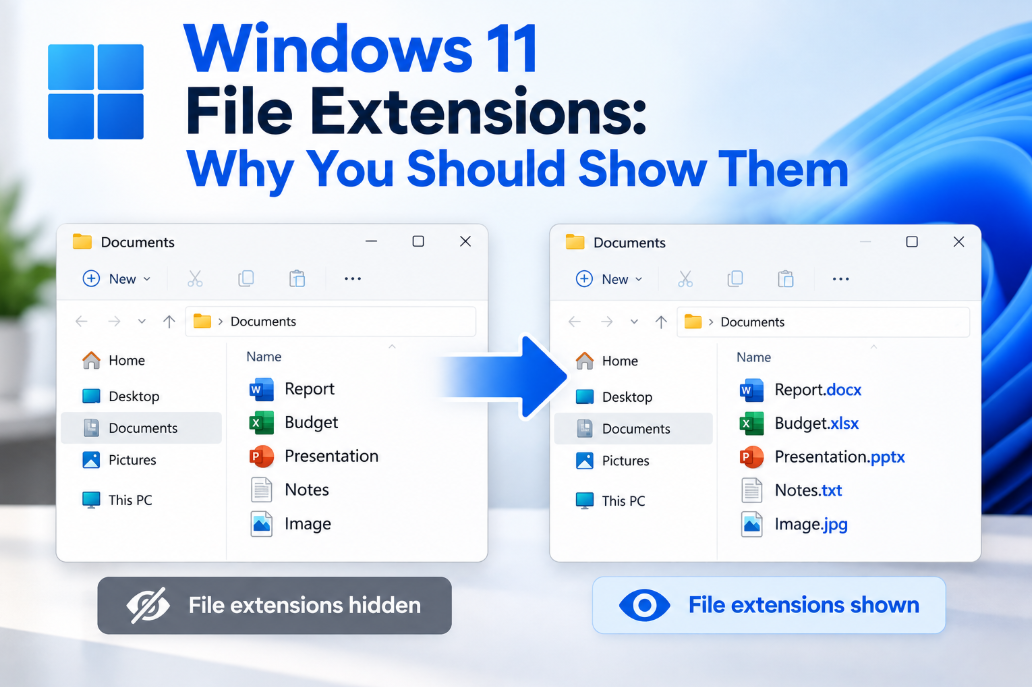
Windows 11 File Extensions: Why You Should Show Them
Sep
When browsing files in Windows 11, you may see names such as invoice, photo, or setup without anything after them.
The missing part is the file extension.
Choosing to show file extensions in Windows 11 makes it easier to understand exactly what type of file you are opening and can even help you notice suspicious downloads.
What Is a File Extension?
A file extension is the part of a filename that appears after the final period.
For example:
report.docx
The filename is report, while .docx is the extension.
Microsoft explains that extensions help Windows identify the file type and determine which application can open it.
Common examples include:
- .docx – Microsoft Word document
- .xlsx – Microsoft Excel workbook
- .pptx – PowerPoint presentation
- .pdf – PDF document
- .jpg – Image
- .mp4 – Video
- .zip – Compressed archive
- .exe – Windows application
Why Does Windows Hide Some File Extensions?
Windows can hide extensions for file types it already recognizes.
Instead of showing:
holiday-photo.jpg
File Explorer may simply display:
holiday-photo
This makes filenames look cleaner, but it also hides useful information.
For users who regularly download, rename, or manage files, showing the extension usually makes things clearer.
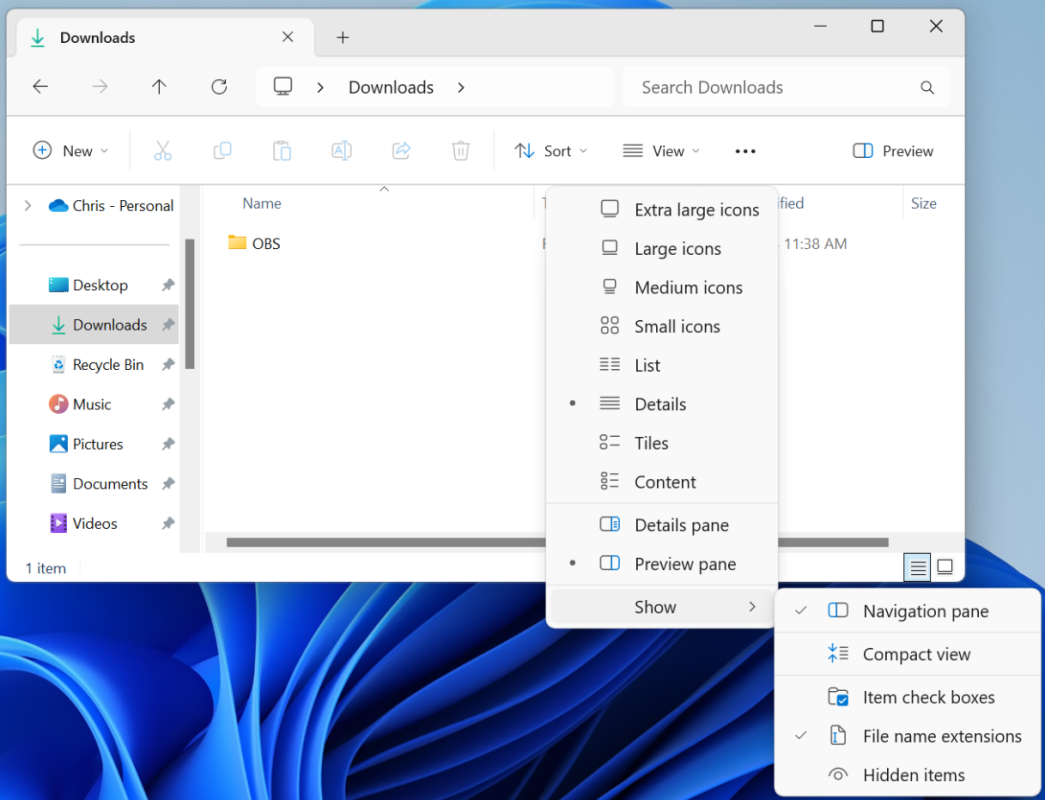
How to Show File Extensions in Windows 11
It only takes a few seconds.
- Open File Explorer.
- Click View.
- Select Show.
- Enable File name extensions.
Windows will immediately begin displaying extensions next to filenames.
You can turn them off again at any time using the same menu.
File Extensions Help You Identify Files
Icons are useful, but they are not always enough.
Two files may have similar names while being completely different types.
For example:
invoice.pdf
and
invoice.exe
The first is a PDF document.
The second is an executable Windows program.
If extensions are hidden, both could simply appear as invoice, making it harder to understand what you are about to open.
Showing Extensions Can Improve Security Awareness
File extensions can also help you spot suspicious downloads.
Imagine receiving a file named:
photo.jpg.exe
With extensions visible, you can immediately see that this isn’t actually a JPG image. It is an executable file.
If Windows hides the known .exe extension, the filename may appear more misleading depending on how it was named.
Showing extensions does not replace Microsoft Defender, SmartScreen, or other security tools, but it gives you another useful piece of information before opening a file.
Be particularly cautious with unfamiliar files ending in extensions such as:
- .exe
- .bat
- .cmd
- .msi
- .scr
Only open executable files when you trust their source.
Extensions Are Useful When Downloading Files
Showing extensions also makes it easier to check whether you downloaded the format you expected.
For example, you may expect an Excel workbook but receive:
report.csv
instead of:
report.xlsx
Both can open in Excel, but they are different file formats and support different features.
The extension lets you see that immediately.
Can You Change a File Type by Renaming the Extension?
No.
Changing:
photo.jpg
to:
photo.png
does not actually convert the image from JPG to PNG.
Microsoft notes that changing an extension only changes the filename. It does not convert the underlying file format.
To properly convert a file, you need to open it in compatible software and save or export it in the new format.
Should Everyone Show File Extensions?
For most users, there is little downside.
Extensions are especially useful if you:
- Download files frequently
- Work with Word, Excel, or PowerPoint documents
- Manage photos and videos
- Install software
- Work with ZIP or RAR archives
- Troubleshoot file-opening problems
- Want to better identify suspicious files
The only real difference is that filenames become slightly longer.
File Extensions vs Hidden Files
These are two separate File Explorer settings.
File name extensions shows endings such as .docx, .jpg, or .exe.
Hidden items displays files and folders that Windows or applications have marked as hidden.
Both options can be found under:
File Explorer → View → Show
You can enable file extensions without showing hidden system files.
Summary
Choosing to show file extensions in Windows 11 is a small change that can make File Explorer much clearer.
To enable them, simply open File Explorer → View → Show → File name extensions.
Need Windows 11 for your PC? Explore our Windows 11 keys and choose the right edition for your computer today.