
Instructions
Windows 11 Taskbar Can Move Again: Top, Left or Right?
Nov
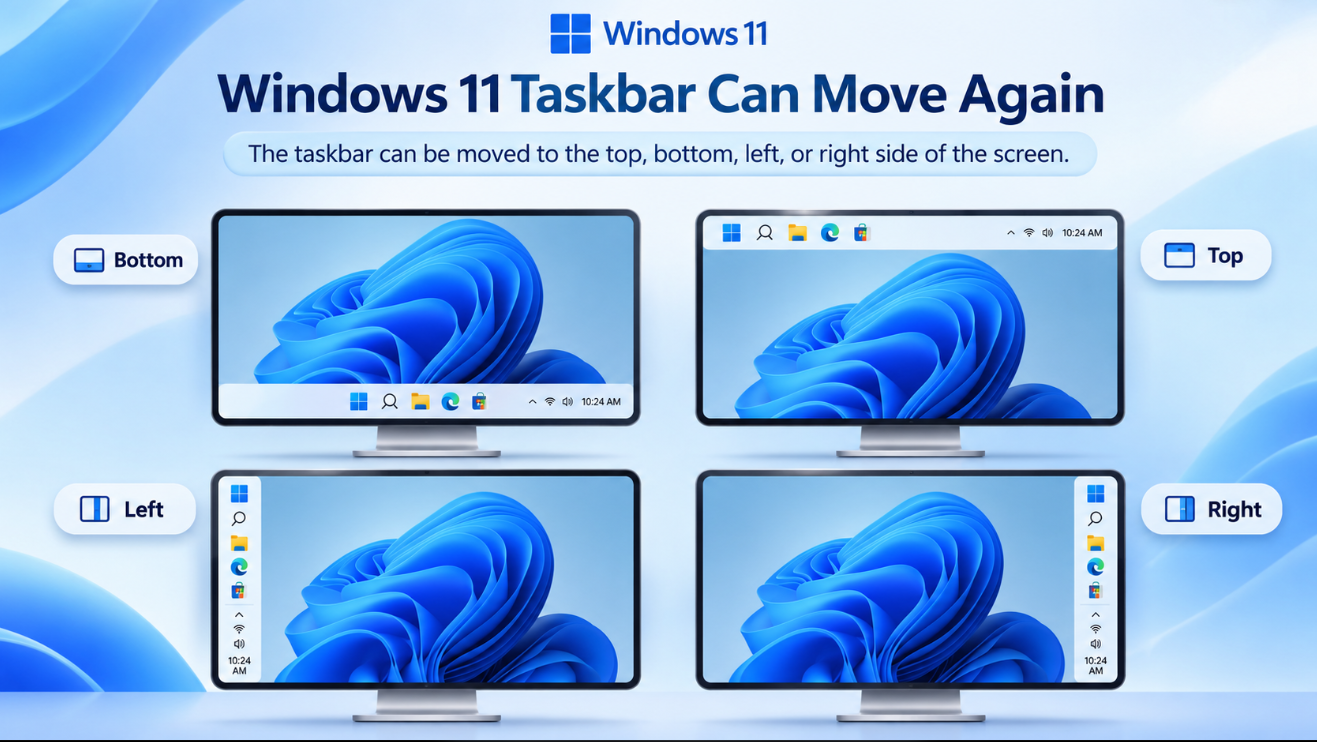
The Windows 11 Taskbar Move option is finally returning.
One of the biggest complaints about the original Windows 11 taskbar was that Microsoft locked it to the bottom of the screen.
Windows 10 users could place the taskbar on the:
Bottom
Top
Left
Right
but Windows 11 removed those options when it introduced its redesigned taskbar.
Microsoft has now brought alternate taskbar positions back.
Recent Windows 11 updates allow supported PCs to move the taskbar to any edge of the display through the normal Settings app – without Registry hacks or third-party utilities.
Can You Move the Windows 11 Taskbar Now?
Yes.
Microsoft now supports four taskbar positions:
- Bottom
- Top
- Left
- Right
The bottom remains the default.
To change it, open:
Settings → Personalization → Taskbar → Taskbar behaviors → Taskbar position
Then choose the edge of the screen you want to use.
If you do not see Taskbar position yet, your PC may not have received the feature rollout.
Microsoft originally introduced it in Windows Insider builds in May 2026 and began bringing it to regular Windows 11 users through later cumulative updates.
How to Move the Windows 11 Taskbar to the Top
To place the taskbar at the top:
- Open Settings.
- Select Personalization.
- Select Taskbar.
- Expand Taskbar behaviors.
- Find Taskbar position.
- Select Top.
The taskbar moves to the upper edge of the display.
Windows also adjusts related interface elements so that menus and animations appear relative to the new taskbar location.
For example, Microsoft says the Start experience and taskbar flyouts can open from the top when the taskbar is positioned there.
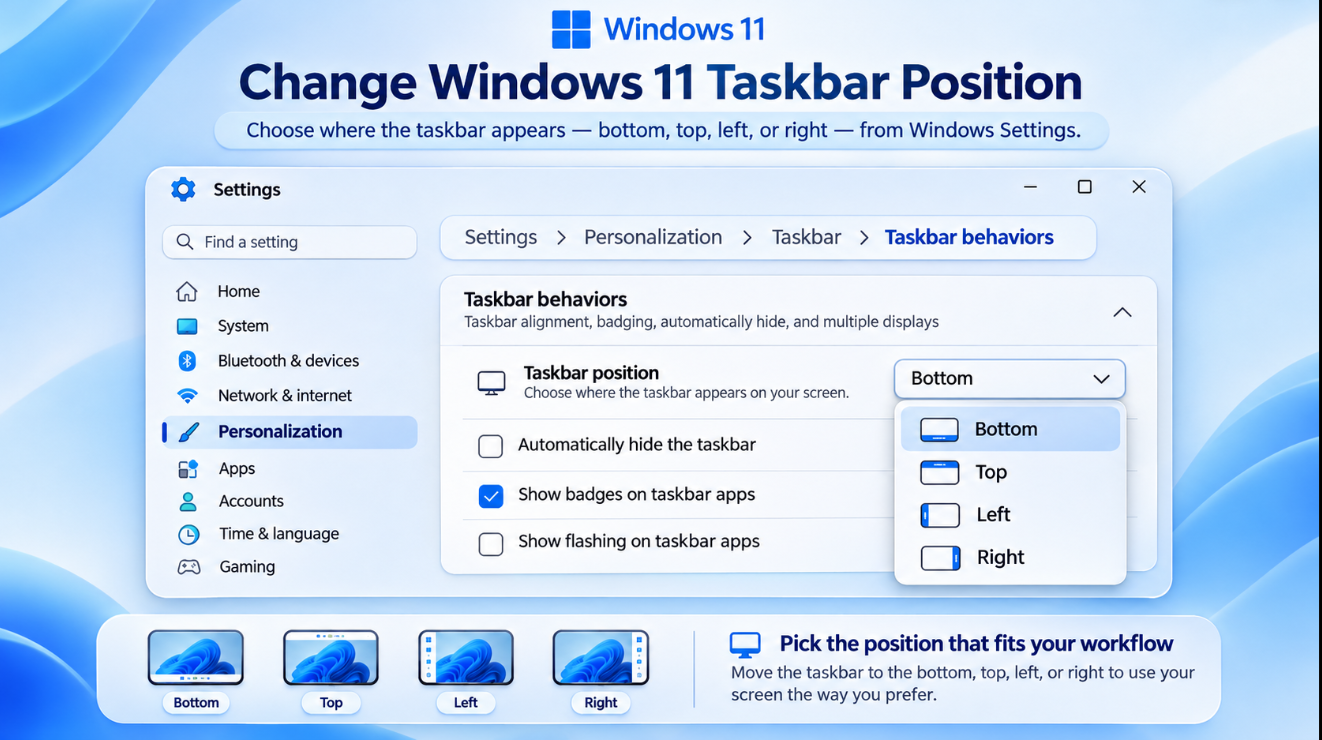
Windows 11 Settings interface showing the Taskbar position dropdown with Bottom, Top, Left, and Right options.How to Move the Taskbar to the Left or Right
Use the same setting:
Settings → Personalization → Taskbar → Taskbar behaviors → Taskbar position
Then choose:
Left
or:
Right
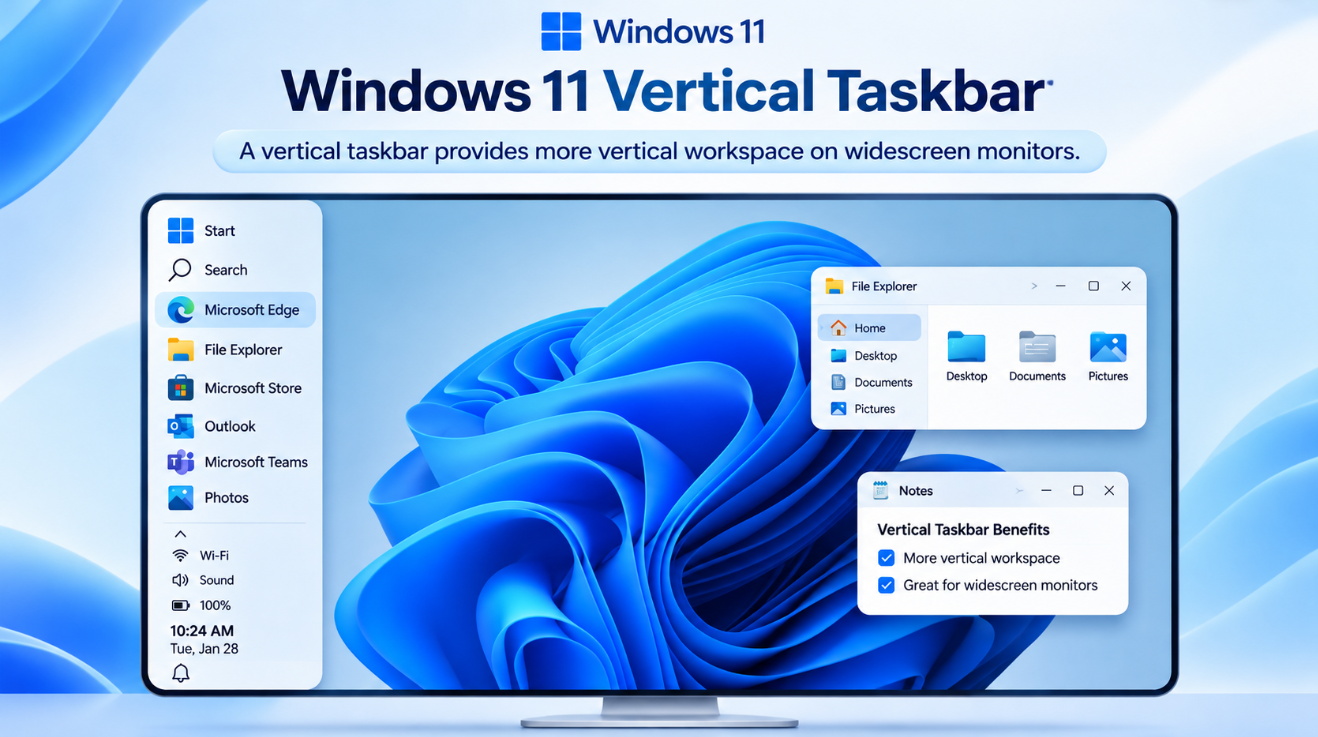
The taskbar becomes vertical.
This can be particularly useful on widescreen monitors because horizontal screen space is usually more plentiful than vertical space.
A vertical taskbar gives applications slightly more room from top to bottom.
Microsoft specifically mentioned developers as one example of users who may prefer a side taskbar because it can leave more vertical room for code and other content.
Why Did Microsoft Bring Taskbar Movement Back?
Because users kept asking for it.
Microsoft said moving the Windows taskbar to the top or sides was one of the most frequently requested Windows 11 personalization features.
The company has been making a broader effort in 2026 to give users more control over Windows.
That includes changes such as:
- Alternate taskbar positions
- Smaller taskbar size
- More Start menu customization
- Context menu customization
- Quieter Widgets defaults
- More control over Windows Search
Microsoft described the taskbar changes as part of its push to make Windows more flexible, predictable, and personal.
Why Couldn’t Windows 11 Move the Taskbar Before?
Windows 11 introduced a largely rebuilt taskbar.
Microsoft simplified parts of the old Windows 10 implementation and focused initially on the bottom position.
That meant several familiar capabilities disappeared, including official support for moving the taskbar vertically or placing it at the top.
For years, users who wanted those layouts had to rely on:
- Registry modifications
- Third-party customization tools
- Alternative shell utilities
Those workarounds could stop working after Windows updates.
The new official setting is much better because taskbar positioning is once again handled directly by Windows.
Does the Start Menu Move With the Taskbar?
Yes, its opening position adjusts.
If the taskbar is at the top of the screen, for example, the Start menu opens relative to that location rather than behaving as if the taskbar were still at the bottom.
Microsoft specifically designed flyouts and animations to originate from the current taskbar position.
That applies to more than Start.
Other taskbar-related flyouts are also designed to follow the taskbar.
Can You Still Center the Taskbar Icons?
Yes.
Taskbar position and taskbar icon alignment are different settings.
For top and bottom taskbars, Microsoft has tested options including:
- Left-aligned icons
- Centered icons
For vertical taskbars on the left or right, Microsoft designed the interface to support positioning the icons toward the top or keeping them centered.
That means moving the taskbar does not necessarily force you into one specific icon arrangement.
Can You Use “Never Combine Taskbar Buttons”?
Yes.
Microsoft says most existing taskbar customization options continue to work when the taskbar is moved.
That includes:
Never combine taskbar buttons
which allows individual application windows to remain visible separately instead of being grouped under one icon.
A vertical taskbar can make this especially useful.
For example, Microsoft demonstrated a vertical taskbar where each open window appears as its own labelled button.
That resembles the more information-dense taskbar layouts many users preferred in older versions of Windows.
Can You Show App Labels on a Vertical Taskbar?
Microsoft has designed the new vertical taskbar to work with app labels.
When Never combine taskbar buttons and labels are enabled, separate windows can appear as individually labelled entries.
That can make it easier to distinguish between several open windows of the same application.
For example, instead of seeing several identical File Explorer icons, you may see separate labelled windows.
This is one of the biggest practical advantages of using a left or right taskbar.
Can You Make the Windows 11 Taskbar Smaller?
Yes, Microsoft has also introduced a smaller taskbar option.
Go to:
Settings → Personalization → Taskbar → Taskbar behaviors → Taskbar size
Then choose:
Small
Microsoft says the setting reduces both the taskbar height and icon size, giving applications more usable screen space.
However, there is an important limitation.
Does the Small Taskbar Work on the Left or Right?
Not currently, according to Microsoft’s rollout documentation.
Microsoft says the smaller taskbar is supported only when the taskbar is positioned at the top or bottom.
So:
Top + Small → Supported
Bottom + Small → Supported
Left + Small → Not currently supported
Right + Small → Not currently supported
That may change in future Windows updates.
What Happens to the Search Box?
Search currently has a similar limitation.
Microsoft says the full Search box is supported at the top and bottom positions.
When using alternate vertical positions, search support is more limited.
Microsoft has been separately redesigning Windows Search throughout 2026, so the experience may continue changing.
If Search looks different after moving your taskbar, that does not necessarily mean anything is broken.
Do Tooltips and Flyouts Still Work?
Yes.
Microsoft says:
- Tooltips
- Flyouts
- Animations
continue to originate from the taskbar even when it is moved away from the bottom.
This helps the interface feel more natural.
For example, if your taskbar is at the top, you should not have menus oddly appearing from the bottom of the screen.
Can You Move the Taskbar by Dragging It?
Older versions of Windows allowed users to unlock the taskbar and drag it to another edge.
Microsoft’s new Windows 11 implementation instead uses a dedicated Settings control.
Go to:
Settings → Personalization → Taskbar → Taskbar behaviors
and select the position.
This has one advantage: you are less likely to move the taskbar accidentally.
Microsoft specifically said it wanted the new experience to remain predictable and avoid accidental taskbar movement.
Which Taskbar Position Is Best?
That depends on your monitor and workflow.
Bottom
The familiar Windows default.
Best for most users and offers the broadest compatibility with current taskbar features.
Top
Useful if you prefer application controls and navigation concentrated near the upper part of the screen.
It also currently supports the smaller taskbar and full Search box.
Left
A good option for widescreen displays.
You sacrifice some horizontal room but gain vertical workspace.
It can also work well with visible app labels.
Right
Functionally similar to the left position, but some users prefer keeping application navigation away from desktop icons or other controls on the left.
There is no universally best choice.
That is exactly why bringing taskbar movement back is useful.
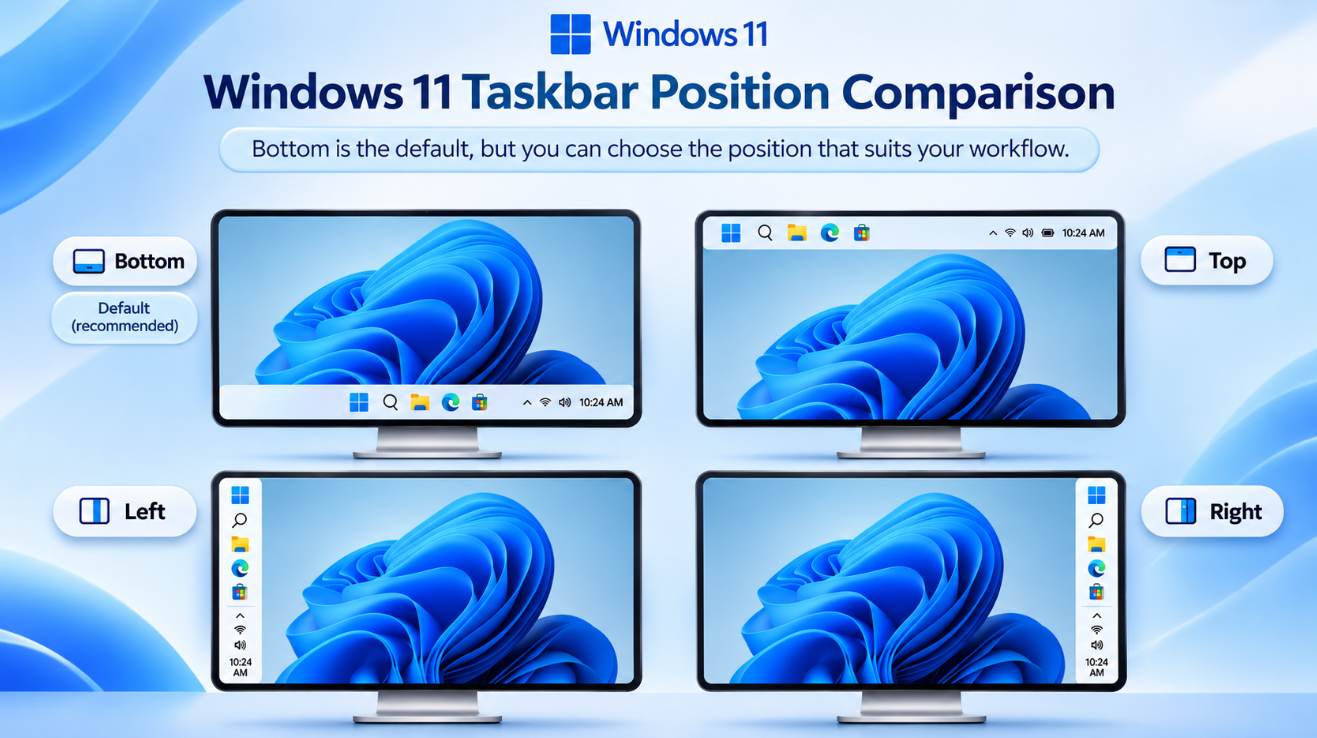
Four-panel comparison showing Windows 11 with bottom, top, left, and right taskbar layouts for easy visual comparison.Is a Vertical Taskbar Better on an Ultrawide Monitor?
It can be.
Modern displays increasingly use wide or ultrawide aspect ratios.
On those displays, horizontal space is plentiful while vertical height is comparatively limited.
Putting the taskbar on the left or right uses some of that spare width instead of taking space away from the height of applications.
This can be useful for:
- Programming
- Web browsing
- Spreadsheets
- Document editing
- File management
- Multitasking
It is mainly a personal preference, but the wider the display, the more practical a vertical taskbar can become.
Can Each Monitor Have a Different Taskbar Position?
This is one area where Microsoft has been more cautious.
During early testing, Microsoft said it was evaluating different taskbar positions per monitor, rather than presenting independent per-monitor positioning as a finished feature.
Recent Windows updates have improved the persistence of taskbar settings across monitor connections and disconnections, but Microsoft has not clearly documented independent taskbar positioning for each monitor as a normal supported option.
So if you use several displays, expect the taskbar positioning system to continue evolving.
Why Don’t I Have the Taskbar Position Setting?
There are several possibilities.
First, check your Windows version.
Press:
Windows key + R
type:
winver
and press Enter.
Microsoft began rolling alternate taskbar positioning into regular Windows 11 builds through its August 2026 updates for versions 24H2 and 25H2.
The feature was also included in later Windows 11 26H1 servicing.
Then open:
Settings → Windows Update → Check for updates
Because Microsoft describes the feature as a gradual rollout, two PCs running similar Windows versions may not necessarily receive the option at exactly the same time.
What If You’re Still on Windows 11 24H2?
Windows 11 24H2 Home and Pro reached the end of support on October 13, 2026.
Microsoft recommends moving to a newer supported Windows 11 release so the PC continues receiving monthly security and quality updates.
The taskbar feature itself began arriving on 24H2, but staying on an unsupported Home or Pro version simply to keep a particular Windows interface is not recommended.
Taskbar Movement Is Part of a Bigger Windows 11 Customization Push
Moving the taskbar is not happening in isolation.
Microsoft has been restoring or adding more personalization controls throughout Windows 11.
Recent examples include:
- Small and large Start menu sizes
- Alternate taskbar positions
- Smaller taskbar
- More flexible context menus
- Lock screen widget customization
- New Start menu controls
That represents a noticeable change from early Windows 11 releases, where many parts of the interface had fewer customization options than Windows 10.
Is Windows 11 Becoming More Like Windows 10 Again?
In some ways, yes.
Microsoft is restoring several customization options Windows 10 users missed.
But the company is not simply rebuilding the Windows 10 taskbar.
The newer Windows 11 implementation keeps:
- Windows 11 styling
- Centered icon support
- Modern Settings controls
- Updated animations
- New taskbar sizing
- Modern flyouts
while restoring flexibility such as top and side positioning.
So it is better described as bringing familiar flexibility into the Windows 11 design rather than reverting completely to Windows 10.
Frequently Asked Questions
Can you move the Windows 11 taskbar now?
Yes. Microsoft now supports bottom, top, left, and right taskbar positions on supported updated Windows 11 systems.
How do I move the Windows 11 taskbar to the top?
Go to:
Settings → Personalization → Taskbar → Taskbar behaviors → Taskbar position → Top
Can Windows 11 have a vertical taskbar?
Yes. Select either Left or Right under Taskbar position.
Can you still center icons with the taskbar at the top?
Yes. Microsoft’s design supports centered or alternative alignment depending on taskbar position.
Does the small taskbar work vertically?
Not currently. Microsoft says the smaller taskbar is presently supported only in the top and bottom positions.
Does Never Combine work on a vertical taskbar?
Yes. Microsoft says most customization options, including never combining taskbar buttons, work across taskbar locations.
Why can’t I move my taskbar?
Your device may not yet have received the gradual feature rollout, or Windows may need updating.
Is moving the Windows 11 taskbar officially supported?
Yes. This is now a Microsoft-built customization option rather than a Registry workaround.
Final Thoughts
The return of Windows 11 Taskbar Move options solves one of the longest-running complaints about Microsoft’s newer operating system.
Users can once again choose:
Top
Bottom
Left
or:
Right
without relying on third-party software.
A top taskbar works well for users who prefer controls near the upper edge of the display, while a vertical taskbar can make excellent use of wide and ultrawide monitors.
There are still some limitations – particularly around the smaller taskbar and Search box in vertical layouts – but Microsoft has already made taskbar customization considerably more flexible than it was when Windows 11 first launched.
If the Taskbar position option has not appeared on your PC yet, install current Windows updates and remember that Microsoft is delivering some of these experiences gradually.
For users who missed Windows 10’s flexible taskbar, one of Windows 11’s most requested features is finally back.
Setting up a new PC or upgrading from Windows Home to Pro? Browse our Windows 11 Pro keys and choose the license that fits your system.