
Software Activation Updates
Windows 11 Smaller Taskbar: How Much Space Does It Save?
Nov
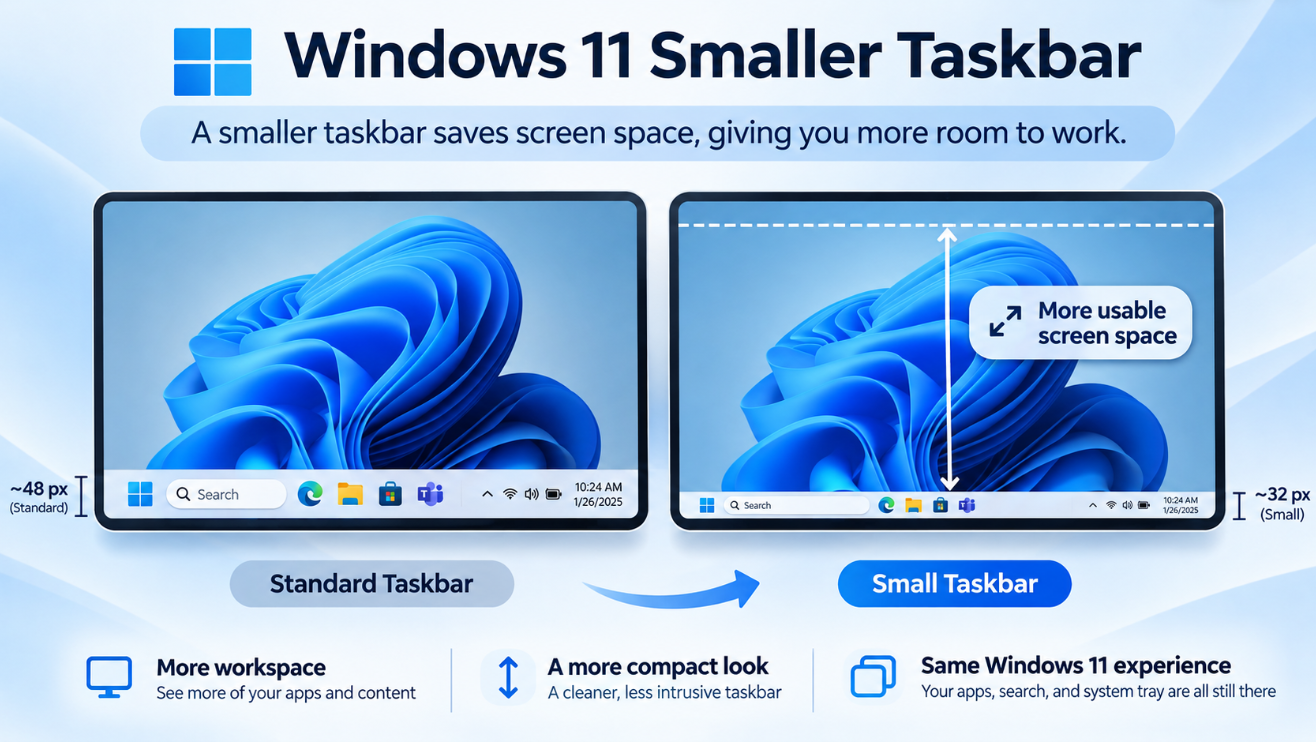
The Windows 11 Smaller Taskbar finally gives users an official way to reclaim some vertical screen space without using Registry modifications or third-party customization tools.
Microsoft’s new compact taskbar reduces both the size of the taskbar icons and the height of the taskbar itself, while keeping important elements such as Start, Search, and the system tray accessible.
That sounds especially useful on smaller laptops, but how much space does it actually save?
The answer is a little less straightforward than you might expect. Microsoft has demonstrated the difference visually but has not published one universal pixel measurement for the height reduction. The visible saving can also depend on your display resolution and scaling.
Even so, the difference is noticeable: the taskbar occupies a thinner strip across the screen, leaving more vertical room for browser pages, Excel worksheets, documents, File Explorer, and other applications.
What Is the Windows 11 Smaller Taskbar?
Windows 11 originally launched with a relatively tall taskbar.
Microsoft says the larger design helped support more taskbar states and features while also providing larger touch targets. On smaller screens, however, that extra height reduces the amount of workspace available to applications.
Microsoft’s solution is a new compact taskbar option.
When enabled:
- Taskbar icons become smaller.
- The entire taskbar becomes shorter.
- Start remains available.
- Search remains available.
- The system tray scales with the smaller design.
- Applications receive slightly more vertical screen space.
The normal taskbar remains the default, so Windows does not automatically make everything smaller.
How to Enable the Smaller Taskbar in Windows 11
Open:
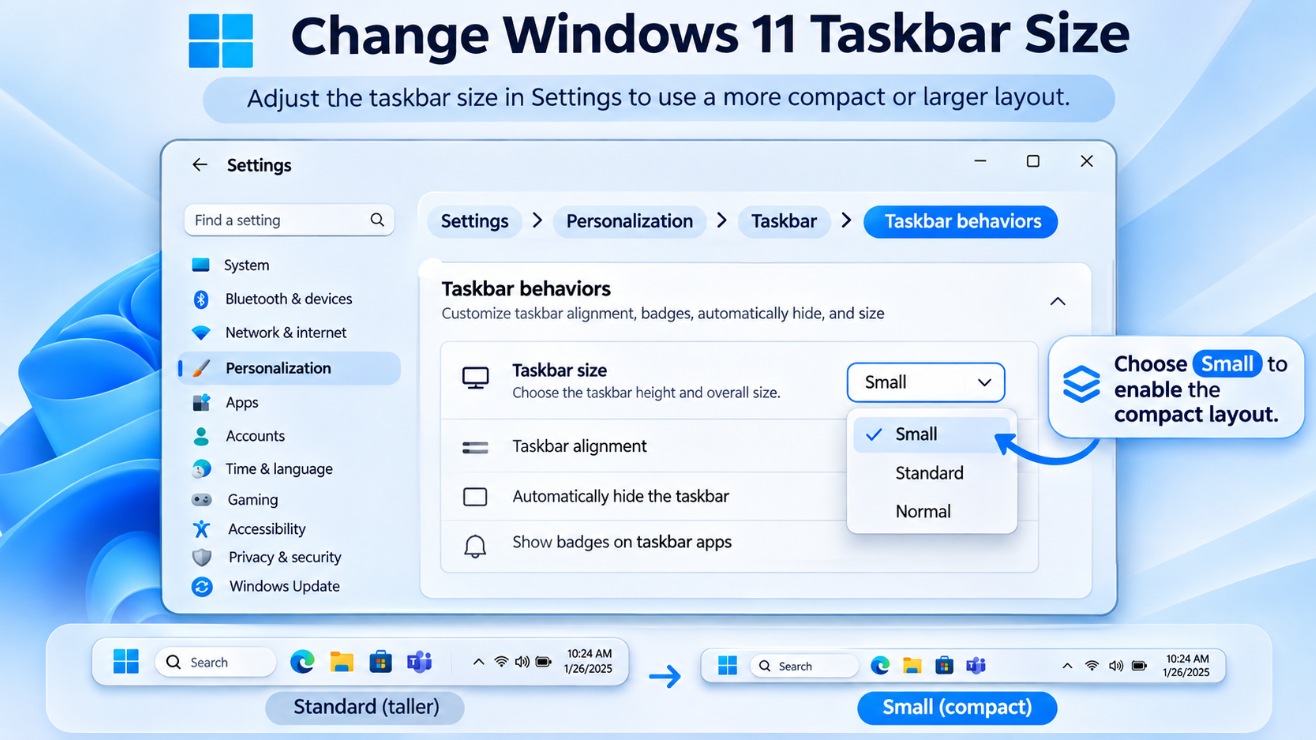
Settings → Personalization → Taskbar → Taskbar behaviors
Then find:
Taskbar size
and choose:
Small
Microsoft says selecting Small reduces both the taskbar icons and taskbar height.
You do not need to edit the Registry.
You also do not need to install a third-party Start menu or taskbar utility.
The change is now built directly into Windows.
How Much Space Does the Smaller Taskbar Actually Save?
Microsoft has not published a fixed measurement such as:
“The taskbar becomes exactly 8 pixels shorter.”
That is important because Windows display scaling can vary between PCs.
For example, one laptop may use:
1920 × 1080 at 125% scaling
while another uses:
2560 × 1600 at 150% scaling
and an external monitor might run at:
3840 × 2160 at 125% scaling.
Because of those differences, a single physical-pixel number would not describe every user’s experience accurately.
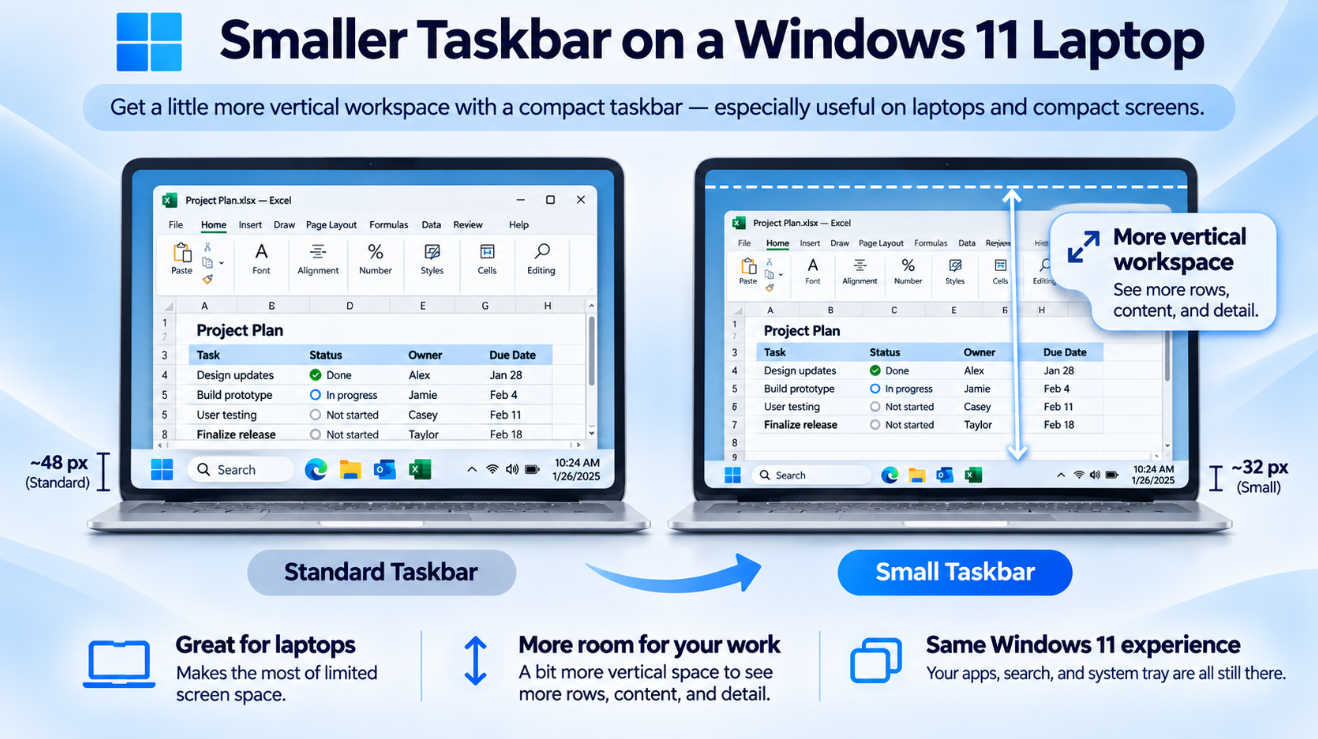
Microsoft instead describes the benefit as a reduced taskbar height that gives applications more usable screen space.
In practical terms, the saving is modest rather than dramatic.
You are not gaining several centimetres of workspace.
Instead, you recover a thin horizontal strip that runs across the full width of the display.
On a large desktop monitor, that difference may not matter much.
On a 13-inch or 14-inch laptop, however, every little bit of vertical space can help.
Why Vertical Space Matters
Modern displays are often wide but relatively short.
A 16:9 screen has considerably more horizontal room than vertical room.
That means UI elements placed at the top and bottom of the screen compete for the limited vertical area.
Consider a typical browser window.
You may already have:
- Browser tabs
- Address bar
- Bookmarks bar
- Website header
- Windows taskbar
all consuming vertical space.
Making the taskbar slightly shorter gives some of that area back to the webpage.
The same applies to:
- Excel rows
- Word documents
- File Explorer
- Coding editors
- Photoshop-style interfaces
- Email applications
- Remote desktop sessions
The benefit becomes more noticeable on smaller displays.
Is It Worth Using on a Laptop?
Probably more than on a large desktop monitor.
Microsoft specifically describes the smaller taskbar as useful for smaller devices where every pixel counts.
A 27-inch monitor already has plenty of usable workspace.
A compact 13-inch laptop does not.
Reducing the taskbar height can therefore make a laptop feel slightly less crowded.
It is particularly useful if you prefer to keep the taskbar permanently visible rather than using Auto-hide.
Small Taskbar vs Small Taskbar Icons: They Are Not the Same Thing
This is worth explaining because Windows has had two different small-taskbar features.
Earlier Windows 11 updates introduced:
Show smaller taskbar buttons
That feature focused primarily on shrinking app icons when the taskbar became crowded.
Users could choose:
- When taskbar is full
- Never
- Always
The idea was to keep more open or pinned applications visible without sending them into an overflow menu.
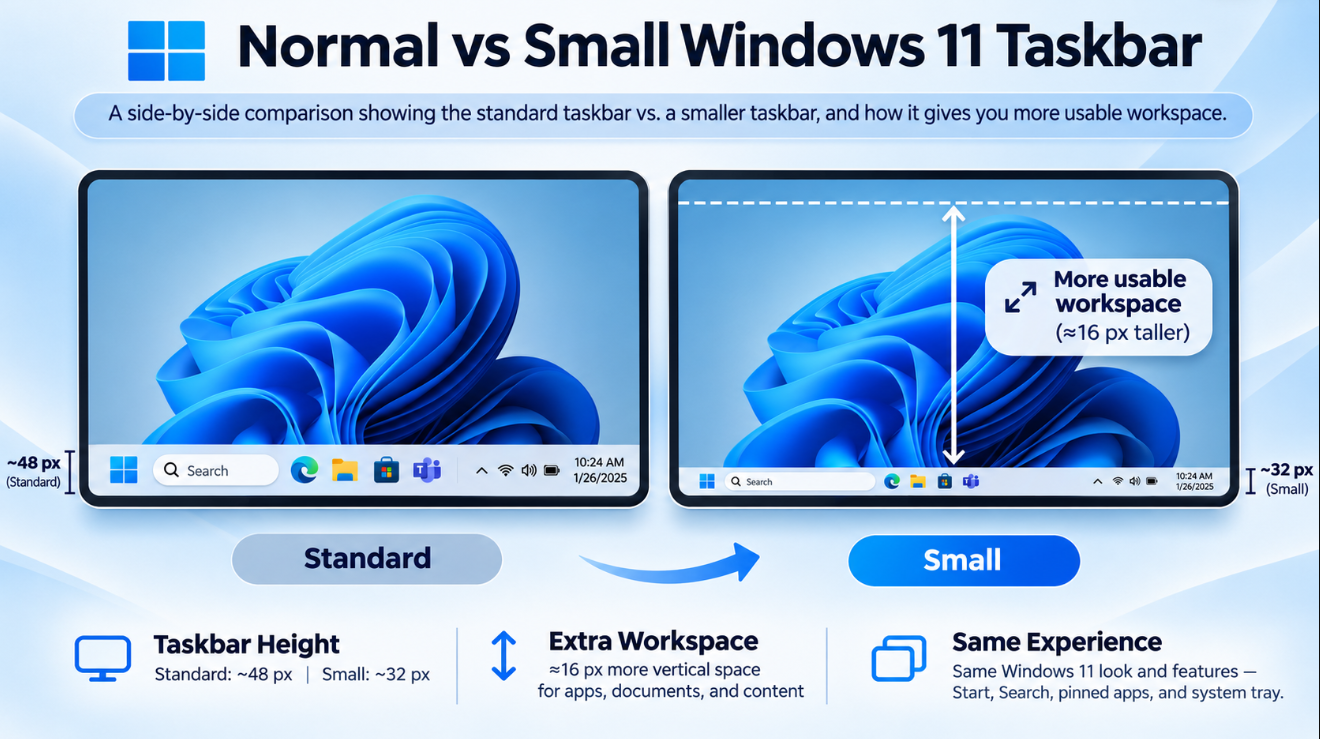
The newer Taskbar size → Small option goes further.
It reduces:
the icons
and:
the actual taskbar height.
That means the newer compact taskbar genuinely gives applications more screen space rather than simply fitting more icons into the same taskbar area.
What Happens to Start and Search?
They remain available.
Microsoft says core taskbar elements scale appropriately with the smaller layout, including:
- Start
- Search
- System tray
so the taskbar remains functional rather than simply compressing everything awkwardly.
The overall appearance should therefore remain familiar.
The main difference is that everything occupies a more compact vertical area.
Does the System Tray Become Smaller Too?
Yes.
The new design scales the system tray as part of the compact taskbar experience.
That includes the area containing items such as:
- Network
- Volume
- Battery
- Clock
- Background application icons
Microsoft specifically says the system tray scales appropriately when the smaller taskbar is enabled.
This is important because simply shrinking app icons while leaving the tray unchanged would prevent Windows from reducing the taskbar height properly.
Does It Work With a Taskbar at the Top?
Yes.
Microsoft currently supports the smaller taskbar when the taskbar is located at:
Bottom
or:
Top.
So you could combine:
Top taskbar + Small size
if you want a compact taskbar along the upper edge of the display.
Does the Smaller Taskbar Work on the Left or Right?
Not currently.
Microsoft’s latest documentation says the smaller taskbar is supported only when the taskbar is positioned at the:
Top
or:
Bottom.
So currently:
Bottom + Small → Supported
Top + Small → Supported
Left + Small → Not supported
Right + Small → Not supported
Microsoft may expand this later, but the current implementation has that limitation.
Can You Use Auto-Hide With the Smaller Taskbar?
Auto-hide is a separate feature.
If your main goal is maximizing screen space, automatically hiding the taskbar still provides a bigger workspace gain because the taskbar disappears entirely when you are not using it.
The smaller taskbar is aimed at a different group of users:
People who want the taskbar always visible, but do not want it consuming as much space.
So the choice is essentially:
Normal taskbar → Largest and easiest to see.
Small taskbar → Always visible, but more compact.
Auto-hide → Maximum workspace when the taskbar is hidden.
For many laptop users, Small may provide the best balance.
Does a Smaller Taskbar Make Windows Harder to Use?
It can, depending on your eyesight, screen size, and input method.
Smaller icons mean smaller targets for the mouse or touchpad.
That may not matter on a traditional desktop PC with a mouse.
But users with:
- Touchscreens
- Vision difficulties
- Very high-resolution displays
- Accessibility requirements
may prefer the normal size.
Microsoft intentionally keeps the normal taskbar as the default rather than switching everyone to the compact version.
Is the Smaller Taskbar Better for Touchscreens?
Not necessarily.
One reason Microsoft originally made the Windows 11 taskbar relatively large was to improve touch targets.
Larger buttons are easier to tap accurately with a finger.
So while the smaller taskbar creates extra screen space, touchscreen users may find the normal taskbar more comfortable.
This is a classic trade-off:
Smaller UI = more workspace
but:
Larger UI = easier interaction
The right choice depends on the device.
Is It Useful for Excel?
Yes, particularly on laptop displays.
Excel is an application where vertical space translates directly into additional visible rows.
Reducing the taskbar height means the workbook window can use slightly more of the display.
The gain is not enormous, but if you regularly work with large spreadsheets, even another small strip of workspace can make the screen feel less cramped.
You can combine the smaller taskbar with other space-saving Excel settings such as hiding the ribbon temporarily when you need maximum worksheet area.
Is It Useful for Web Browsing?
Again, the improvement is small but noticeable on compact displays.
Modern websites often have their own fixed navigation bars at the top of the page.
Browsers already consume additional space for:
- Tabs
- Address bar
- Extensions
- Bookmarks
Reducing the Windows taskbar leaves slightly more room for actual webpage content.
On a high-resolution desktop monitor, you probably will not care.
On a laptop, it can be worthwhile.
Does It Make Windows Faster?
No.
The smaller taskbar is primarily a visual and workspace customization feature.
It does not give the CPU more processing power or free a meaningful amount of RAM.
Choosing Small should therefore not be viewed as a Windows performance optimization.
If your PC feels slow, changing the taskbar height will not solve the underlying problem.
The advantage is simply:
more usable screen area.
Can You Switch Back to the Normal Taskbar?
Yes.
Open:
Settings → Personalization → Taskbar → Taskbar behaviors → Taskbar size
and return to the normal/default option.
Microsoft designed this as a user preference, so there is no permanent change involved.
You can try Small for a few days and switch back if the icons feel too compact.
Why Don’t I Have the Taskbar Size Option?
First, make sure Windows is current.
Microsoft introduced the newer compact taskbar through its 2026 Windows updates, and some features were initially delivered using gradual rollouts.
Open:
Settings → Windows Update → Check for updates
Install available updates and restart the PC.
You can also check your Windows version by pressing:
Windows key + R
then entering:
winver
Microsoft now lists compact taskbar personalization as one of the experiences included with the Windows 11 2026 Update.
Is It Available in Windows 11 26H2?
Yes.
Microsoft’s current Windows 11 2026 Update documentation includes taskbar personalization that lets users choose its screen position and use a more compact layout.
Windows 11 version 26H2 is Microsoft’s current 2026 feature update and includes features that were gradually introduced through earlier servicing updates.
So an updated 26H2 PC is the clearest current target for these new personalization features.
Smaller Taskbar vs Moving the Taskbar
These two changes work together but solve different problems.
Smaller taskbar
reduces how much screen area the taskbar occupies.
Taskbar position
lets you choose whether it appears at the:
- Top
- Bottom
- Left
- Right
For example, if your goal is maximum vertical space, you may actually prefer moving the taskbar to the left or right on a widescreen display.
But if you want to keep the traditional bottom position, switching to Small is the easier option.
Is the Smaller Taskbar Worth Turning On?
For smaller laptops, I think it is worth trying.
The biggest advantages are:
- More vertical screen space
- Less visual bulk
- Smaller taskbar icons
- No Registry changes
- Easy to reverse
- Start, Search, and system tray remain available
The disadvantages are also straightforward:
- Smaller click targets
- Less useful for touchscreen users
- No major benefit on large monitors
- Currently limited to top and bottom taskbar positions
This is not a revolutionary Windows feature.
But it fixes one of those small interface issues users notice every day.
Frequently Asked Questions
How do I make the Windows 11 taskbar smaller?
Open:
Settings → Personalization → Taskbar → Taskbar behaviors → Taskbar size
and select Small.
Does the smaller taskbar reduce its actual height?
Yes. Microsoft says Small reduces both the size of taskbar icons and the height of the taskbar itself.
How many pixels does the smaller taskbar save?
Microsoft has not published one universal pixel figure. The visible difference can depend on factors such as display scaling and resolution.
Is the smaller taskbar available in Windows 11 26H2?
Yes. Microsoft’s Windows 11 2026 Update documentation includes the compact taskbar experience.
Can I use a small vertical taskbar?
Not currently. Microsoft says the smaller taskbar is supported only in the top and bottom positions.
Does the Start button also become smaller?
Microsoft says core elements including Start, Search, and the system tray scale appropriately with the smaller taskbar.
Does it improve PC performance?
No. It is primarily a screen-space and personalization feature.
Is it better than auto-hiding the taskbar?
Auto-hide saves more space because the entire taskbar disappears when unused. Small is better if you want the taskbar visible all the time but more compact.
Final Thoughts
The Windows 11 Smaller Taskbar is a simple change, but it solves a genuine problem on compact displays.
Instead of only shrinking taskbar icons, the newer Small setting reduces the entire taskbar height, leaving more vertical room for your applications.
Microsoft has not published a universal pixel measurement for how much space you gain, so the improvement should not be treated as a fixed number across every display.
The practical difference is more important:
On a large desktop monitor, it is mostly cosmetic.
On a smaller laptop, the extra vertical workspace can make browsing, Excel, Word, File Explorer, and other applications feel a little less crowded.
And because the setting is built directly into Windows, there is little downside to trying it.
Open:
Settings → Personalization → Taskbar → Taskbar behaviors → Taskbar size
select Small, use it for a while, and switch back if you prefer the larger controls.
Setting up a new PC or upgrading your Windows edition? Browse our Windows 11 keys and choose the license that fits your system.