
Instructions
Windows Search Indexing: What Is It and Should You Change It?
Sep
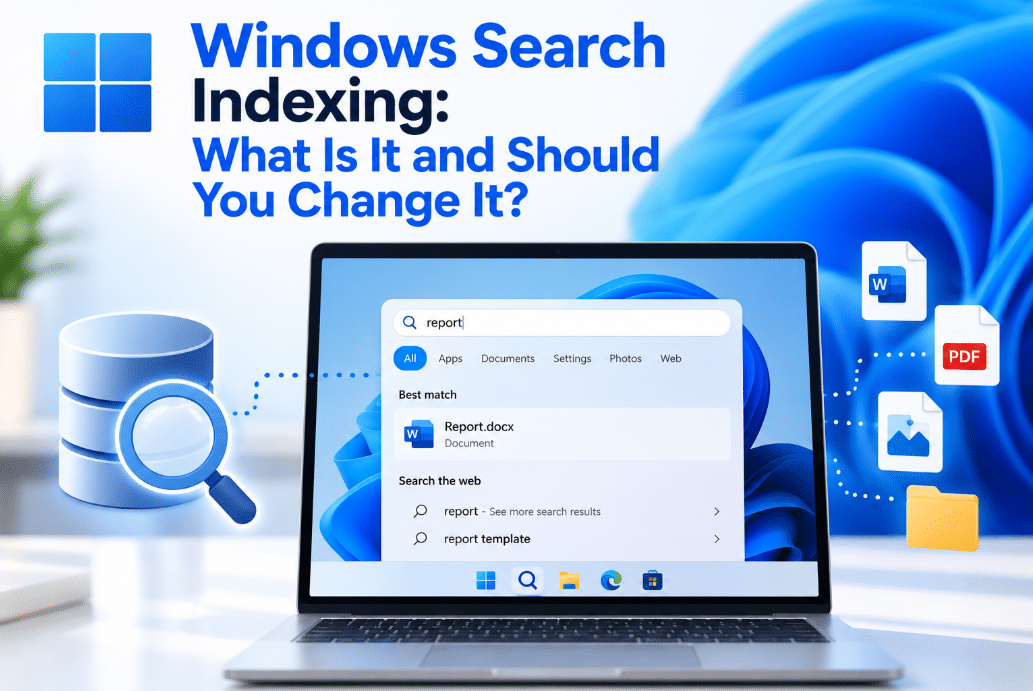
Have you ever searched for a file in Windows 11 and received the result almost instantly? Windows Search indexing is one of the reasons that happens.
Instead of checking every file on your PC each time you search, Windows creates an index containing information about your files. Search can then check this index and return results much faster.
What Is Windows Search Indexing?
Indexing is similar to the index at the back of a book.
Windows examines supported files and stores information such as:
- File names
- File paths
- File properties
- Dates
- Metadata
- Text inside supported documents
When you search for something, Windows can look through this catalog instead of scanning the entire drive from the beginning.
For supported text files, Windows can even index the contents so you can search for a word inside a document, not just its filename.
Does Indexing Constantly Scan Your PC?
Not exactly.
The initial indexing process can take some time, particularly if your PC contains many files.
After the first index is built, Windows mainly monitors changes and updates the index when files are added, removed, or modified. This process normally happens in the background.
You may notice more activity immediately after setting up a new PC or changing your indexing settings.
Classic vs Enhanced Search
Windows offers two main indexing modes:
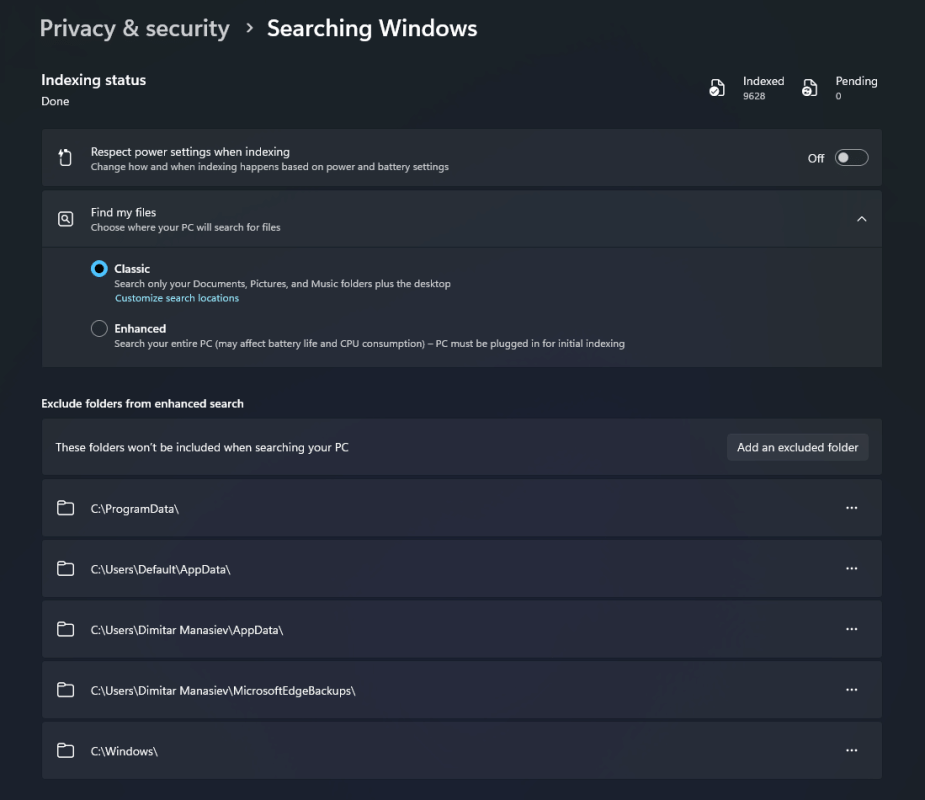
Classic
Classic mode focuses mainly on common locations such as:
- Documents
- Pictures
- Music
- Desktop
This provides a balance between fast searching and lower resource usage.
You can also manually add other folders you want Windows to index.
Enhanced
Enhanced mode indexes a much larger portion of your PC, including files across your user folders.
This can make files stored in unusual locations easier to find, but Microsoft notes that it may use more CPU resources and battery power.
Where Are Windows Search Indexing Settings?
Open:
Settings → Privacy & security → Search
On some Windows 11 builds, you may see this area referred to as Searching Windows.
Look for Find my files, where you can choose between Classic and Enhanced indexing.
You can also access advanced indexing options to choose specific folders and file types.
Should You Switch to Enhanced?
It depends on how you organize your files.
Enhanced may be useful if:
- You store files in many different folders
- You regularly search across your entire PC
- Search often fails to find files outside Documents or Desktop
- You have a fast PC and don’t mind some extra background activity
Classic may be better if:
- Most of your files are in standard folders
- You use a laptop and want to reduce unnecessary battery usage
- You rarely search the entire drive
- You prefer lower background resource usage
For many users, Classic mode is completely sufficient.
Can You Add Just One Folder Instead?
Yes.
You don’t necessarily need to switch your entire PC to Enhanced mode.
With Classic mode selected, open the advanced indexing options and choose Modify.
You can then add specific locations you want Windows to index.
This can be a good compromise if you have one work folder or secondary location that Windows Search currently misses.
Does Search Indexing Use Storage Space?
Yes, but usually not a huge amount.
Windows stores the index locally on your PC.
Microsoft says a rough rule is that the index is usually less than 10% of the size of the indexed files, although collections containing many very small files can create a proportionally larger index.
If storage space is limited, excluding folders containing huge numbers of small files can help.
Can Indexing Slow Down Your PC?
During initial indexing, Windows may use some CPU and disk resources.
After the index is built, the impact is usually much smaller because Windows mainly processes files that have changed.
On slower computers, indexing an unnecessarily large number of files can still create extra background activity.
If you notice performance problems, consider returning to Classic mode or excluding folders you rarely search.
What If Windows Search Cannot Find a File?
If a file should appear but doesn’t, check whether its folder is included in the index.
You can also review:
Settings → Privacy & security → Search
and open the advanced indexing options.
Windows includes troubleshooting options for search and indexing if results continue to be missing.
What About Copilot+ PCs?
Copilot+ PCs can also use semantic indexing alongside traditional indexing.
This lets Windows understand related concepts rather than relying entirely on exact keywords. For example, searching for one concept can return related documents or images even if they don’t contain exactly the same word.
Microsoft says this semantic index is stored locally on the PC.
This is separate from the basic indexing experience available on normal Windows 11 PCs.
Final Thoughts
Windows Search indexing makes finding files faster by creating a searchable catalog of information stored on your PC.
For most users, the default Classic mode works well.
If you frequently store files outside the usual Documents, Pictures, Music, and Desktop folders, you can either add those folders manually or switch to Enhanced indexing.
There is usually no reason to change the settings unless Windows Search regularly fails to find the files you need.
Need Windows 11 for your PC? Explore our Windows 11 keys and choose the right edition for your computer today.