
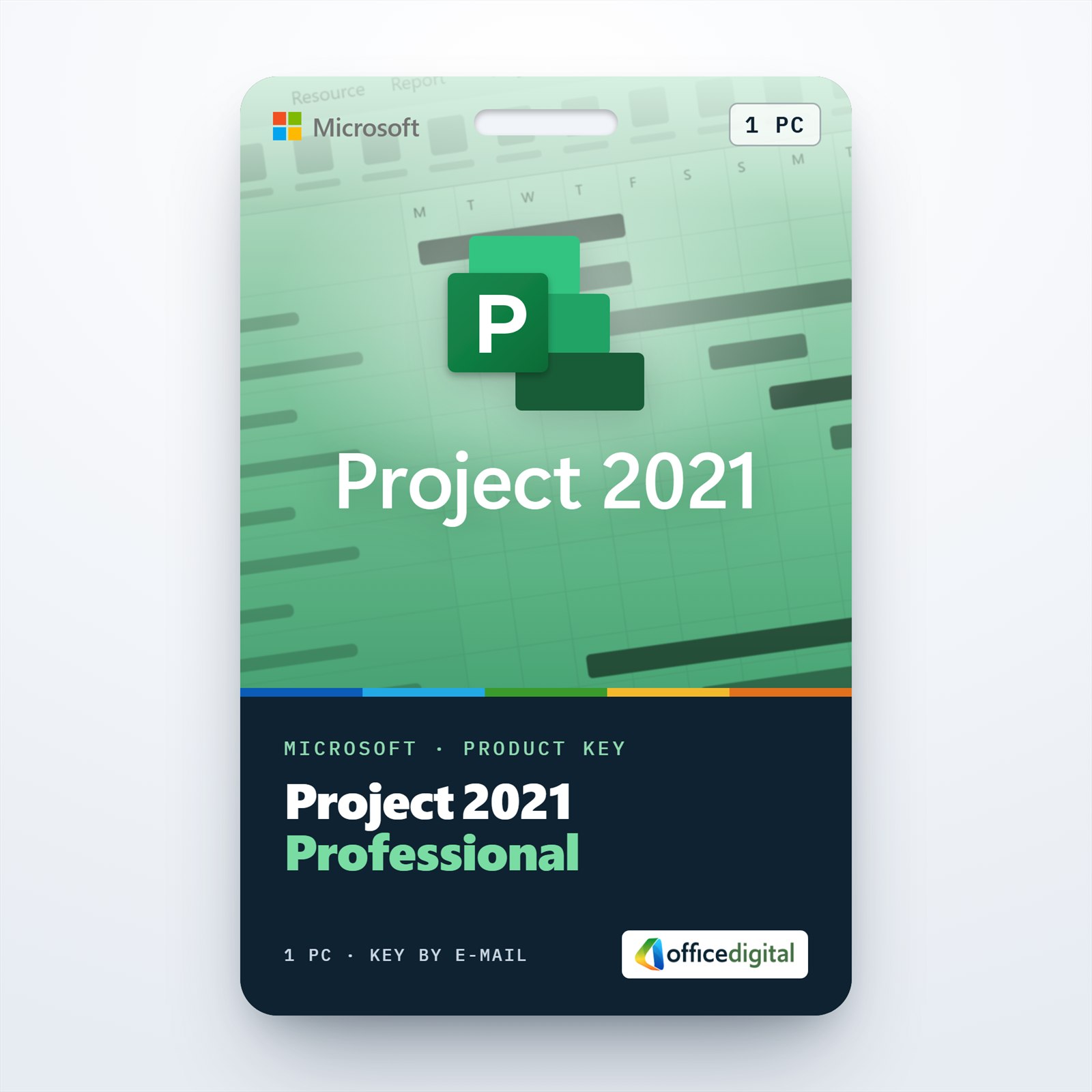
Project 2021 Professional (1PC) License
- License
- Retail · 1 PC
- Delivery
- Instant, by e-mail
- Download
- Official Microsoft
- Brand
- Microsoft
€26,00
One-time payment · no subscription
- Instant delivery to your e-mailkey + download links
- Key won't activate? We replace itunused keys: refund within 7 days
- Official invoice with every order
- 24/7 live chat help with activation
Project 2021 Professional for one PC with Windows 10 or 11, with Team Planner and the option to connect to Project Server. Redeemed on Microsoft’s setup page; a one-time purchase.
What you get with Project 2021 Professional
Project 2021 Professional (1PC) is Microsoft’s desktop project management app, licensed for one computer running Windows 10 or Windows 11. Compared with Project Standard 2021, it adds Team Planner and the connection to Project Server. The order e-mail brings the key, the link to Microsoft’s download and our setup steps once payment clears, usually within a few minutes, plus a PDF invoice. You pay for it once; nothing renews.

Planning tools in Project 2021 Professional
- The same schedule can be viewed as a Gantt Chart, Network Diagram, Calendar or Timeline, and the critical path is highlighted.
- A baseline stores the approved plan, so later you can set planned dates and costs against the actual ones.
- Resource leveling shifts assignments to remove overallocations, and a resource pool covers people who work on more than one project.
- Team Planner, which only the Professional edition has, places each person’s assignments side by side on one timeline.
- A plan can be started from an Excel workbook, and project data can be exported back to Excel.
- Microsoft lists Project Professional 2021 among the desktop clients that connect to Project Server Subscription Edition.
One PC, five PCs or the 2024 release
This license covers a single computer. If several planners in your office need the app, the Project 2021 Professional (5PC) License covers five machines in one order. Buyers who want the release Microsoft sells today can choose Project Professional 2024 instead. Project 2021 is the better match when the rest of your team already works in it.
How to activate Project 2021 Professional
- Point your browser to setup.office.com and click Get Started.
- Log in with the Microsoft account you want to keep the license on; if you have none yet, Microsoft lets you create one there.
- Paste in the product key from the order e-mail, choose Next, pick your language and select Redeem. Your browser then downloads the Project 2021 setup file.
- Open the setup file, confirm the Windows security prompt and let the installer finish.
- Launch Project and wait a few seconds for the Activation Wizard. Select the Internet option, then Next, and Project 2021 Professional is activated.
Our Project 2021 installation guide has a screenshot of each step. Should activation not complete, our 24/7 live chat or e-mail support takes over.
System requirements
| Operating system | Windows 10 or Windows 11; Server 2019, 2022 or 2025 |
|---|---|
| Processor | Two cores, 1.1 GHz minimum |
| Memory | 4 GB RAM |
| Hard disk | 4 GB free space |
| Display | 1280 × 768; 64-bit Project for 4K and above |
| Graphics | DirectX 9 or later for hardware acceleration |
| Other | .NET 3.5 or 4.6+ for some features; a Microsoft account |
Questions about Project 2021 Professional
Can a colleague on Project 2019 open my plans?
Yes. Project 2021, 2019, 2016, 2013 and 2010 share one file format, so an .mpp file saved in this version opens in any of them.
Do I need Project Server to use it?
No. Schedules, Team Planner, baselines and reports all work with .mpp files saved on your own PC; the server connection is optional.
Does Project 2021 run on a MacBook?
Not natively. Microsoft releases Project 2021 for Windows only, and the Mac edition of Office 2021 contains no Project app.
Can I return the key if I picked the wrong edition?
As long as it hasn’t been redeemed, you can ask for a refund within 7 days; the details are in our refund policy.
1 review for Project 2021 Professional (1PC) License
Add a review
You must be logged in to post a review.
- Genuine Retail licenses. Every key is a genuine license that activates with Microsoft, or with ESET or Avast for antivirus. Unless the License line next to the price says OEM, it is a Retail license.
- Replacement if a key won't activate. Contact our support on live chat or by e-mail, day or night: we help you finish the activation or send a replacement key.
- Refund for unused keys. A key that has not been redeemed can be refunded within 7 calendar days of purchase, as set out in our Refund Policy.
- Invoice and instructions. Every order comes with a PDF invoice and instructions to download, install and activate the software.
You may also need

João Vaz Martins (verified owner) –
Gosto e uso muito.